Pearson Arc Secure Browser Extension for PRoPL
Learn how to add and remove the Pearson Arc Secure Browser Extension to ensure proper student access to PRoPL assessments.
- Customer Support
- PreK-12
- Classroom Teacher
- School Administrator
- Elementary School
- Middle School
- High School
- Direct Login & Auto-Rostering
- Direct Login & Manual-Rostering
- SSO & Auto-Rostering
- SSO & Manual-Rostering
- Core
- Supplemental
- Literacy
- Math
- CA Reveal Math (K-12)
- Reveal Math (K-12)
- McGraw Hill Literacy Emerge!
- McGraw Hill Literacy Summit!
- McGraw Hill Literacy Soar!
- ALEKS
- Online Assessments
- Browser Device Compatibility
- Troubleshooting


View the demo in a separate tab.
View the Spanish version of the demo.
Article Contents
Installation on Individual Devices
Remove from Individual Devices
Overview of Browser Extension
The Pearson Arc Secure Browser Extension is a lightweight, privacy-first Chrome extension that enables secure, distraction-free assessment delivery directly from a school’s Learning Management System (LMS). It is designed to simplify the testing experience for students while ensuring test integrity without the need for complex lockdown software.
Key Features and Expected Behavior
When a student launches an Arc-compatible assessment the extension:
- Restricts access to other browser tabs, windows, and external applications.
- Runs in full-screen mode to minimize distractions.
- Monitors session activity and notifies proctors of breaches.
- Automatically returns students to the test in the secure environment if focus on the testing window is lost.
- Displays breach alerts and locks the test after repeated loss of focus on the testing window.
The Pearson Arc Browser Extension is required for delivery of the PRoPL assessments to students. Teachers do not need to install the extension to view the teacher dashboards for test administration and reporting.
When students start their PRoPL assessment from the student dashboard, the Arc Secure Browser Extension will launch automatically and place the student into the Assessment Start screen.
If the Arc Browser Extension is not installed, the student will receive an on-screen message alerting them of the need to install the extension before they can begin testing, even if they are only trying to access the practice assessment.
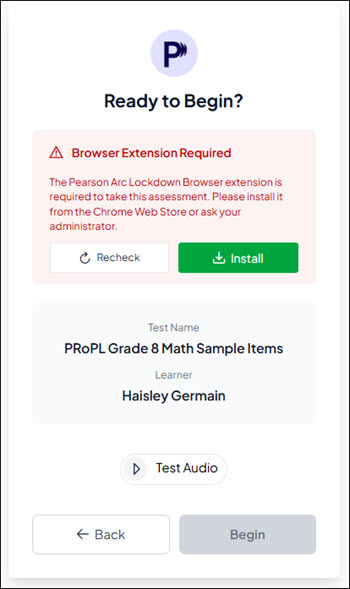
Student Navigation Outside of PRoPL Assessment
Once the assessment has launched, if the student attempts to open another application, or navigate to another browser window, the action is prevented, and focus on the test window is regained.
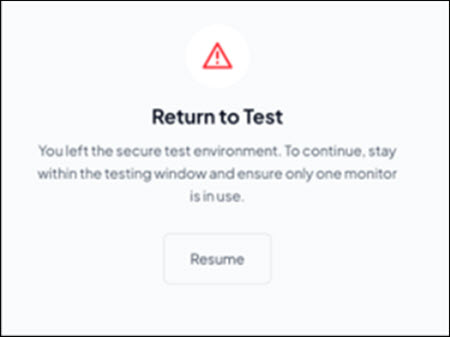
The first two times a student leaves the test and tries to return, it kicks them out of the test, but gives them a button to resume. The third time will result in the student being kicked out of the test and the resume button will disappear. The proctor must then allow the student to resume by selecting the appropriate option from the proctor screen.
Device Requirements
The Arc Secure Browser Extension is designed to be compatible with the following devices and operating system and web browser combinations:
| Device | Operating System | Browser |
|---|---|---|
| Chromebooks | ChromeOS: Latest three versions | Chrome browser version 138.0.7204.158 or later. |
MacBooks Mac Desktop |
MacOS: Version 13 or newer | Chrome browser version 138.0.7204.158 or later. Note: The Safari browser is not currently compatible. |
Windows Laptop Windows Desktop |
Windows 10 or 11 | Chrome browser version 138.0.7204.158 or later. Edge browser |
| iPad | Latest version supported by TestNav | TestNav App |
Installation on Individual Devices
1. On the supported device, navigate to the Chrome Web Store.
2. Search for Pearson Arc Browser Extension or navigate to the option by clicking this link: Pearson Arc Browser Extension.
3. For Chrome browser users, click the Add to Chrome button.
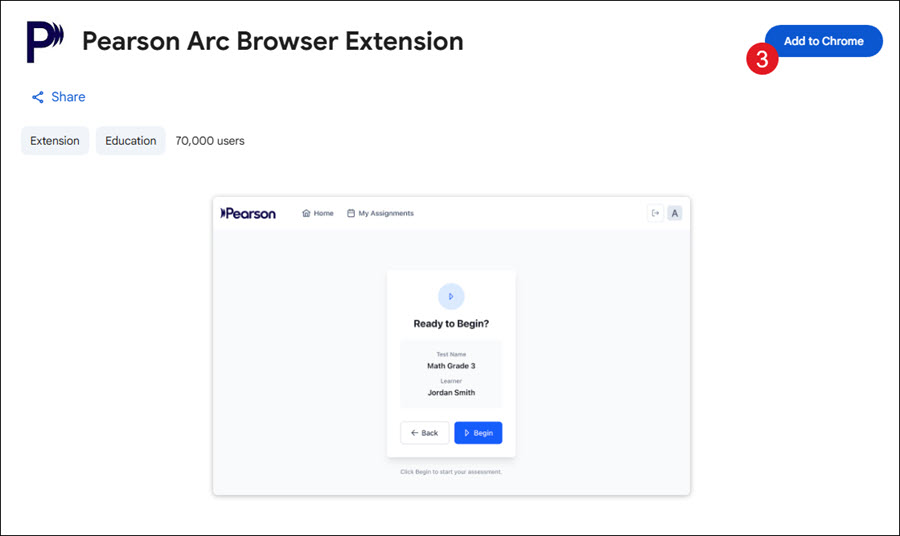
For Edge browser users, click the Get extension button at the top.
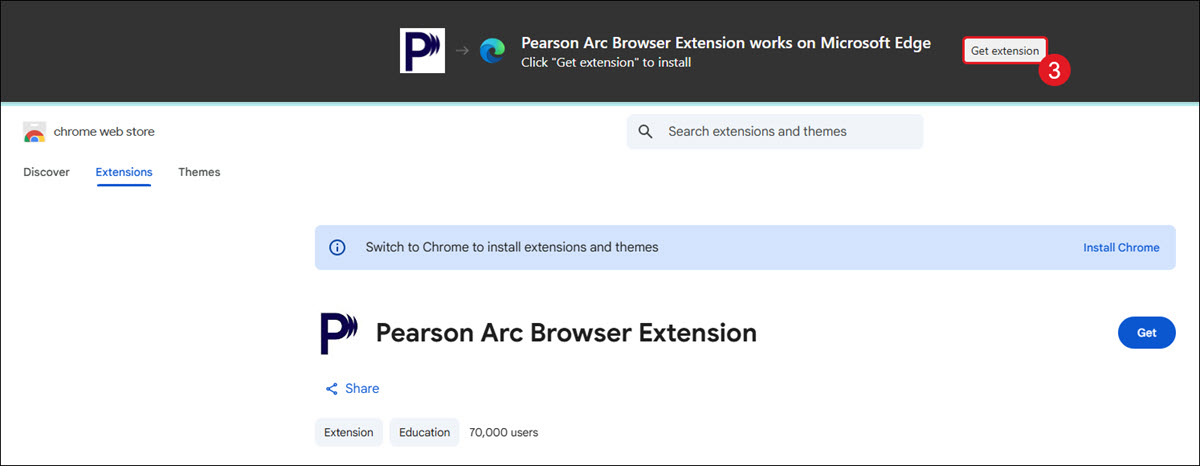
Note: If it does not allow you to install the extension for either Chrome or Edge, you will want to make sure you have the latest browser version installed.
4. On the Add "Pearson Arc Browser Extension" pop-up, click the Add Extension button.
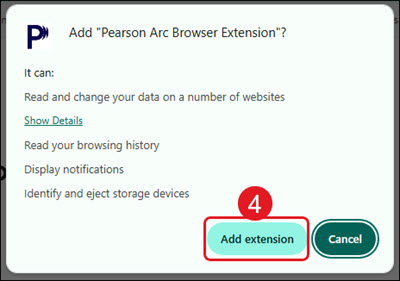
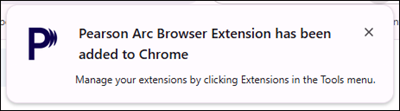
Once installed, a success message will appear.
Remove from Individual Devices
1. On the supported device, navigate to the Chrome Web Store.
2. Search for Pearson Arc Browser Extension or navigate to the option by clicking this link: Pearson Arc Browser Extension.
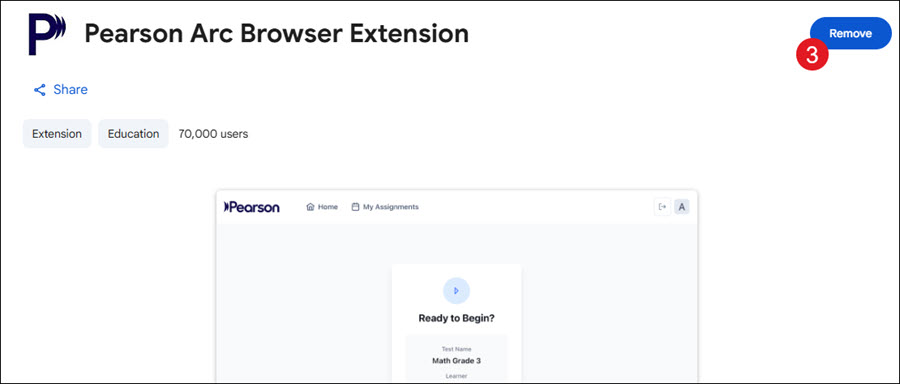
3. For Chrome browser users, click the Remove from Chrome button.
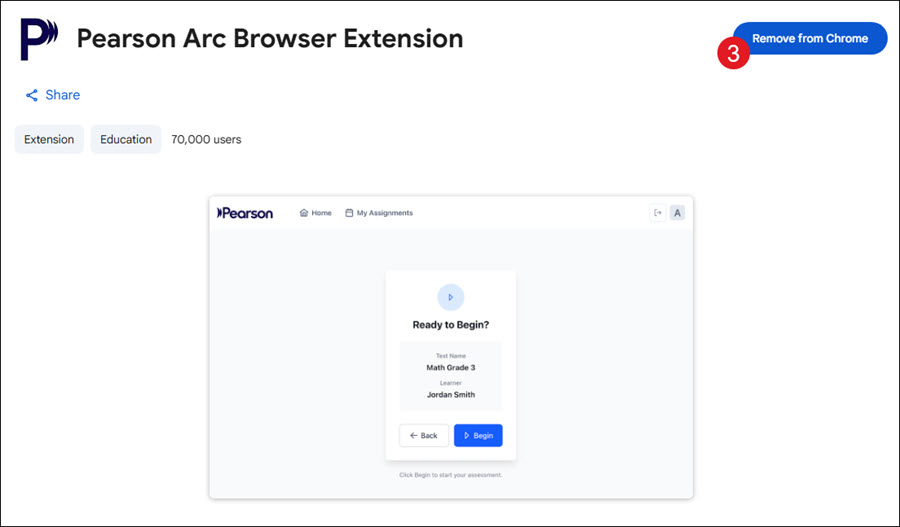
For Edge browser users, click the Remove button.
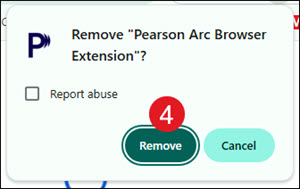
4. On the Remove pop-up, click the Remove button.