PRoPL Practice Tests
Learn about the available practice tests for PRoPL.
- Customer Support
- PreK-12
- Classroom Teacher
- Elementary School
- Middle School
- High School
- Direct Login & Auto-Rostering
- Direct Login & Manual-Rostering
- SSO & Auto-Rostering
- SSO & Manual-Rostering
- Core
- Supplemental
- Literacy
- Math
- CA Reveal Math (K-12)
- Reveal Math (K-12)
- McGraw Hill Literacy Emerge!
- McGraw Hill Literacy Summit!
- McGraw Hill Literacy Soar!
- ALEKS
- Online Assessments


View the demo in a separate tab.
View the Spanish version of the demo.
Pearson Review of Progress & Learning (PRoPL) practice tests are available to all students and are designed to help students become familiar with the item types and digital interactions they will encounter during the actual assessment. The practice test consists entirely of non-secure items and does not impact the student scores.
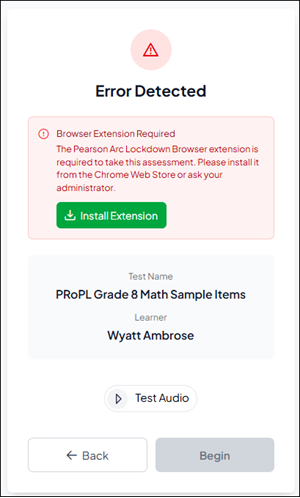
Pearson Arc Secure Browser Extension
To access any of the PRoPL assessments, the secure browser extension must be installed on the student device. This step is to ensure that the required extension is functioning properly prior to testing day, reducing the likelihood of technical issues during the secure assessment.
The Secure Browser Extension can be downloaded directly from the student experience.
Test administrators are encouraged to verify that all devices have the secure browser extension installed and operational before students begin the practice test.
Access Practice Test
1. SSO or sign in at my.mheducation.com.
2. Launch PRoPL.
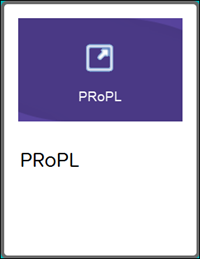
For grades K-5, click on the PRoPL tile from your Home screen.
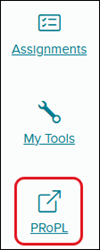
For grades 6-8, click on PRoPL from your navigation menu.
The assessment program will open in a separate browser tab.
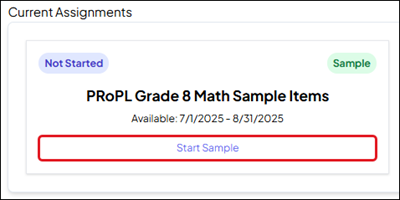
3. Under Current Assignments, click the Start Sample button.