New ALEKS Adventure Administrator Standards Reports
Review standards-aligned performance in the ALEKS Adventure administrator Standards report.
- PreK-12
- Customer Support
- School Administrator
- Elementary School
- Direct Login & Auto-Rostering
- Direct Login & Manual-Rostering
- SSO & Auto-Rostering
- SSO & Manual-Rostering
- Supplemental
- Math
- ALEKS Adventure
- Reports & Analytics


The class-level Standards Report shows the average student completion of standards-aligned ALEKS Adventure topics in the class. It can be used to monitor students' progress in state standards based on their completion of standards-aligned ALEKS topics in Knowledge Checks and Learning Mode.
This report is different from the ALEKS Administrator District Standards Reports.
Article Contents
Access Standards Report
1. SSO or sign in at my.mheducation.com.
You may need to toggle between roles and organizations to get to your administrator tools.
2. Launch ALEKS from your left-side navigation menu in your administrator tools.
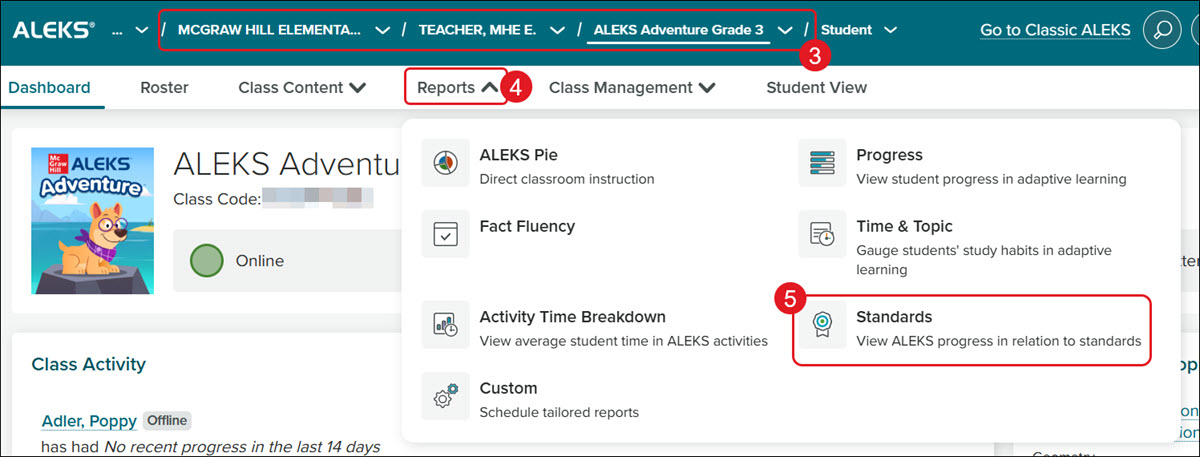
3. Select the School, Teacher, and Class from the drop-downs.
4. Click on Reports.
5. Click Standards from the menu.
Class Standards Report
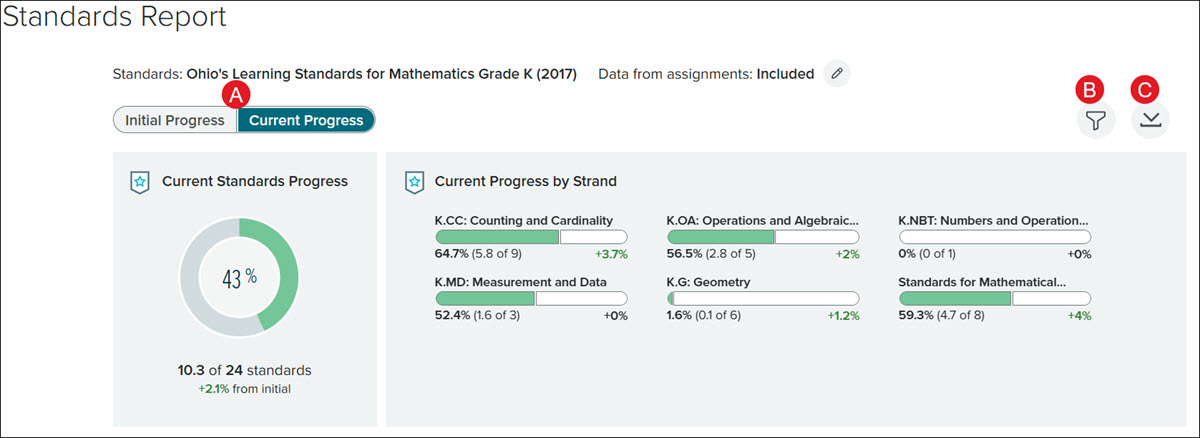
A. Use the toggle to change the report view between Initial Progress and Current Progress.
B. Click the Filters icon to select to view the report for a specific group of students and/or time spent in the class.
C. Click the Download icon to download the report into a CSV file.
The color indicators gauge the students' completion of the ALEKS topics that align with each standard and pinpoint strengths and gaps.

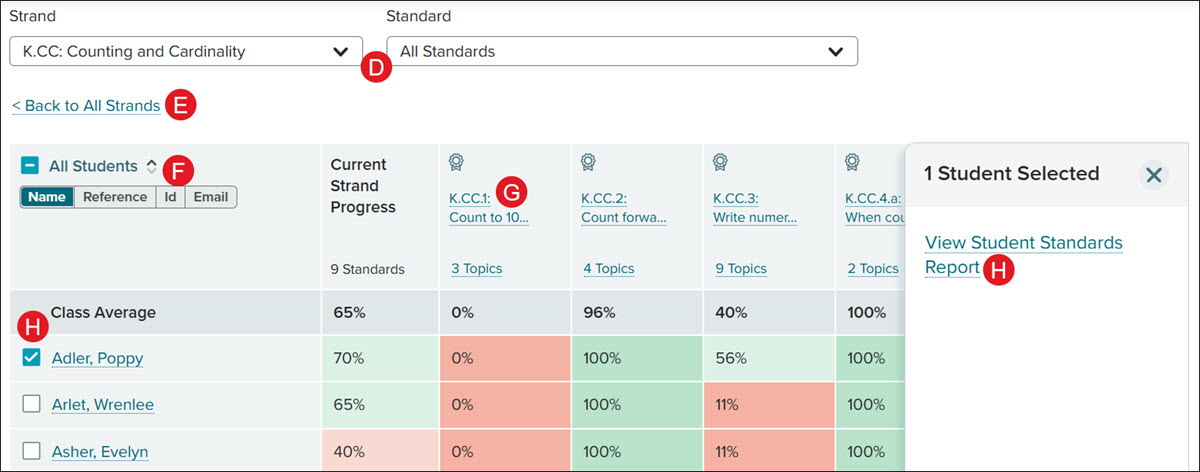
D. Choose a Strand from the drop-down to filter down to that specific strand in the report. The table updates to display each student's current progress in the strand and the standards within the strand.
Choose a Standard by using the drop-down menu or clicking the name of the standard in the table. The Standard drop-down does not show until a strand is chosen.
E. Click the Back to All Strands link to remove drop-down selections.
F. Select to view the list of students by Name, Login, ID, or Email.
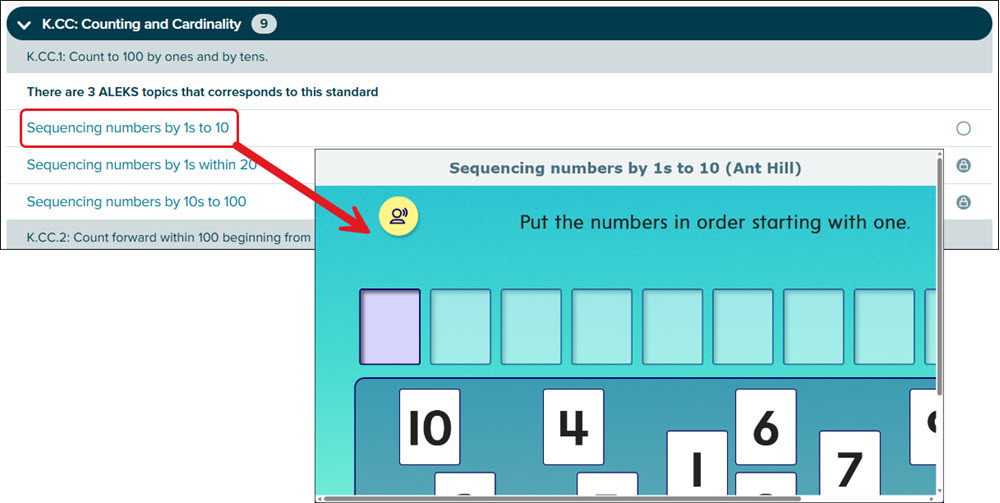
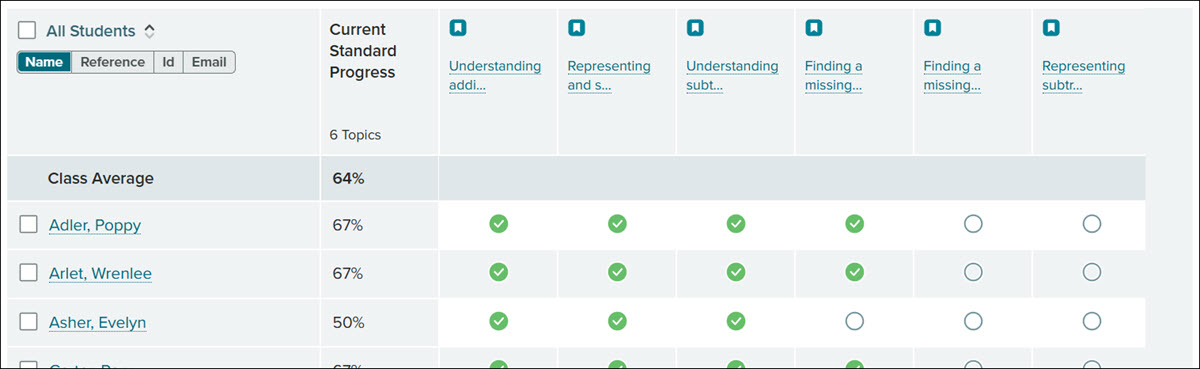
G. Click on the Standard or Topics link to narrow down the report to that specific standard and the topics that are linked to that standard.

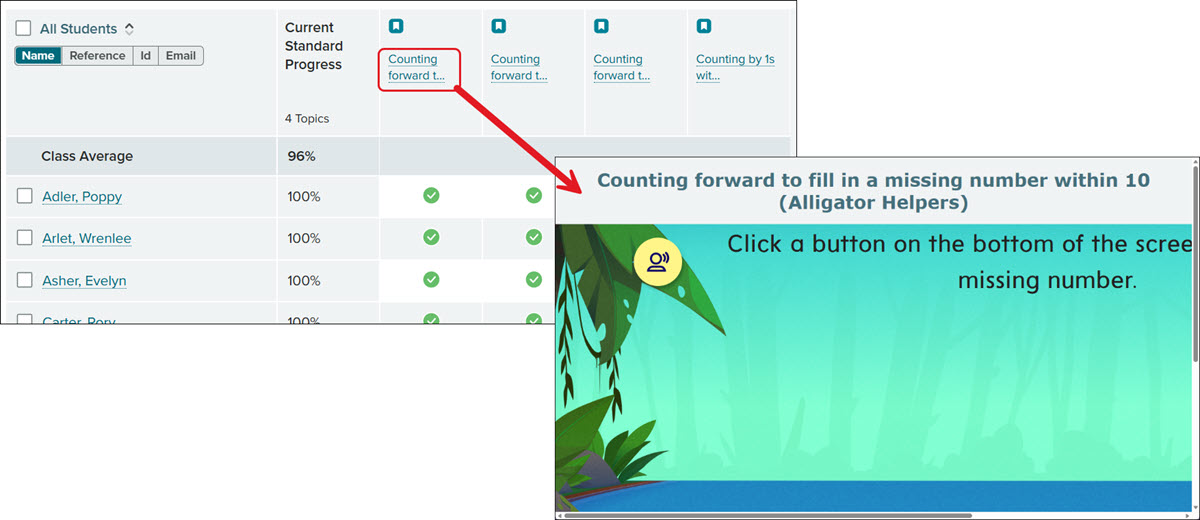
Click on a link in one of the columns to open an example question the students would receive.
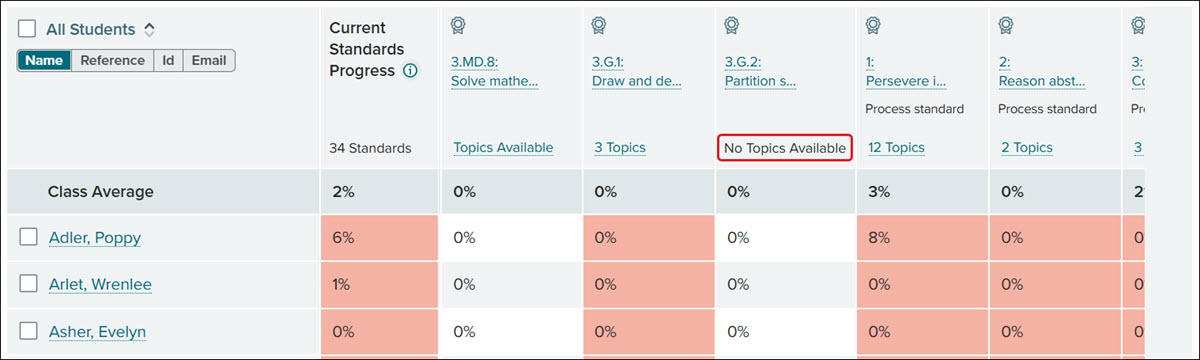
If there are no associated topics, you will see a No Topics Available note in the column.
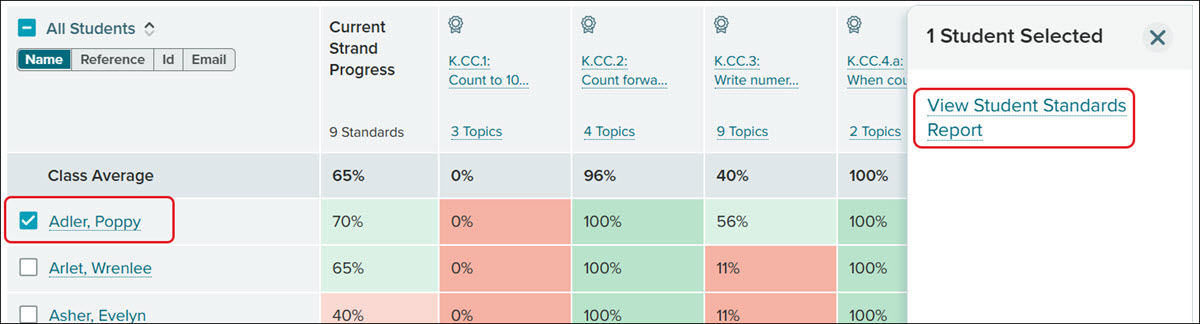
H. Checkmark a student to navigate to the Student Standards Report.
Student Standards Report
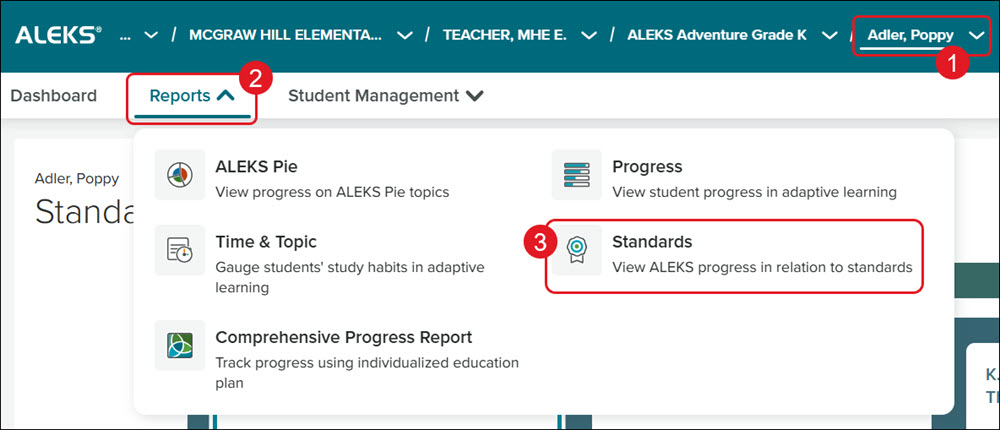
1. Select the Student from the drop-down.
2. Click on Reports.
3. Click Standards from the menu.
Another option is to checkmark the student from the class Standard report and click the View Student Standards Report link from the pop-in panel.
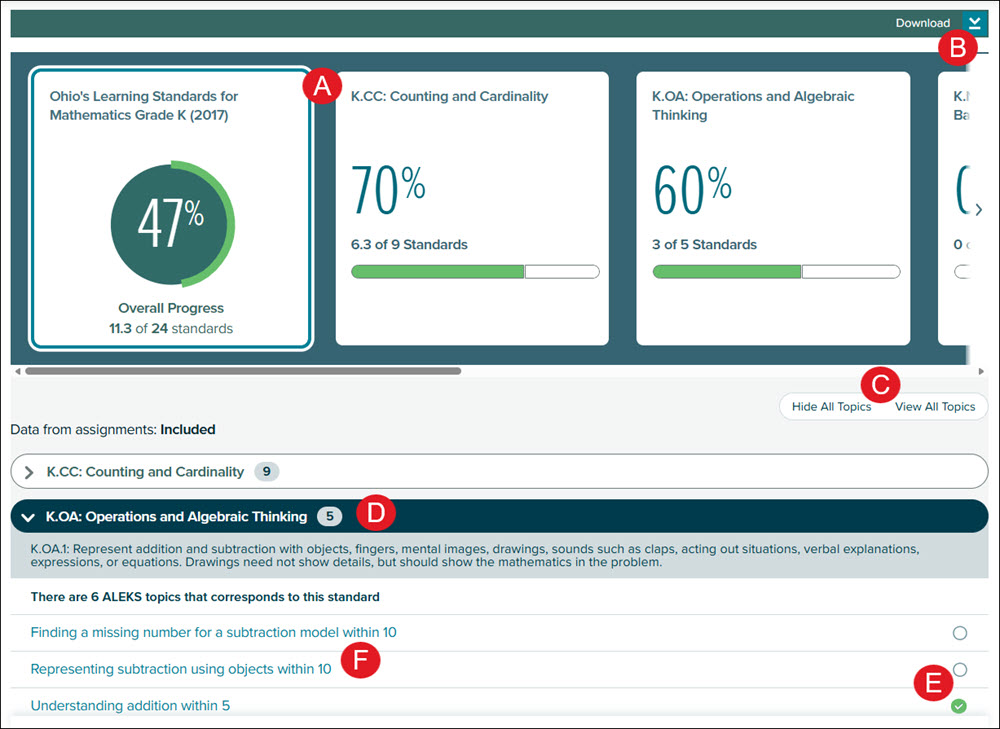
A. Click on a tile to filter the report view to that specific topic.
B. Click the Download button to download the report into a PDF.
C. Use the toggle to open and close the topic blades at once.
D. Click a topic blade to expand the section. Each section will include the standards associated with and the problems for the topic that corresponds with the standard.
E. To the right of each question, you will see an empty or filled-in circle, indicating if the student has completed that question or not.
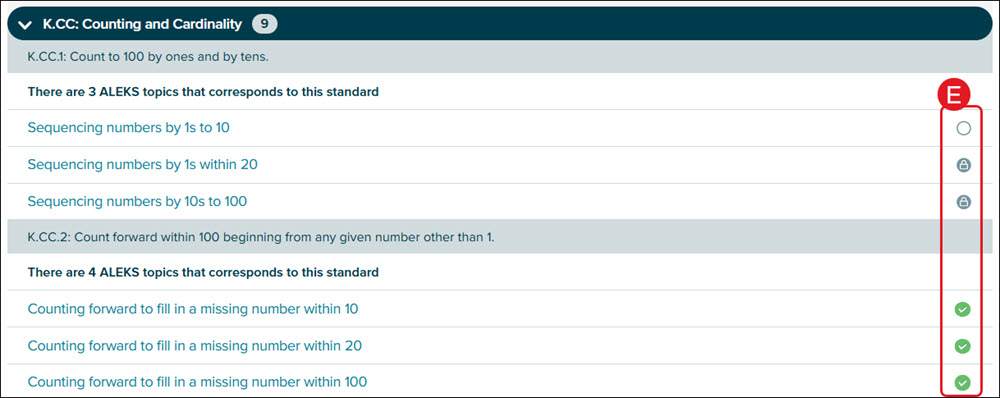

If there are no questions available, there will be a See your instructor note.
F. Click on a question to open an example.