ALEKS Administrator District Standards Reports
Review the ALEKS and ALEKS Adventure administrator district Standards report for standards-aligned performance insights.
- PreK-12
- Customer Support
- School Administrator
- Elementary School
- Middle School
- High School
- Direct Login & Auto-Rostering
- Direct Login & Manual-Rostering
- SSO & Auto-Rostering
- SSO & Manual-Rostering
- Supplemental
- Math
- ALEKS
- ALEKS Adventure
- Reports & Analytics


View the demo in a separate tab.
View the Spanish version of the demo.
District administrators can create tailored reports to track districtwide progress in state standards for ALEKS and ALEKS Adventure courses.
Easily monitor growth in your district’s priority standards, uncover trends, and spotlight classrooms or teachers who are excelling—or may need a little extra support. Empower your district with the insights to celebrate successes and drive meaningful progress!
Note: This version of the Standards report is not available from the Classic ALEKS view.
Article Contents
Access Reports
1. SSO or log in at my.mheducation.com.
You may need to toggle between roles and organizations to get to your administrator tools.
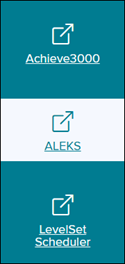
2. Click on ALEKS from the navigation menu.
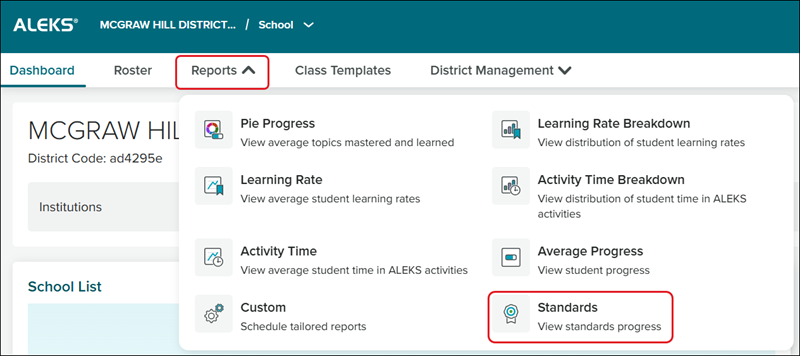
3. Click on Reports.
4. Click on Standards from the menu.
Create Reports
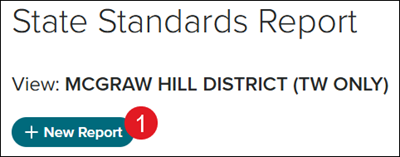
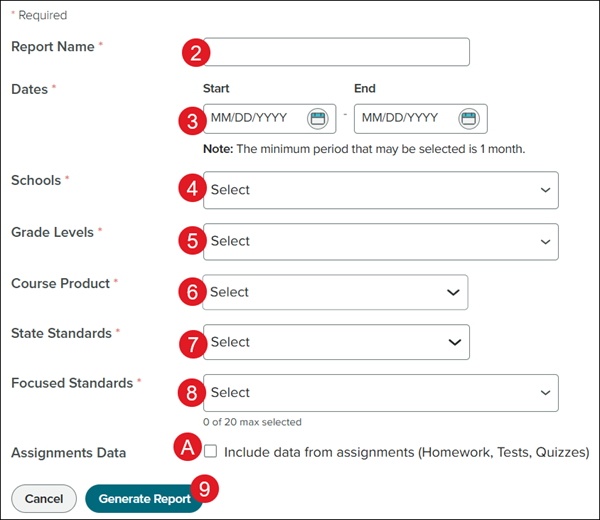
1. Click the +New Report button.
2. Enter a Report Name.
3. Select the Start and End Dates by clicking on each calendar icon.
View standards progress from the beginning date to the ending date for the period selected. In general, the report will be most useful if the dates coincide with the beginning and ending of the school year.
Note: The minimum period that may be selected is one month.
4. Select the Schools from the drop-down.
5. Select the Grade Levels.
6. Select the associated Course Product.
7. Select the State Standards.
8. Select the Focused Standards you want included in the report. You can select up to 20 individual standards.
Note: The State Standards and Focused Standards options only shows after selecting a Course Product.
A. To include Assignments Data, check the Include data from assignments box.
Note: Assignments are not currently supported for ALEKS Adventure classes.
9. Click the Generate Report button.
View Reports
Depending on the amount of data included, the report could take a few hours to up to 24 hours to generate.
The report does not start processing until after the selected End Date has passed.
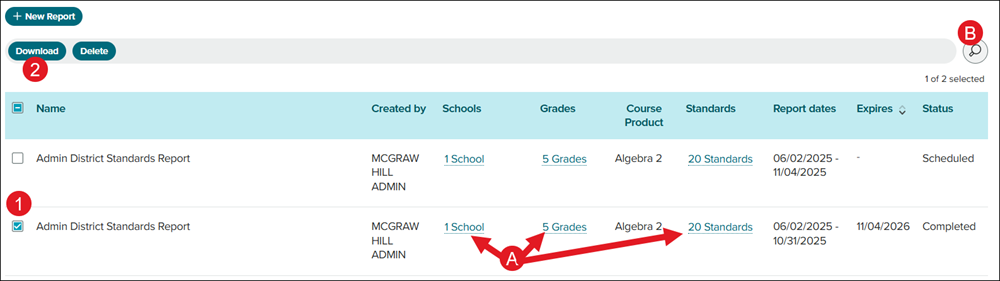
1. Check the box next to the report you want to download.
Currently, you can only download one report at a time.
2. Click the Download button.
A. Click on the Schools, Grades, and Standards links to view the selections made for those sections.
B. Click the magnifying glass to search for a specific report.
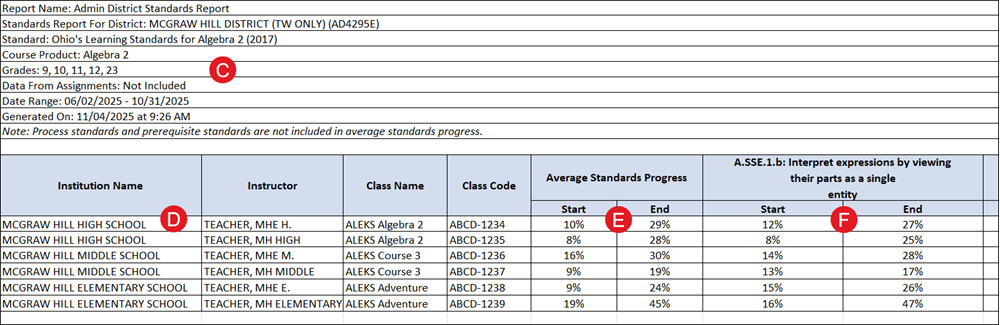
C. All selected options when creating the report will be included.
D. Each class and instructor will have their own row.
E. An Average Standards Progress for the start and end of progress for each class.
F. Each selected standard displays a progress at start percentage and an end percentage based on the report dates chosen.
Delete Reports
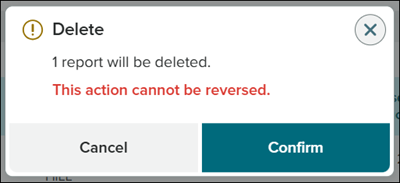
If a report is deleted, the only option to get it back is to create a new report.
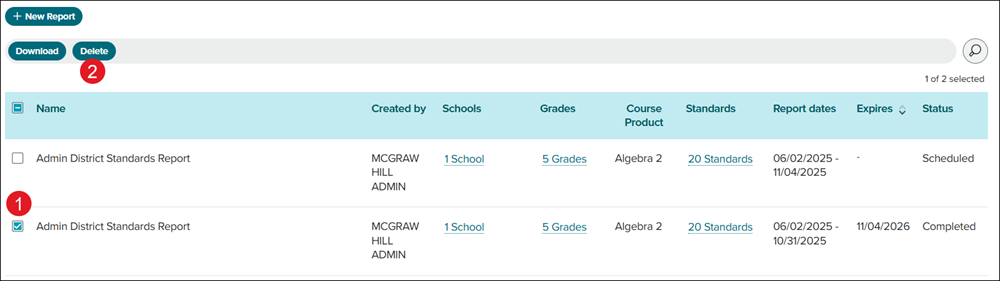
1. Check the box next to the report you want to delete.
2. Click the Delete button.
3. On the Delete pop-up, click the Confirm button.