
New ALEKS Adventure Administrator Pie Reports
View ALEKS Adventure administrator Pie reports to view the average rate of learning for a class.
- PreK-12
- Customer Support
- School Administrator
- Elementary School
- Direct Login & Auto-Rostering
- Direct Login & Manual-Rostering
- SSO & Auto-Rostering
- SSO & Manual-Rostering
- Supplemental
- Math
- ALEKS Adventure
- Reports & Analytics


The ALEKS Pie Report shows the average rate of learning for a class. With this report, you can view which topics students have mastered or learned, are ready to learn, and the number of remaining topics a student has left.
Article Contents
Access Pie Report
1. SSO or sign in at my.mheducation.com.
You may need to toggle between roles and organizations to get to your administrator tools.
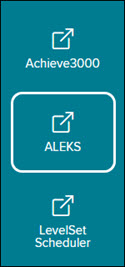
2. Launch ALEKS from your left-side navigation menu in your admin tools.
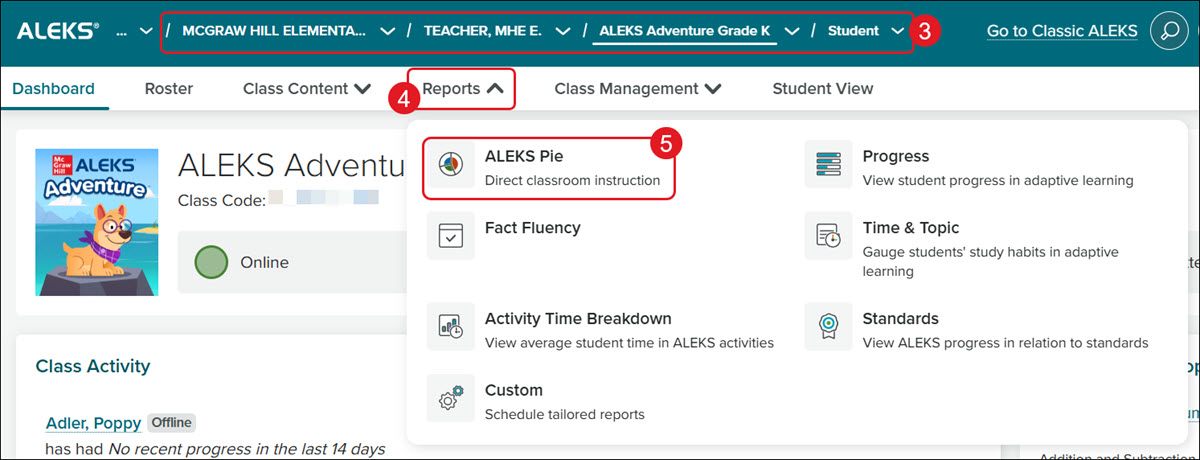
3. Select the School, Teacher, and Class from the drop-downs.
4. Click on Reports.
5. Click ALEKS Pie from the menu.
Class Pie Report
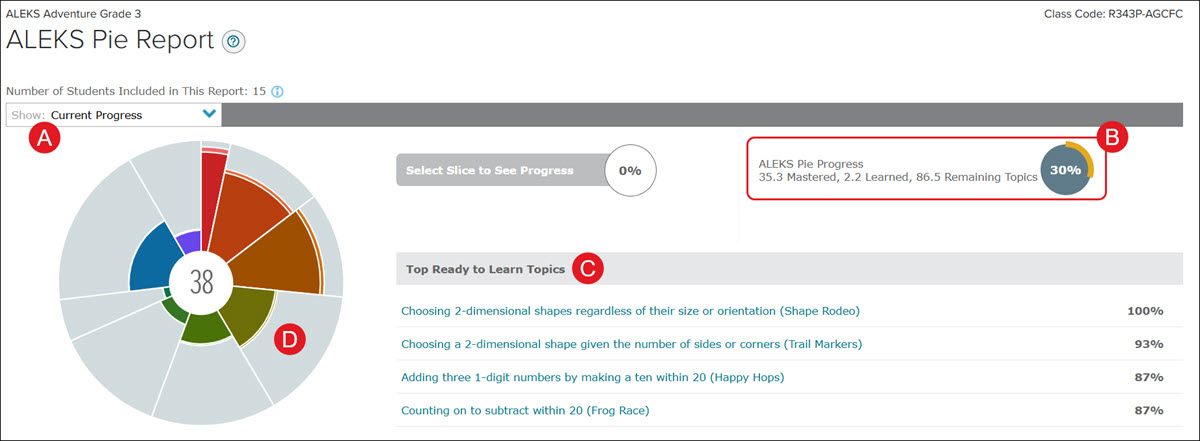
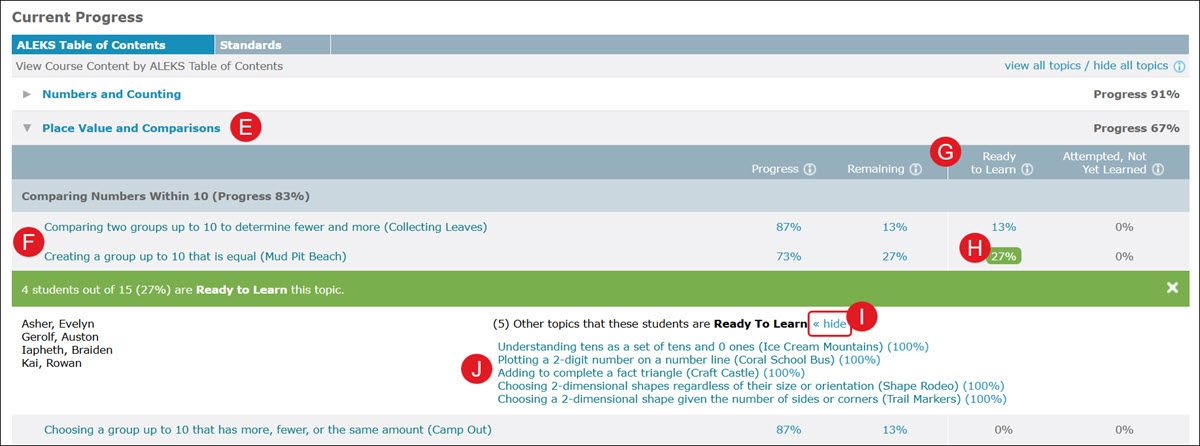
A. The default view of the Pie Report, and the one used most often is Current Progress, as it's designed to give real-time information about what students are ready to learn.
B. The ALEKS Pie Progress section at the top right of the report shows information about your class as a whole.
C. The topics with the highest percentage of students ready to learn are listed next, under Top Ready to Learn Topics.
D. Hover over a slice of the pie to narrow the report view down to that specific section.
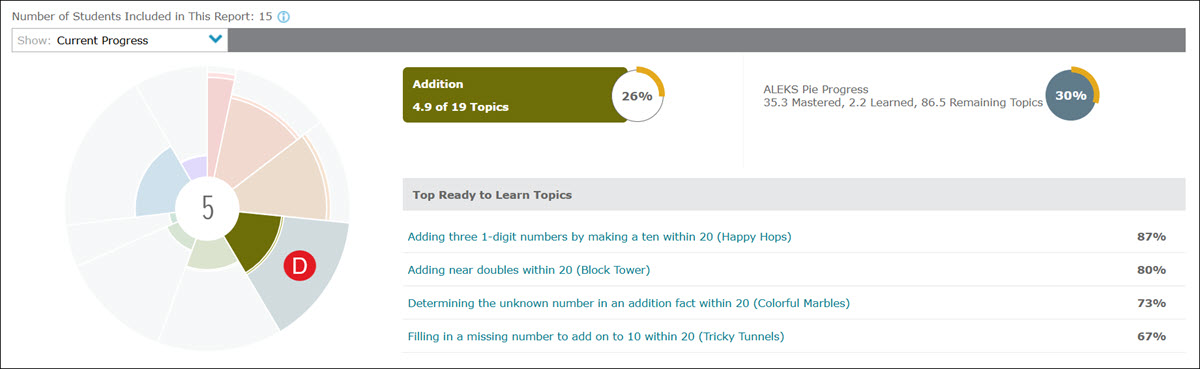
E. Click on a strand to expand the section for more detail about each topic provided for that strand.
F. Click on the name of the topic to view an example problem. It allows you to generate as many new demonstration problems as you need.
G. The four columns on the right provide information about the class:
- Progress - Students who have already learned or mastered the topic.
- Remaining - Those who have not learned the topic yet.
- Ready to Learn - Students who have not learned the topic yet, but who have the prerequisite skills to be successful in learning the topic.
- Attempted, Not Yet Learned - Students who have worked on the topic but have not learned it yet.
H. Click on the percentage in a column to view the names of the students for that category.
I. In the Ready to Learn column, click Show/Hide to expand/collapse the list of additional topics the listed students are set to learn.
J. Click on a link listed to open an example problem they would see.
Student Pie Report
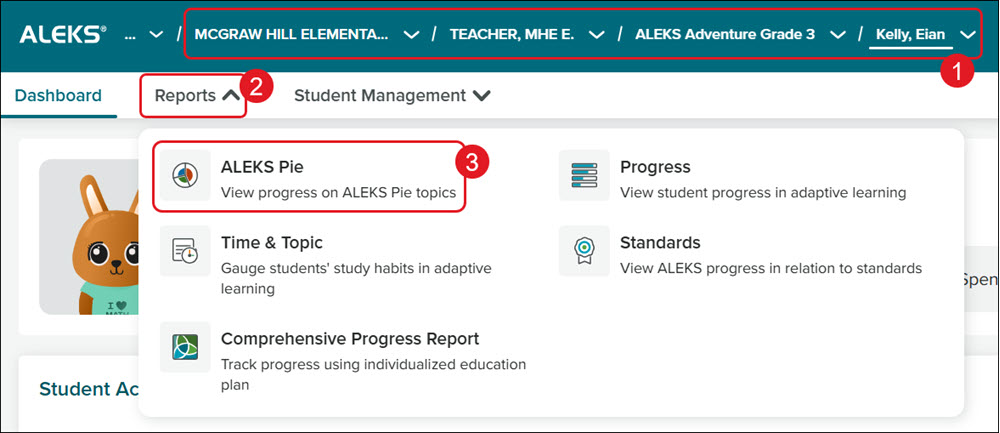
1. Select the School, Teacher, Class, and Student from the drop-downs.
2. Click on Reports.
3. Click ALEKS Pie from the menu.
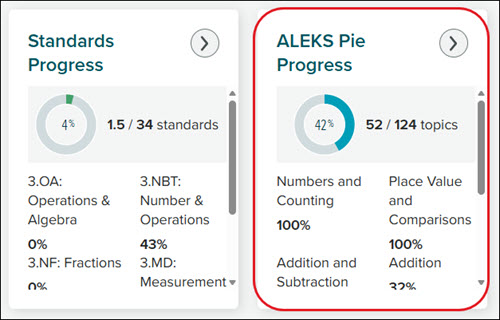
You can also click the arrow button on the student's ALEKS Pie Progress tile on the Dashboard.
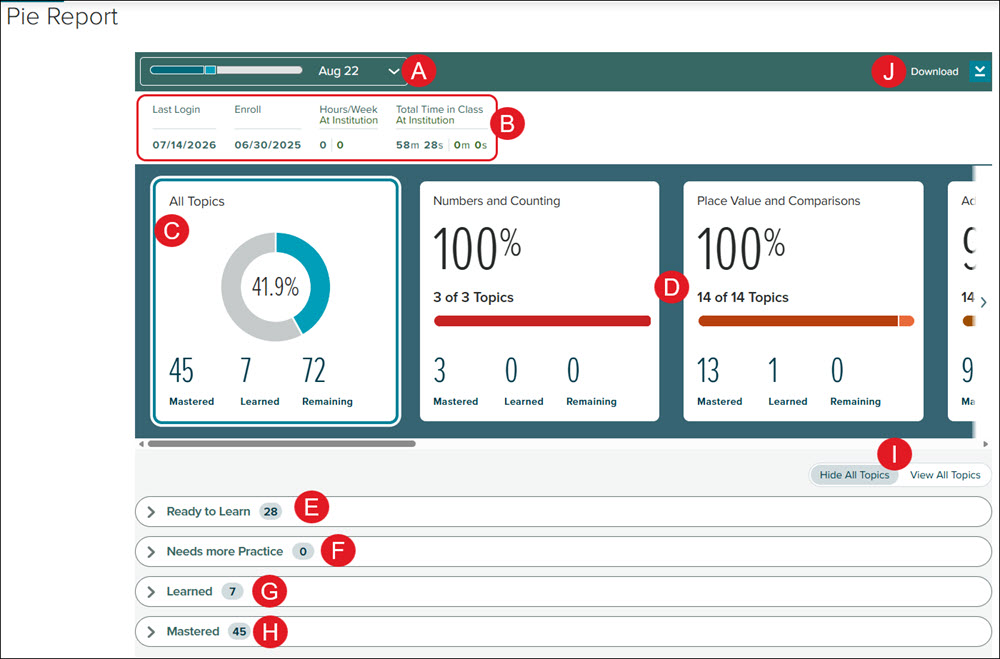
A. Click the arrow to select a specific Knowledge Check to view the report.
B. The report shows the Last Login, the date the student Enrolled in the class, the Hours per Week they spent in the program, and the Total Time spent in the program.
C. The All Topics tile shows Mastered, Learned, and Remaining topics, which are also listed in the table below.
D. The additional tiles are a breakdown per slice in the Pie.
E. Ready to Learn topics are available to the student in Learning Mode because the student has the necessary prerequisite knowledge to learn these topics.
F. Needs More Practice is part of the Just-in-Time Review feature introduced to improve learning outcomes. Topics are added to this menu when a student incorrectly answers a question on a Progress Knowledge Check for a topic they had previously learned.
G. Learned means the student has demonstrated an understanding of these topics in Learning Mode but hasn't yet mastered them in an assessment. An upcoming assessment will determine whether each topic becomes Mastered or if the student needs to learn them again.
H. Mastered means the student has demonstrated consistent mastery of these topics in the Learning Mode and/or Knowledge Checks.
Click on a link in an extended blade to open an example problem.
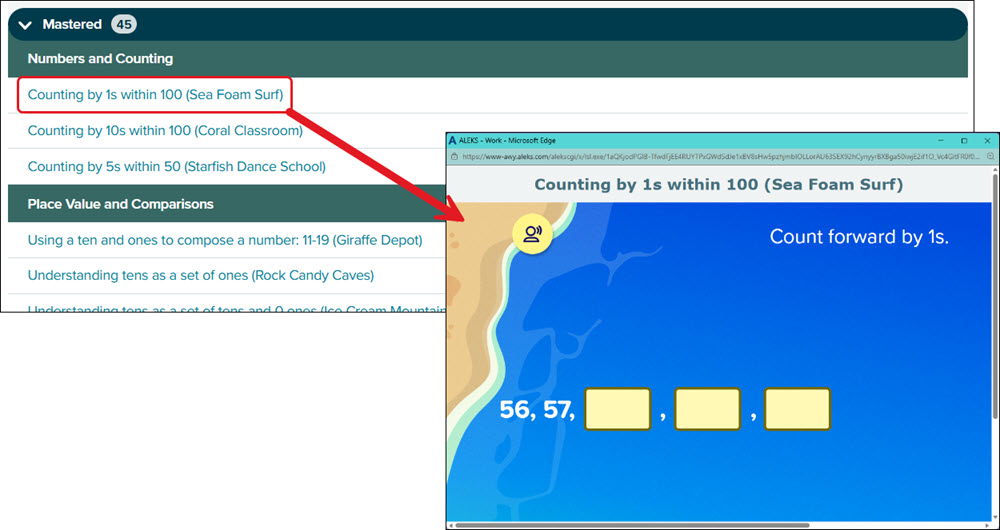
I. Click Hide All Topics or View All Topics to expand/collapse all blades at once.
J. Click Download to save/print the current report view.
