
Manage Purchased McGraw Hill Products
Manage product licenses to ensure correct access for users.
- Direct Login & Manual-Rostering
- High School
- SSO & Manual-Rostering
- PreK-12
- Customer Support
- School Administrator
- Preschool
- Middle School
- Elementary School
- Core
- Intervention
- Supplemental
- AP, Honors & Electives
- Literacy
- Math
- Science
- Social Studies
- Health
- Visual & Performing Arts
- World Languages
- AP Biology
- AP Chemistry
- AP History & Geography
- AP Psychology
- AP Economics
- AP African American Studies
- AP Precalculus
- AP Statistics
- AP Computer Science
- AP Language and Composition
- AP Public Speaking
- AP Music Theory
- 5 Steps to a 5 - AP Test Prep
- Glencoe Health 2022
- Teen Health 2021
- Arrive Math
- Building Blocks 2024
- Building Blocks PreK 2025
- Number Worlds 2024
- SRA Reading Laboratory 2025
- SRA Reading Mastery Transformations
- Achieve3000 Literacy
- Actively Learn
- McGraw Hill Literacy Emerge!
- McGraw Hill Literacy Summit!
- McGraw Hill Literacy Soar!
- Open Court Reading 2025
- Redbird
- StudySync 2021
- ALEKS
- ALEKS Adventure
- CA Reveal Math (K-12)
- Illustrative Math
- Redbird Math
- Reveal Math (K-12)
- Texas Math
- CA Inspire Science 2020
- FL Science 2025 (K-12)
- Inspire Science 2020
- TN Science (K-12)
- TX Science 2025 (K-12)
- CA Impact 2019
- FL Social Studies 2024 (K-12)
- Impact Social Studies
- McGraw Hill Social Studies
- All Sorts 2026 (K-5)
- Asi se Dice 2016
- Asi se Dice 2024
- CTE - Health Science
- CTE - Agriculture
- CTE - Computing and Technology
- CTE - Culinary Arts
- CTE - Early Childhood Education
- CTE - Business, Marketing, and Finance
- CTE - Criminal Justice
- Glencoe Health 2014
- McGraw Hill Health 2014
- 2Inform
- Building Blocks 2015
- Connecting Math Concepts
- Number Worlds 2015
- Corrective Reading
- Early Interventions in Reading
- Spelling Mastery
- WonderWorks 2022 & 2014
- Maravillas 2020 & 2017
- OCR Foundational Skills Kit
- OCR Word Analysis Kit
- Open Court Reading 2016, 2018, 2023
- StudySync 2015 & 2017
- Wonders
- Wonders 2014
- Wonders 2023 2020 2017
- Wonders Balanced Literacy 2016
- Wonders EL 2016
- World of Wonders 2017
- Core Plus Math 2015
- Everyday Mathematics 4 (K-6)
- Glencoe Algebra 1 2014
- Glencoe Algebra 2 2014
- Glencoe Algebra 1 2018
- Glenoce Algebra 2 2018
- Glencoe Math
- Glencoe Geometry 2014
- Glencoe Geometry 2018
- Glencoe Math Course 1
- Glencoe Math Course 2
- Glencoe Math Course 3
- Glencoe Math Accelerated
- McGraw Hill My Math
- McGraw Hill My Math 2013 & 2016
- McGraw Hill My Math 2018
- Pre-Algebra 2012
- Glencoe Science
- Glencoe Science 2017
- Inspire Science 2017
- iScience 2017
- Networks
- Networks 2014 (K-5)
- Networks 2018
- Networks 2014 & 2016
- Music! Its Role
- Spotlight on Music
- Products & Licenses


Direct Login and Manual Rostering
Single Sign-On (SSO) and Manual Rostering
This article applies to Manual Rostering districts. Manual Rostering means that teachers manually redeem program content and roster their own classes.
SSO applies to districts that use an SSO portal, district website, or Learning Management System (LMS) to access McGraw Hill digital programs, and Direct Login means that teachers, students, and administrators log in at my.mheducation.com.
Not sure which Access Service your district uses? Click here to learn more about the four Access Services that we support.
For a full page view of the demo, click here.
For a Spanish version of the demo, click here.
Article Contents
View License Start and End Dates
Revoke Teacher and Student Edition Licenses
To locate teacher Registration Codes, refer to Locate Teacher Registration Code article.
For information on configuring the ConnectED Library, see Admin Tools - Manage Library.
Locate Master Codes
Master codes are used by teachers to manually redeem content for ConnectED programs. Organization Administrators also use Master Codes to upload students and classes using Import Users/Rosters.
1. SSO or log directly into your Administrator account at my.mheducation.com.
If you have a Teacher role and an Administrator role, you will first land on your Teacher role and will need to toggle to your Administrator role.
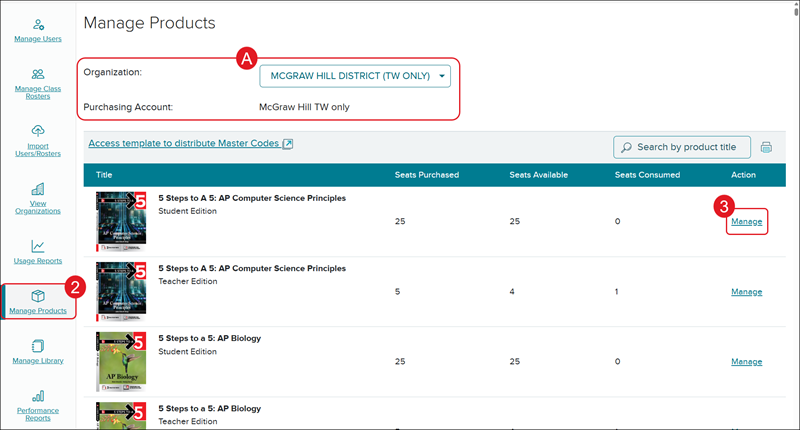
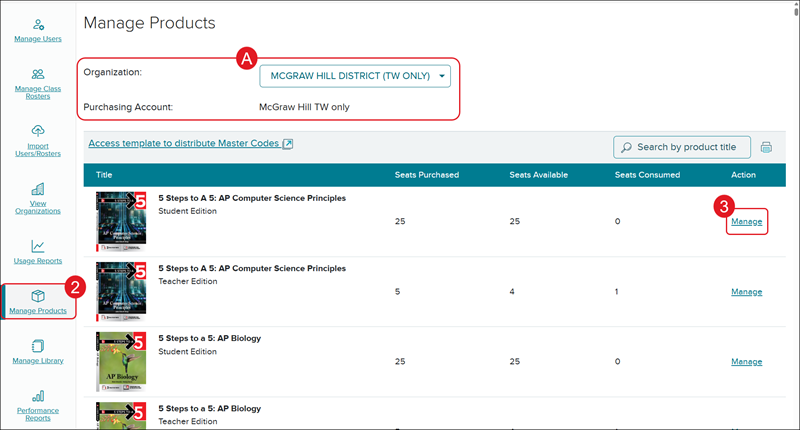
A. If you're assigned to multiple purchasing accounts, select the correct one from the Organization and Purchasing Account drop-downs.
2. Click on Manage Products on the navigation menu.
3. Click on the Manage link to the right of the program.
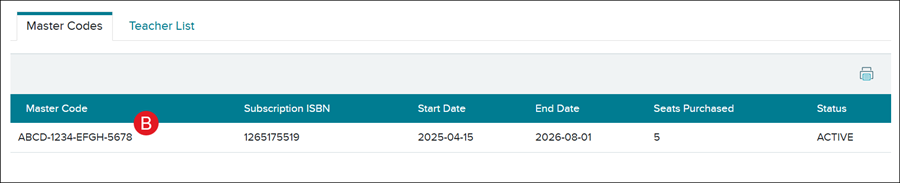
B. The Master Code will be the 16-alphanumeric code in the Master Code column.
Locate Resource Codes
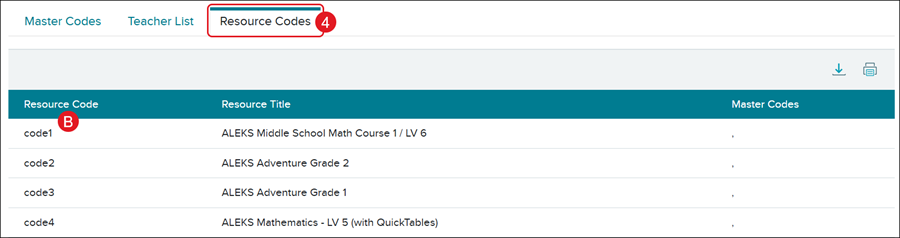
ALEKS, ALEKS Adventure, and Redbird products have resource codes that designate a specific subject for a class. If you do not see this column, there are no resource codes associated with the selected program.
1. SSO or log directly into your Administrator account at my.mheducation.com.
If you have a Teacher role and an Administrator role, you will first land on your Teacher role and will need to toggle to your Administrator role.
A. If you're assigned to multiple purchasing accounts, select the correct one from the Organization and Purchasing Account drop-downs.
2. Click on Manage Products on the navigation menu.
You will be able to view the Seats Purchased, Seats Available, and Seats Consumed from this page as well.
3. Click on the Manage link to the right of the program.
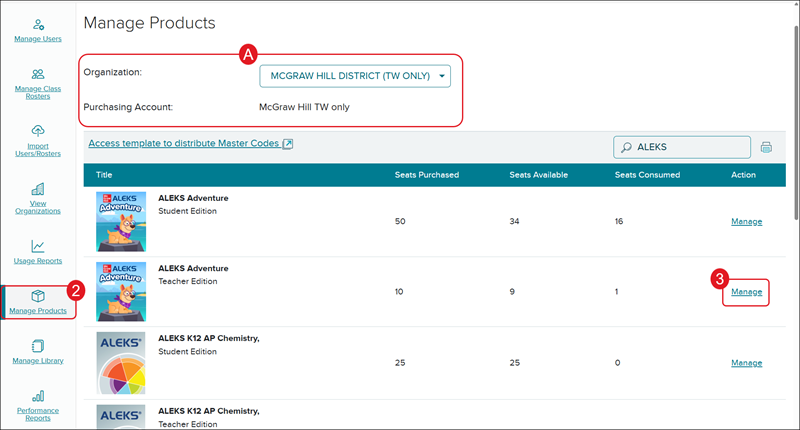
4. Click on the Resource Codes tab.
B. The available resource codes are located in the Resource Code column.
Locate Redemption Codes
For ConnectED products, a Redemption Code is created when the Student Edition Master Code is redeemed to the teacher's account. These codes are specific to each teacher and can be found on the teacher account as well as under Manage Products.
1. SSO or log directly into your Administrator account at my.mheducation.com.
If you have a Teacher role and an Administrator role, you will first land on your Teacher role and will need to toggle to your Administrator role.
A. If you're assigned to multiple purchasing accounts, select the correct one from the Organization and Purchasing Account drop-downs.
2. Click on Manage Products on the navigation menu.
You will be able to view the Seats Purchased, Seats Available, and Seats Consumed from this page as well.
3. Click on the Manage link to the right of the ConnectED Student Edition.
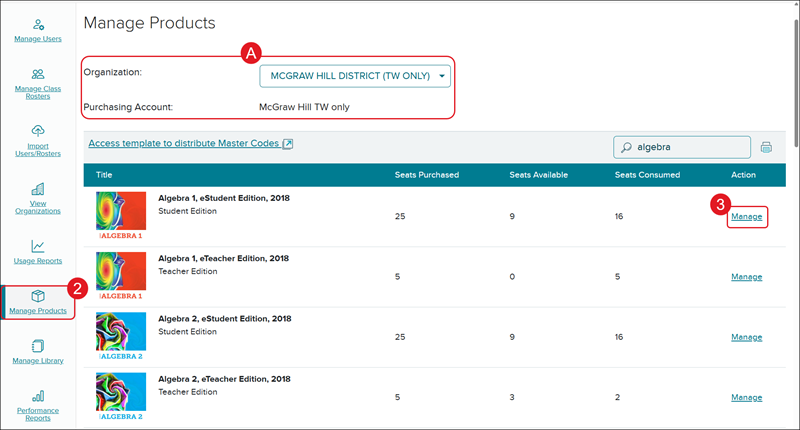
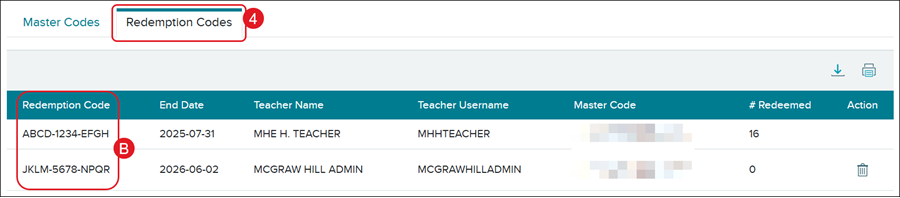
4. Click on the Redemption Codes tab.
If you do not see this tab, this means that it's an Open Learning program.
B. Each Redemption Code is found in the Redemption Code column.
View License Counts
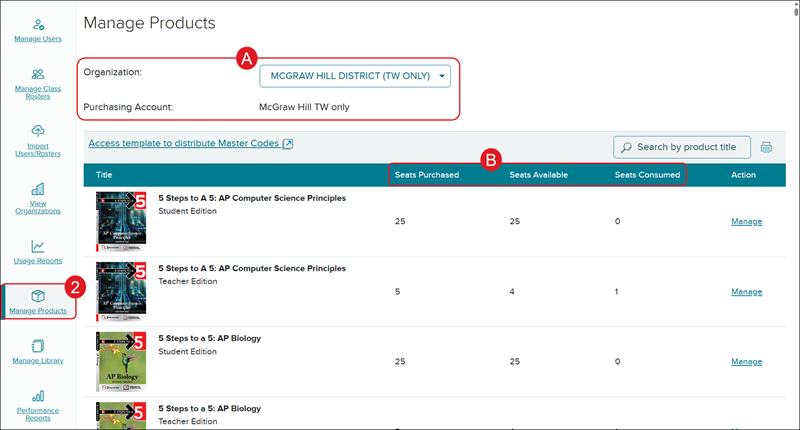
You can view the total number of licenses (seats) available and consumed per product on the Manage Products page.
Note: For Actively Learn, the teacher and student license counts will match; this is normal for how the licenses are managed for the program.
1. SSO or log directly into your Administrator account at my.mheducation.com.
If you have a Teacher role and an Administrator role, you will first land on your Teacher role and will need to toggle to your Administrator role.
A. If you're assigned to multiple purchasing accounts, select the correct one from the Organization and Purchasing Account drop-downs.
2. Click on Manage Products on the navigation menu.
B. Each product will be listed with the count for Seats Purchased, Seats Available, and Seats Consumed.
If you are needing additional licenses (seats), you'll want to reach out to your Sales Representative.
View License Start and End Dates
You can view the start and end dates per product on the Manage Products page.
1. SSO or log directly into your Administrator account at my.mheducation.com.
If you have a Teacher role and an Administrator role, you will first land on your Teacher role and will need to toggle to your Administrator role.
A. If you're assigned to multiple purchasing accounts, select the correct one from the Organization and Purchasing Account drop-downs.
2. Click on Manage Products on the navigation menu.
3. Click on the Manage link to the right of the program.
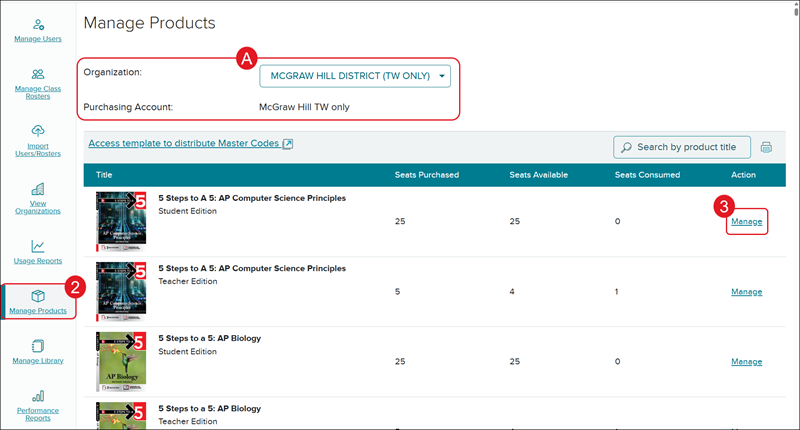
B. On the Master Codes tab, you can view the license Start and End Date.
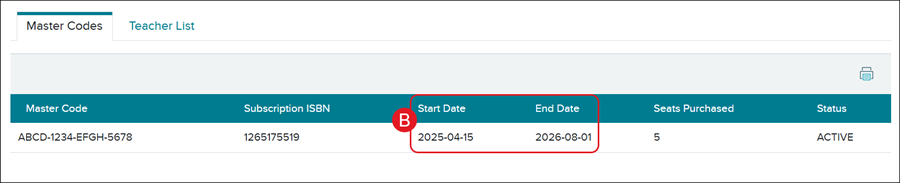
If the licenses are set to expire and you need to renew, you'll want to reach out to your Sales Representative.
Revoke Teacher and Student Edition Licenses
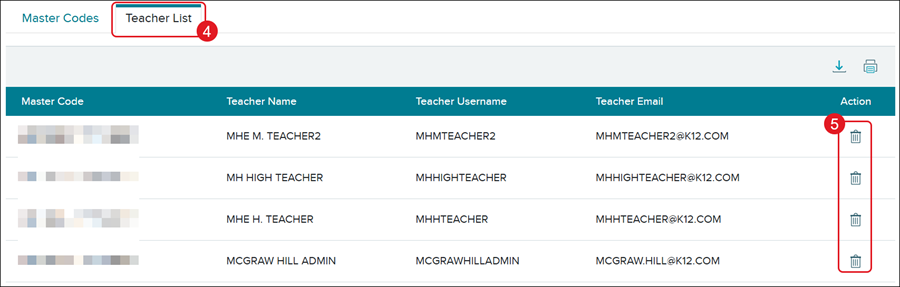
From the Teacher List view, you can see which teachers have redeemed licenses for a specific product and revoke those licenses if necessary.
If content is managed through Access Manager, Administrators will want to refer to the Manage Content on Access Manager article.
1. SSO or log directly into your Administrator account at my.mheducation.com.
If you have a Teacher role and an Administrator role, you will first land on your Teacher role and will need to toggle to your Administrator role.
A. If you're assigned to multiple purchasing accounts, select the correct one from the Organization and Purchasing Account drop-downs.
2. Click on Manage Products on the navigation menu.
You will be able to view the Seats Purchased, Seats Available, and Seats Consumed from this page as well.
3. Click on the Manage link to the right of the program.
4. Click on the Teacher List tab.
5. Click the trash can icon in the Action column to the right of the teacher(s) who no longer need access to the product.
ConnectED Student Edition licenses can also be revoked if the teacher does not currently have any students assigned to them. This can be done by clicking on the Manage link for the Student Edition and navigating to the Redemption Codes (B) tab.
C. Click on the trash can icon next to the Student Edition you want to revoke.

Student Editions cannot be revoked from teacher accounts if students are currently assigned to that product. Teachers will first need to remove student assignments from the Student Edition through their teacher account. Administrators do not have the ability to remove student assignments from the Student Edition.
