Create and Edit McGraw Hill Assessment Questions
Instructions on how to create and customize questions to use in assessments.
- Customer Support
- Middle School
- High School
- SSO & Auto-Rostering
- PreK-12
- All Sorts 2026 (K-5)
- Supplemental
- Visual & Performing Arts
- Health
- Literacy
- Social Studies
- Core
- AP, Honors & Electives
- SSO & Manual-Rostering
- Direct Login & Manual-Rostering
- Classroom Teacher
- Elementary School
- World Languages
- Math
- Intervention
- Direct Login & Auto-Rostering
- Science
- Preschool
- AP Biology
- AP Chemistry
- AP History & Geography
- AP Psychology
- AP Economics
- AP African American Studies
- AP Precalculus
- AP Statistics
- AP Computer Science
- AP Language and Composition
- AP Public Speaking
- AP Music Theory
- 5 Steps to a 5 - AP Test Prep
- Glencoe Health 2022
- Teen Health 2021
- Arrive Math
- Building Blocks 2024
- Building Blocks PreK 2025
- Number Worlds 2024
- SRA Reading Laboratory 2025
- SRA Reading Mastery Transformations
- McGraw Hill Literacy Emerge!
- McGraw Hill Literacy Summit!
- McGraw Hill Literacy Soar!
- Open Court Reading 2025
- CA Reveal Math (K-12)
- Illustrative Math
- Reveal Math (K-12)
- Texas Math
- CA Inspire Science 2020
- FL Science 2025 (K-12)
- Inspire Science 2020
- TN Science (K-12)
- TX Science 2025 (K-12)
- CA Impact 2019
- FL Social Studies 2024 (K-12)
- Impact Social Studies
- McGraw Hill Social Studies
- Asi se Dice 2024
- CTE - Health Science
- CTE - Agriculture
- CTE - Computing and Technology
- CTE - Culinary Arts
- CTE - Early Childhood Education
- CTE - Business, Marketing, and Finance
- CTE - Criminal Justice
- Online Assessments


This article walks teachers through creating new custom questions and editing existing questions to be used on custom assessments.
For a full page view of the demo, click here.
For a Spanish version of the demo, click here.
If you're using eAssessment, you will want to follow the steps in the eAssessment - Question Sets article.
Article Contents
Access Assessments Page
1. Launch your course.
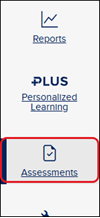
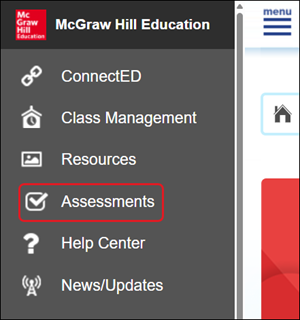
2. Click on Assessments from the navigation menu.
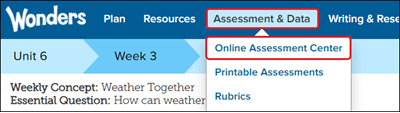
For certain programs, you will need to click on Assess, Assessment, or Online Assessment Center.

Create New Questions
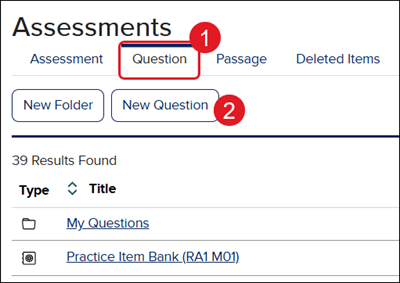
1. From the Assessments page, click on the Questions tab.
2. Click the New Questions button.
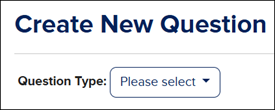
3. Select the preferred Question Type from the drop-down. Review the MH Assess - Question Types article for details on each option.
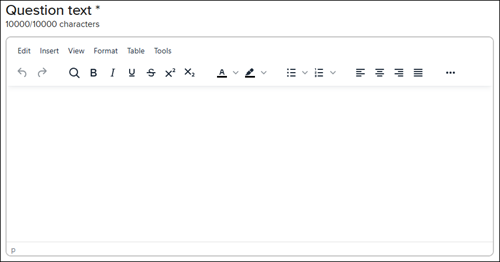
4. Enter the Question Text.
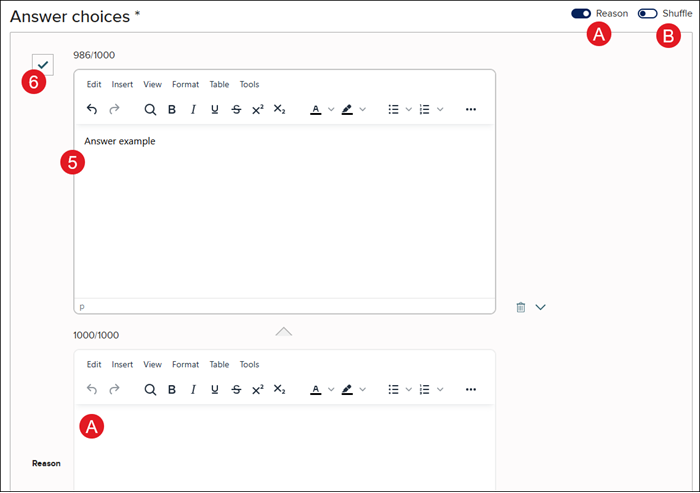
5. Depending on the question option selected, enter the Answer choices.
6. Click the X next to the correct Answer choice so that it shows a checkmark.
A. Toggle on Reason to add a reason for each Answer choice.
B. Toggle on to Shuffle the Answer choices.
For certain question types, you will need to enter a Response text limit and to create an Example Response.
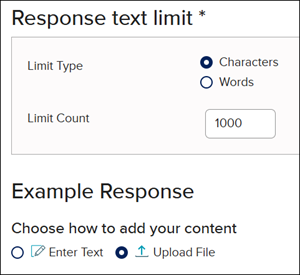
7. Enter a Hint, Example, and/or Explanation. Click the Continue button after each entry for it to save. These are optional.
8. Add a Existing or New Passage. This is optional.
9. For certain question types, select the preferred Scoring option from the drop-down. Refer to the MH Assess - Advanced Scoring article for details on each of the scoring options.
10. For some question types, you have the option to add a Rubric.
11. Enter the Points the question should be worth.
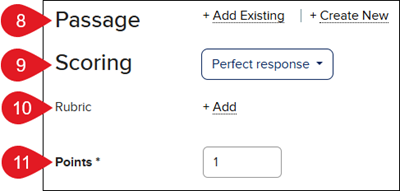
12. Click the Save button at the top or bottom of the page.
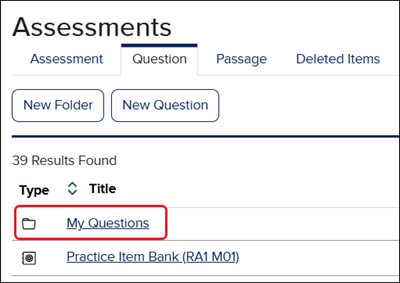
All custom created questions can then be found in your My Questions folder.
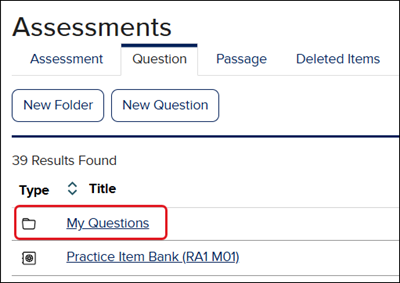
Edit an Existing Question
1. Click on the Question tab.
2. Select the folder where the question is located.
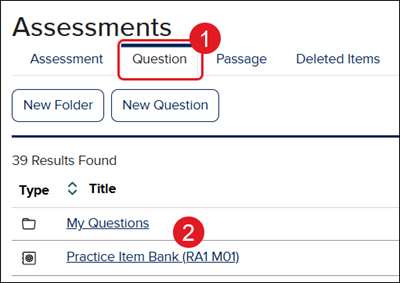
3. Click on the question you want to edit -
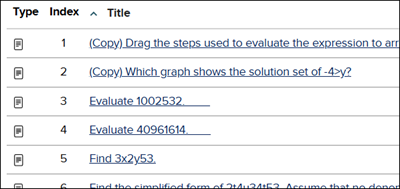
or click on the Options menu icon in the Actions column and click Edit from the menu.
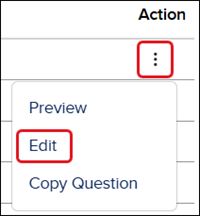
4. Make desired changes to the any of the fields for the question.
5. Click the Save button.
The edited version of the question can then be found in your My Questions folder.