
Desmos Graphing and Geometry Questions
Learn how to author Desmos graphing and geometry questions for assessments.
- Customer Support
- PreK-12
- Classroom Teacher
- Elementary School
- Middle School
- High School
- Direct Login & Auto-Rostering
- Direct Login & Manual-Rostering
- SSO & Auto-Rostering
- SSO & Manual-Rostering
- Core
- Intervention
- Supplemental
- AP, Honors & Electives
- Career & Technical Education
- Literacy
- Math
- Science
- Social Studies
- Health
- Visual & Performing Arts
- World Languages
- AP Biology
- AP Chemistry
- AP History & Geography
- AP Psychology
- AP Economics
- AP African American Studies
- AP Precalculus
- AP Statistics
- AP Computer Science
- AP Language and Composition
- AP Public Speaking
- AP Music Theory
- 5 Steps to a 5 - AP Test Prep
- Glencoe Health 2022
- Teen Health 2021
- Arrive Math
- Building Blocks 2024
- Building Blocks PreK 2025
- Number Worlds 2024
- SRA Reading Laboratory 2025
- SRA Reading Mastery Transformations
- McGraw Hill Literacy Emerge!
- McGraw Hill Literacy Summit!
- McGraw Hill Literacy Soar!
- Open Court Reading
- Open Court Reading 2025
- Open Court Reading 2016, 2018, 2023
- CA Reveal Math (K-12)
- Illustrative Math
- Reveal Math (K-12)
- Texas Math
- CA Inspire Science 2020
- FL Science 2025 (K-12)
- Inspire Science 2020
- TN Science (K-12)
- TX Science 2025 (K-12)
- CA Impact 2019
- FL Social Studies 2024 (K-12)
- Impact Social Studies
- McGraw Hill Social Studies
- Asi se Dice 2024
- Wonders Balanced Literacy 2016
- Maravillas 2020 & 2017
- Music! Its Role
- McGraw Hill My Math 2018
- Networks 2018
- OCR Foundational Skills Kit
- OCR Word Analysis Kit
- Spotlight on Music
- Wonders 2023 2020 2017
- CTE - Business, Marketing, and Finance
- CTE - Health Science
- CTE - Computing and Technology
- CTE - Agriculture
- CTE - Culinary Arts
- CTE - Early Childhood Education
- CTE - Criminal Justice
- Online Assessments


Article Contents
Desmos Graphing Calculator User Guide
Using a Prebuilt Template
You can add Desmos questions either while editing a customized assessment or by creating a new question directly from the Questions tab.
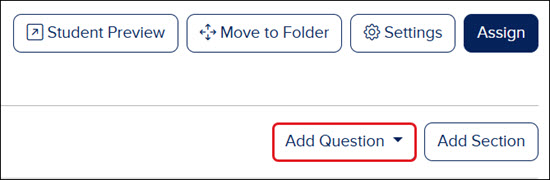
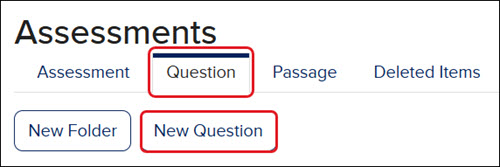
1. Click the Add Question (while customizing an assessment) or the New Question button (from the Questions tab), depending on how you are adding the question.
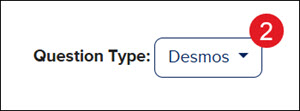
2. Select Desmos from the Question Type drop-down.
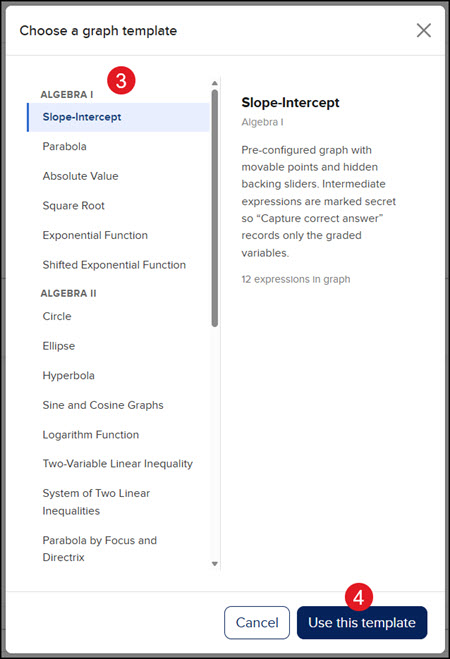
3. Select a template that fits the question you want to create.
Templates are grouped by category:
- Algebra I
- Algebra II
- Geometry
- Statistics
- Economics
- Calculus
- Miscellaneous
- which also includes non-algebraic types such as number lines
The templates are also pre-configured so that automatic scoring works out of the box: the scalar variables needed for grading are already set up for you.
If no template fits the type of question you want to create, use a Blank Graph found in the Miscellaneous category.
4. Click the Use this template button.
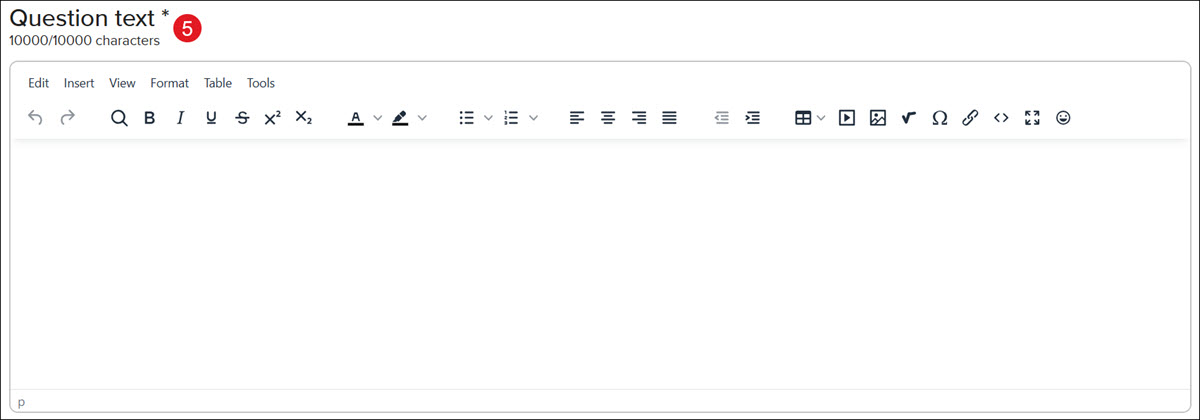
5. Enter the Question Text in the provided field.
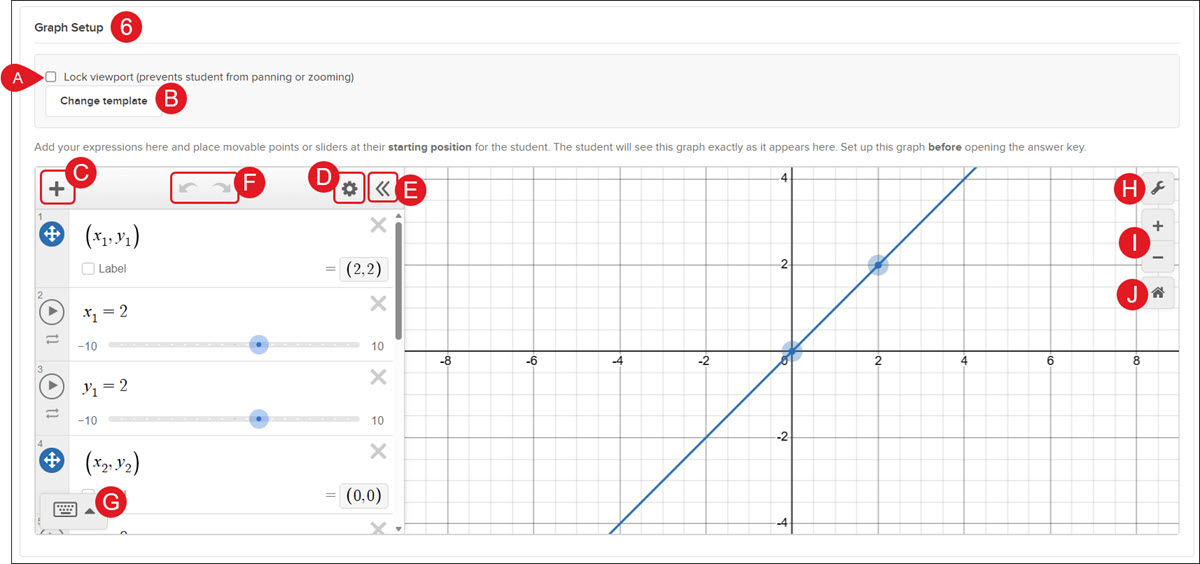
6. Review the Graph Setup.
The template loads with two draggable points connected by a line. This is the starting graph the students will see and interact with. Adjust the starting positions if needed.
Note: The graph setup adjustments need to be completed before opening the answer key.
A. If you want to prevent students from panning or zooming in, check the Lock viewpoint box.
B. If a different template is needed, click the Change template button.
C. Click the Add Item (plus icon) to add additional expressions to the list.
D. Click the Edit List (gear icon) to make changes to the existing expressions in the list.
E. Click the Hide Expression List (double arrows) to collapse the list.
F. Click the left or right arrows to Undo or Redo any changes that were made to the graph or list.
G. Click the Show Keyboard button to expand the keyboard tool.
H. Click the Graph Settings button (wrench icon) to select different setting options for the students.
I. Click the Zoom In or Zoom Out (plus and minus icons) to zoom in or out on a certain section of the graph.
J. Click the Default Viewport to zoom in on the points on the graph.
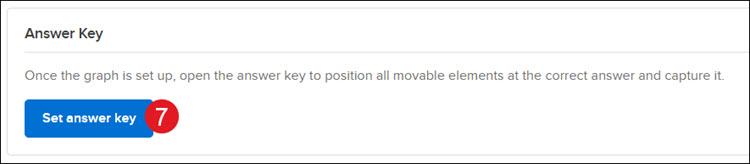
7. Click the Set answer key button.
This will open a second, separate graph used only to record the correct answer.
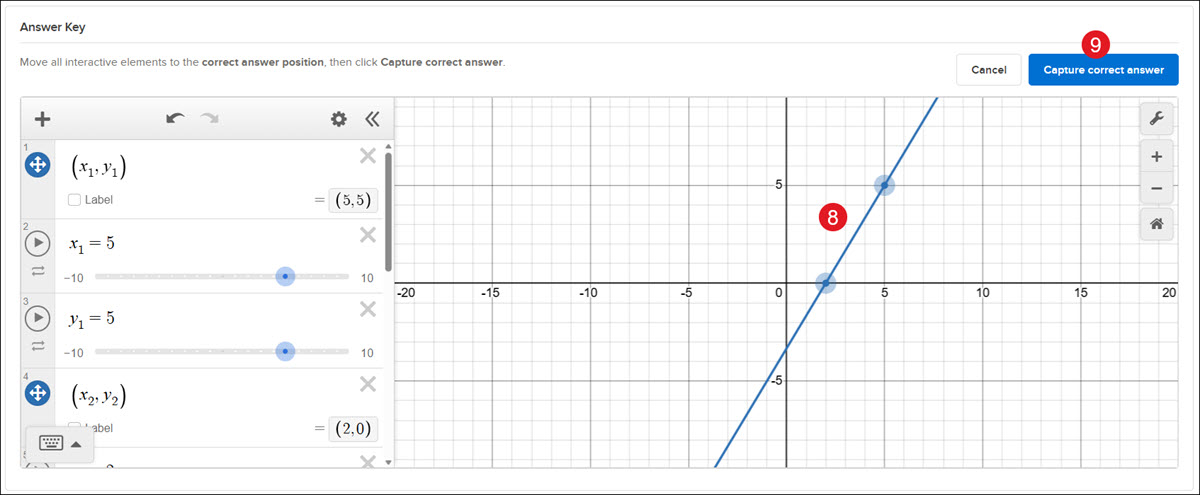
8. On the answer key graph, move the points to the correct answer.
9. Click the Capture correct answer button.
The answer key graph will automatically close, and the generated checks will show in the Answer Key section.
K. Click the Edit answer key button if changes need to be made.

10. Add any Hints, Examples, or Explanations you want to include for the question.
11. Add any Passages that are needed.
12. Select the preferred Scoring from the drop-down.
13. Enter the number of Points the question is worth.
14. Click the Save button.
Using a Blank Template
You can add Desmos questions either while editing a customized assessment or by creating a new question directly from the Questions tab.
1. Click the Add Question (while customizing an assessment) or the New Question button (from the Questions tab), depending on how you are adding the question.
2. Select Desmos from the Question Type drop-down.
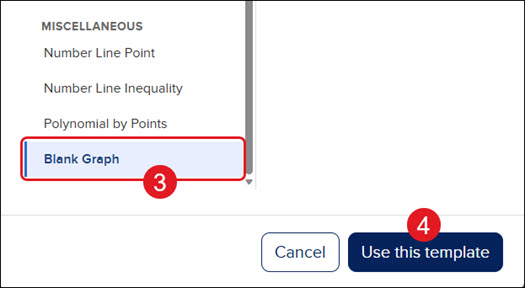
3. Click on Blank Template from the Miscellaneous category.
4. Click the Use this template button.
5. Enter the Question Text in the provided field.
6. In the Graph Setup, enter your scalar variables.
Note: The graph setup adjustments need to be completed before opening the answer key.
Important! Use scalar variables and not raw points.
Do not enter the point directly as a single expression (e.g., P=(3,3), or a plain point with no backing variables). Capture can behave unreliably in this case; for example, capturing right after moving an unbacked point can produce the error "The graph is still being evaluated. Please try again in a moment." even after waiting. Grading also depends on plain number variables that Desmos can evaluate individually. A raw point is not one of those, so even a successful capture is not guaranteed to grade a student's response correctly.
Instead, back the point with two scalar (plain number) variables, like the following example:

Now x1 and y1 are plain numbers Desmos can evaluate. Capturing the correct answer produces one check per variable (x_1, y_1), which grades reliably against a student's response.
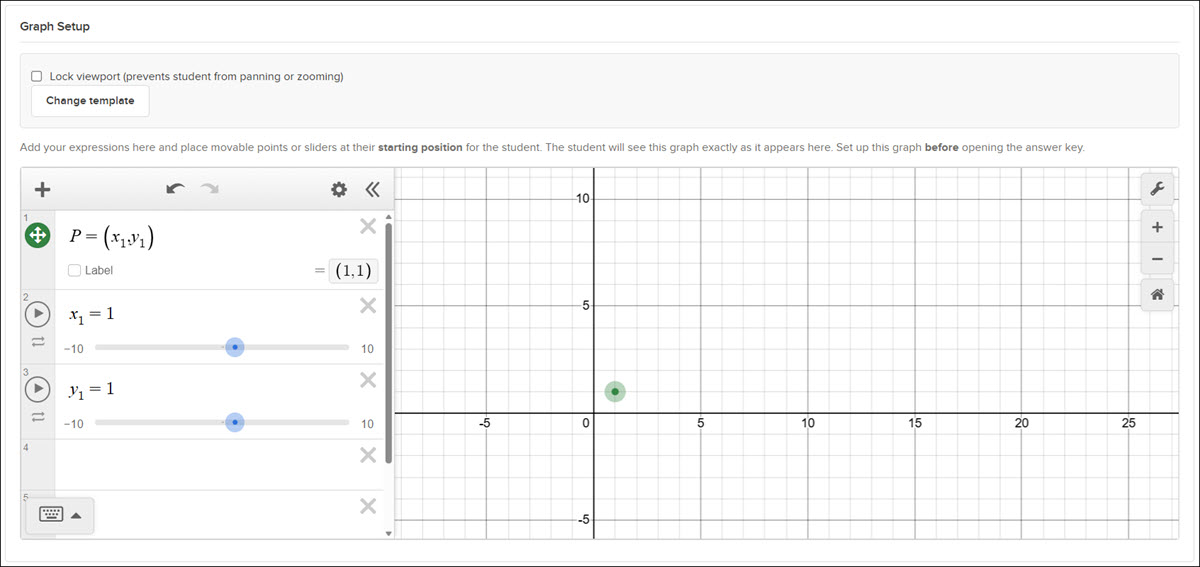
A. If you want to prevent students from panning or zooming in, check the Lock viewpoint box.
B. If a different template is needed, click the Change template button.
C. Click the Add Item (plus icon) to add additional expressions to the list.
D. Click the Edit List (gear icon) to make changes to the existing expressions in the list.
E. Click the Hide Expression List (double arrows) to collapse the list.
F. Click the left or right arrows to Undo or Redo any changes that were made to the graph or list.
G. Click the Show Keyboard button to expand the keyboard tool.
H. Click the Graph Settings button (wrench icon) to select different setting options for the students.
I. Click the Zoom In or Zoom Out (plus and minus icons) to zoom in or out on a certain section of the graph.
J. Click the Default Viewport to zoom in on the points on the graph.
7. Click the Set answer key button.
This will open a second, separate graph used only to record the correct answer.
8. On the answer key graph, move the points to the correct answer.
9. Click the Capture correct answer button.
The answer key graph will automatically close, and the generated checks will show in the Answer Key section.
K. Click the Edit answer key button if changes need to be made.
Do not hand-edit the captured checks' expressions. Only the tolerance should be adjusted by hand; the check expression itself is generated from your graph and should be left as-is.
10. Add any Hints, Examples, or Explanations you want to include for the question.
11. Add any Passages that are needed.
12. Select the preferred Scoring from the drop-down.
13. Enter the number of Points the question is worth.
14. Click the Save button.
