
The Master Code Isn't Working
Troubleshoot issues when a Master Code is not able to be manually added to the account.
- Customer Support
- PreK-12
- Classroom Teacher
- Preschool
- Elementary School
- Middle School
- High School
- Direct Login & Auto-Rostering
- Direct Login & Manual-Rostering
- SSO & Auto-Rostering
- SSO & Manual-Rostering
- Core
- Intervention
- Supplemental
- AP, Honors & Electives
- Literacy
- Math
- Science
- Social Studies
- Health
- Visual & Performing Arts
- World Languages
- Glencoe Health 2014
- McGraw Hill Health 2014
- 2Inform
- Building Blocks 2015
- Connecting Math Concepts
- Number Worlds 2015
- Corrective Reading
- Early Interventions in Reading
- Spelling Mastery
- WonderWorks 2022 & 2014
- Maravillas 2020 & 2017
- OCR Foundational Skills Kit
- OCR Word Analysis Kit
- Open Court Reading 2016, 2018, 2023
- StudySync 2015 & 2017
- Wonders
- Wonders 2014
- Wonders 2023 2020 2017
- Wonders Balanced Literacy 2016
- Wonders EL 2016
- World of Wonders 2017
- Core Plus Math 2015
- Everyday Mathematics 4 (K-6)
- Glencoe Algebra 1 2014
- Glencoe Algebra 1 2018
- Glencoe Algebra 2 2014
- Glenoce Algebra 2 2018
- Glencoe Math
- Glencoe Geometry 2014
- Glencoe Geometry 2018
- Glencoe Math Course 1
- Glencoe Math Course 2
- Glencoe Math Course 3
- Glencoe Math Accelerated
- McGraw Hill My Math 2013 & 2016
- McGraw Hill My Math 2018
- McGraw Hill My Math
- Pre-Algebra 2012
- Glencoe Science
- Glencoe Science 2017
- Inspire Science 2017
- iScience 2017
- Networks
- Networks 2014 (K-5)
- Troubleshooting
- Error Messages
- Class Management
- Back-to-School Setup
- Getting Started & Orientation


Master Codes are only required for redeeming ConnectED Student Editions. To add a Teacher Edition to your account, follow the steps in the Create and Edit a Class article.
Unsure whether your program is ConnectED or Open Learning? Visit the Identifying My Learning Environment article for help.
For steps on redeeming Master Codes, see the Redeem a ConnectED Master Code article.
If you've entered a Master Code and receive the error: "The Master Code you entered is not for ConnectED. Go to My.mheducation.com and create a class to redeem this product." this means the content you are trying to redeem is an Open Learning program. Follow the steps in the Create and Edit a Class article to redeem this material. See the Open Learning Class Management Resources for additional steps on rostering your Open Learning classes.
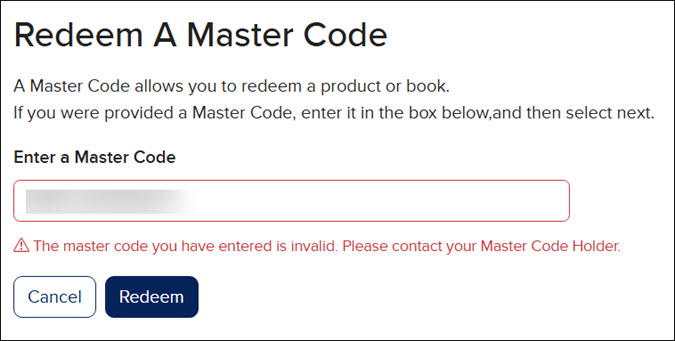
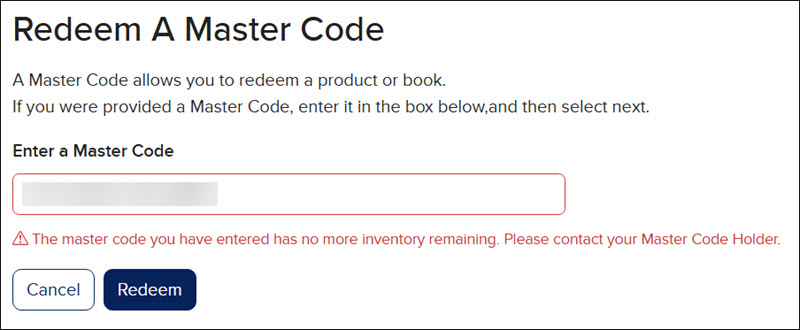
If you've entered a Master Code and receive the error: "The master code you have entered has no more inventory remaining. Please contact your Master Code Holder." this means there are no available licenses to be able to redeem the content to your account. You will need to reach out to your Organization Administrator to discuss the options of either removing it from teacher and student accounts that no longer need access or purchasing additional licenses.
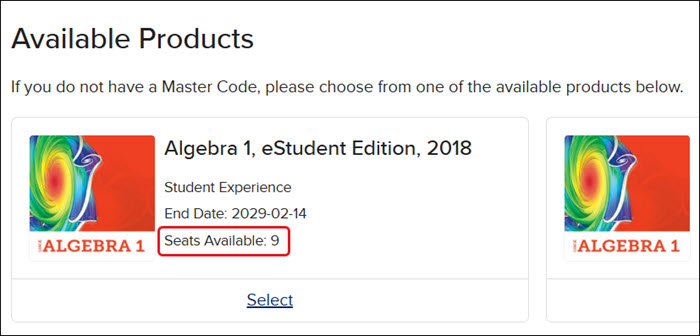
If you are attempting to add content from the Available Products section (ConnectED Library), you will want to make sure there are available licenses to redeem by viewing the Seats Available count on the content card.
Additional Articles
Redeem a ConnectED Master Code
Using the Available ConnectED Products Library
Difference Between a Master Code and Redemption Code
How to Return ConnectED Teacher and Student Editions
