
Shuffle Assessment Answer Choices as a Curriculum Administrator
Shuffle answer choices in assessments to support test security and varied student experiences.
- PreK-12
- Customer Support
- School Administrator
- Preschool
- Elementary School
- Middle School
- High School
- Direct Login & Auto-Rostering
- Direct Login & Manual-Rostering
- SSO & Auto-Rostering
- SSO & Manual-Rostering
- Core
- Intervention
- Supplemental
- AP, Honors & Electives
- Career & Technical Education
- Literacy
- Math
- Science
- Social Studies
- Health
- Visual & Performing Arts
- World Languages
- AP Biology
- AP Chemistry
- AP History & Geography
- AP Psychology
- AP Economics
- AP African American Studies
- AP Precalculus
- AP Statistics
- AP Computer Science
- AP Language and Composition
- AP Public Speaking
- AP Music Theory
- 5 Steps to a 5 - AP Test Prep
- Glencoe Health 2022
- Teen Health 2021
- Arrive Math
- Building Blocks 2024
- Building Blocks PreK 2025
- Number Worlds 2024
- SRA Reading Laboratory 2025
- SRA Reading Mastery Transformations
- McGraw Hill Literacy Emerge!
- McGraw Hill Literacy Summit!
- McGraw Hill Literacy Soar!
- Open Court Reading
- Open Court Reading 2016, 2018, 2023
- Open Court Reading 2025
- CA Reveal Math (K-12)
- Illustrative Math
- Reveal Math (K-12)
- CA Inspire Science 2020
- FL Science 2025 (K-12)
- Inspire Science 2020
- TN Science (K-12)
- TX Science 2025 (K-12)
- CA Impact 2019
- FL Social Studies 2024 (K-12)
- Impact Social Studies
- McGraw Hill Social Studies
- Asi se Dice 2024
- Wonders Balanced Literacy 2016
- Maravillas 2020 & 2017
- Music! Its Role
- McGraw Hill My Math 2018
- Networks 2018
- OCR Foundational Skills Kit
- OCR Word Analysis Kit
- Spotlight on Music
- Wonders 2023 2020 2017
- CTE - Business, Marketing, and Finance
- CTE - Health Science
- CTE - Computing and Technology
- CTE - Agriculture
- CTE - Culinary Arts
- CTE - Early Childhood Education
- CTE - Criminal Justice
- Texas Math
- Online Assessments


View the demo in a separate tab.
View the Spanish version of the demo.
If you do not see the Assessments option in the administrator tools, this means you do not have the Curriculum Administrator role assigned to your profile. If you do not yet have an existing account, or if you have an account but not the proper role, reach out to an Organization Administrator in your district. District Organization Administrators can create new accounts and add roles to existing accounts at the district and school levels. School Organization Administrators can only create accounts and add roles for teachers and administrators for the school(s) they are associated with.
Selecting to shuffle answer choices will need to be activated for each individual question and is only available as an option for certain question types.
1. SSO or sign into your Administrator account at my.mheducation.com.
For users that have a teacher and administrator role, you will land on your teacher profile.
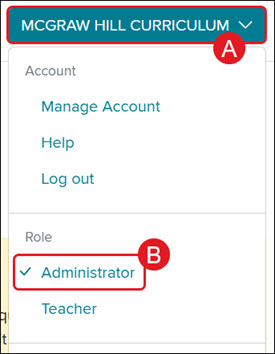
To access the administrator tools, click on the Profile button (A) and select Administrator (B) from the menu.
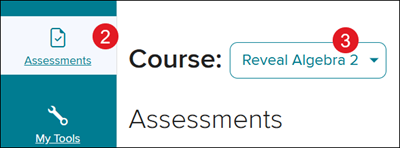
2. Click on Assessments on the navigation menu.
3. Select the program from the Course drop-down.
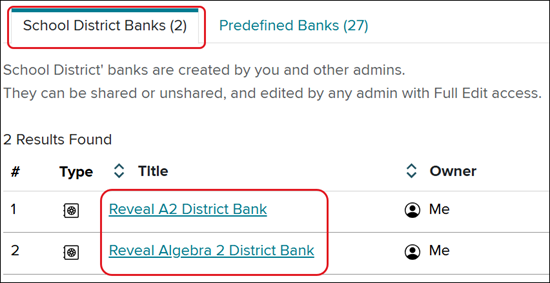
4. On the School District Bank tab, click on a custom created District Bank.
To create new assessments/make changes, you will first need to create a new District Bank. You will not be able to add custom assessments to McGraw Hill district banks.
5. Create a new assessment or edit an existing assessment.
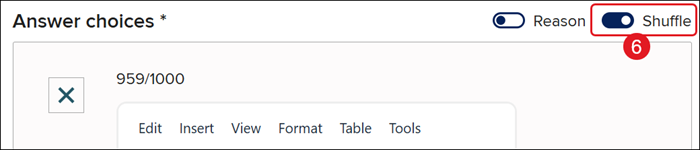
6. During the creating/editing question process, to the right of Answer choices, toggle on Shuffle.
You will need to do this for each individual question.
8. Click the Save button once you have finished editing the question.
