Create a New Assessment as a Curriculum Administrator
Create a new assessment as a curriculum administrator to share with teachers in your school or district.
- PreK-12
- Customer Support
- School Administrator
- Preschool
- Elementary School
- Middle School
- High School
- Direct Login & Auto-Rostering
- Direct Login & Manual-Rostering
- SSO & Auto-Rostering
- SSO & Manual-Rostering
- Core
- Intervention
- Supplemental
- AP, Honors & Electives
- Career & Technical Education
- Literacy
- Math
- Science
- Social Studies
- Health
- Visual & Performing Arts
- World Languages
- AP Biology
- AP Chemistry
- AP History & Geography
- AP Psychology
- AP Economics
- AP African American Studies
- AP Precalculus
- AP Statistics
- AP Computer Science
- AP Language and Composition
- AP Public Speaking
- AP Music Theory
- 5 Steps to a 5 - AP Test Prep
- Glencoe Health 2022
- Teen Health 2021
- Arrive Math
- Building Blocks 2024
- Building Blocks PreK 2025
- Number Worlds 2024
- SRA Reading Laboratory 2025
- SRA Reading Mastery Transformations
- McGraw Hill Literacy Emerge!
- McGraw Hill Literacy Summit!
- McGraw Hill Literacy Soar!
- Open Court Reading
- Open Court Reading 2016, 2018, 2023
- Open Court Reading 2025
- CA Reveal Math (K-12)
- Illustrative Math
- Reveal Math (K-12)
- CA Inspire Science 2020
- FL Science 2025 (K-12)
- Inspire Science 2020
- TN Science (K-12)
- TX Science 2025 (K-12)
- CA Impact 2019
- FL Social Studies 2024 (K-12)
- Impact Social Studies
- McGraw Hill Social Studies
- Asi se Dice 2024
- Wonders Balanced Literacy 2016
- Maravillas 2020 & 2017
- Music! Its Role
- McGraw Hill My Math 2018
- Networks 2018
- OCR Foundational Skills Kit
- OCR Word Analysis Kit
- Spotlight on Music
- Wonders 2023 2020 2017
- CTE - Business, Marketing, and Finance
- CTE - Health Science
- CTE - Computing and Technology
- CTE - Agriculture
- CTE - Culinary Arts
- CTE - Early Childhood Education
- CTE - Criminal Justice
- Texas Math
- Online Assessments


View the demo in a separate tab.
View the Spanish version of the demo.
If you do not see the Assessments option in the administrator tools, this means you do not have the Curriculum Administrator role assigned to your profile. If you do not yet have an existing account, or if you have an account but not the proper role, reach out to an Organization Administrator in your district. District Organization Administrators can create new accounts and add roles to existing accounts at the district and school levels. School Organization Administrators can only create accounts and add roles for teachers and administrators for the school(s) they are associated with.
Article Contents
Create a New Assessment
1. SSO or sign into your Administrator account at my.mheducation.com.
For users that have a teacher and administrator role, you will land on your teacher profile.
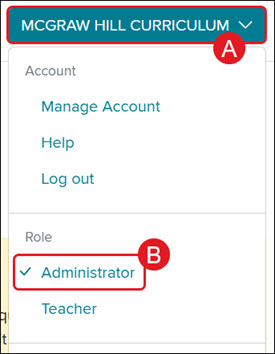
To access the administrator tools, click on the Profile button (A) and select Administrator (B) from the menu.
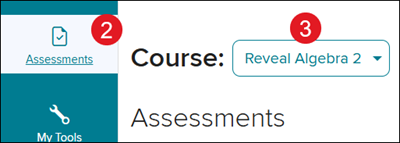
2. Click on Assessments on the navigation menu.
3. Select the program from the Course drop-down.
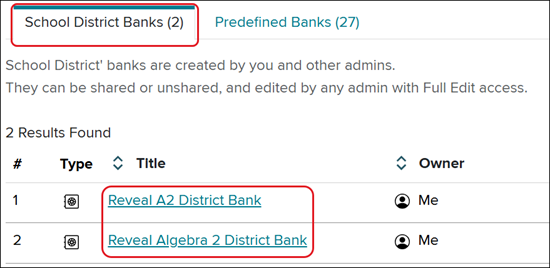
4. From the School District Banks tab, click on a custom created District Bank.
To create new assessments, you will first need to create a new District Bank. You will not be able to add custom assessments to McGraw Hill district banks.
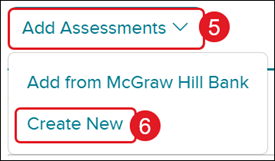
5. Click on Add Assessments.
6. Click Create New from the menu.
7. On the Create New Assessment pop-up, enter an Assessment Name.
8. Click the Create Assessment button.
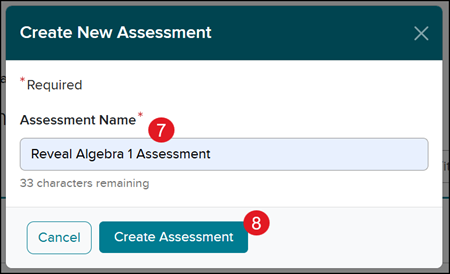
The page will automatically load to the newly created assessment.
Add Existing Questions
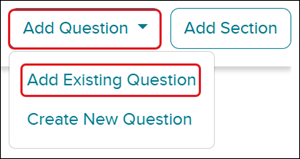
1. Click the Add Question button.
2. Click on Add Existing Question from the menu.
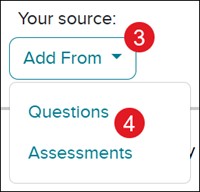
3. Click the Add From button.
4. Click on Questions or Assessments based on where you want to pull questions from.
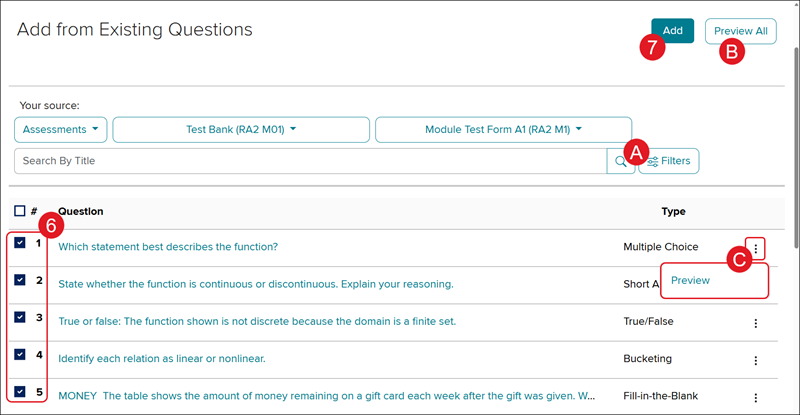
5. Click the Select Bank button and select the assessment bank you want the questions from.

If you select Assessments, you will also need to choose an option from the Select Assessment drop-down.

6. Check the box next to the Questions you want to add to the assessment.
A. To help locate the questions you want, use the Search By Title field and the Filters.
7. Click the Add button at the top-right.
B. Click the Preview All button to view the selected questions.
C. Click the Options icon to Preview the single question.
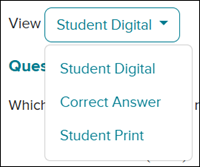
When previewing the questions, you will be able to toggle between seeing the Student Digital, Correct Answer, and Student Print views.
Add New Questions
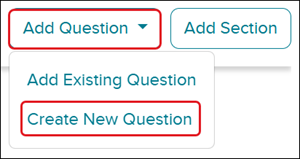
1. Click the Add Question button.
2. Click on Create New Question from the menu.
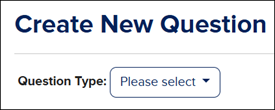
3. Select the preferred Question Type from the drop-down. Review the Available Question Types for McGraw Hill Assessments article for details on each option.
4. Enter the Question Text.
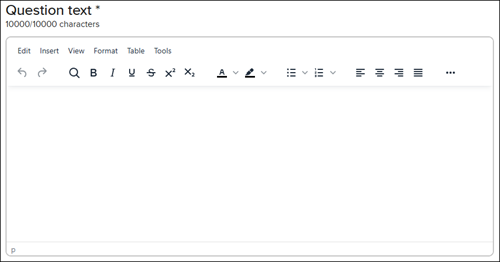
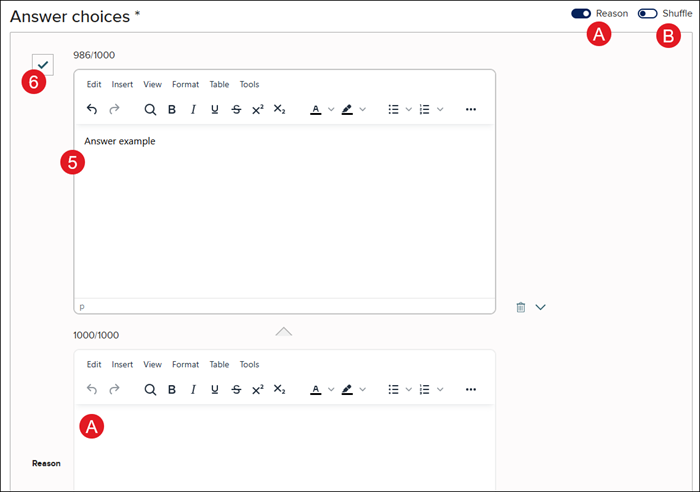
5. Depending on the question option selected, enter the Answer choices.
6. Click the X next to the correct Answer choice so that it shows a checkmark.
A. Toggle on Reason to add a reason for each Answer choice.
B. Toggle on to Shuffle the Answer choices.
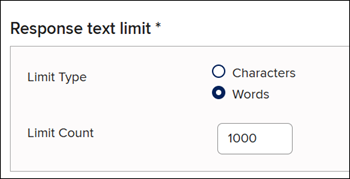
For certain question types, you will need to enter a Response text limit.
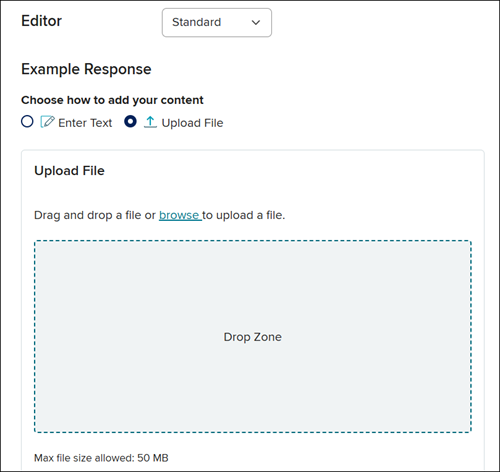
You can also select an Editor option and enter an Example Answer for certain questions types.
7. Enter a Hint, Example, and/or Explanation. Click the Continue button after each entry for it to save. These are optional.
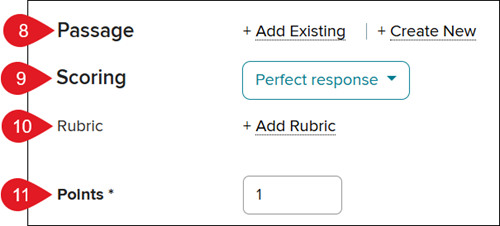
8. Add a Existing or New Passage. This is optional.
9. For certain question types, select the preferred Scoring option from the drop-down. Refer to the Advanced Scoring Options for McGraw Hill Assessments article for details on each of the scoring options.
10. For some question types, you have the option to add a Rubric.
11. Enter the Points the question should be worth.
12. Click the Save button at the top or bottom of the page.
Edit a Question
1. To make changes to a question on the assessment, click the Edit button.
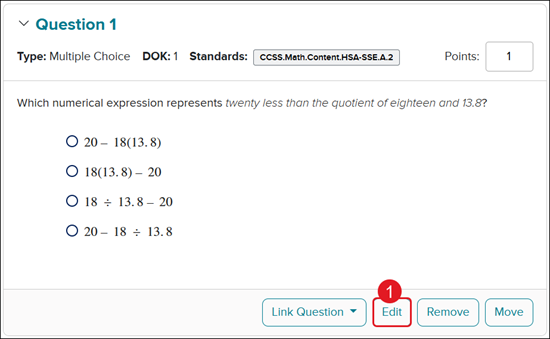
2. Make any preferred changes to the fields.
3. Click the Save button at the top or bottom of the page.
Link Questions
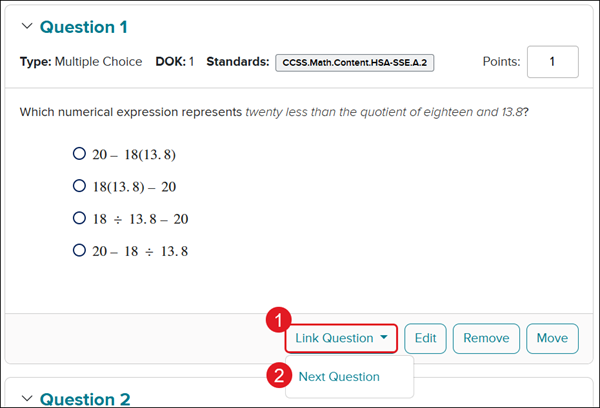
1. To link one question to the next, click the Link Question button.
2. Click Next Question from the menu.
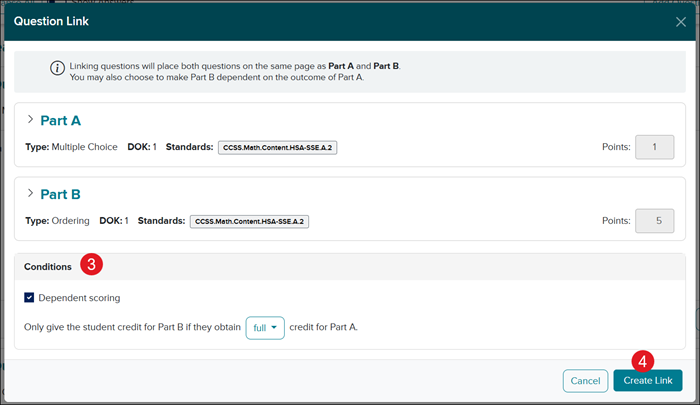
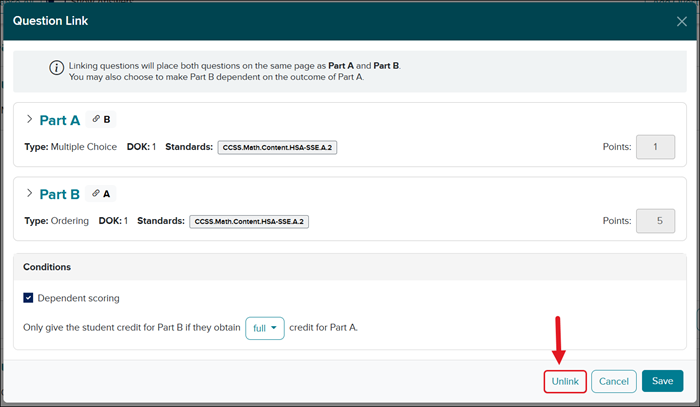
3. On the Question Link pop-up, verify the questions you are wanting to link together.
If you want to set Dependent scoring between the linked questions, check the box. You will then need to select full or partial for credit from the drop-down.
4. Click the Create Link button.
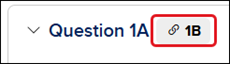
If questions have been linked, you will see a link icon next to the Question header.
Change Link Conditions
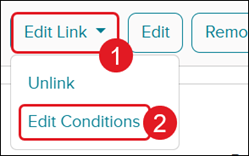
1. Click the Edit Link button.
2. Click on Edit Conditions from the menu.
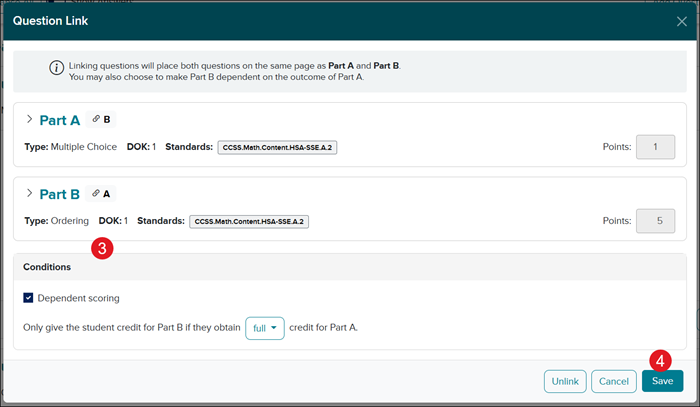
3. On the Question Link pop-up, make preferred changes.
4. Click the Save button to confirm any changes made.
Unlink Questions
1. Click the Edit Link button.
2. Click on Unlink from the menu.
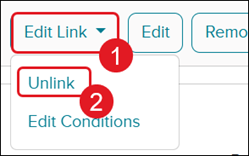
You can also click the Unlink button on the Question Link pop-up.
Remove a Question
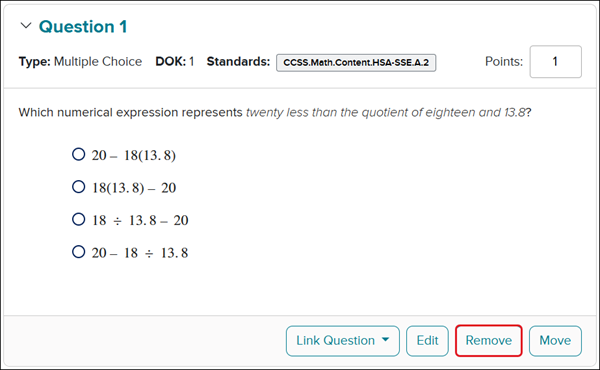
1. To delete a question from an assessment, click the Remove button.
Keep in mind, if you accidentally removed the question, you will need to go through adding the question back to the assessment.
Create a Section
If you want multiple parts within an assessment to group questions together, you will want to create a new section.
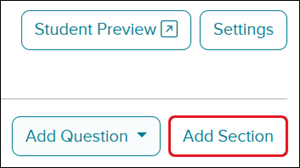
1. Click the Add Section button at the top-right.
2. On the Add Section pop-up, enter an Introduction.
These are instructions students will see before they start the questions for that section.
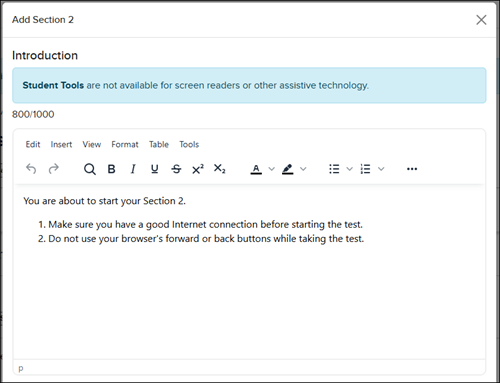
3. Check the box next to any Student Tools you would like them to have access to for that section.
4. Click the Add button.
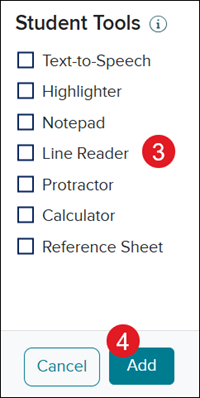
The section will be added to the bottom of the assessment.
5. Any questions added will automatically go into the new section.
Click the up/down arrow to the right of the section name to reorder the sections.

Edit a Section
1. Click Edit Section (pencil icon).

2. Make preferred changes to the Introduction and Student Tools.
3. Click the Save button to confirm changes.
Delete a Section
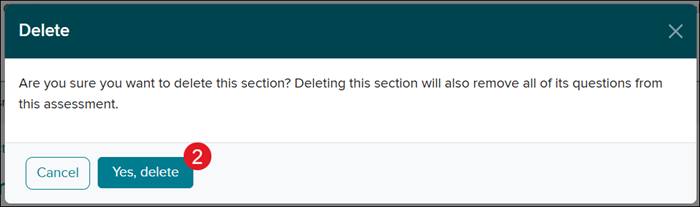
When deleting a section, you want to keep in mind that it will also remove all questions associated to that section.
1. Click Delete Section (trash can icon).

2. On the Delete pop-up, click the Yes, Delete button to confirm.