Create and Manage eAssessment Questions for Tests and Question Sets
Learn how to create new questions, as well as edit and manage existing questions within eAssessment.
Tags
- Customer Support
- PreK-12
- Classroom Teacher
- Preschool
- Elementary School
- Middle School
- High School
- Direct Login & Auto-Rostering
- Direct Login & Manual-Rostering
- SSO & Auto-Rostering
- SSO & Manual-Rostering
- Core
- Intervention
- Supplemental
- AP, Honors & Electives
- Literacy
- Math
- Science
- Social Studies
- Health
- Visual & Performing Arts
- World Languages
- Asi se Dice 2016
- Building Blocks 2015
- Core Plus Math 2015
- Glencoe Health 2014
- Glencoe Algebra 1 2014
- Glencoe Algebra 1 2018
- Glencoe Algebra 2 2014
- Glenoce Algebra 2 2018
- Glencoe Geometry 2014
- Glencoe Geometry 2018
- Glencoe Math Accelerated
- Glencoe Math
- Glencoe Math Course 1
- Glencoe Math Course 2
- Glencoe Math Course 3
- Glencoe Science
- Glencoe Science 2017
- Inspire Science 2017
- iScience 2017
- McGraw Hill My Math 2013 & 2016
- Networks 2014 & 2016
- Networks 2014 (K-5)
- Pre-Algebra 2012
- Wonders 2014
- Number Worlds 2015
- Online Assessments
- Grades & Assignments


Article Contents
Access eAssessment
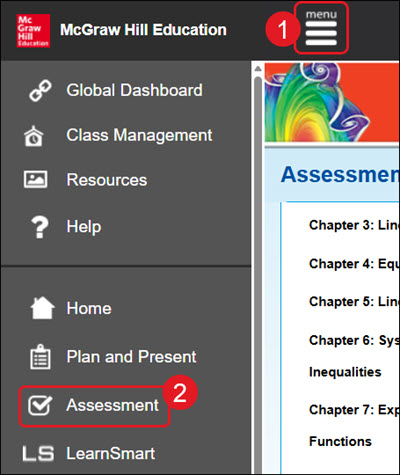
- Click Menu at the top right.
- Click Assessment from the menu.
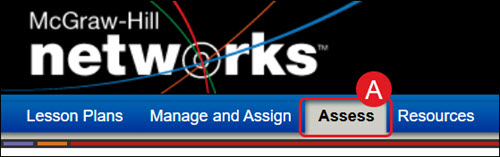
A. For certain programs, such as Networks, click on Assess from the navigation menu.
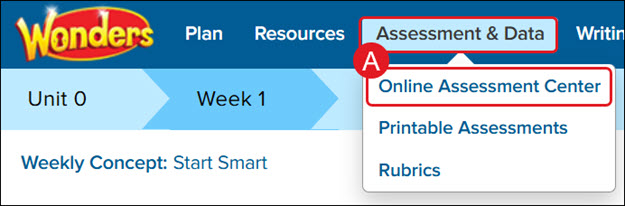
For Wonders ©2014, hover over Assessment & Data and select Online Assessment Center from the menu.
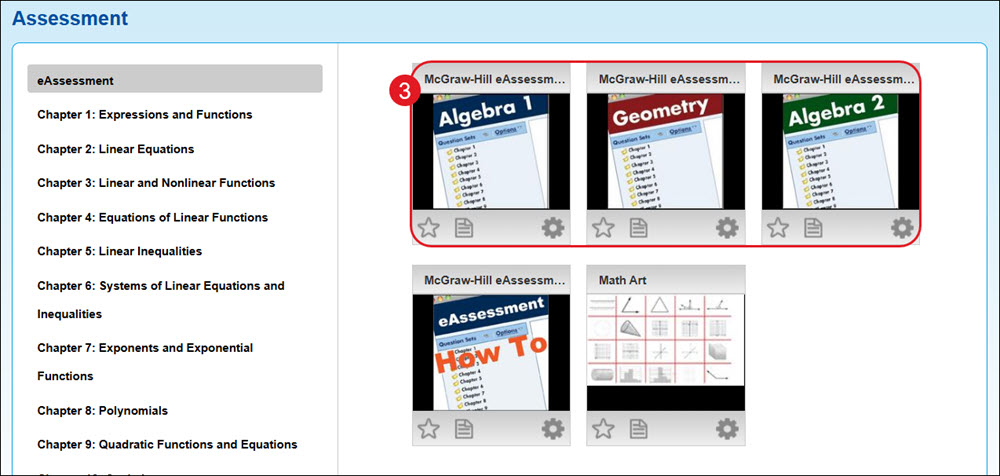
- Click on the eAssessment tile.
Create a New Question
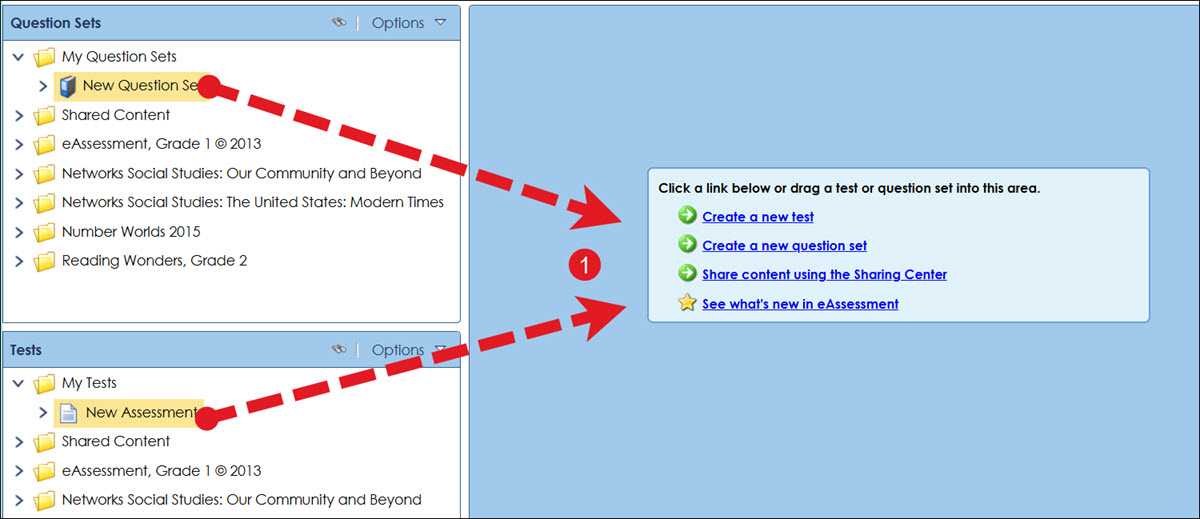
- Click and drag the question set or test you want to add questions to into the center screen (blue area).
For steps on creating a new question set, see the Create and Manage eAssessment Question Sets article.
For steps on creating a new test, see the Create and Edit eAssessment Tests article.
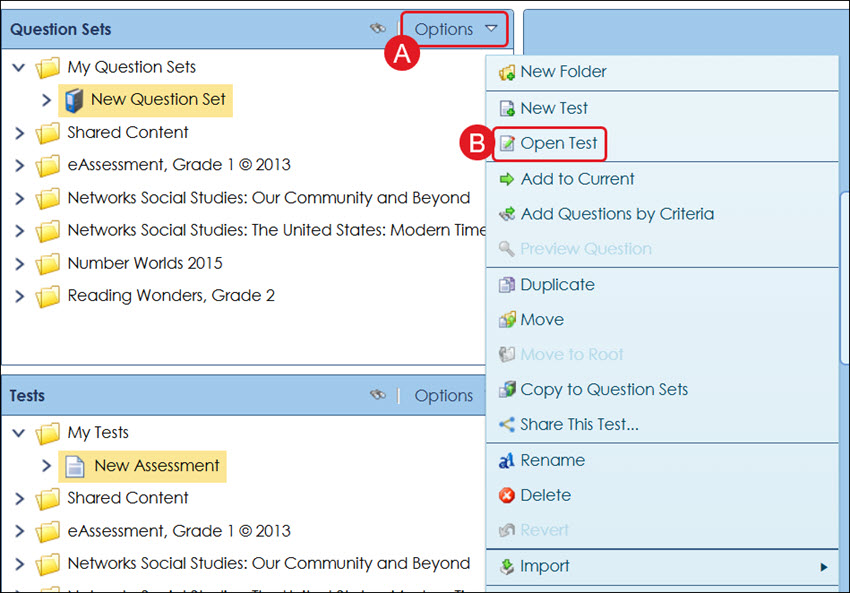
You can also click on the question set or test and then on Options (A) in the appropriate pane. Click Open Question Set or Open Test (B) from the menu.
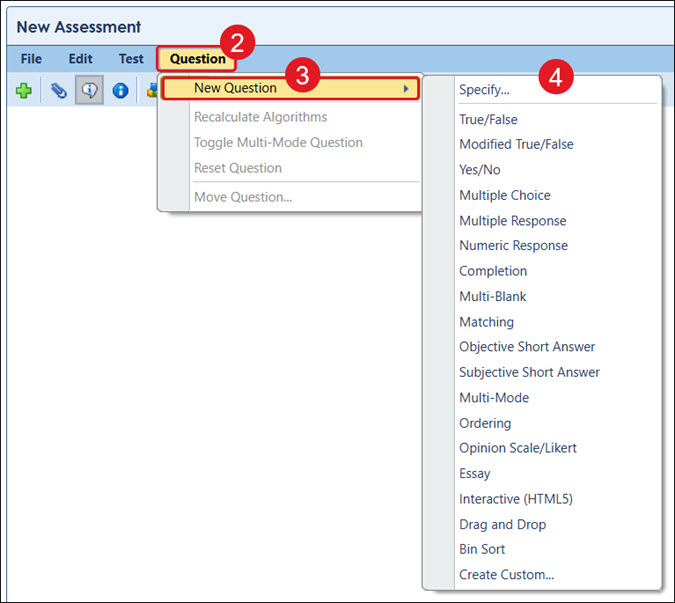
- Click on Question in the toolbar.
- Click New Question from the menu.
- Select a question type from the menu.
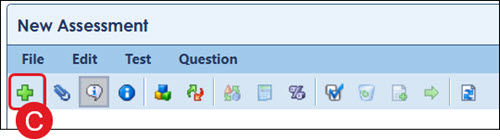
C. Another option is to click the New Question button (plus icon) on the toolbar under File.
D. On the pop-up, select the radio button for the Question type you want to create and click OK.
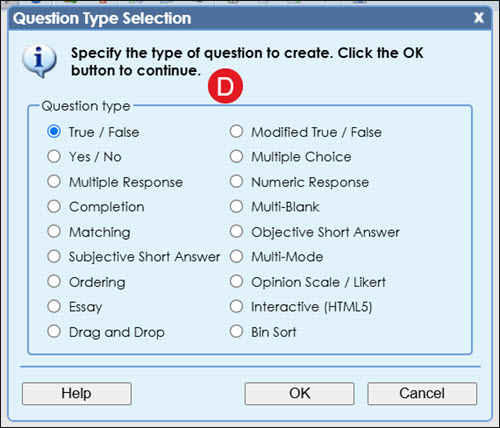
For information on the different question types that are available, see the Available eAssessment Question Types article.
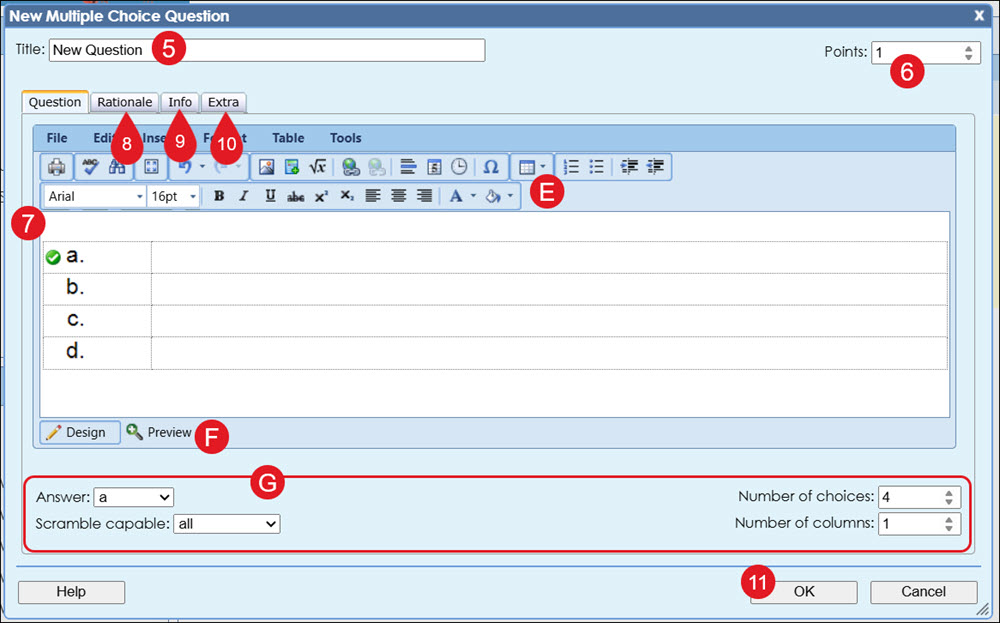
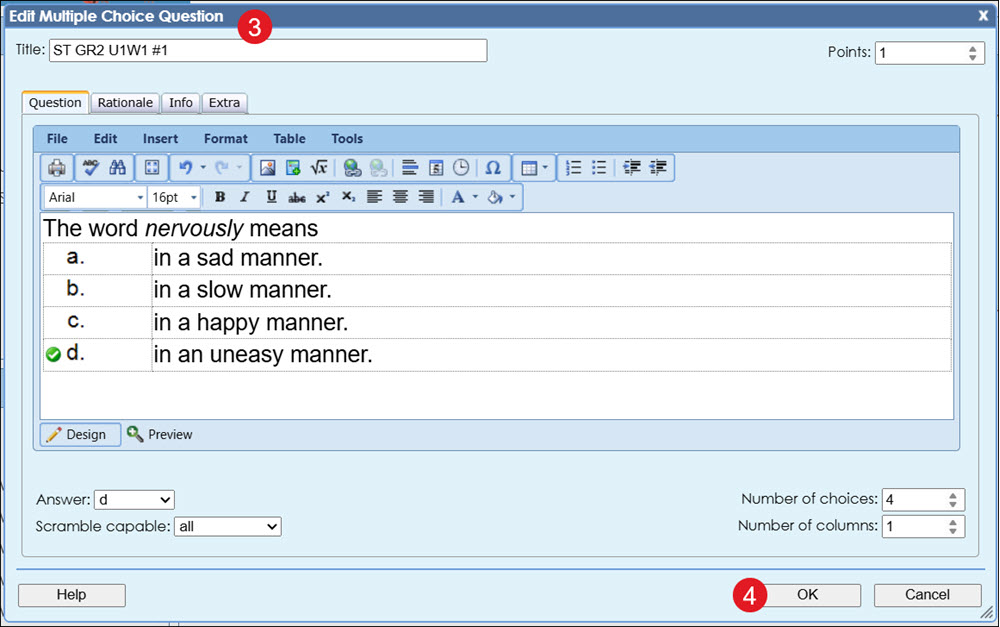
- On the pop-up, enter the Title for the new question.
- Select the number of Points the question is worth.
- Enter the question and any corresponding answer choices. This portion will vary based on the question type selected.
- For questions such as Drag and Drop and Bin Sort, you'll need to select the Background Image, Draggables, Drop Target, and Text.
- HTML5 questions require a zip file to be uploaded.
E. Use the available toolbar options to make the questions and answers as you need them.
F. Click the Preview button to view the question as students will see it.
G. The following options will vary based on the question type selected:
- Answer
-Answer order
-Scramble capable
-Student text entry mode
-Number of choices
-Number of columns
-Number of items
- Depending on the question type selected, enter the necessary Questions and Answers and Rationale information on the appropriate tabs.
- On the Info tab, select whether you want the question to be Electronic only or Print only to limit the question to only web or printed tests. If the question is connected to a table, picture, or other shared information, select a preface from the Preface drop-down list.
- Click the Extra tab to enter answer-choice-specific feedback and distractor information.
Note: Not all question types will have the Extra, Rationale, or Questions and Answers tabs.
- Click the OK button to add the question to the test or question set you've selected.
Edit a Question
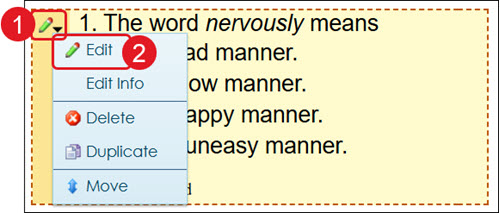
- Hover over the question you want to make changes to and click the pencil icon.
- Click Edit from the menu.
- Make the preferred changes to any of the available fields.
- Click the OK button to save changes.
Duplicate a Question
- Hover over the question you want to make a copy of.
- Click Duplicate from the menu.
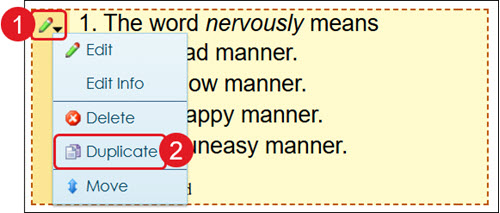
A copy of the question will populate at the bottom of the question set or test.
Move a Question
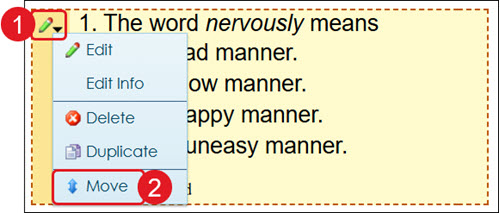
- Hover over the question you want to move to another location within the question set or test.
- Click Move from the menu.
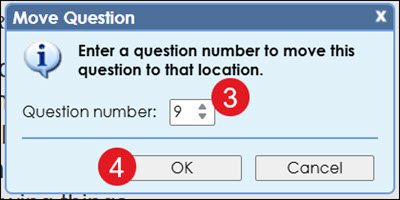
- On the pop-up, select the Question number where you would like to move the question to.
- Click the OK button.
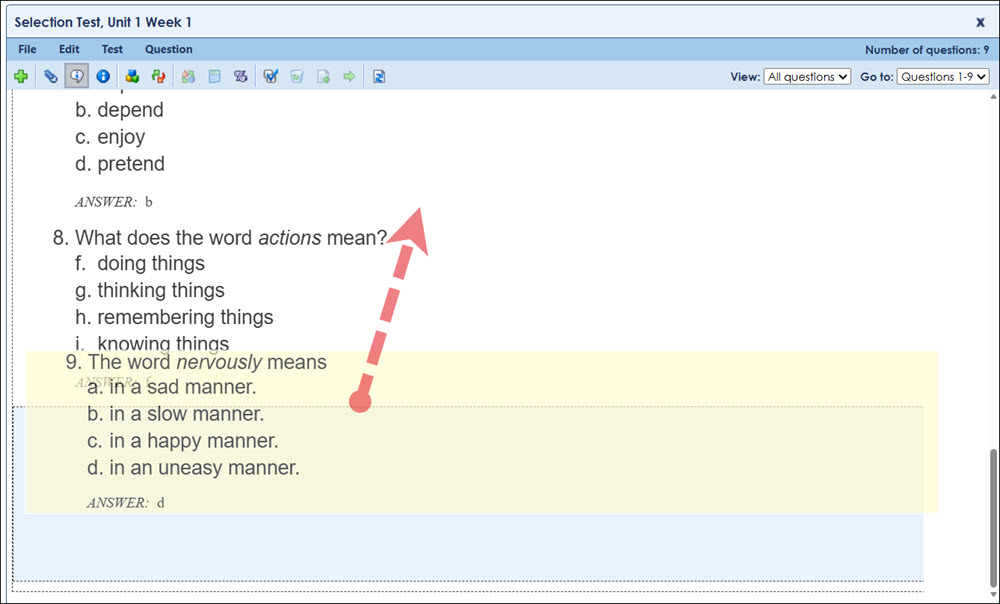
You can also click and drag the question to a new location within the question set or test.
Delete a Question
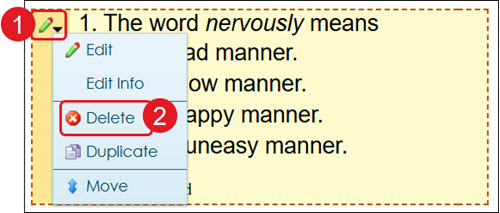
- Hover over the question you want to delete.
- Click Delete from the menu.
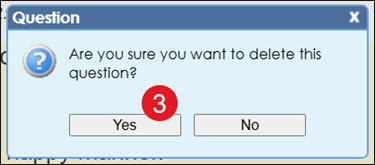
- On the pop-up, click Yes to confirm.