Create and Manage eAssessment Question Sets
Create and manage online question sets in eAssessment for assessments and practice.
Tags
- Customer Support
- PreK-12
- Classroom Teacher
- School Administrator
- Preschool
- Elementary School
- Middle School
- High School
- Direct Login & Auto-Rostering
- Direct Login & Manual-Rostering
- SSO & Auto-Rostering
- SSO & Manual-Rostering
- Core
- Intervention
- Supplemental
- AP, Honors & Electives
- Literacy
- Math
- Science
- Social Studies
- Health
- Visual & Performing Arts
- World Languages
- Asi se Dice 2016
- Building Blocks 2015
- Core Plus Math 2015
- Glencoe Health 2014
- Glencoe Algebra 1 2014
- Glencoe Algebra 1 2018
- Glencoe Algebra 2 2014
- Glenoce Algebra 2 2018
- Glencoe Geometry 2014
- Glencoe Geometry 2018
- Glencoe Math Accelerated
- Glencoe Math Course 1
- Glencoe Math Course 2
- Glencoe Math Course 3
- Glencoe Math
- Glencoe Science
- Glencoe Science 2017
- Inspire Science 2017
- iScience 2017
- McGraw Hill My Math 2013 & 2016
- Networks 2014 & 2016
- Networks 2014 (K-5)
- Pre-Algebra 2012
- Wonders 2014
- Number Worlds 2015
- Online Assessments
- Grades & Assignments


Article Contents
Create a New Question Set Folder
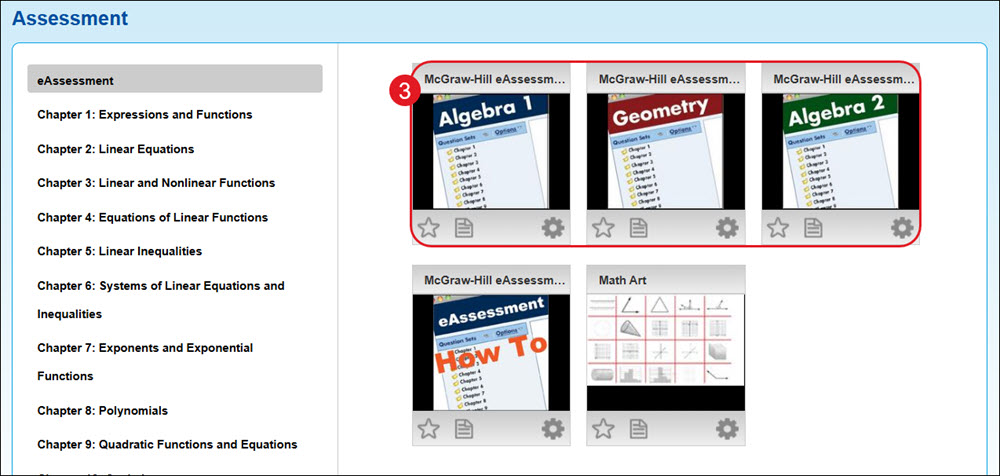
Access eAssessment
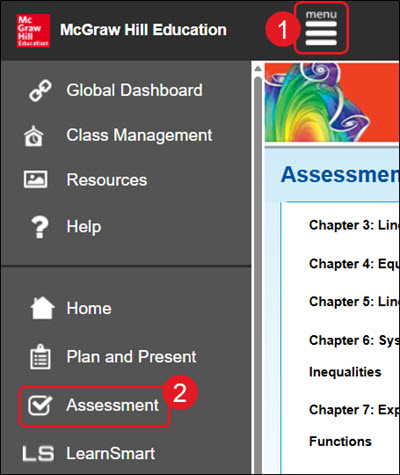
- Click Menu at the top right.
- Click Assessment from the menu.
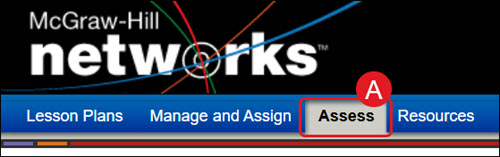
A. For certain programs, such as Networks, click on Assess from the navigation menu.
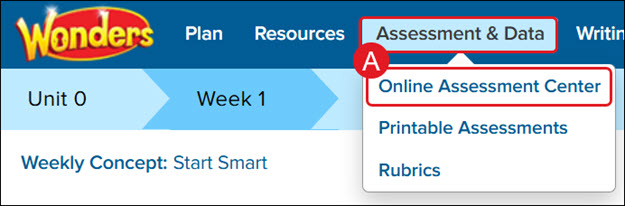
For Wonders ©2014, hover over Assessment & Data and select Online Assessment Center from the menu.
- Click on the eAssessment tile.
Open an Existing Question Set
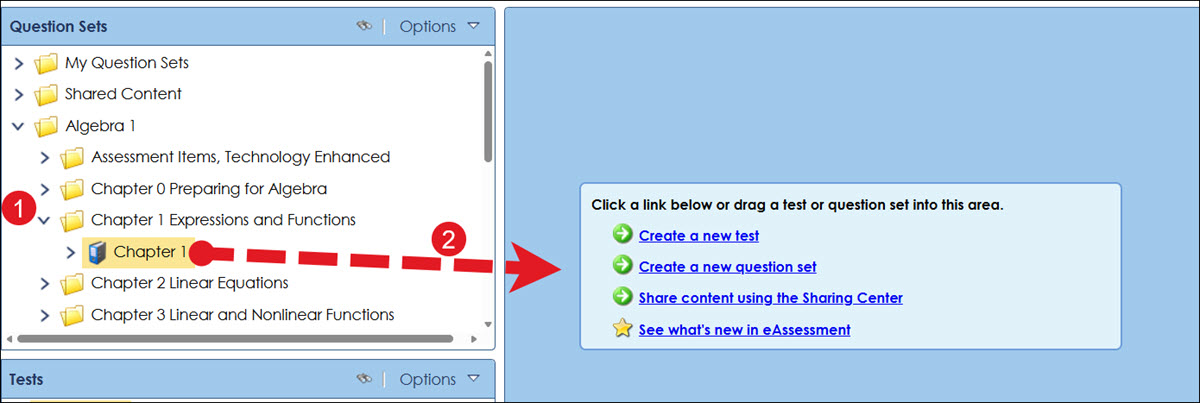
- Click on a folder in the Question Sets list to expand the section.
- Click on a question set (has a binder icon to the left) and drag it into the center of the screen (blue space).
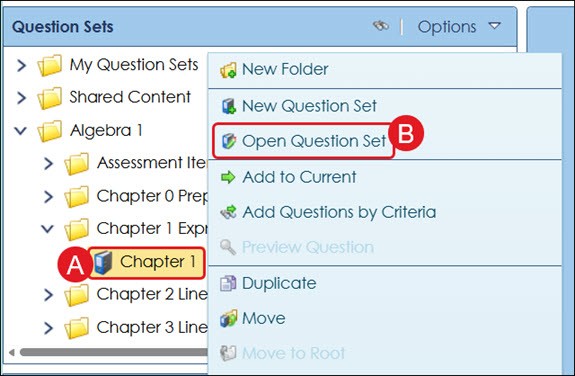
You can also right-click on the question set name (A) and click on Open Question Set (B) from the menu.
Create a New Question Set Folder
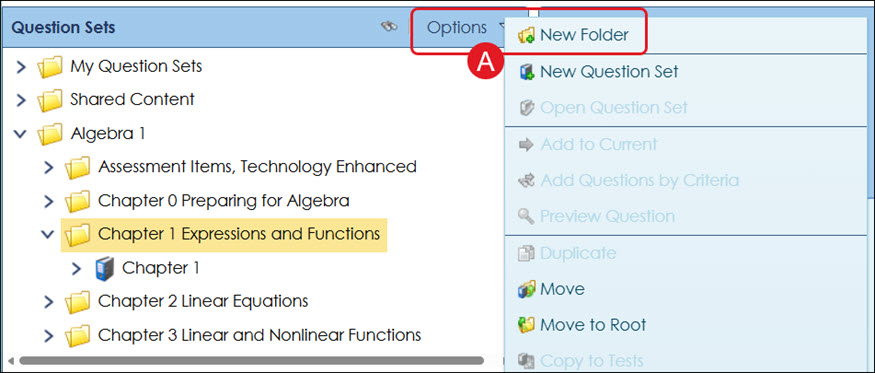
- In the Question Sets list, right-click where you want to add the new question set folder. This can be within an existing folder or question set (indicated by the binder icon).
- Click New Folder from the menu.
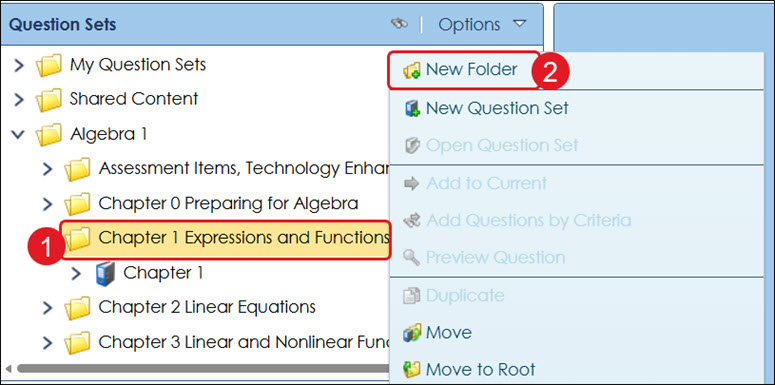
A. You can also click Options and click New Folder from the menu.
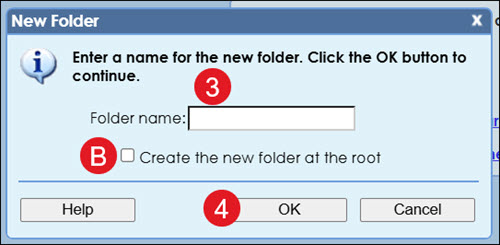
- On the pop-up, enter a Folder name.
B. The folder will be created as a subfolder of the location you selected unless you check the Create the new folder at the root option.
- Click the OK button.
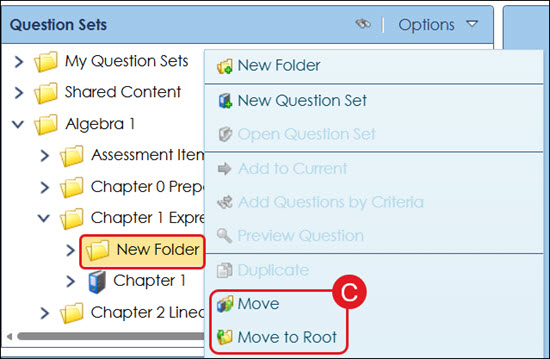
C. To move the folder to a different location, right-click on the folder and select Move or Move to Root from the menu. You can also click and drag the folder to where you want it to be in the Question Sets pane.
Note: If you want to move the folder to the Root - this makes the folder a main folder in the Question Sets pane - you will need to select the option from the menu.
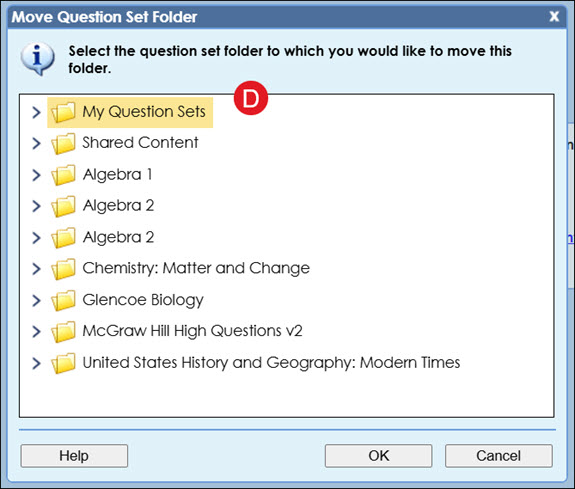
D. If Move is selected from the menu, on the pop-up, select where you want the folder located in the list and click the OK button to confirm.
Create a New Question Set
- Click on the location in the Question Sets pane where you want the new question set located.
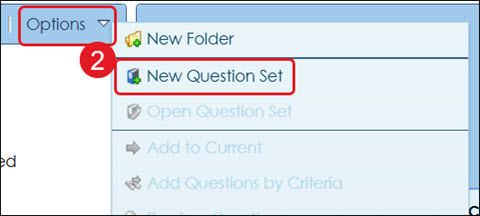
- Click on Options and select New Question Set from the menu.
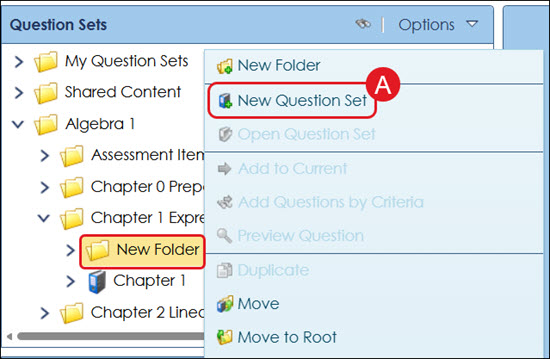
A. You can also right-click on the location and select New Question Set from the menu.
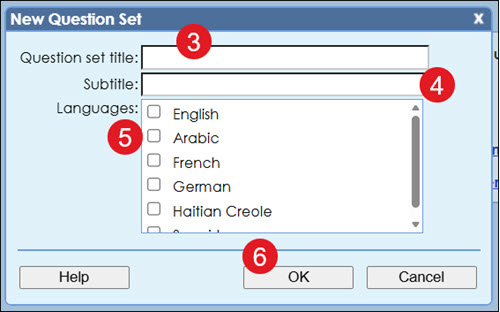
- Enter a Question set title.
- Enter a Subtitle. This is optional.
- Select the Languages from the list.
- Click the OK button.
This will open a blank space for you to add and create questions.
Rename a Question Set
- Click on the question set you want to rename.
- Click on Options on the Question Set pane.
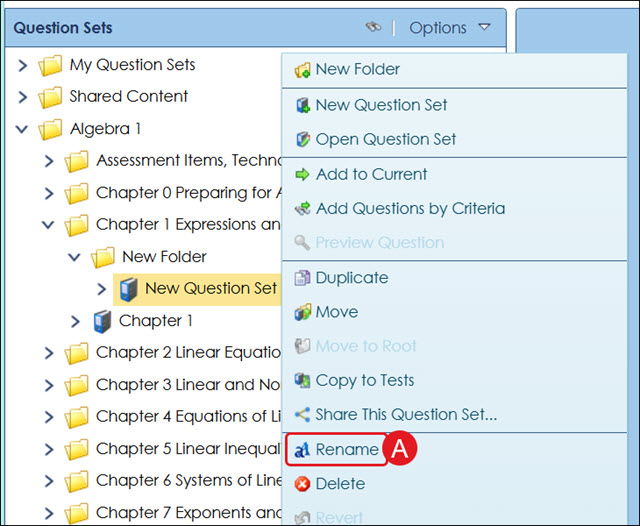
- Click Rename on the menu.
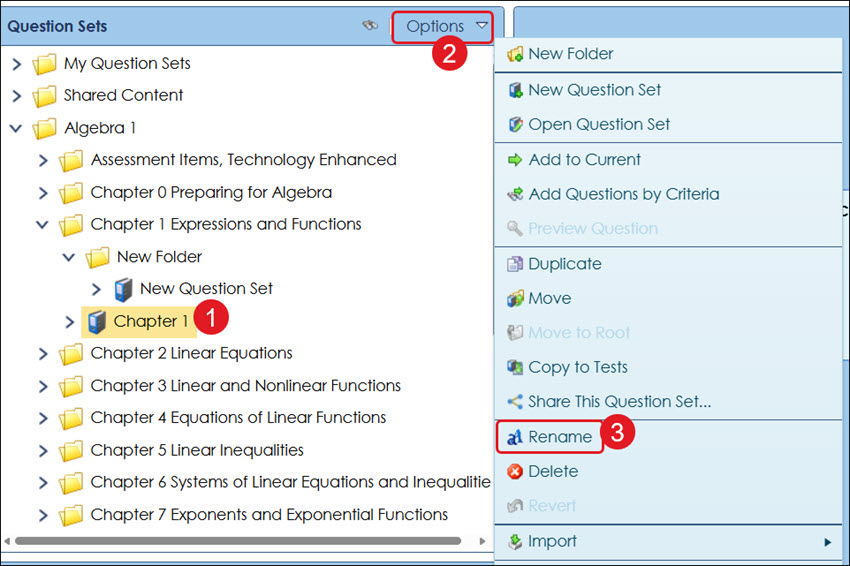
A. You can also right-click on the question set and click Rename from the menu.
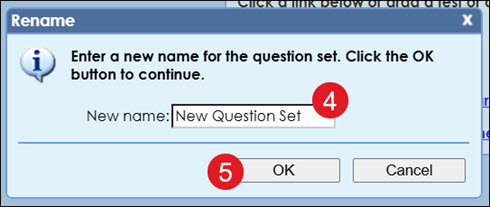
- On the pop-up, enter a New name.
- Click the OK button to confirm.
Duplicate a Question Set
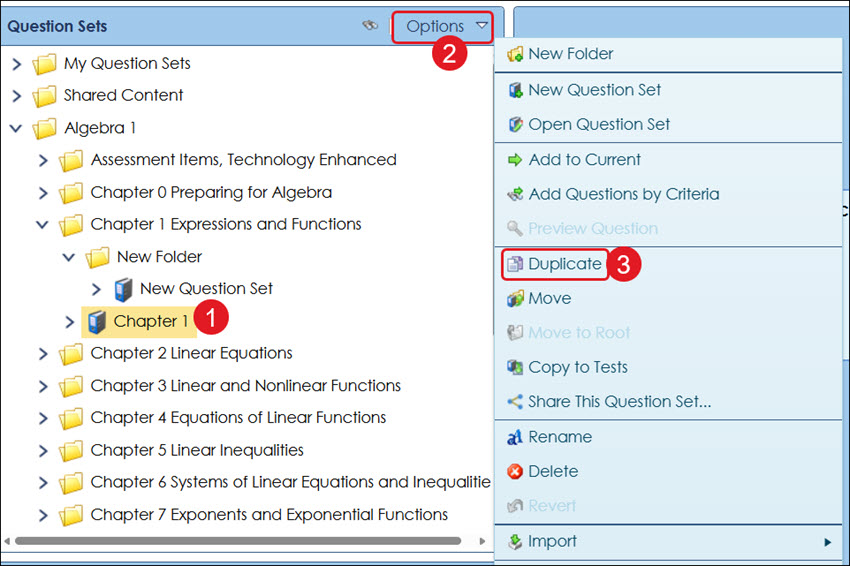
- Click on the question set you want to duplicate.
- Click on Options on the Question Set pane.
- Click Duplicate on the menu.
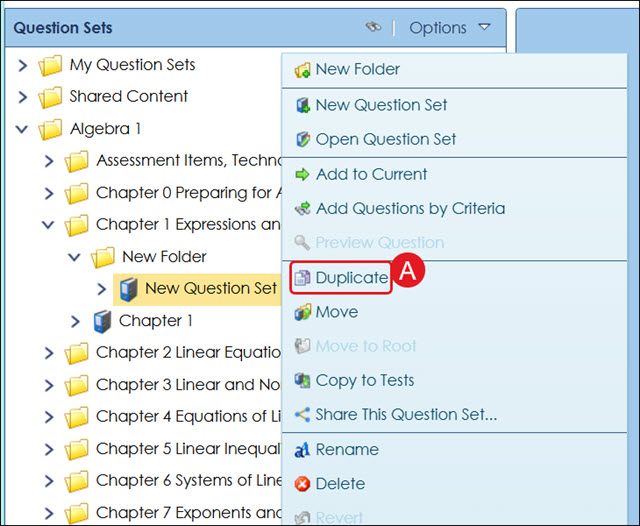
A. You can also right-click on the question set and click Duplicate from the menu.
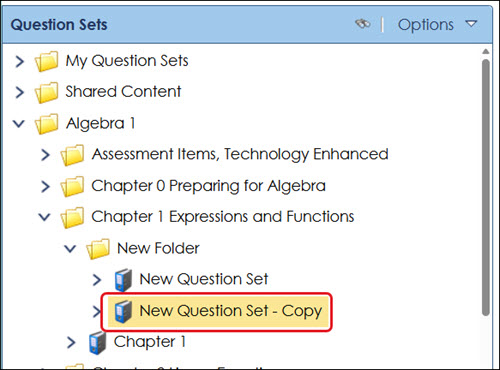
A new question set with "Copy" at the end of the name will show below the original version.
Delete a Question Set
Keep in mind, once a question set has been removed, there is not a way to get it back.
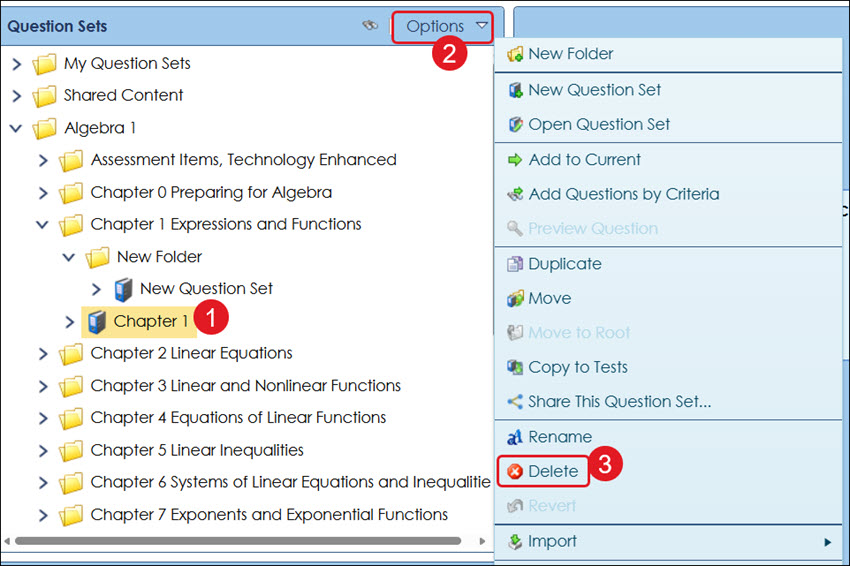
- Click on the question set you want to delete.
- Click on Options on the Question Set pane.
- Click Delete on the menu.
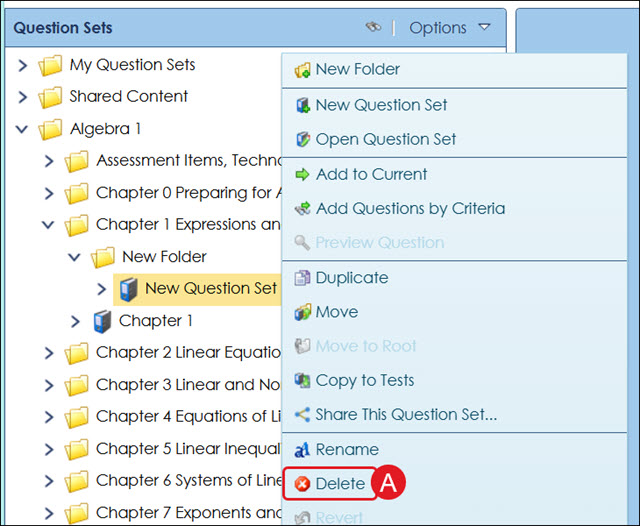
A. You can also right-click on the question set and click Delete from the menu.
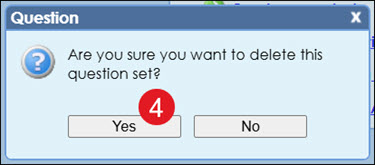
- On the pop-up, click Yes to confirm.