Create and Edit eAssessment Tests
Use the eAssessment test generator to build, customize, and deliver digital assessments.
Tags
- Customer Support
- PreK-12
- Classroom Teacher
- School Administrator
- Preschool
- Elementary School
- Middle School
- High School
- Direct Login & Auto-Rostering
- Direct Login & Manual-Rostering
- SSO & Auto-Rostering
- SSO & Manual-Rostering
- Core
- Intervention
- Supplemental
- AP, Honors & Electives
- Literacy
- Math
- Science
- Social Studies
- Health
- Visual & Performing Arts
- World Languages
- Asi se Dice 2016
- Building Blocks 2015
- Core Plus Math 2015
- Glencoe Health 2014
- Glencoe Algebra 1 2014
- Glencoe Algebra 1 2018
- Glencoe Algebra 2 2014
- Glenoce Algebra 2 2018
- Glencoe Geometry 2014
- Glencoe Geometry 2018
- Glencoe Math Accelerated
- Glencoe Math Course 1
- Glencoe Math Course 2
- Glencoe Math Course 3
- Glencoe Math
- Glencoe Science
- Glencoe Science 2017
- Inspire Science 2017
- iScience 2017
- McGraw Hill My Math 2013 & 2016
- Networks 2014 & 2016
- Networks 2014 (K-5)
- Pre-Algebra 2012
- Wonders 2014
- Number Worlds 2015
- Online Assessments
- Grades & Assignments


Article Contents
Create New Test
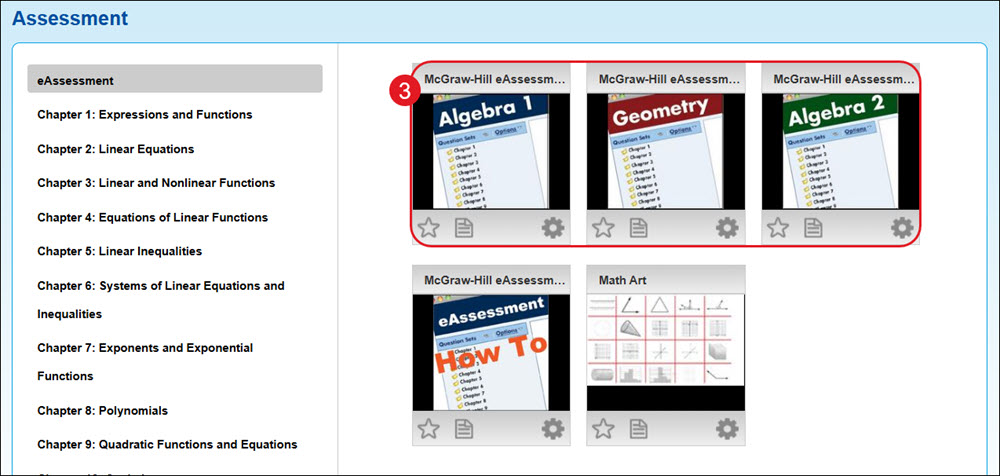
Access eAssessment
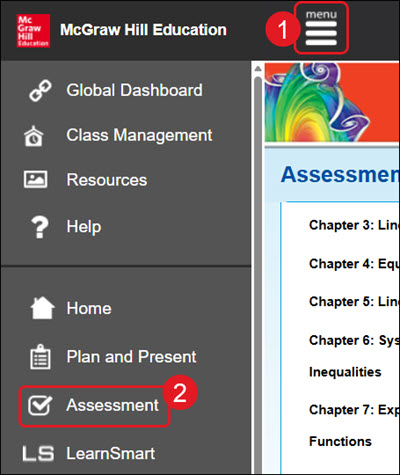
- Click Menu at the top right.
- Click Assessment from the menu.
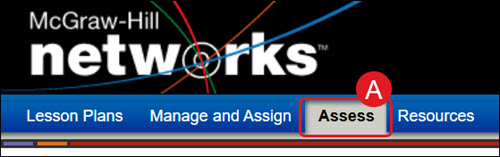
A. For certain programs, such as Networks, click on Assess from the navigation menu.
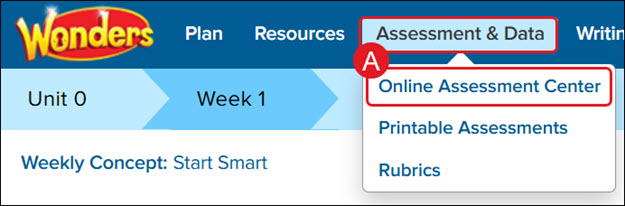
For Wonders ©2014, hover over Assessment & Data and select Online Assessment Center from the menu.
- Click on the eAssessment tile.
Create New Test By Question Type
- Click the Create a new Test link.
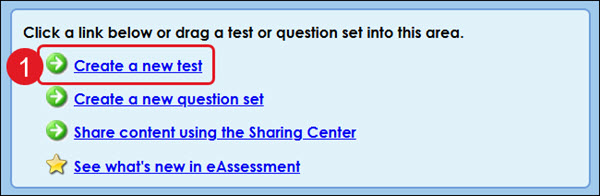
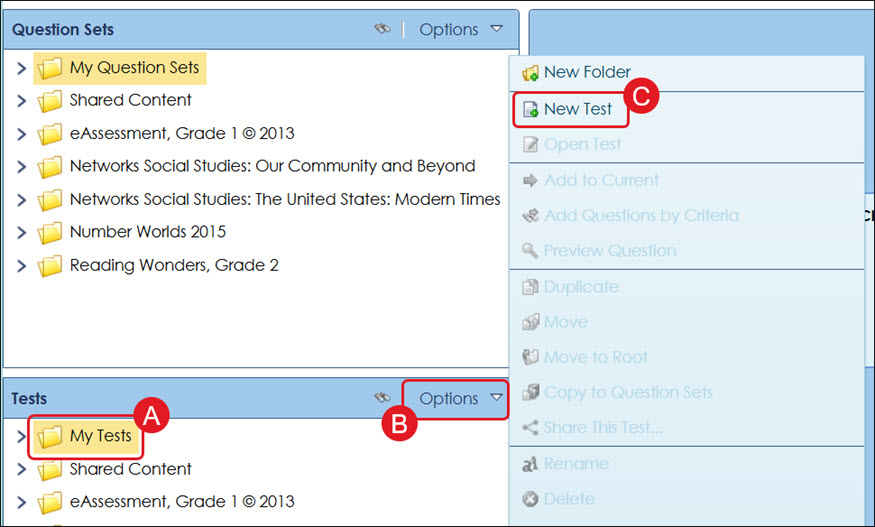
A. Another option is to click on the folder where you want the new assessment located in the Tests panel.
B. Click on Options.
C. Click New Test from the menu.
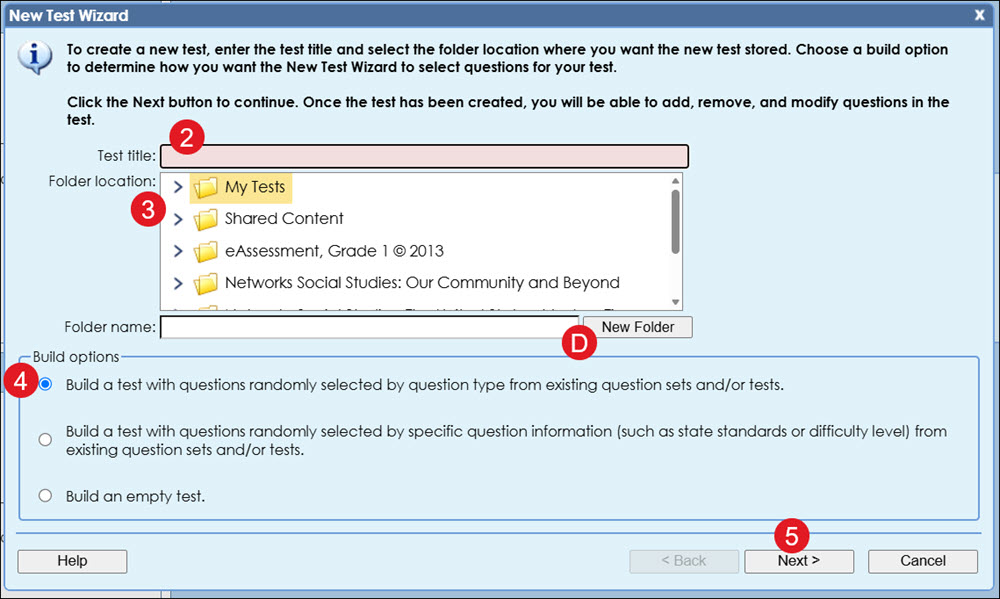
- On the pop-up, enter a Test title.
- Select the Folder location.
D. To add the new assessment to a new folder, enter a Folder name and click the New Folder button. The folder will be added to the Folder location you have selected.
- Select the Build a test with questions randomly selected by question type from existing question sets and/or tests (first option) radio button.
- Click the Next button.
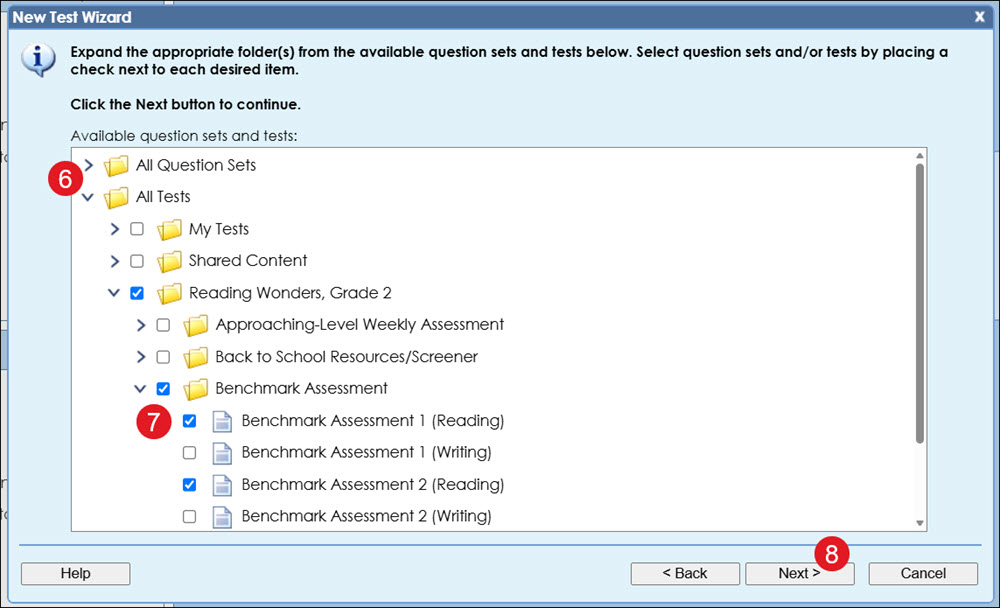
- Expand the All Question Sets or All Tests folder, depending on where you want to select the questions from.
- Check the box next to the folder or the specific test or question set you want questions from.
- Click the Next button.
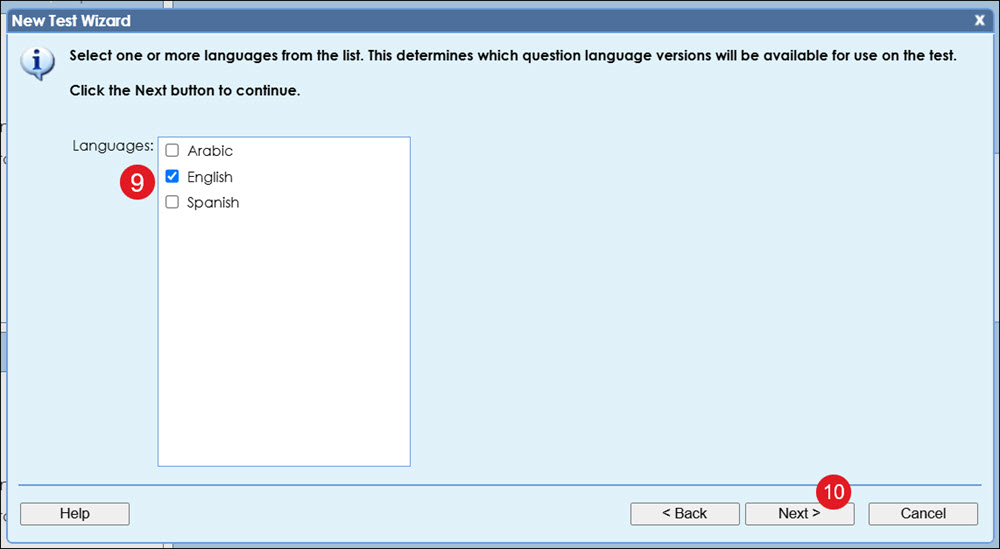
- Select the box next to the Langauges needed.
- Click the Next button.
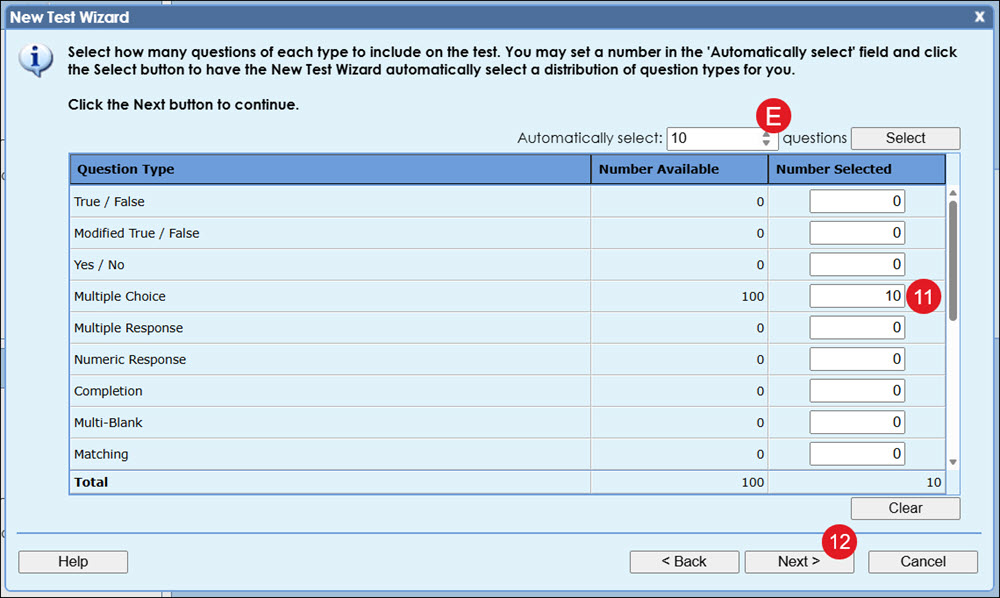
- Enter the number of questions you want for each type in the Number Selected field.
E. To have the system randomly select questions, enter the number you want in the Automatically select field and click the Select button.
- Click the Next button.
- Click the Finish button.
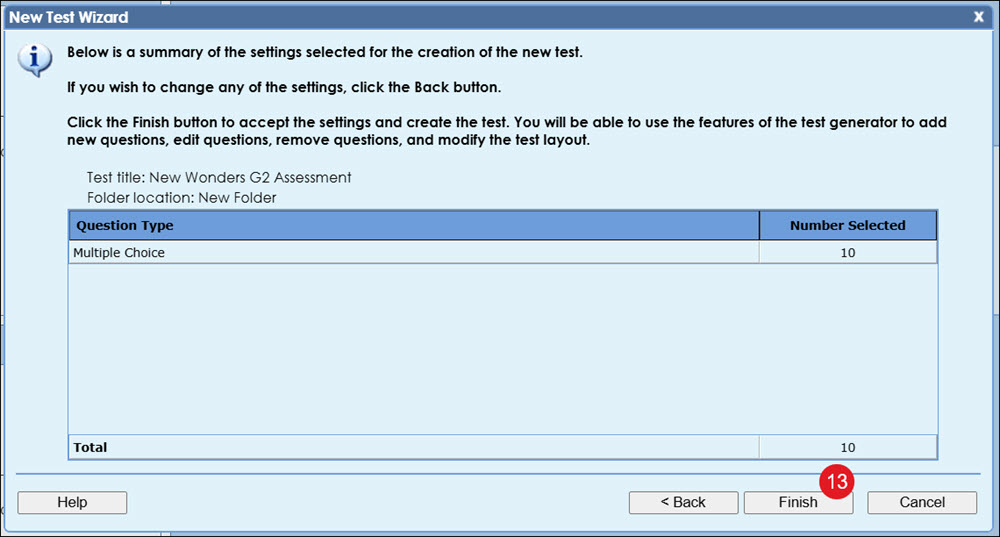
The assessment will automatically open for review.
Create New Test By Specific Question Information
- Click the Create a new Test link.
A. Another option is to click on the folder where you want the new assessment located in the Tests panel.
B. Click on Options.
C. Click New Test from the menu.
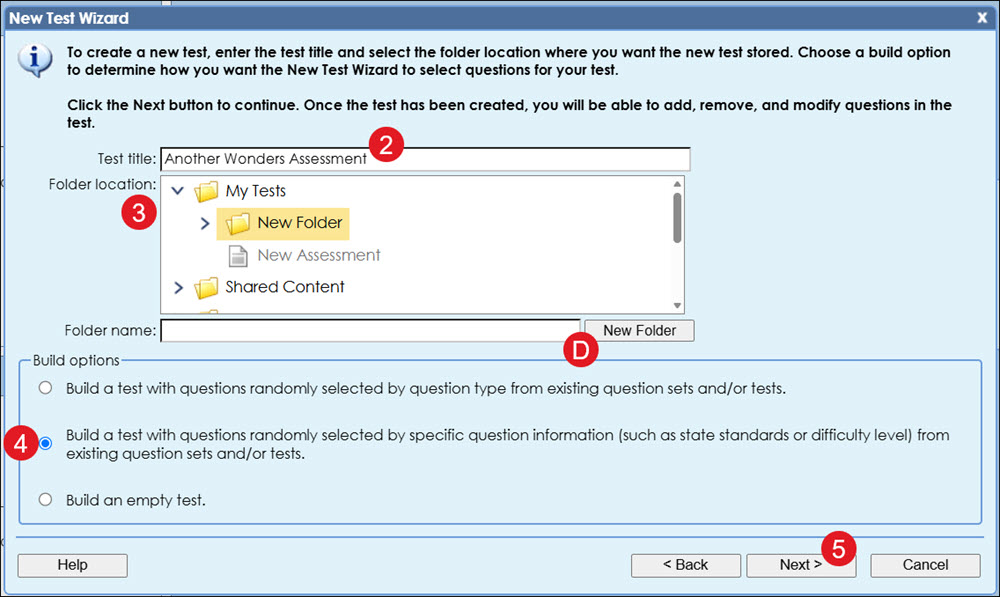
- On the pop-up, enter a Test title.
- Select the Folder location.
D. To add the new assessment to a new folder, enter a Folder name and click the New Folder button. The folder will be added to the Folder location you have selected.
- Select the Build a test with questions randomly selected by specific question information (such as state standards or difficulty level) from existing question sets and/or tests (second option) radio button.
- Click the Next button.
- Expand the All Question Sets or All Tests folder, depending on where you want to select the questions from.
- Check the box next to the folder or the specific test or question set you want questions from.
- Click the Next button.
- Select the box next to the Langauges needed.
- Click the Next button.
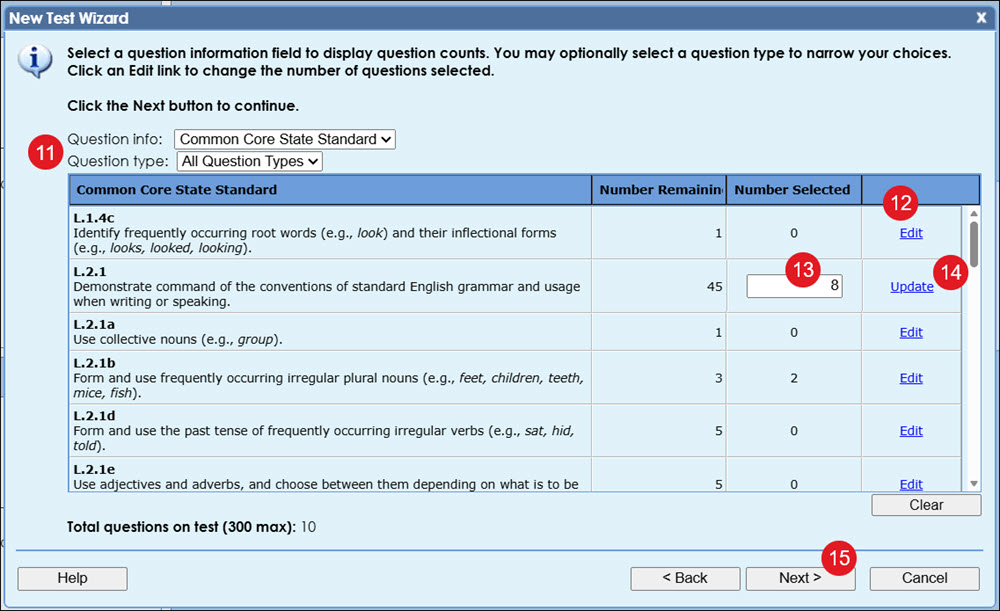
- Select the Question info and Question type from the drop-down.
- Click the Edit link
- Enter the Number Selected in the field.
- Click the Update link
- Click the Next button.
- Click the Finish button.
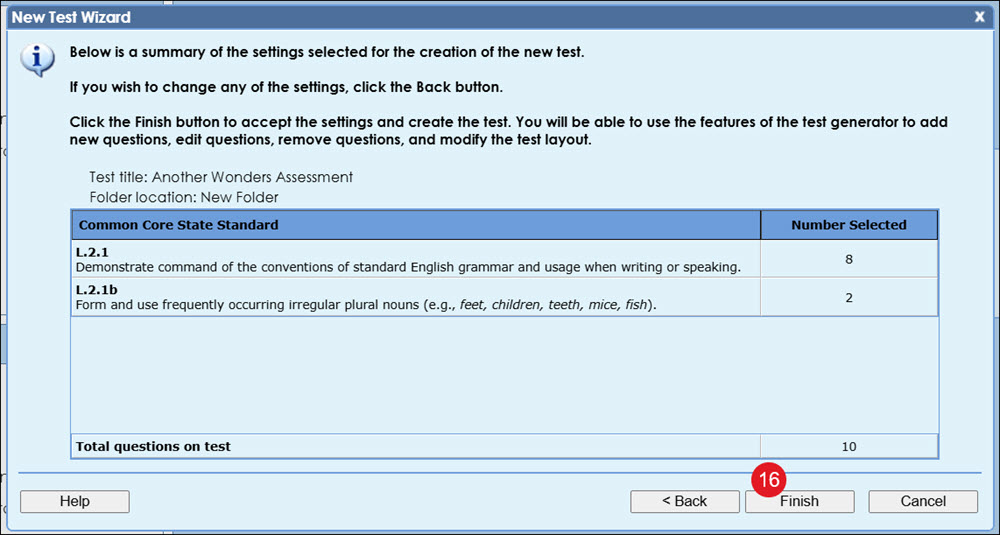
The assessment will automatically open for review.
Build an Empty Test
- Click the Create a new Test link.
A. Another option is to click on the folder where you want the new assessment located in the Tests panel.
B. Click on Options.
C. Click New Test from the menu.
- On the pop-up, enter a Test title.
- Select the Folder location.
D. To add the new assessment to a new folder, enter a Folder name and click the New Folder button. The folder will be added to the Folder location you have selected.
- Select the Build an empty test (third option) radio button.
- Click the Finish button.
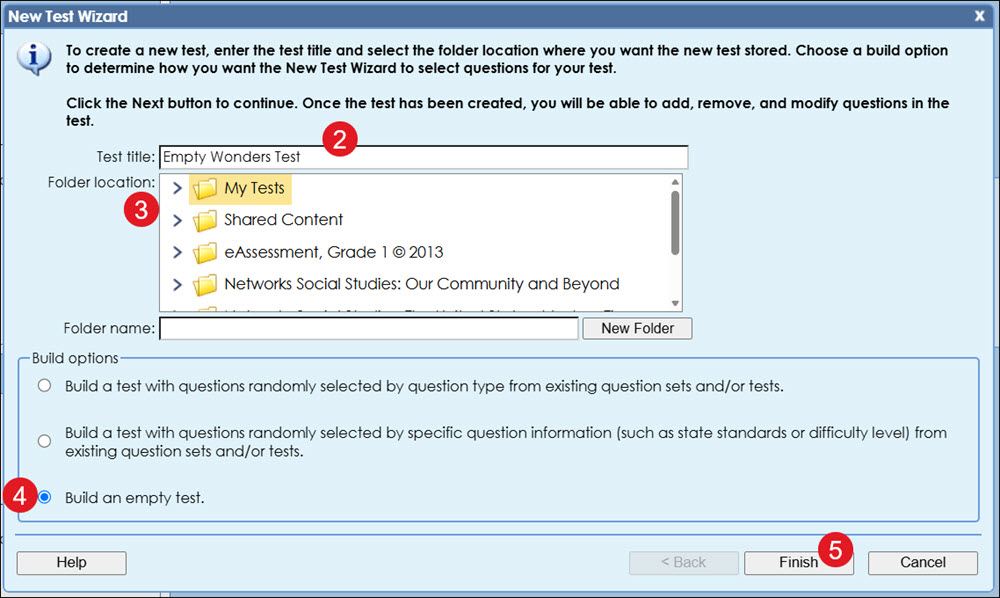
The empty test will automatically open.
- In the Question Sets and/or Tests pane, expand the folders until it lists the set of questions for that option. The questions will have a dot to the left of them.
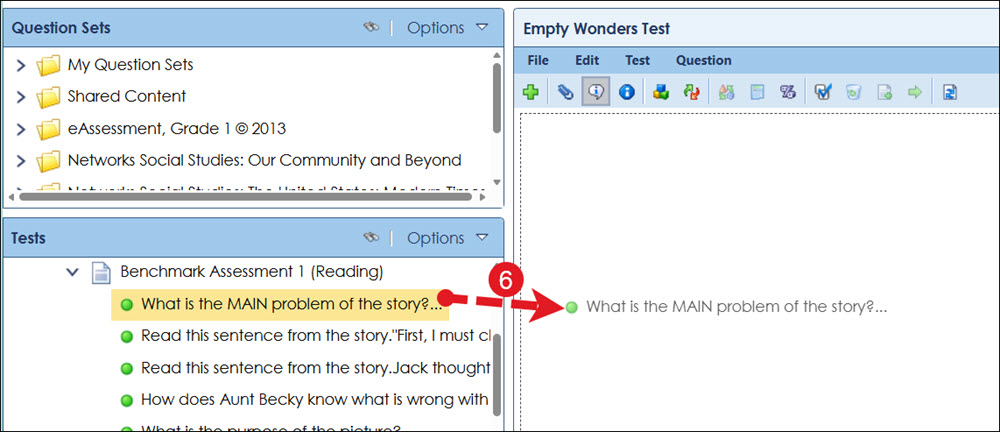
- Click and drag each question you want to add into the empty assessment.
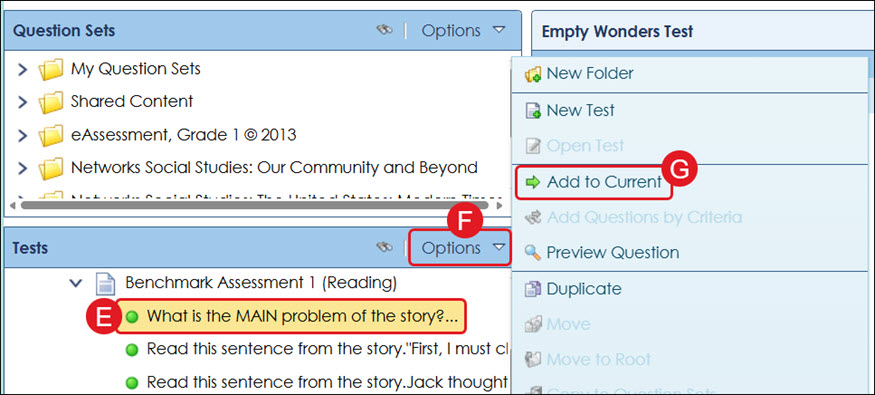
E. As an alternative, click on the question in the pane.
F. Click on Options.
G. Click Add to Current from the menu.
The assessment will automatically save as you add questions.
Edit a Test
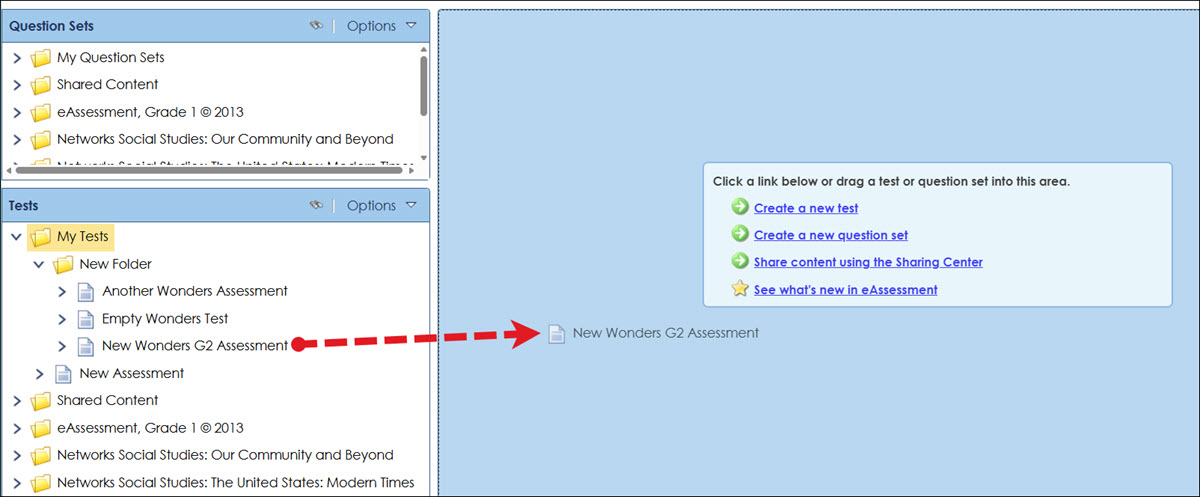
To open an assessment, click on the name and then drag it into the center of the page (blue area).
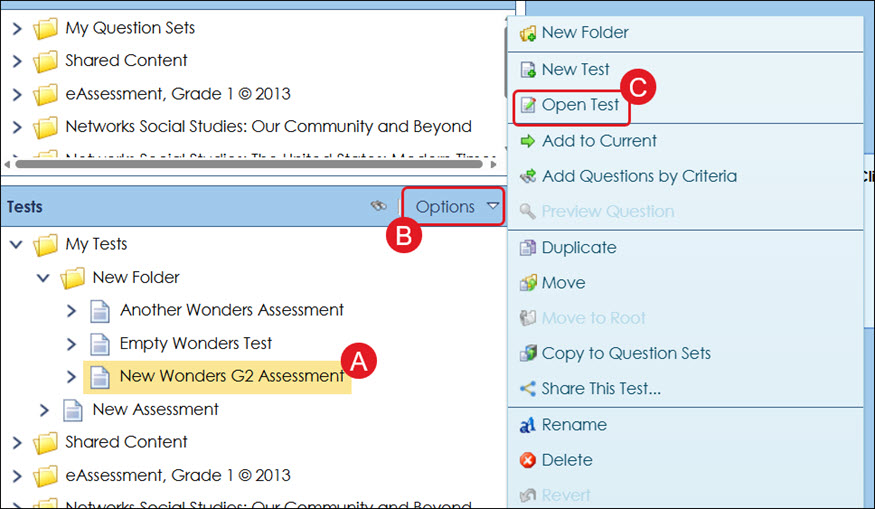
Another option is to click on the test name (A), click on Options (B), and then click Open Test (C) from the menu.
- Hover over a question and click the pencil icon to Edit, Edit Info, Delete, Duplicate, or Move.
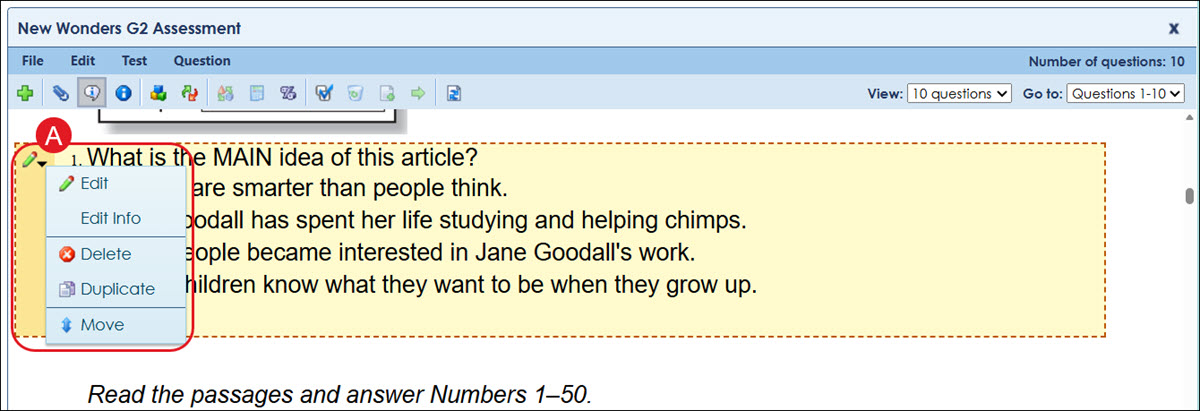
For more on managing questions, see the Create and Manage eAssessment Questions for Tests and Question Sets article.

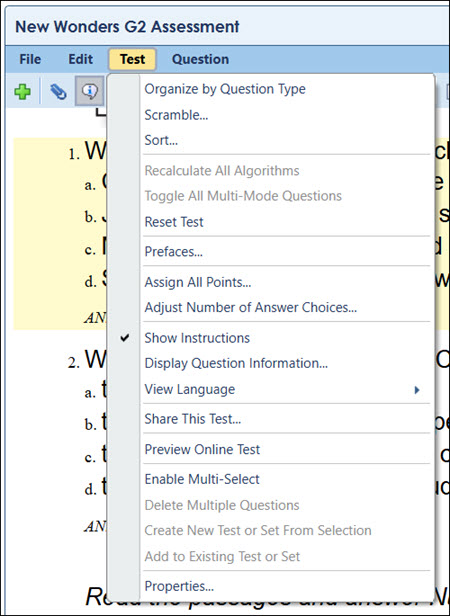
- New Question - There are a variety of question types that allow you to create assessments to your exact specifications.
- Prefaces - When creating questions, you may wish to link multiple questions to a single table, chart, picture, or passage instead of repeating the information for each question.
- Show Instructions - Show or hide question instructions from the test.
- Display Question Information - Each question may be tagged with a variety of question information, such as difficulty levels and state standards. You can choose to display as many or as few of these fields as you want with your question sets and tests.
- Organize by Question Type - When the Organize by Question Type option is enabled, questions are displayed in groups based on question type such as true/false and multiple choice. If this option is disabled, questions may be mixed (a true/false question followed by a multiple-choice question followed by another true/false question).
- Scramble - The Scramble option enables you to quickly create a new version of your test or question set by scrambling the question order and the answer choice order for multiple-choice, multi-mode, and multiple response questions.
- Toggle All Multi-Mode Questions - A multi-mode question is a question that can be displayed on a test either as a multiple-choice question, an objective short answer question, or a subjective short answer question. Multi-mode questions can easily be toggled between their three modes, allowing instructors to increase or decrease the difficulty level of a test with a single click of the mouse.
- Recalculate All Algorithms - You may recalculate algorithms for an individual question or for an entire test/question set.
- Assign All Points - Use the Assign Points option to quickly set the point values for all questions in a question set or test. You can set the point value for all the questions, all the questions of a specific type, or individual questions.
- Enable Multi-Select - Use the multi-select option to select a group of questions in the editor pane, Question Sets pane, or Tests pane. Once the questions are selected, you can delete them, create a new test or set from the selection (instructors only), or add the selected questions to an existing set or test.
- *Delete Multiple Questions - Use the delete questions feature to quickly delete multiple questions from a question set or test.
- *Create New Test or Set From Selection - Add the selected questions to a new test or question set.
- *Add to Existing Test or Set - Add the selected questions to an existing test or question set.
- Refresh Set/Test - Use this command to restore certain aspects of a test to their original state. This option is also located under Edit.
- Select the number of questions you want to View at once from the drop-down.
- Select an option from Go to to quickly navigate to those questions within the test editing view.
*These options are only active when Multi-Select is enabled.
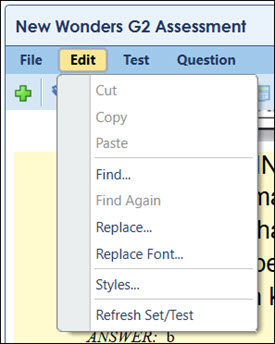
- Click Edit in the toolbar to:
- Find: Locate certain text within the test.
- Replace: Locate and replace text within the test.
- Replace Font: Quickly adjust all font styles and sizes within the test.
- Styles: Change the question and answer number and choice styles, adjust answer choice settings, and student text entry settings.
- Click Test in the toolbar to organize by question type, scramble questions, sort questions, reset the test, edit prefaces, assign points, adjust the number of answer choices, show instructions, display question information, view the languages the test is available in, share and preview the test, enable multi-select, and access the test properties, among other options.
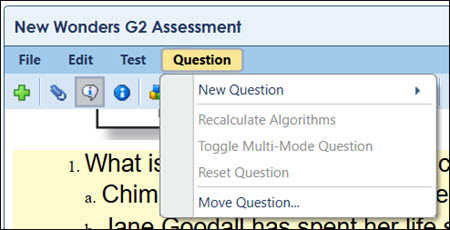
- Click Question in the toolbar to add custom questions to the test, recalculate algorithms, toggle multi-mode, reset questions, and move questions.
Rename Test
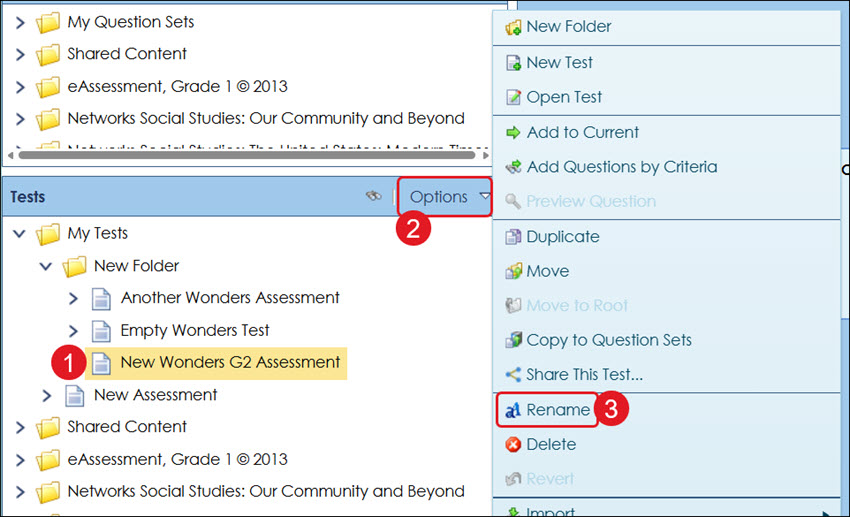
- In the Test pane, click on the test name.
- Click on Options.
- Click Rename from the menu.
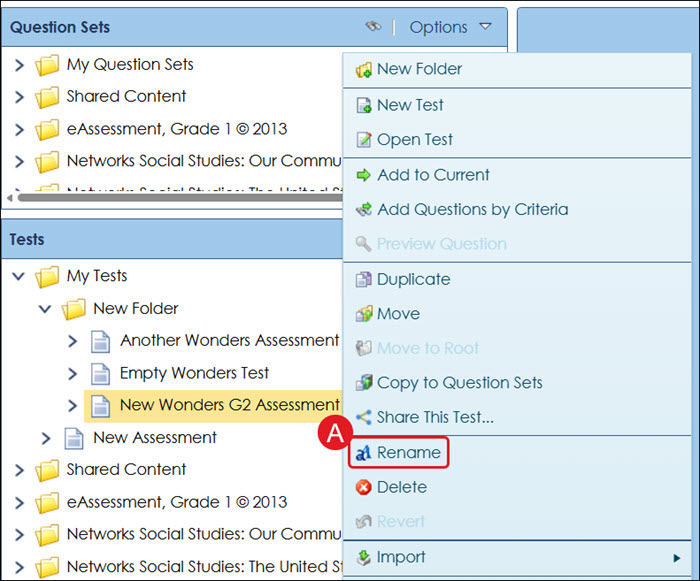
A. Another option is to right-click on the test name and click Rename from the menu.
Duplicate Test
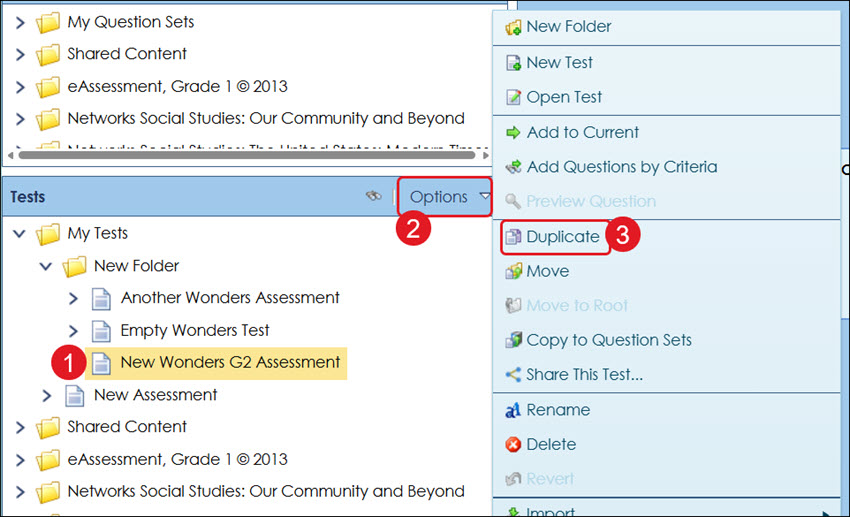
- In the Test pane, click on the test name.
- Click on Options.
- Click Duplicate from the menu.
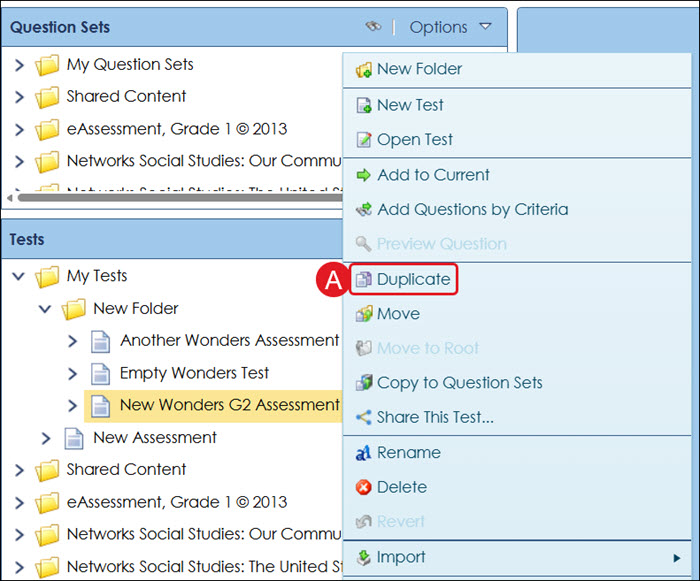
A. Another option is to right-click on the test name and click Duplicate from the menu.
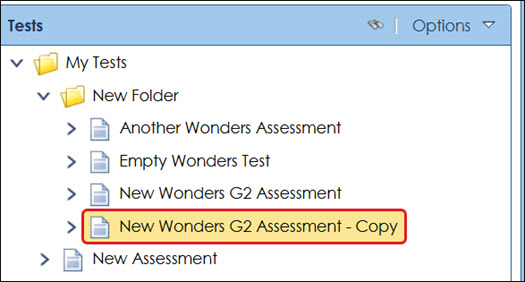
The duplicated assessment will show "Copy" at the end of the title.
Delete Test
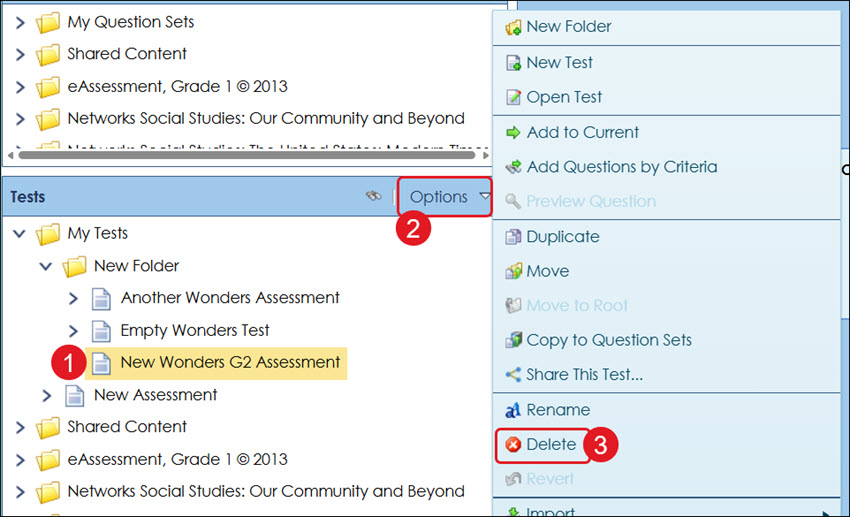
- In the Test pane, click on the test name.
- Click on Options.
- Click Delete from the menu.
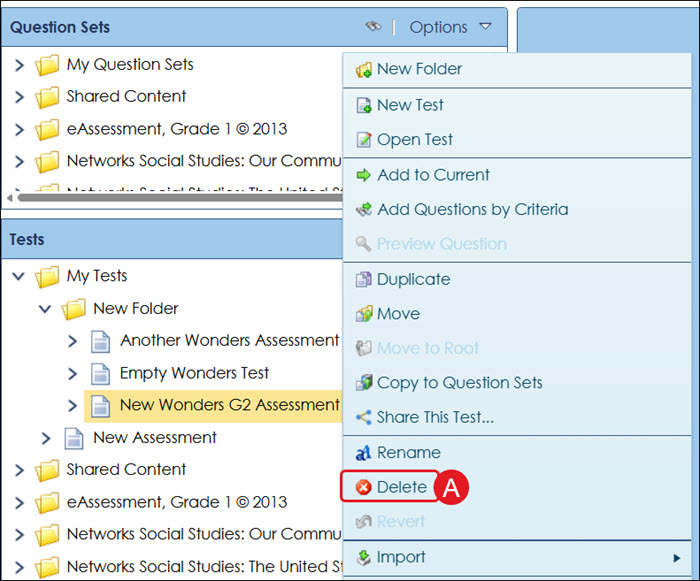
A. Another option is to right-click on the test name and click Delete from the menu.
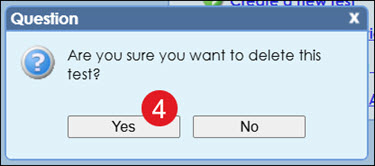
- On the pop-up, click Yes to confirm.