
Backup eAssessment Tests and Data
Learn how to back up eAssessment tests, question banks, and reports by exporting and saving assessment data.
- Customer Support
- PreK-12
- Classroom Teacher
- Preschool
- Elementary School
- Middle School
- High School
- Direct Login & Auto-Rostering
- Direct Login & Manual-Rostering
- SSO & Auto-Rostering
- SSO & Manual-Rostering
- Core
- Intervention
- Supplemental
- AP, Honors & Electives
- Literacy
- Math
- Science
- Social Studies
- Health
- Visual & Performing Arts
- World Languages
- Asi se Dice 2016
- Building Blocks 2015
- Core Plus Math 2015
- Glencoe Health 2014
- Glencoe Algebra 1 2014
- Glencoe Algebra 1 2018
- Glencoe Algebra 2 2014
- Glenoce Algebra 2 2018
- Glencoe Geometry 2014
- Glencoe Geometry 2018
- Glencoe Math Accelerated
- Glencoe Math
- Glencoe Math Course 1
- Glencoe Math Course 2
- Glencoe Math Course 3
- Glencoe Science
- Glencoe Science 2017
- Inspire Science 2017
- iScience 2017
- McGraw Hill My Math 2013 & 2016
- Networks 2014 & 2016
- Networks 2014 (K-5)
- Pre-Algebra 2012
- Wonders 2014
- Number Worlds 2015
- Reports & Analytics
- Online Assessments
- End-of-Year Tasks


View the demo in a separate tab.
View the Spanish version of the demo.
To save any assessments or question banks you have created or customized, export the files and save them to your computer. You will then be able to import them to your eAssessment account at a later time.
Article Contents
Export Assessments/Question Banks
Import Assessments/Question Banks
Export Assessments/Question Banks
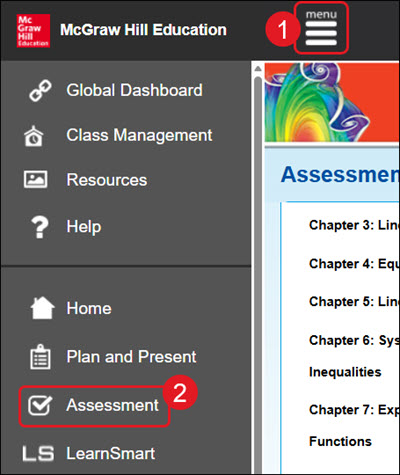
- Click Menu at the top left.
- Click Assessment from the menu.
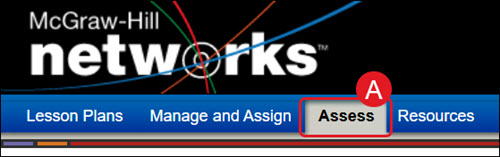
A. For certain programs, such as Networks, click on Assess from the navigation menu.
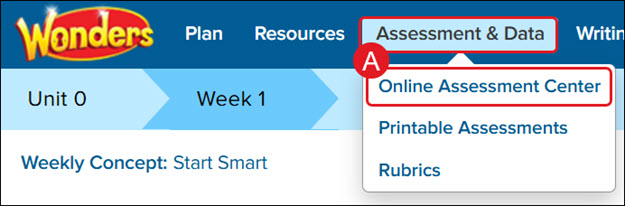
For Wonders ©2014, hover over Assessment & Data and select Online Assessment Center from the menu.
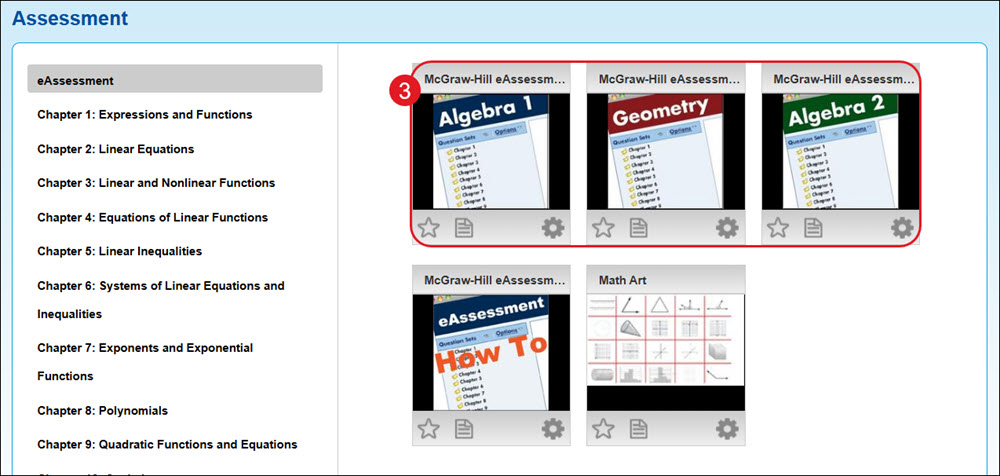
- Click on the eAssessment tile.
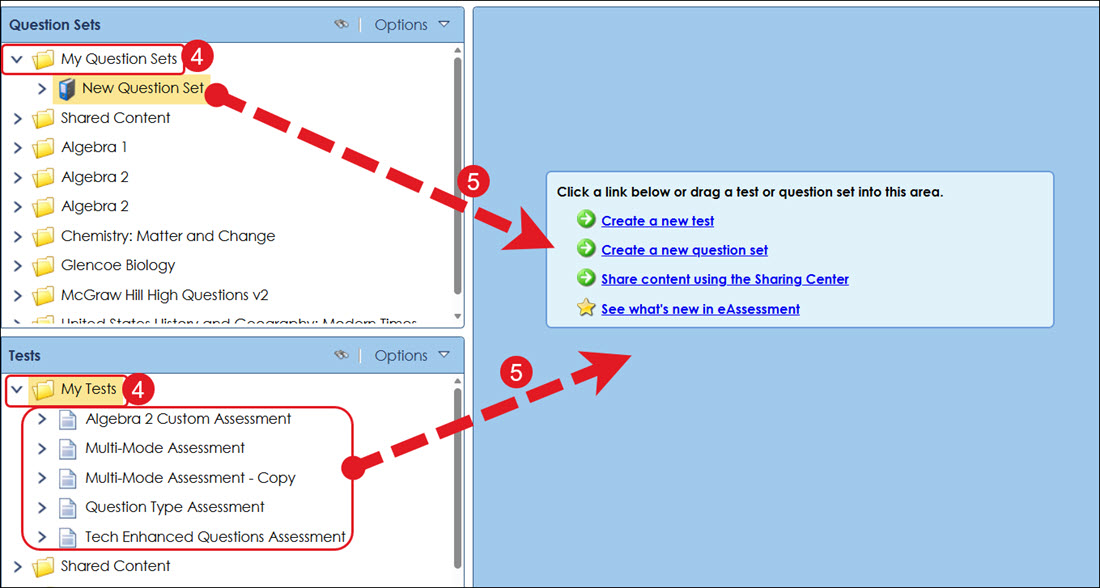
- Expand the My Question Sets or My Tests folder.
- Click and drag the question set or assessment into the middle of the screen (blue area).
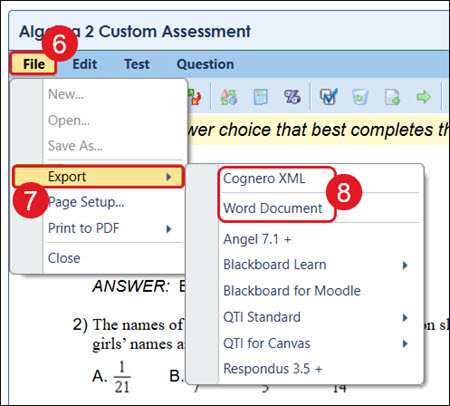
- Click on File.
- Click Export from the menu.
- Click on Cognero XML or Word Document.
Import Assessments/Question Banks
- Click Menu at the top left.
- Click Assessment from the menu.
- Click on the eAssessment tile.
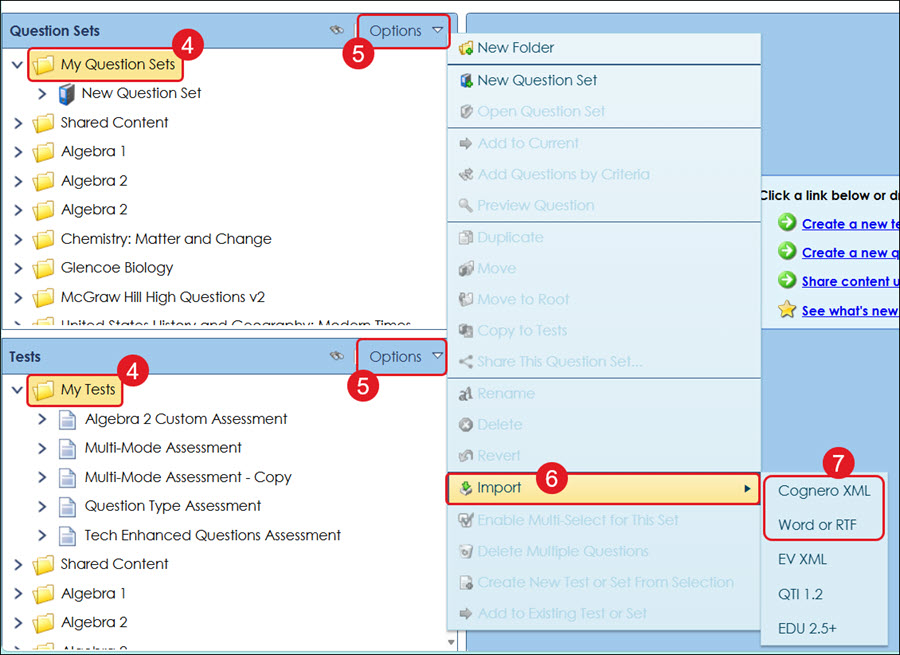
- Click on the folder where you want to import the custom question set or test.
- Click on Options for Question Sets or Tests depending on what you want to import.
- Click Import from the menu.
- Click Cognero XML or Word or RTF from the menu.
Back-up Assessment Data
The eAssessment platform has the option to export any of the reports generated to a CSV file. Follow the steps below to generate a report and save it as a CSV file that can be saved to your computer to create a backup of your data.
- Click Menu at the top left.
- Click Assessment from the menu.
- Click on the eAssessment tile.
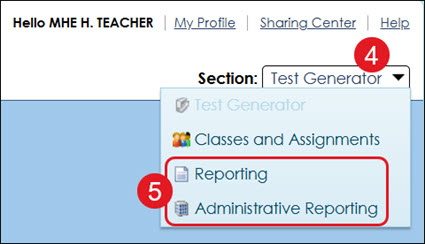
- Click the Section drop-down.
- Click Reporting from the menu.
Note: If you have administrator access, you will also have an option for Administrative Reporting. These steps will work for both the teacher reports and the administrator reports.
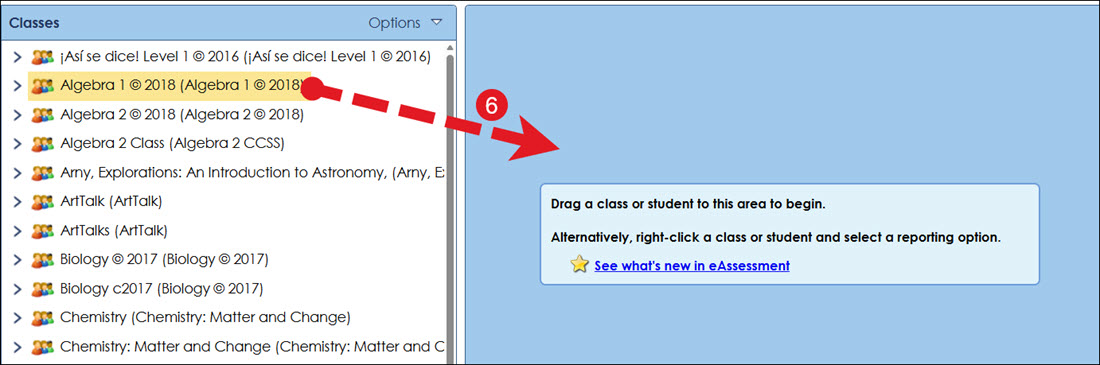
- Click and drag the Class into the middle of the page (blue section).
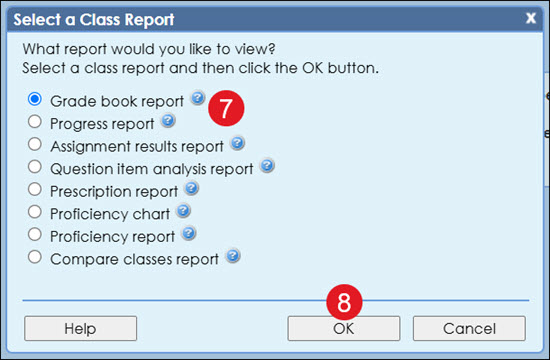
- On the pop-up, select the radio button for the Class Report you want to save.
- Click the OK button.
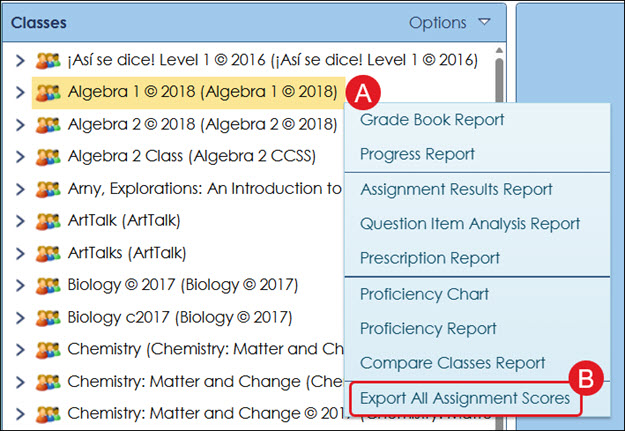
A. You can also right-click on the class name and select the class report option from the menu.
B. From here, you also have the option to Export All Assignment Scores.
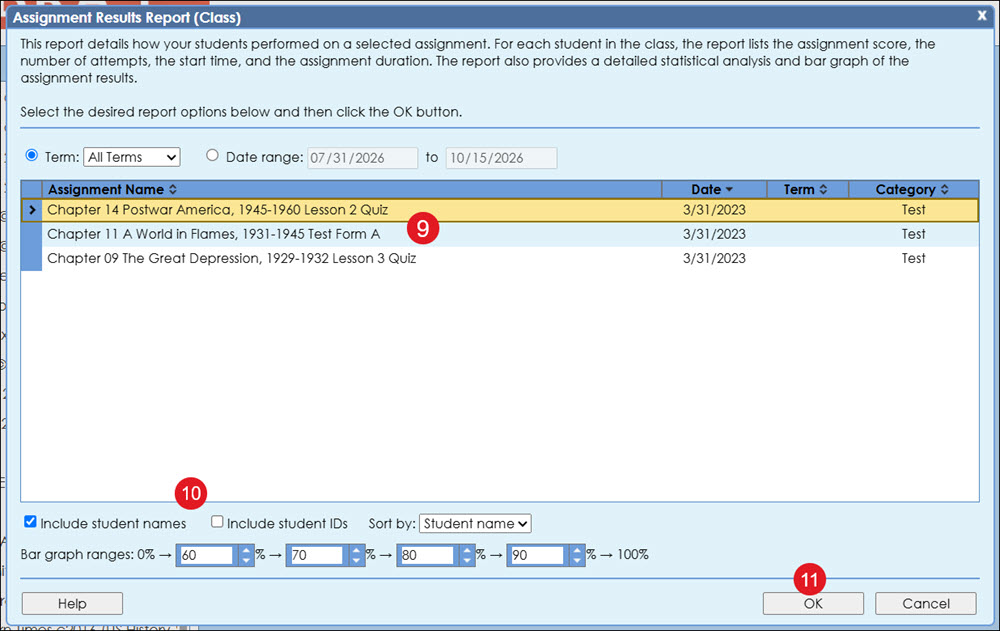
- Depending on the type of report selected, select one or more assignments from the pop-up.
- Select any additional options you want to include in the view, including viewing by Term or Date range, the student names, student IDs, and how to sort the students.
- Click the OK button.
- Click the Export to CSV button at the top right of the report view.
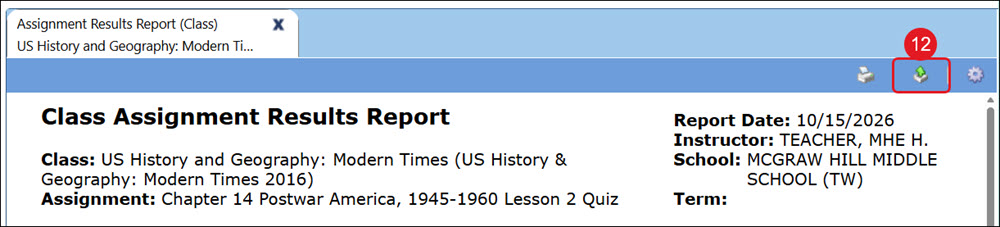
The file will then download to your computer. This file can then be opened in most spreadsheet applications and imported into many grade book applications.
Class Report Descriptions
You can view these descriptions by selecting the report or clicking the question mark (?) icon to the right of each report type.
Grade book report |
This report details how your students performed on all assignments in a term or date range. For each student in the class, the report lists the points earned, points possible, and overall average. |
Progress report |
This report details class performance on all assignments in a term or date range. For each assignment, the report lists the assignment name, category, the number of students who took the assignment, the date, the points possible, and the average score. |
Assignment results report |
This report details how your students performed on a selected assignment. For each student in the class, the report lists the assignment score, the number of attempts, the start time, and the assignment duration. The report also provides a detailed statistical analysis and bar graph of the assignment results. |
Question item analysis report |
This report details class performance on each question of an assignment. This will assist you in identifying invalid questions and areas that may need additional instruction. |
Prescription report |
This report details class performance on a selected assignment. Based upon each student's proficiency, students may receive a prescription for the assignment. |
Proficiency chart |
This report provides an easy-to-use visual representation of student proficiency levels. For each standard, the report displays the number of question items and a visual representation of each student's proficiency level. |
Proficiency report |
This report details class proficiency on all standards during a specific term or date range. For each standard covered, the report displays the number of question items, a graph that shows the class average and range of scores, and the number of proficient students. |
Compare classes report |
This report will compare the standards covered by two classes. For each standard, the report displays the number of question items, the average score, and the percentage of students who are proficient for each class. |
