
McGraw Hill Assessment and Gradebook Navigation
Learn how to navigate assessments, including test lists, tools, and student submission views.
- SSO & Manual-Rostering
- Customer Support
- Middle School
- Direct Login & Manual-Rostering
- High School
- Classroom Teacher
- SSO & Auto-Rostering
- PreK-12
- Elementary School
- Visual & Performing Arts
- Math
- Intervention
- Literacy
- Social Studies
- Direct Login & Auto-Rostering
- Core
- Preschool
- AP Biology
- AP Chemistry
- AP History & Geography
- AP Psychology
- AP Economics
- AP African American Studies
- AP Precalculus
- AP Statistics
- AP Computer Science
- AP Language and Composition
- AP Public Speaking
- AP Music Theory
- 5 Steps to a 5 - AP Test Prep
- Glencoe Health 2022
- Teen Health 2021
- Arrive Math
- Building Blocks 2024
- Building Blocks PreK 2025
- Number Worlds 2024
- SRA Reading Laboratory 2025
- SRA Reading Mastery Transformations
- McGraw Hill Literacy Emerge!
- McGraw Hill Literacy Summit!
- McGraw Hill Literacy Soar!
- Open Court Reading 2025
- CA Reveal Math (K-12)
- Illustrative Math
- Reveal Math (K-12)
- Texas Math
- CA Inspire Science 2020
- FL Science 2025 (K-12)
- Inspire Science 2020
- TN Science (K-12)
- TX Science 2025 (K-12)
- CA Impact 2019
- FL Social Studies 2024 (K-12)
- Impact Social Studies
- McGraw Hill Social Studies
- All Sorts 2026 (K-5)
- Asi se Dice 2024
- CTE - Health Science
- CTE - Agriculture
- CTE - Computing and Technology
- CTE - Culinary Arts
- CTE - Early Childhood Education
- CTE - Business, Marketing, and Finance
- CTE - Criminal Justice
- Online Assessments
- Grades & Assignments


Certain ConnectED products now have access to a new version of an Online Assessment platform.
Note: In Wonders ©2020 and newer, the Assigned Assessments and Gradebook options have been removed from the Assessment & Data drop-down menu.
Access Assessments
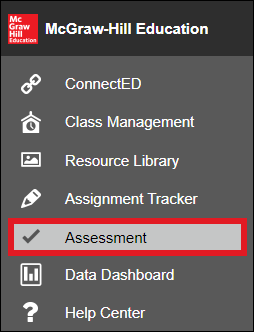
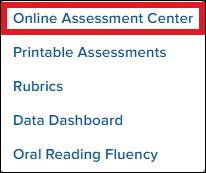
On the Navigation Banner or in the Menu, depending on the product, go to Assessment & Data or Assessment.

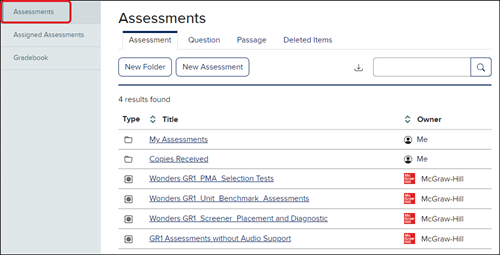
MH Assess - Create and Edit Questions
MH Assess - Create and Edit Passages
Assigned Assessments
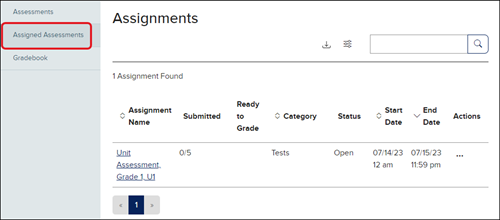
To learn more about Assigned Assessments refer to the following:
Gradebook
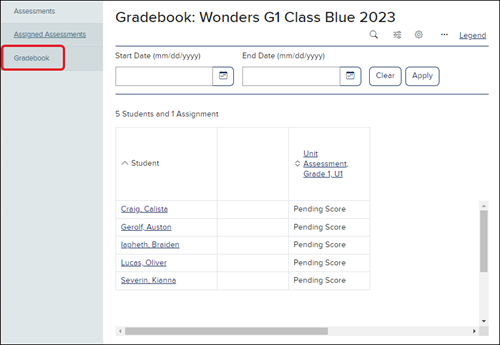
To learn more about the Gradebook refer to the following:
In addition to new navigation, new assessment features are available as well, including:
Class Scoresheet – Allows teachers to upload students' scores for an assignment via a .csv. Great for uploading test results that were taken offline or updating question scores in bulk.
Reopen Assignments – Allows teachers to reopen an assignment so students may make revisions. To learn more about reopening assignments, read page 9 in the article
Allow Late Submissions - Allows students to submit assignments after the due date has passed.
Share with Google Classroom – Allows teachers to share an assessment to their Google Classroom during creation. To learn more about sharing with Google Classroom, read more here:
Send a Copy of Assessment – Allows teachers to send a copy of an assessment to another teacher at their school. To learn more about sending copies of assessments to other teachers, read more here:
Multiple Attempts – Teachers may allow a class or student to have up to 3 attempts on an assessment.
For additional articles on assessment management, refer to the McGraw Hill Assessment Management Resources article.
