
Share Customized Assessments
How teachers can share customized assessments for programs that use McGraw Hill Assess.
- Customer Support
- PreK-12
- Classroom Teacher
- Preschool
- Elementary School
- Middle School
- High School
- Direct Login & Auto-Rostering
- Direct Login & Manual-Rostering
- SSO & Auto-Rostering
- SSO & Manual-Rostering
- Core
- Intervention
- Supplemental
- AP, Honors & Electives
- Career & Technical Education
- Literacy
- Math
- Science
- Social Studies
- Health
- Visual & Performing Arts
- World Languages
- AP Biology
- AP Chemistry
- AP History & Geography
- AP Psychology
- AP Economics
- AP African American Studies
- AP Precalculus
- AP Statistics
- AP Computer Science
- AP Language and Composition
- AP Public Speaking
- AP Music Theory
- 5 Steps to a 5 - AP Test Prep
- Glencoe Health 2022
- Teen Health 2021
- Arrive Math
- Building Blocks 2024
- Building Blocks PreK 2025
- Number Worlds 2024
- SRA Reading Laboratory 2025
- SRA Reading Mastery Transformations
- McGraw Hill Literacy Emerge!
- McGraw Hill Literacy Summit!
- McGraw Hill Literacy Soar!
- Open Court Reading 2025
- Open Court Reading 2016, 2018, 2023
- Open Court Reading
- CA Reveal Math (K-12)
- Illustrative Math
- Reveal Math (K-12)
- Texas Math
- CA Inspire Science 2020
- FL Science 2025 (K-12)
- Inspire Science 2020
- TN Science (K-12)
- TX Science 2025 (K-12)
- CA Impact 2019
- FL Social Studies 2024 (K-12)
- Impact Social Studies
- McGraw Hill Social Studies
- Asi se Dice 2024
- Wonders Balanced Literacy 2016
- Maravillas 2020 & 2017
- Music! Its Role
- McGraw Hill My Math 2018
- Networks 2018
- OCR Foundational Skills Kit
- OCR Word Analysis Kit
- Spotlight on Music
- Wonders 2023 2020 2017
- CTE - Business, Marketing, and Finance
- CTE - Health Science
- CTE - Computing and Technology
- CTE - Agriculture
- CTE - Culinary Arts
- CTE - Early Childhood Education
- CTE - Criminal Justice
- Online Assessments


View the demo in a separate tab.
View the Spanish version of the demo.
If you need to be able to share assessments with teachers in additional schools, an Organization Administrator will need to add those schools to your teacher profile or give you access as a Curriculum Administrator. If you do not see the Curriculum Administrator's name under the Admin option, this means their account is not assigned to your school.
Curriculum Administrators can then use the Curriculum Administrator District Bank Management Resources articles for steps on sharing assessments district- and school-wide.
1. Launch your course.
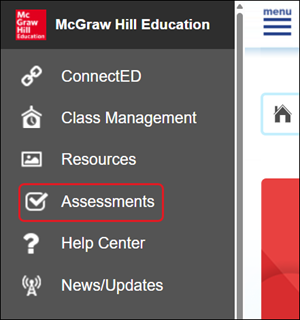
2. Click on Assessments from the navigation menu.
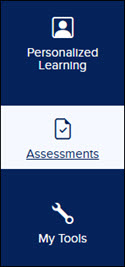
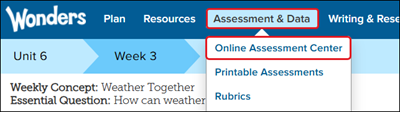
For certain programs, you will need to click on Assess, Assessment, or Online Assessment Center.

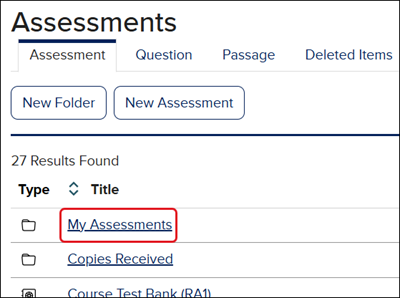
3. Click on the My Assessments folder.
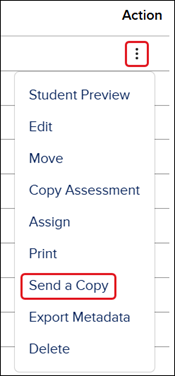
4. Click the Options menu icon in the Actions column and click on Send a Copy from the menu.
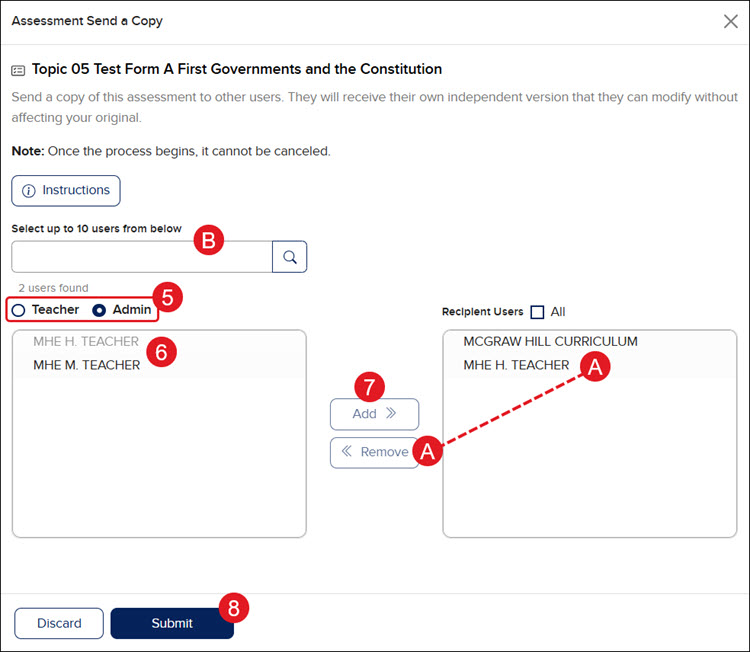
5. On the Send a Copy pop-up, click the Teacher or Admin radio button depending on who you want to send the copy to.
6. Click on the names of the teachers and/or administrators. Up to 10 users can be selected.
Note: If you do not see the Curriculum Administrator's name under the Admin option, this means their account is not assigned to your school.
7. Click the Add button to move them to the Recipient Users box on the right.
A. Select users in the Recipient Users box and click the Remove button to withdraw them from the shared list.
B. Use the search field to locate a specific user.
8. Click the Submit button.
Note: Once the process begins, it cannot be canceled.
You will receive a message that the copies have been sent to the selected users. They will receive their own independent version that they can modify without affecting your original.
