Note: Since integrated state standards as the default standard alignment a few years ago, the rubric section (Show grading rubric on the action menu), shows a blank page. As a workaround, we suggest creating a rubric in a Google Doc or PDF and then importing it into Actively Learn. For steps on importing resources, refer to the Import Resources for Actively Learn Assignments article.
Grade an Assignment
Note: Multiple choice questions are automatically graded.
1. Click Menu at the top-left.
2. Select the class under Classes from the menu.
3. Click on the assignment tile.
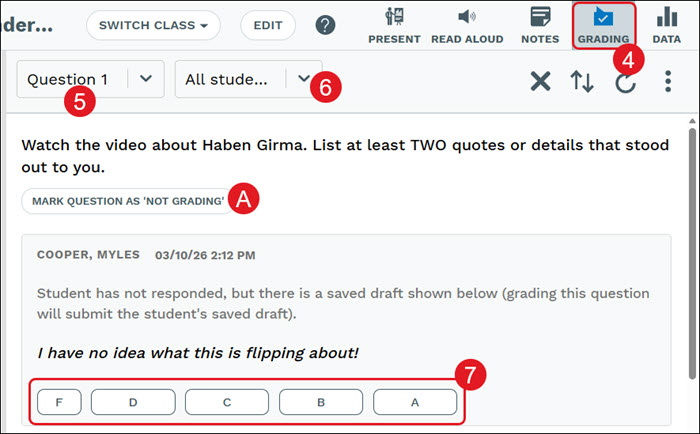
4. Click the Grading button at the top-right.
5. Select the Question from the drop-down.
6. Select to show All students or a select student.
7. Select the appropriate grade from the options provided.
A. Click the Mark Question as 'Not Grading' button to change the question to an ungraded question.
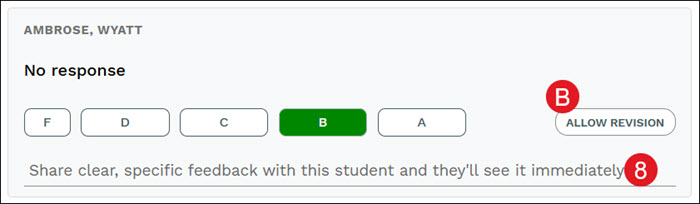
8. Enter feedback, if needed.
The last 50 comments entered are stored in an autocomplete drop-down.
B. Click the Allow Revision button if you want to allow the student to make changes to their answer for the question.
Tips for Effective Feedback
Effective feedback is critical for student development and deeper learning. Actively Learn allows teachers to easily see student activity and give feedback in real-time.
Timely
Students need to know how they are doing as they work. More frequent feedback will minimize students making the same mistakes. Also, students will likely not visit feedback given on assignments that are completely graded.
Be specific and focus on the process
If a student receives a good grade, stay away from comments that focus on the result such as "Good Job." Instead, let them know what they did that was great. For example, "This is a great example of supporting your argument with evidence from the text." This will keep students focused on the process.
Actionable
Give students examples and directions on how to improve. Leaving feedback on "How?" and "Why?" does not help guide students in improving. Instead, give students the direction they can apply such as "Adding examples will help your readers understand your point of view. Here are some examples from the text you could have used: X, Y, and Z"
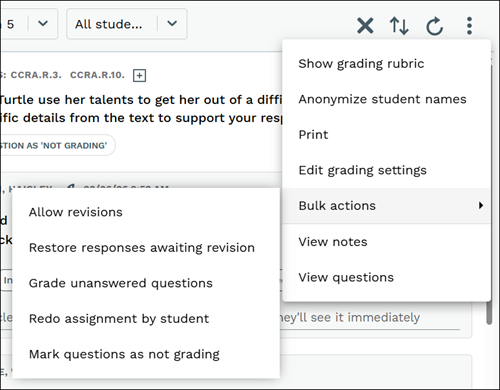
Edit Grading Settings, Bulk Actions, and Printing
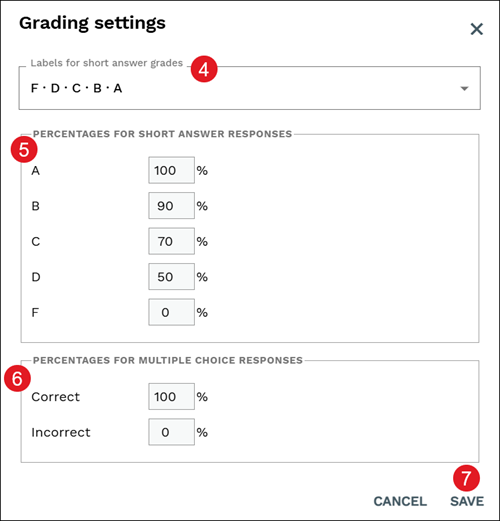
Actively Learn uses Marzano's Standard Based Grading. Teachers can make changes to the labels that appear for short answer responses and customize the point values.
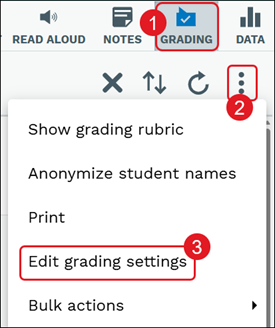
1. Click Grading from within the assignment.
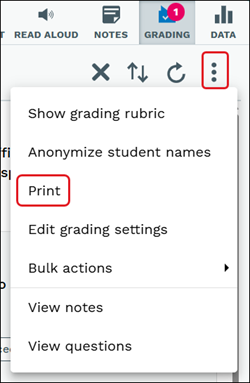
2. Click the actions button.
3. Click Edit grading settings from the menu.
4. Select the preferred Labels for short answer grades from the drop-down.
5. Enter the Percentages for Short Answer Responses in each field.
6. Enter the Percentages for Multiple Choice Responses.
Teachers can print out a summary of student answers to each question, along with the grade selected, and any feedback provided.
Student View of Feedback and Previous Responses
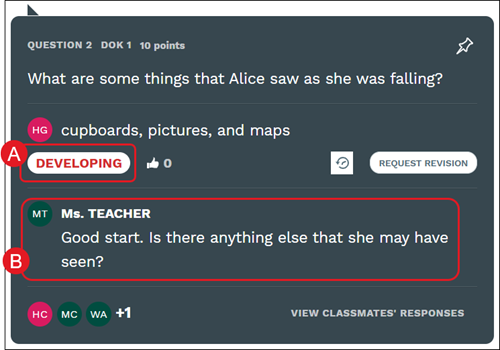
When grading (A) and feedback (B) is provided for a question, students will see it immediately within the assignment.
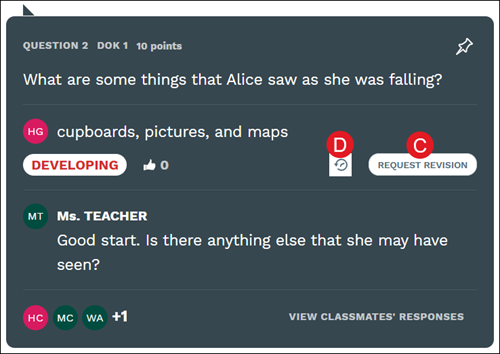
Students can also Request Revisions (C) and View previous responses (D) they provided for the question.
actively-learn
instructor
prek-12
Customer Support, PreK-12, Classroom Teacher, Elementary School, Middle School, High School, Direct Login & Auto-Rostering, Direct Login & Manual-Rostering, SSO & Auto-Rostering, SSO & Manual-Rostering, Supplemental, Literacy, Science, Social Studies, Actively Learn, Grades & Assignments, Online Assessments
dts
2026-03-24T18:44:40.565-03:00
Article Contents Grade an Assignment Tips for Effective Feedback Edit Grading Settings, Bulk Actions, and Printing Student View of Feedback and Previous Responses Bulk Assignment Actions Note: Since integrated state standards as the default standard alignment a few years ago, the rubric section (Show grading rubric on the action menu), shows a blank page. As a workaround, we suggest creating a rubric in a Google Doc or PDF and then importing it into Actively Learn. For steps on importing resources, refer to the Import Resources for Actively Learn Assignments article. Grade an Assignment Note: Multiple choice questions are automatically graded. 1. Click Menu at the top-left. 2. Select the class under Classes from the menu. 3. Click on the assignment tile. 4. Click the Grading button at the top-right. 5. Select the Question from the drop-down. 6. Select to show All students or a select student. 7. Select the appropriate grade from the options provided. A. Click the Mark Question as 'Not Grading' button to change the question to an ungraded question. 8. Enter feedback, if needed. The last 50 comments entered are stored in an autocomplete drop-down. B. Click the Allow Revision button if you want to allow the student to make changes to their answer for the question. Tips for Effective Feedback Effective feedback is critical for student development and deeper learning. Actively Learn allows teachers to easily see student activity and give feedback in real-time. Timely Students need to know how they are doing as they work. More frequent feedback will minimize students making the same mistakes. Also, students will likely not visit feedback given on assignments that are completely graded. Be specific and focus on the process If a student receives a good grade, stay away from comments that focus on the result such as "Good Job." Instead, let them know what they did that was great. For example, "This is a great example of supporting your argument with evidence from the text." This will keep students focused on the process. Actionable Give students examples and directions on how to improve. Leaving feedback on "How?" and "Why?" does not help guide students in improving. Instead, give students the direction they can apply such as "Adding examples will help your readers understand your point of view. Here are some examples from the text you could have used: X, Y, and Z" Edit Grading Settings, Bulk Actions, and Printing Actively Learn uses Marzano's Standard Based Grading. Teachers can make changes to the labels that appear for short answer responses and customize the point values. 1. Click Grading from within the assignment. 2. Click the actions button. 3. Click Edit grading settings from the menu. 4. Select the preferred Labels for short answer grades from the drop-down. 5. Enter the Percentages for Short Answer Responses in each field. 6. Enter the Percentages for Multiple Choice Responses. 7. Click the Save button. For information on the different Bulk actions available for grading, refer to the Using the Bulk Assignments Options for Actively Learn article. Teachers can print out a summary of student answers to each question, along with the grade selected, and any feedback provided. Student View of Feedback and Previous Responses When grading (A) and feedback (B) is provided for a question, students will see it immediately within the assignment. Students can also Request Revisions (C) and View previous responses (D) they provided for the question.
Help us improve!
Let us know how we can improve our support information by providing feedback in this short survey.
Top
Regional Page Available
It looks like you're outside the United States. Do you want to see your regional version of this page?