Actively Learn - Bulk Assignment Actions
- Supplemental
- Literacy
- Actively Learn
- SSO & Manual-Rostering
- Customer Support
- Grades & Assignments
- Social Studies
- Direct Login & Auto-Rostering
- Middle School
- Direct Login & Manual-Rostering
- High School
- Classroom Teacher
- SSO & Auto-Rostering
- PreK-12
- Science
- Preschool
- Elementary School


This article walks teachers through the different bulk actions that are available for use with Actively Learn assignments.
Teachers can use the follow bulk actions within assignments when needing to manage student revisions, grading assignments, and allowing students to redo their assignment.
Article Contents
Restore Responses Awaiting Revision
Allow Revisions
1. Click Menu at the top-left.
2. Click on the class to view the assignments.
3. Click on the tile for the assignment.
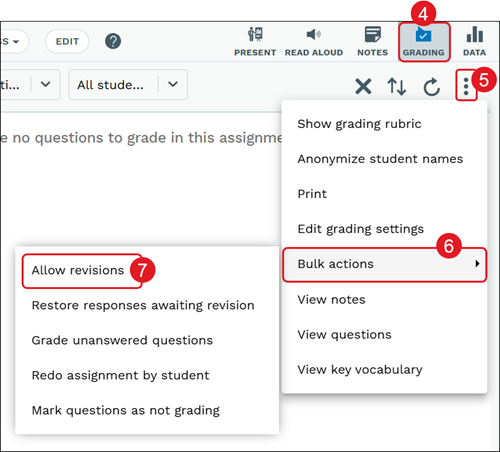
4. Click on Grading at the top-right. This may automatically open when the assignment is launched.
5. Click on the Actions (kebob) menu icon.
6. Hover over Bulk actions.
7. Click Allow revisions from the menu.
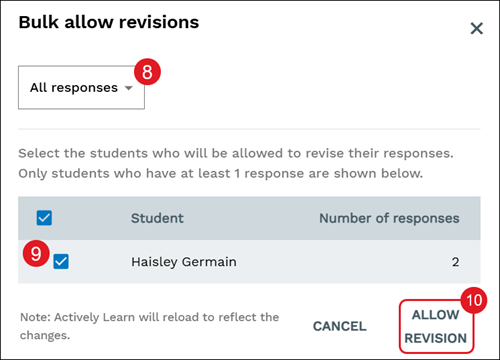
8. On the pop-up, select what responses you want to allow revisions by clicking on the drop menu. The option will default to All responses.
9. Check the box next to the student(s) you want to allow revisions for.
10. Click the Allow Revision button.
Restore Responses Awaiting Revision
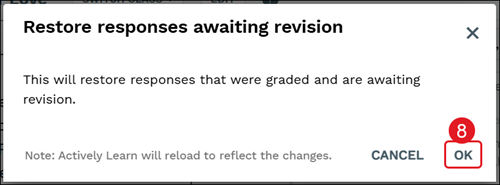
This option allows teachers to restore previous student responses that were graded and waiting student revisions.
1. Click Menu at the top-left.
2. Click on the class to view the assignments.
3. Click on the tile for the assignment.
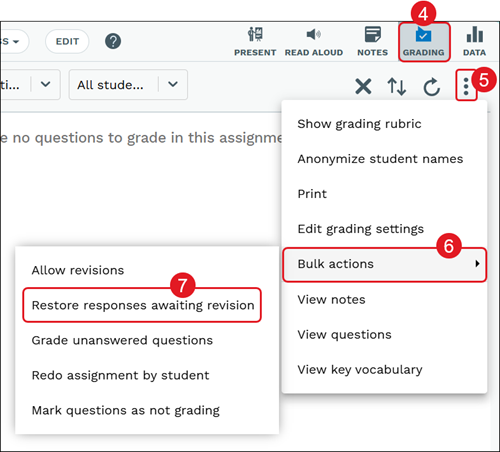
4. Click on Grading at the top-right. This may automatically open when the assignment is launched.
5. Click on the Actions (kebob) menu icon.
6. Hover over Bulk actions.
7. Click Restore responses awaiting revision from the menu.
8. On the pop-up, click the OK button to confirm.
Grade Unanswered Questions
Note: Students will receive a "Zero", lose any drafts they started, and will no longer be able to respond to any unanswered questions once bulk scoring for them is completed.
1. Click Menu at the top-left.
2. Click on the class to view the assignments.
3. Click on the tile for the assignment.
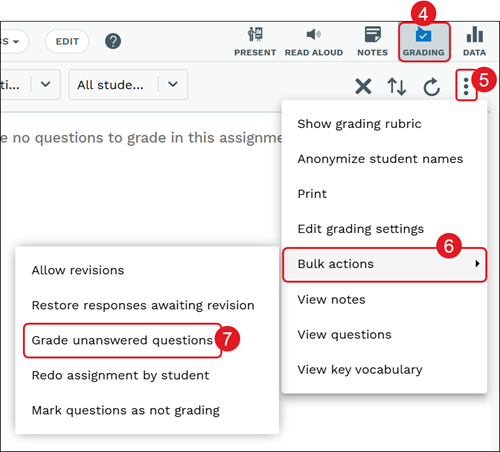
4. Click on Grading at the top-right. This may automatically open when the assignment is launched.
5. Click on the Actions (kebob) menu icon.
6. Hover over Bulk actions.
7. Click Grade unanswered questions from the menu.
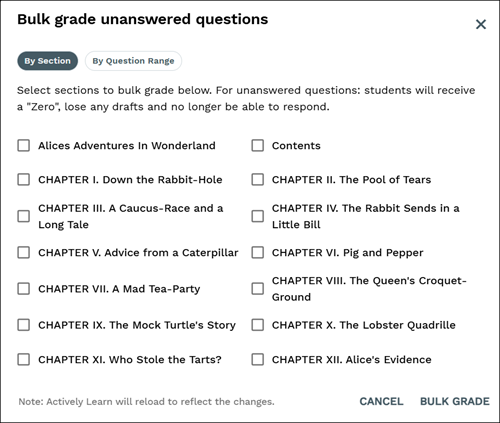
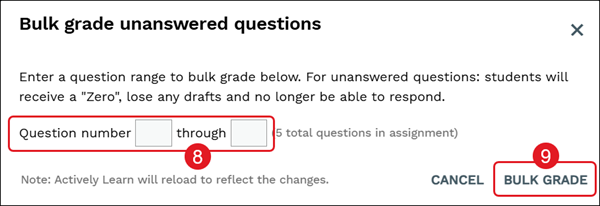
8. On the pop-up, select the sections to score or enter a range of questions in the provided fields.
Note: The By Section option is only available for some assignment types such as books that have questions added.
9. Click the Bulk Grade button.
Redo Assignment by Student
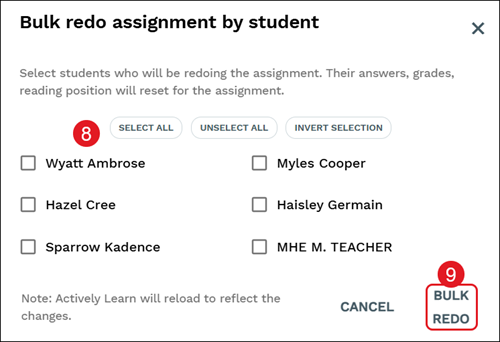
Note: Those selected to redo the assignment will have their answers, grades, and reading position reset.
1. Click Menu at the top-left.
2. Click on the class to view the assignments.
3. Click on the tile for the assignment.
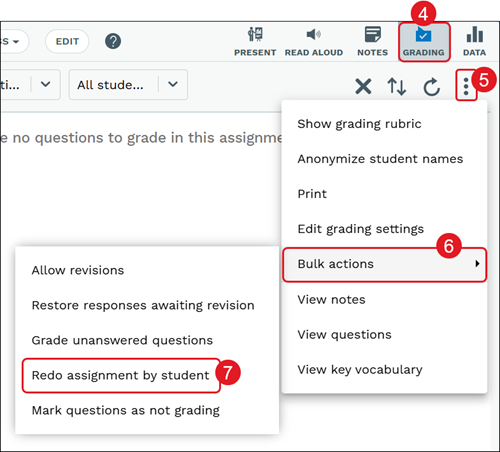
4. Click on Grading at the top-right. This may automatically open when the assignment is launched.
5. Click on the Actions (kebob) menu icon.
6. Hover over Bulk actions.
7. Click Redo assignment by student from the menu.
8. On the pop-up, click the Select All button or check the box next to each individual student name.
9. Click the Bulk Redo button.
Mark Questions as Not Grading
Teachers can change questions within assignments to non-graded questions in bulk.
1. Click Menu at the top-left.
2. Click on the class to view the assignments.
3. Click on the tile for the assignment.
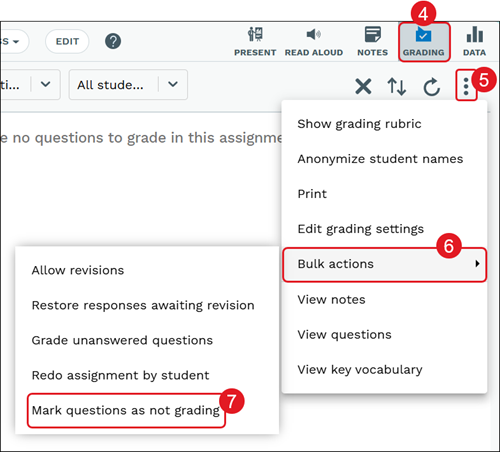
4. Click on Grading at the top-right. This may automatically open when the assignment is launched.
5. Click on the Actions (kebob) menu icon.
6. Hover over Bulk actions.
7. Click Mark questions as not grading from the menu.
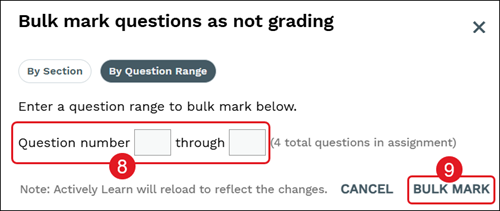
8. On the pop-up, select the sections to score or enter a range of questions in the provided fields.
Note: The By Section option is only available for some assignment types such as books that have questions added.
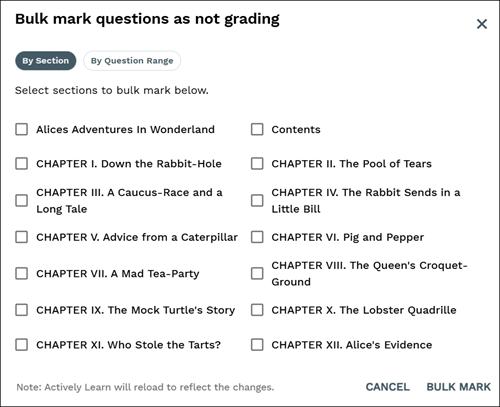
9. Click the Bulk Mark button.