
Actively Learn - Grading Settings
Configure grading settings in Actively Learn to control scoring and feedback.
Tags
- Supplemental
- Getting Started & Orientation
- Literacy
- Actively Learn
- SSO & Manual-Rostering
- Customer Support
- Grades & Assignments
- Social Studies
- Direct Login & Auto-Rostering
- Middle School
- Direct Login & Manual-Rostering
- High School
- Classroom Teacher
- SSO & Auto-Rostering
- PreK-12
- Science
- Preschool
- Elementary School


Actively Learn uses
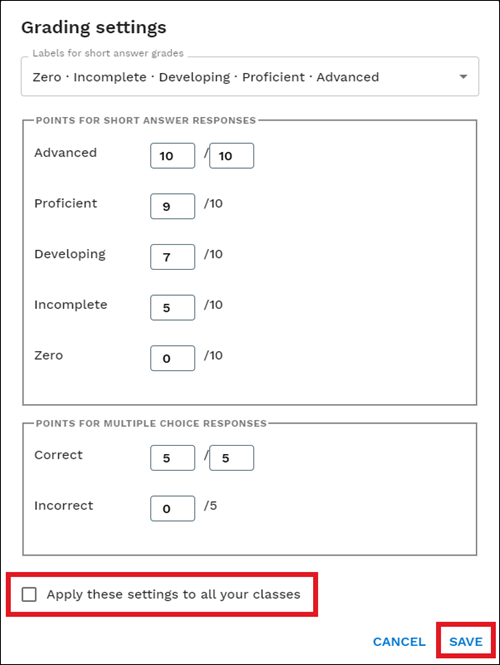
Marzano's Standards-Based Grading. You can change the labels that appear for your short answer responses and customize the point values for each question type (short answer questions, multiple-choice).
Note: Updating the grading settings for your class will affect any past assignments you have already graded.
Note: Updating the grading settings for your class will affect any past assignments you have already graded.
Access grading settings
- Select the class from the Main Menu.
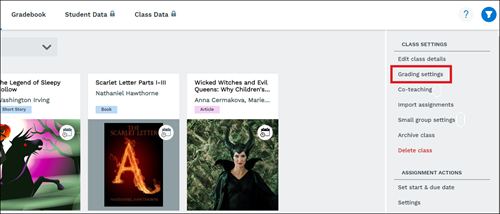
- Click on Grading Settings from under Class Settings to the right.
- Update the value for each grade. Click Save.
Changes can be applied to just one class or all your classes.
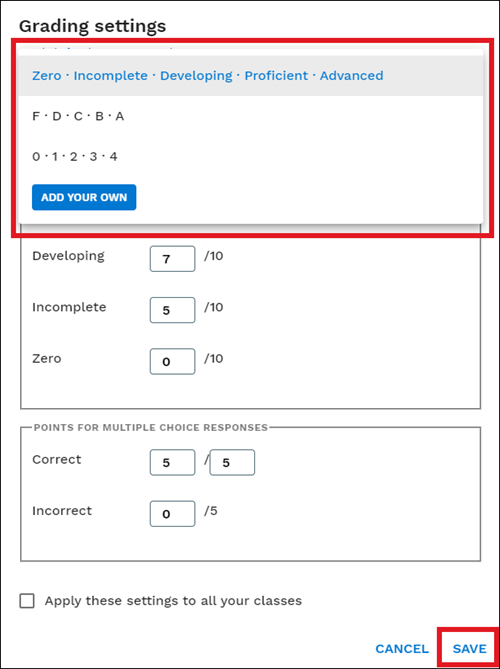
Change labels for short answer grades
- Click the drop-down to access the list of grading labels.
- Select desired label and click Save.