
Import Resources for Actively Learn Assignments
Learn how to upload and use your own custom content within Actively Learn assignments.
- Customer Support
- PreK-12
- Classroom Teacher
- Elementary School
- Middle School
- High School
- Direct Login & Auto-Rostering
- Direct Login & Manual-Rostering
- SSO & Auto-Rostering
- SSO & Manual-Rostering
- Supplemental
- Literacy
- Science
- Social Studies
- Actively Learn
- Plan & Present
- Tools & Resources
- Grades & Assignments
- Online Assessments


For steps on making customizations to assignment resources, refer to the Customize Actively Learn Text Assignments and Customize Actively Learn Video Assignments articles.
For steps on making assignments, refer to Create, Duplicate, Merge, and Import Actively Learn Assignments article.
Article Contents
Uploading Copyrighted Material
Internet Article Not Loading All Text or Pages
Edit Uploaded Google Doc Files
Uploading Copyrighted Material
Generally, educators may legally use copyrighted materials without permission for educational purposes, if that use qualifies under copyright law or as a fair use.
How to know if a work is copyrighted
As soon as someone creates an original work (visual, auditory, written, etc.) in a fixed medium (video, written, song, etc.) it is copyrighted by the creator. In the U.S., copyright lasts from the moment a work is created until 70 years after the death of the author. In cases where works are created by a company/employer, copyright lasts 95 years from the date of publication.
More information on duration of copyright
What is fair use?
Fair use is a legal doctrine that promotes freedom of expression by permitting the unlicensed use of copyrighted-protected material, in certain circumstances, without permission from the copyright holder for certain types of uses, such as criticism, comment, news reporting, teaching, scholarship, and research.
Helpful Links
Copyright Law of the United States
General guidelines on using copyrighted material from Stanford University Library
Stanford Copyright Renewal Database
McGraw Hill and Actively Learn cannot provide legal guidance and leaves it to teachers/partners to ensure that their use is permitted under copyright law or as a fair use.
Import PDFs
Tips before importing:
PDFs may be blocked by the school or district. Send your school tech team our technology brief to help them whitelist the appropriate domains and services. To work around this, you may want to convert your PDF document to a Google Doc by following the steps in the Import Resources for Actively Learn Assignments article.
PDFs are designed not to be editable.
- Questions can only be added at the bottom of each page unless made into a Google Doc.
- You cannot rotate pages once a document has been uploaded. Be sure to position the PDF before uploading. Using tools like Adobe Reader or rotatepdf.net can be used to format the PDF before upload.
- Navigating between pages requires using the dropdown in the navigation bar or pressing on the arrows at the top or bottom of the text.
- Some PDFs that you scan will not have a digital text layer. This will not allow you and students to annotate. If this is the case, you will see a message when you try and select some text. In this situation, you may want to convert your PDF document to a Google Doc to try and have Google "extract" the text. You can then import the new Google Doc version of your former PDF.
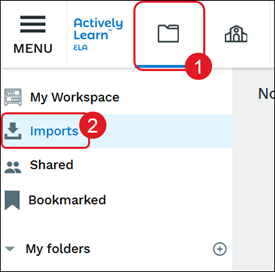
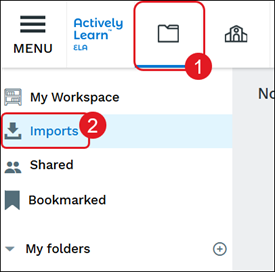
1. Click My Workspace & Imports (folder icon).
2. Click on Imports from the left panel.
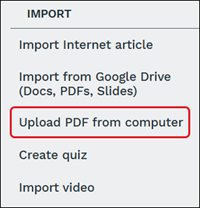
3. Click Upload PDF from computer from the right panel.
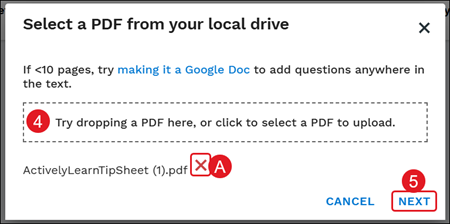
4. Drag and drop file or click in to select a PDF to upload.
A. Click the red X to remove a file from the upload list.
5. Click Next.
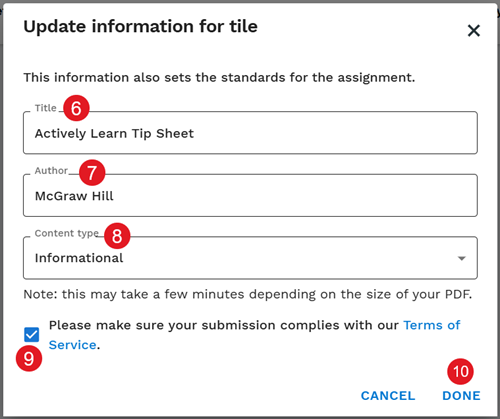
6. On the Update information for tile pop-up, enter a Title.
7. Enter an Author name.
8. Select the Content type from the menu.
9. Check the Terms of Service box.
10. Click the Done button.
Import Internet Articles
1. Click My Workspace & Imports (folder icon).
2. Click on Imports from the left panel.
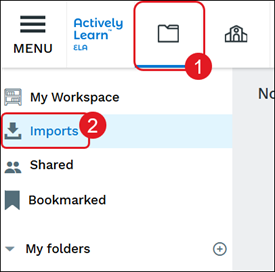
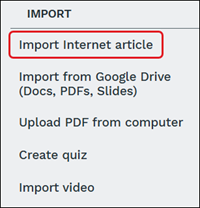
3. Click Import Internet article from the right panel.
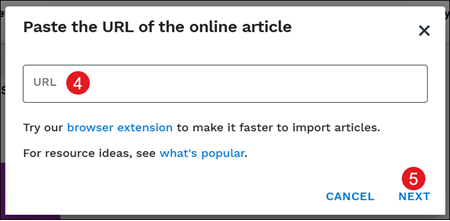
4. On the pop-up, enter the URL.
5. Click Next.
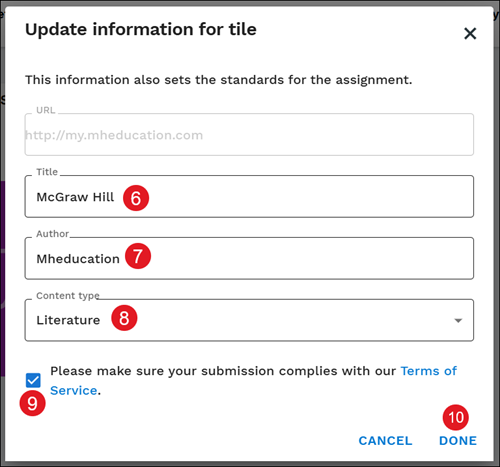
6. On the Update information for tile pop-up, enter a Title.
7. Enter an Author name.
8. Select the Content type from the drop-down.
9. Check the Terms of Service box.
10. Click Done.
Internet Article Not Loading All Text or Pages
When trying to import an internet article, you may run in to the text importing a blank page. If you experience this issue, you can try copying and pasting the text from the article into a Google Doc and import the Google Doc into Actively Learn.
If the internet article you're trying to upload spans multiple pages and doesn't upload all pages, you can import the article using the print view URL by clicking the print option on the site page.
Import Google Drive Files
Teachers have the ability to import Google Docs, Google Slide presentations, and PDFs from Google Drive.
1. Click My Workspace & Imports (folder icon).
2. Click on Imports from the left panel.
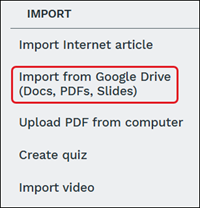
3. Click Import from Google Drive (Docs, PDFs, Slides) from the right panel.
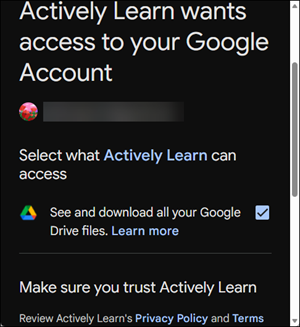
4. Sign into your Google account.
5. Check the box to allow Actively Learn access to your Google Drive files (this should only be needed the first time linking your Google account to Actively Learn).
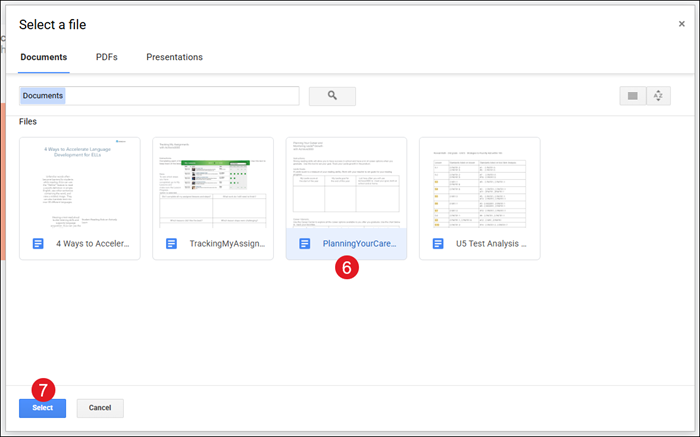
6. On the Select a file pop-up, select the file to upload.
7. Click the Select button.
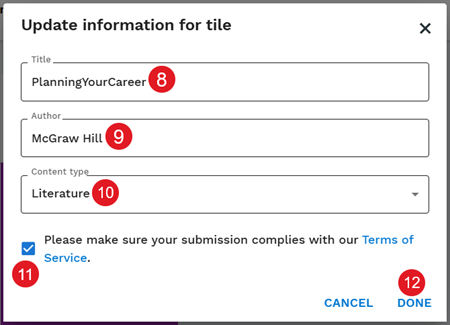
8. On the Update information for tile pop-up, enter a Title.
9. Enter an Author name.
10. Select the Content type from the drop-down.
11. Click the Terms of Service box.
12. Click the Done button.
Edit Uploaded Google Docs
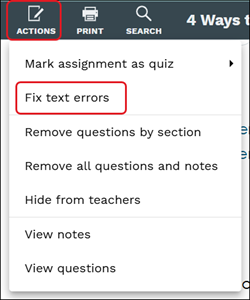
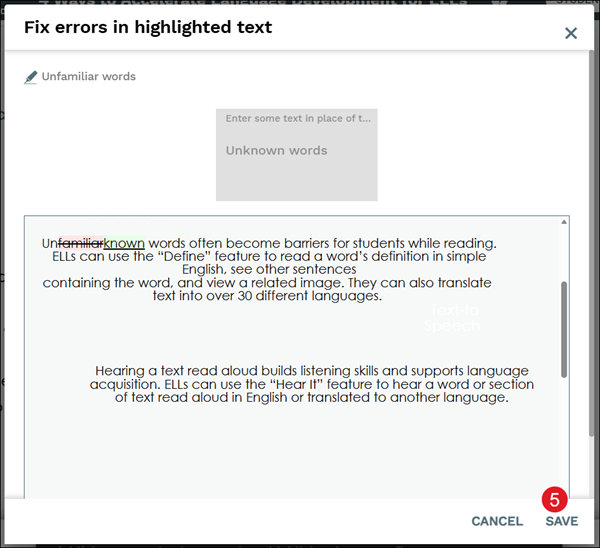
1. To make changes to the text of any uploaded Google Docs, click Fix text errors from the Actions menu within the document.
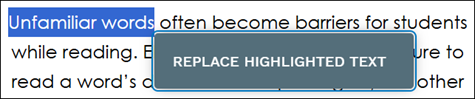
2. Highlight the words you want changed and click Replace Highlight Text from the pop-up.
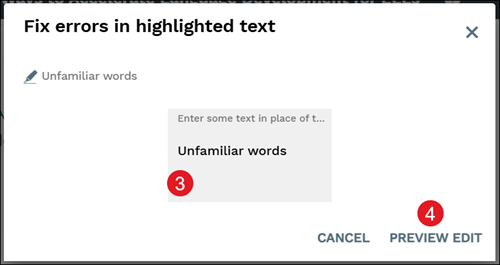
3. Enter text in the provided field.
4. Click the Preview Edit button.
5. Click the Save button.
Import Videos
Teachers have the ability to upload their own videos and embed questions throughout for students to answer as they watch.
Refer to the Supported Media Sources for Actively Learn Resource Uploads article to ensure your video upload is in a compatible format.
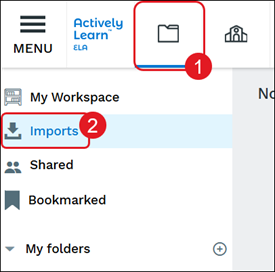
1. Click My Workspace & Imports (folder icon).
2. Click on Imports from the left panel.
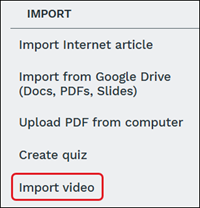
3. Click Import video from the right panel.
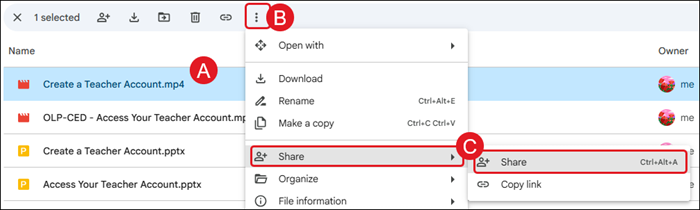
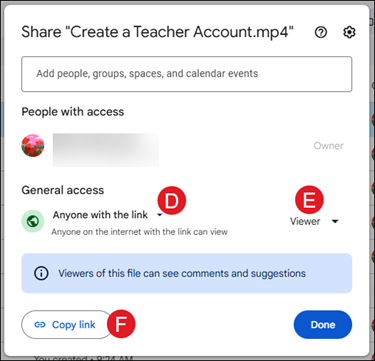
To share video and audio files from Google Drive, this will need to be done using the Share feature.
In Google Drive, select the video or audio file (A) and click on the More actions (kebob) menu icon (B) and select Share (C) from both menus.
On the Share pop-up, in General access, select Anyone with the link (D) and Viewer (E). Click the Copy link button (F).
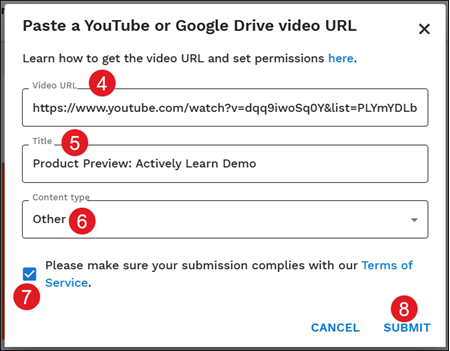
4. On the Paste a YouTube or Google Drive video URL pop-up, enter the Video URL.
5. Enter a Title.
6. Select the Content type from the drop-down.
7. Check the Terms of Service box.
8. Click the Submit button.
Import Management
Once an upload has been completed, the resource can then be merged into an assignment, added to the District Library if the user has the proper privileges, or even share a copy with another teacher.
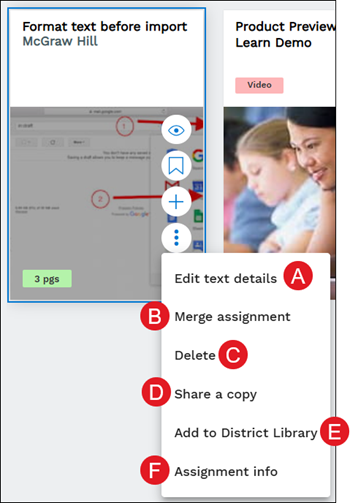
Click the Click here to view more info (kebob) menu icon to do the following:
A. Edit text details - Allows teachers make changes to the Title, Author, and Content type. An image for the tile can also be uploaded from this pop-up.
B. Merge assignment - Allows teachers to combine multiple assignment resources into one assignment. This option is only available for certain resources.
C. Delete - Removes the resource from the Imports.
D. Share a copy - Allows teachers to share the resource with additional teachers.
E. Add to District Library - Adds the resource to the District Library for all teachers in the district to access. This option is only available if the user is an administrator.
F. Assignment info - Provides details of how many questions and notes are attached to the assignment resource.
