Access, Navigate, and Customize the Plan and Present Page
Learn how teachers can make adjustments to program lessons.
Tags
- Customer Support
- PreK-12
- Classroom Teacher
- Elementary School
- Middle School
- High School
- Direct Login & Auto-Rostering
- Direct Login & Manual-Rostering
- SSO & Auto-Rostering
- SSO & Manual-Rostering
- Core
- Math
- Science
- Social Studies
- Health
- World Languages
- Glencoe Health 2014
- McGraw Hill Health 2014
- Glencoe Algebra 1 2014
- Glencoe Algebra 1 2018
- Glencoe Algebra 2 2014
- Glenoce Algebra 2 2018
- Glencoe Math
- Glencoe Geometry 2014
- Glencoe Geometry 2018
- Glencoe Math Course 1
- Glencoe Math Course 2
- Glencoe Math Course 3
- Glencoe Math Accelerated
- McGraw Hill My Math 2013 & 2016
- McGraw Hill My Math 2018
- McGraw Hill My Math
- Glencoe Science 2017
- Glencoe Science
- Inspire Science 2017
- iScience 2017
- Asi se Dice 2016
- Plan & Present


Article Contents
Access and Navigate the Plan and Preset Page
Customize an Existing Lesson Plan
Add or Remove Resources in Section
Access and Navigate the Plan and Preset Page
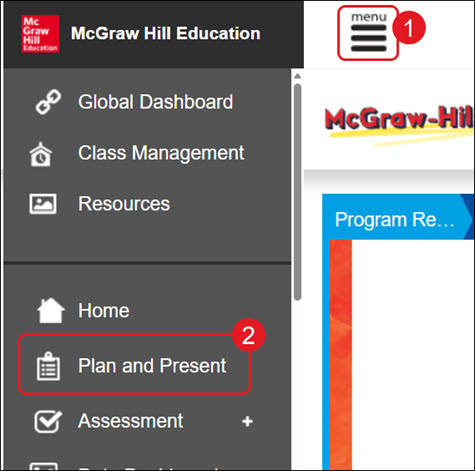
- Click Menu at the top left.
- Click Plan and Preset from the menu.
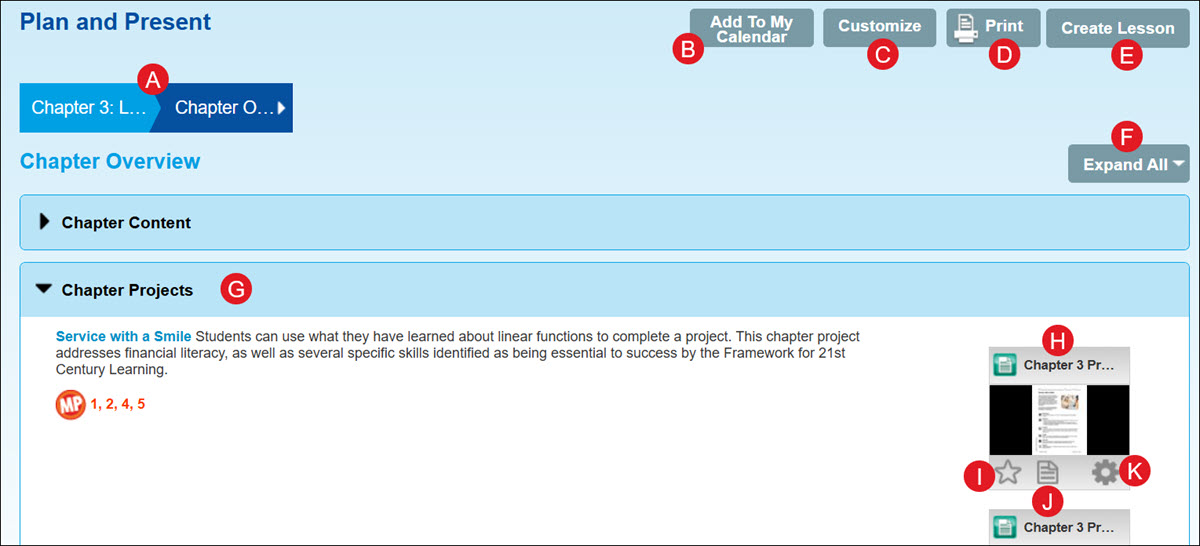
A. Select a Chapter and/or Lesson from the menu.
B. The Add To My Calendar button will add the selected lesson to the course calendar.
C. Click Customize to make changes to the lesson.
D. Click Print to save/download the lesson.
E. Add additional lesson blades by clicking Create Lesson.
F. Click Expand/Collapse All to open/close all lesson plan blades at once.
G. Click on a blade to view that section of the lesson plan.
Move section - Click and drag the blade to another location on the page.
H. Click on a resource tile to view the resource.
I. Click the star icon to add the resource to your Favorites.
J. Click the paper icon to add Notes to the resource.
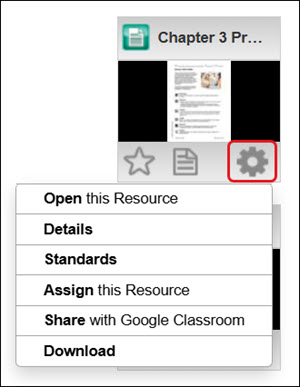
K. Click on Tools (gear icon) to open the resource, view details, view standards, assign the resource, share the resource with Google Classroom, or download the resource.
These options will vary based on the resource.
Customize an Existing Lesson Plan
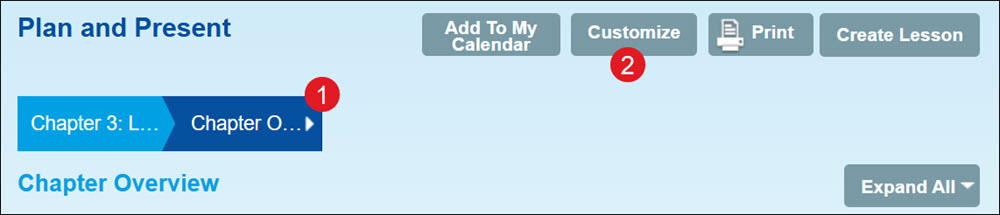
- Select a Chapter and/or Lesson from the menu.
- Click the Customize button.
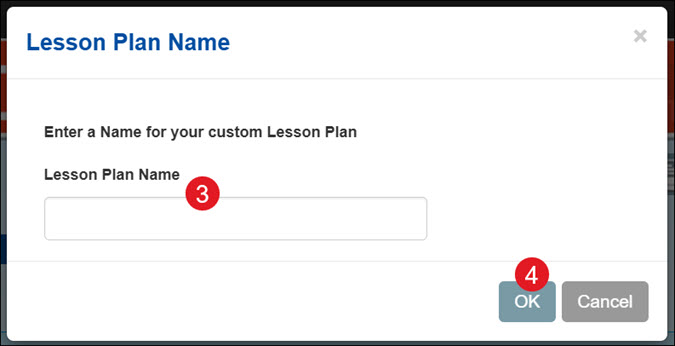
- On the pop-up, enter a Lesson Plan Name.
- Click the OK button.
The customized lesson plan will open automatically.
Add a New Lesson Plan
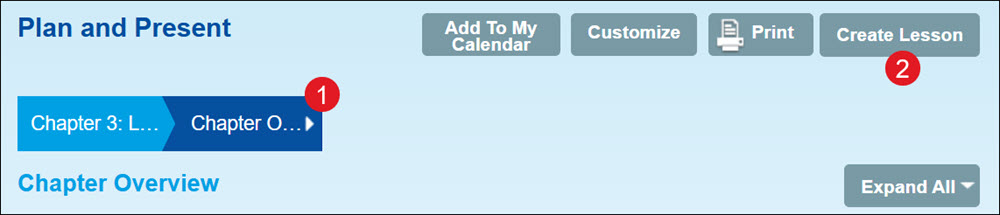
- Select a Chapter and/or Lesson from the menu.
- Click the Create Lesson button.
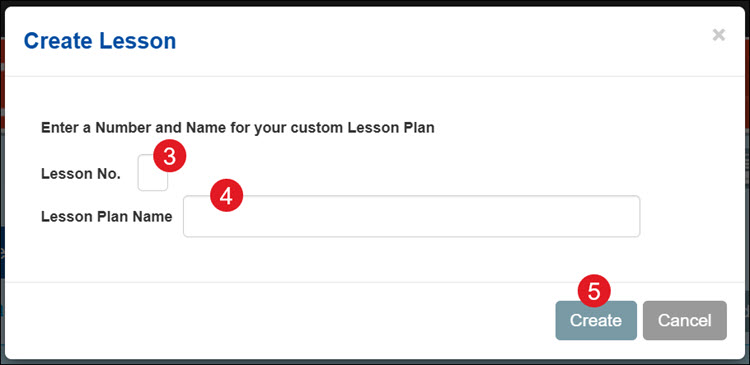
- On the Create Lesson pop-up, enter a Lesson No. (Number).
- Enter a Lesson Plan Name.
- Click the Create button.
- Follow the steps to Add New Section.
Add New Section
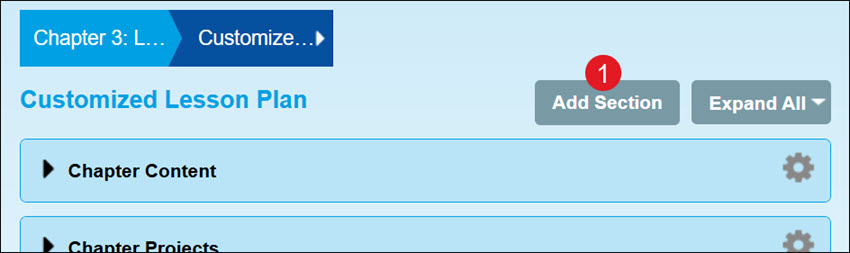
- Click the Add Section button.
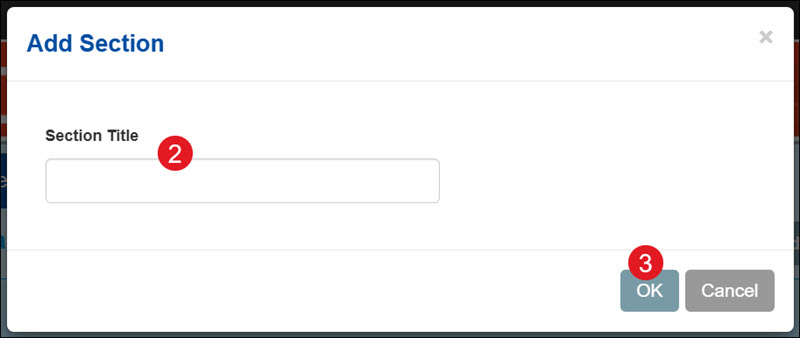
- On the pop-up, enter a Section Title.
- Click the OK button.
The new section will be added to the top of the lesson plan.
Edit Section
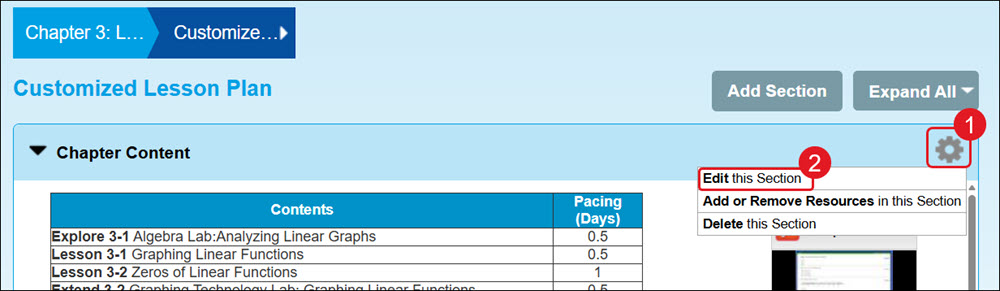
- Click Tools (gear icon) on the section you want to change.
- Click Edit this Section on the menu.
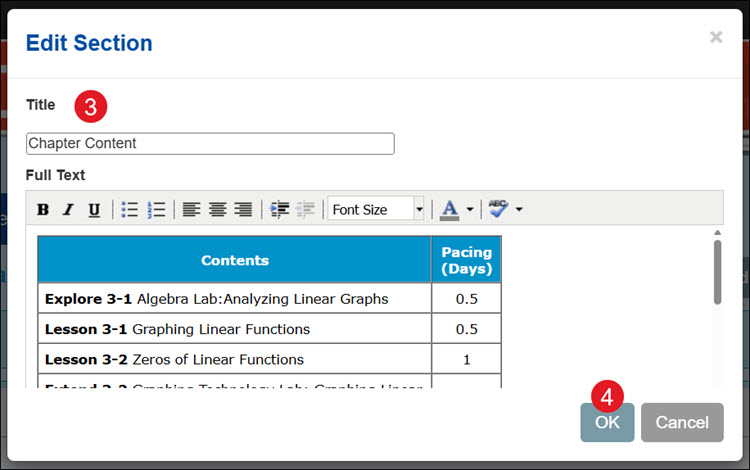
- On the Edit Section pop-up, make your preferred changes to the Title and/or Text.
- Click the OK button.
Add or Remove Resources in Section
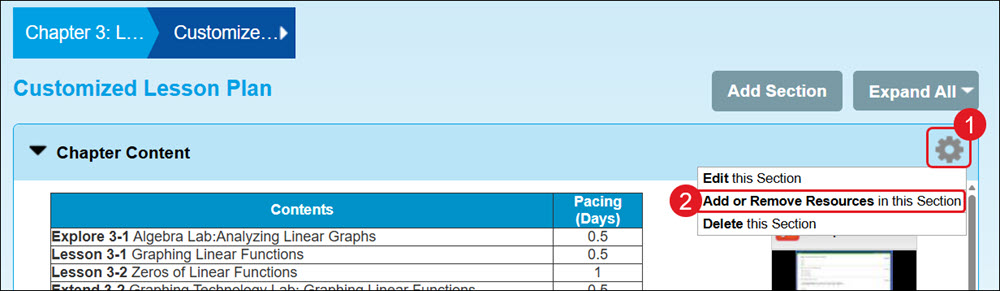
- Click Tools (gear icon) on the section you want to change.
- Click Add or Remove Resources in this Section on the menu.
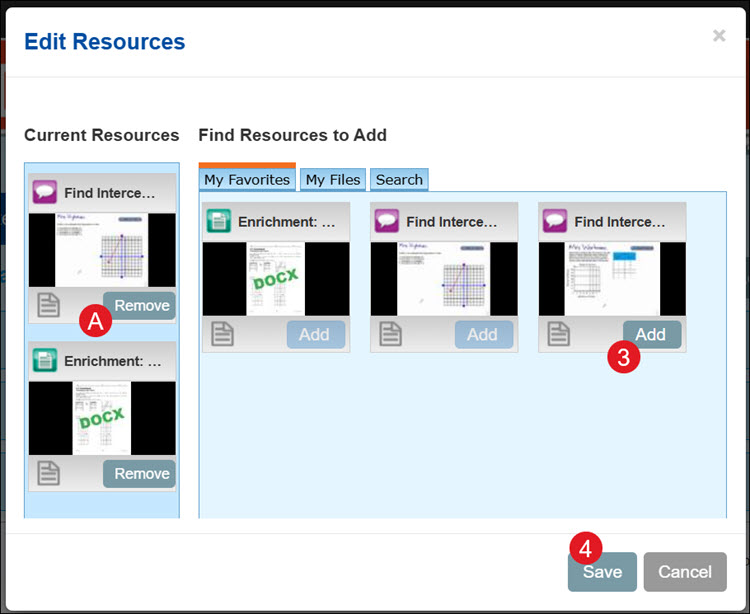
- On the Edit Resources pop-up, click the Add button on the resource(s) you want to include in the section.
A. Click the Remove button for those you don't need in the section.
- Click the Save button.
Delete a Section
Keep in mind that once you delete a customized section, you can't get it back.
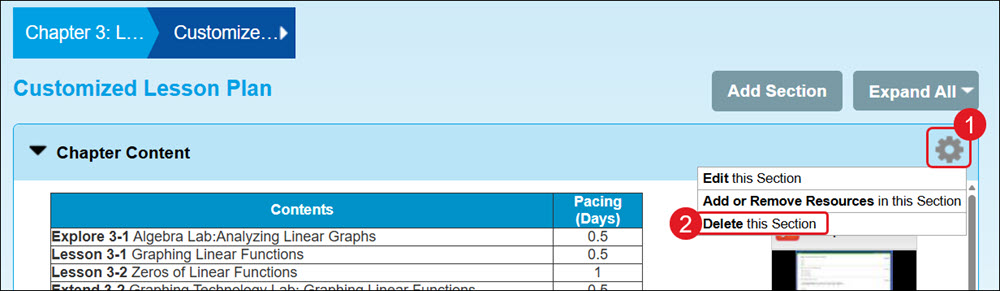
- Click Tools (gear icon) on the section you want to change.
- Click Delete this Section on the menu.
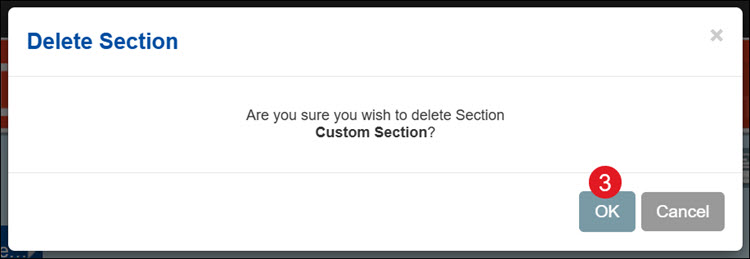
- On the Delete Section pop-up, click the OK button to confirm.
Delete a Custom Lesson Plan
Keep in mind that once you delete a customized lesson plan, you can't get it back.
- Click on the Chapter/Lesson drop-down.
- Click the X icon to the right of the My Customized Lesson Plans you want to remove.
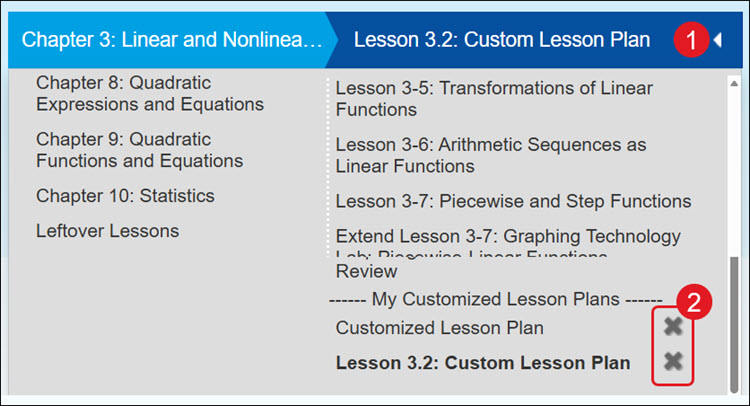
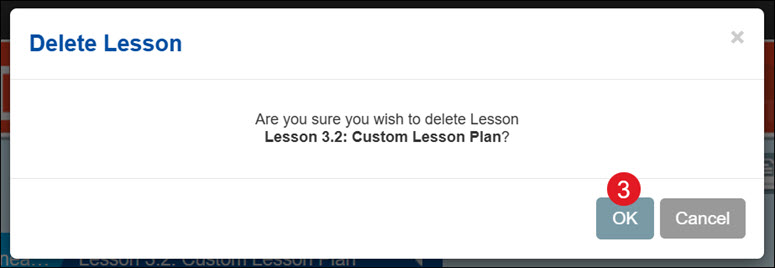
- On the Delete Lesson pop-up, click the OK button to confirm.