Create and Manage ConnectED Assignments
Manage assignments in ConnectED, including creation, editing, scheduling, and monitoring student progress.
Tags
- Customer Support
- PreK-12
- Classroom Teacher
- Elementary School
- Middle School
- High School
- Direct Login & Auto-Rostering
- Direct Login & Manual-Rostering
- SSO & Auto-Rostering
- SSO & Manual-Rostering
- Core
- Literacy
- Math
- Science
- Social Studies
- Health
- Visual & Performing Arts
- World Languages
- Glencoe Health 2014
- McGraw Hill Health 2014
- Glencoe Algebra 1 2014
- Glencoe Algebra 1 2018
- Glencoe Algebra 2 2014
- Glenoce Algebra 2 2018
- Glencoe Math
- Glencoe Geometry 2014
- Glencoe Geometry 2018
- Glencoe Math Course 1
- Glencoe Math Course 2
- Glencoe Math Course 3
- Glencoe Math Accelerated
- McGraw Hill My Math
- McGraw Hill My Math 2013 & 2016
- McGraw Hill My Math 2018
- Glencoe Science 2017
- Glencoe Science
- Inspire Science 2017
- iScience 2017
- Asi se Dice 2016
- Grades & Assignments


Article Contents
Create a New Assignment
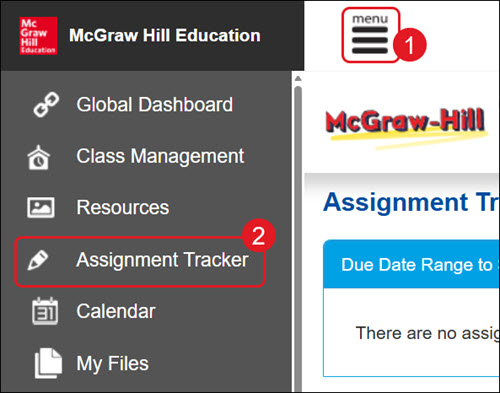
- Click Menu at the top left.
- Click Assignment Tracker from the menu.
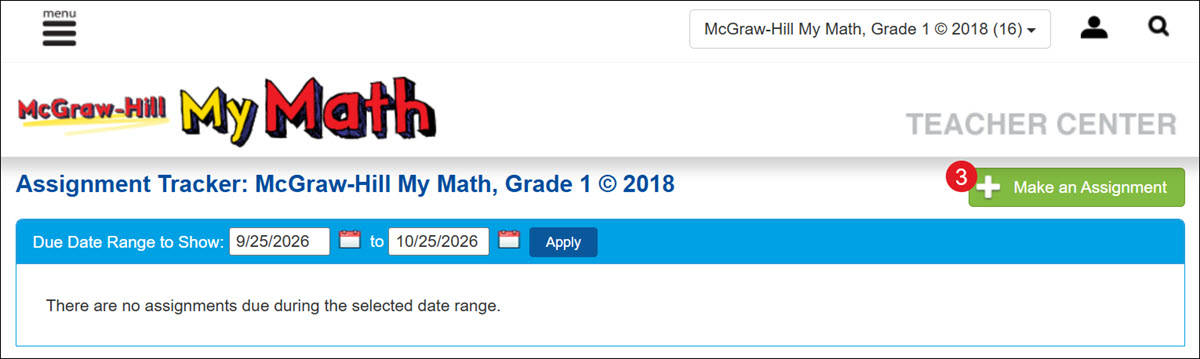
- Click the Make an Assignment button.
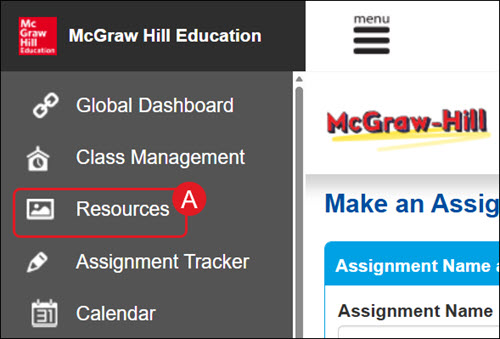
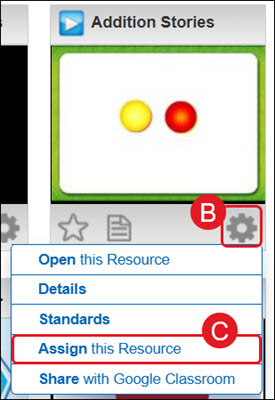
An assignment can also be created from the Resources page (A) by clicking on the Tools icon (B) on the resource tile and clicking Assign this Resource (C) from the menu.
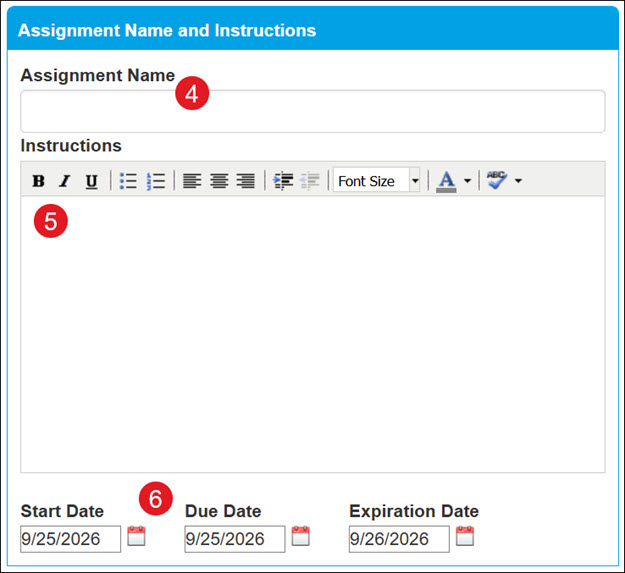
- Enter an Assignment Name.
- Enter Instructions for the students. This is optional.
- Select the Start, Due, and Expiration Date.
Note: The assignment will appear on students' Homework page on the Start Date and will no longer be visible after the Expiration Date.
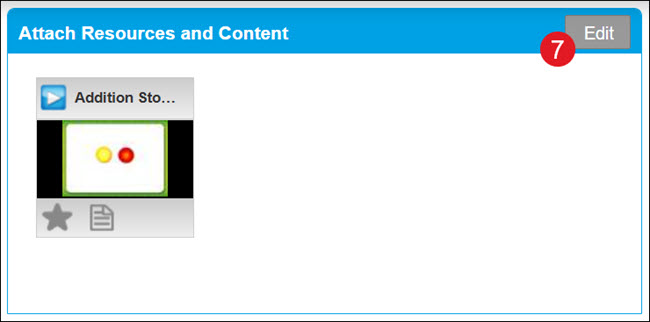
- Click the Edit button to add resources to the assignment.
If the assignment was created from the Resources page, the resource will be automatically attached. You can add additional resources.
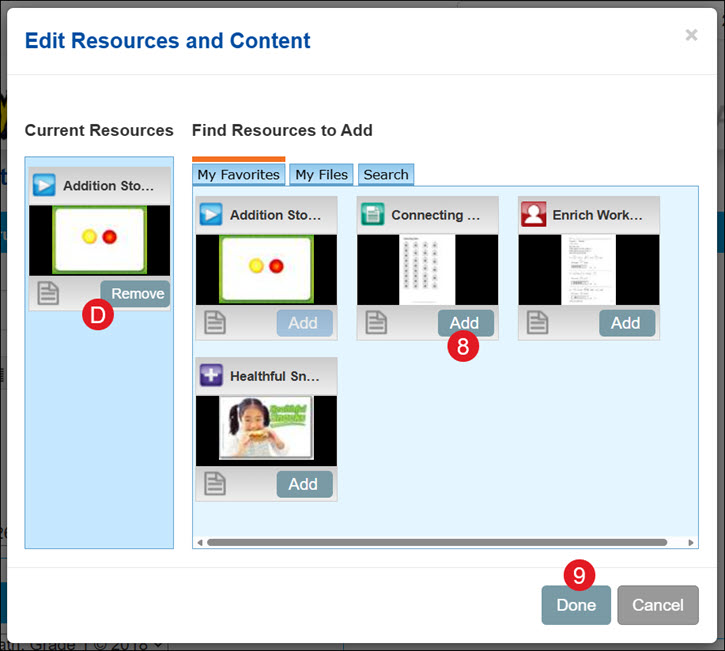
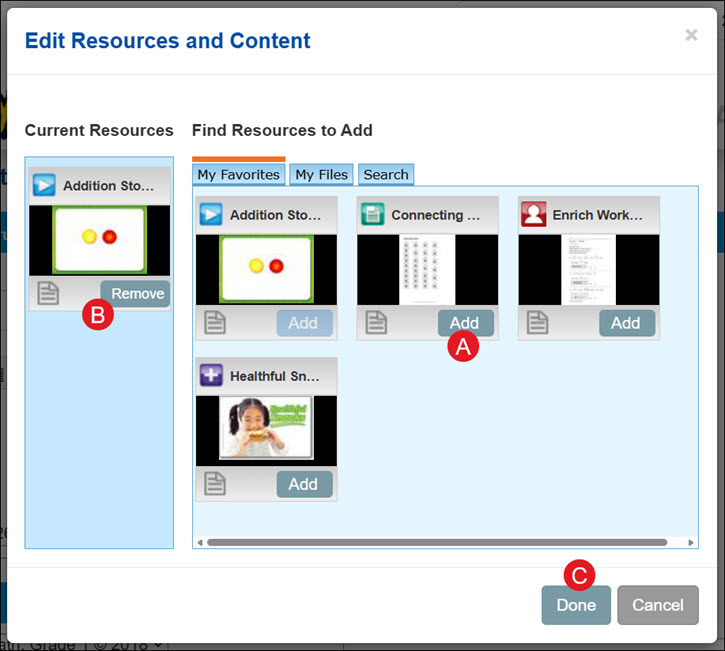
- On the pop-up, click the Add button for the resources you want to attach.
D. Click the Remove button on a resource to unattach the resource.
- Click the Done button.
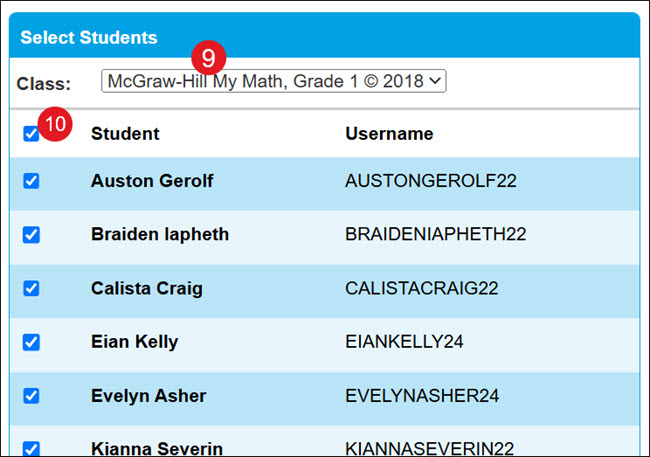
- If you have multiple classes, select the Class from the drop-down.
Note: You can only create an assignment for one class at a time.
- Checkmark the student(s) you want to assign to the assignment.
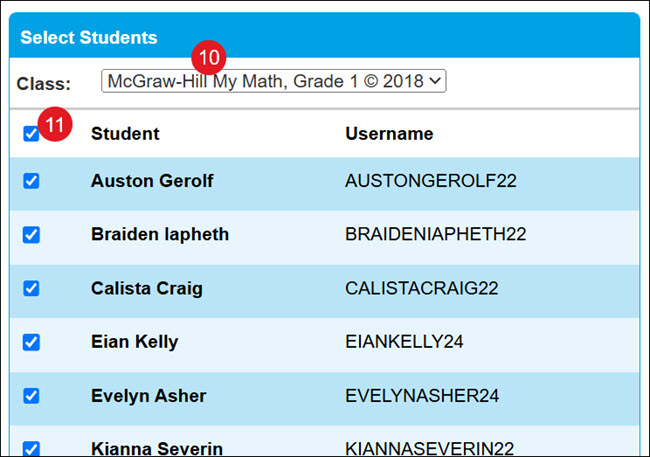
- Click the Assign button.
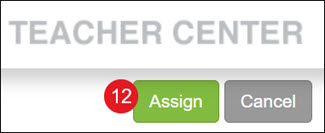
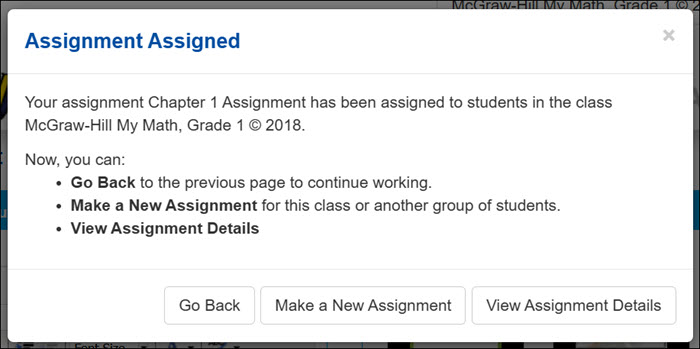
- On the pop-up, click to Go Back to the previous page (the Assignment Tracker or Resources), Make a New Assignment, or View Assignment Details.
View an Assignment
- Click Menu at the top left.
- Click Assignment Tracker from the menu.
- Select the Due Date Range to Show and click Apply.
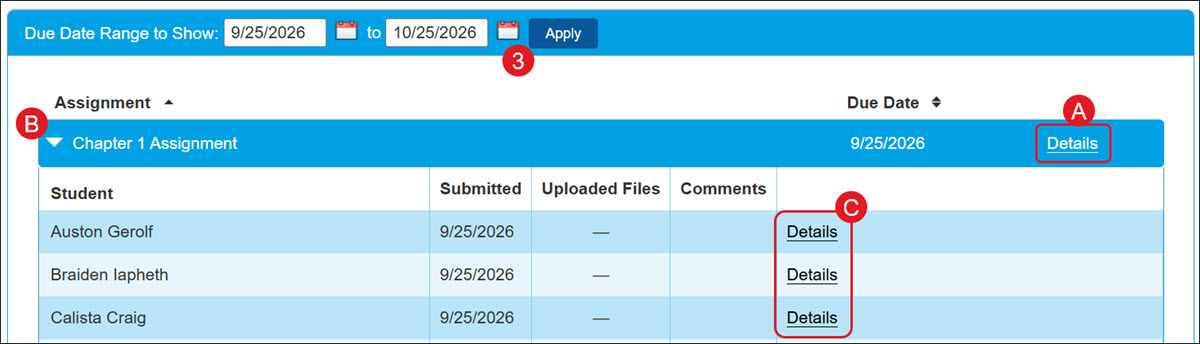
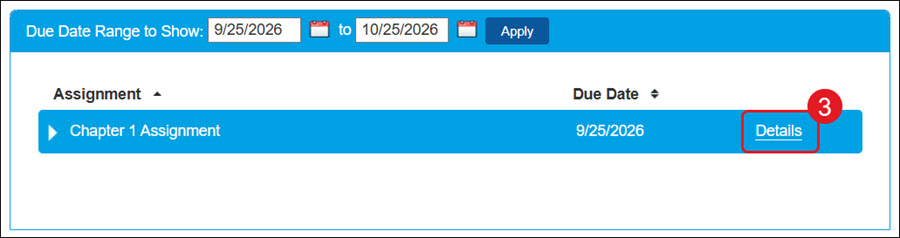
A. Click the Details link to the right of the assignment name to view the Assignment Details.
The Assignment Details page shows the Dates of the assignment, any Instructions given, the list of Students assigned to the assignment, and the attached Resources.
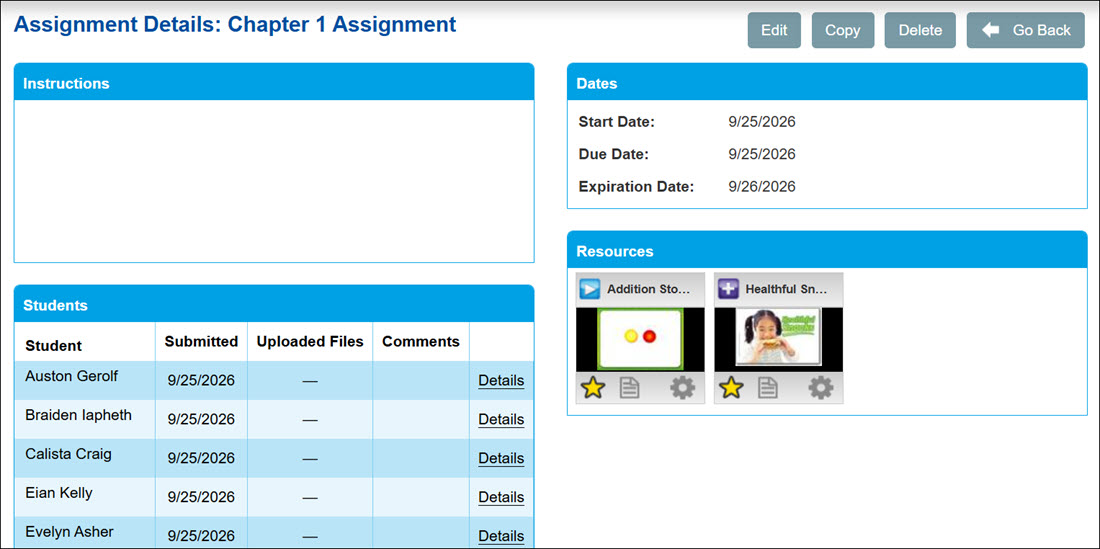
B. Click on the assignment blade to view the list of students assigned to the assignment.
C. Click the Details link to the right of the student to view their assignment submission.
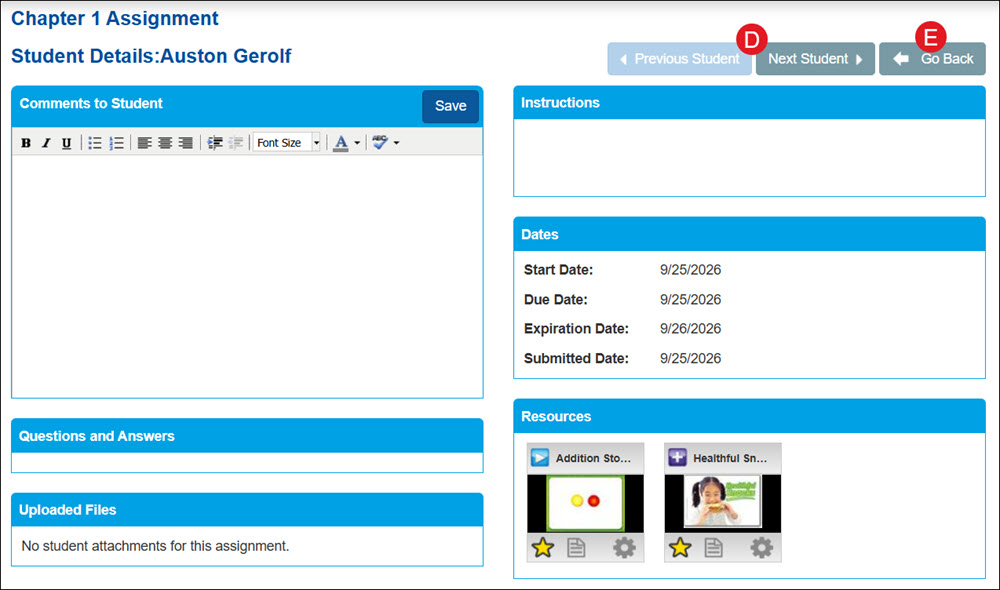
The Student Details page provides a space to add Comments for the assignment for the student to view, the assignment Instructions, the assignment Dates, any Questions and Answers that are attached to the assignment - this is mainly for eBook assignments - any Uploaded Files submitted by the student, and the Resources attached to the assignment.
D. Click the Previous or Next Student to navigate to another student's details page.
E. Click the Go Back button to navigate back to the Assignment Tracker.
Edit an Assignment
- Click Menu at the top left.
- Click Assignment Tracker from the menu.
- Click the Details link to the right of the assignment name.
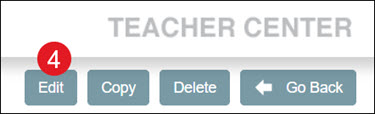
- Click the Edit button.
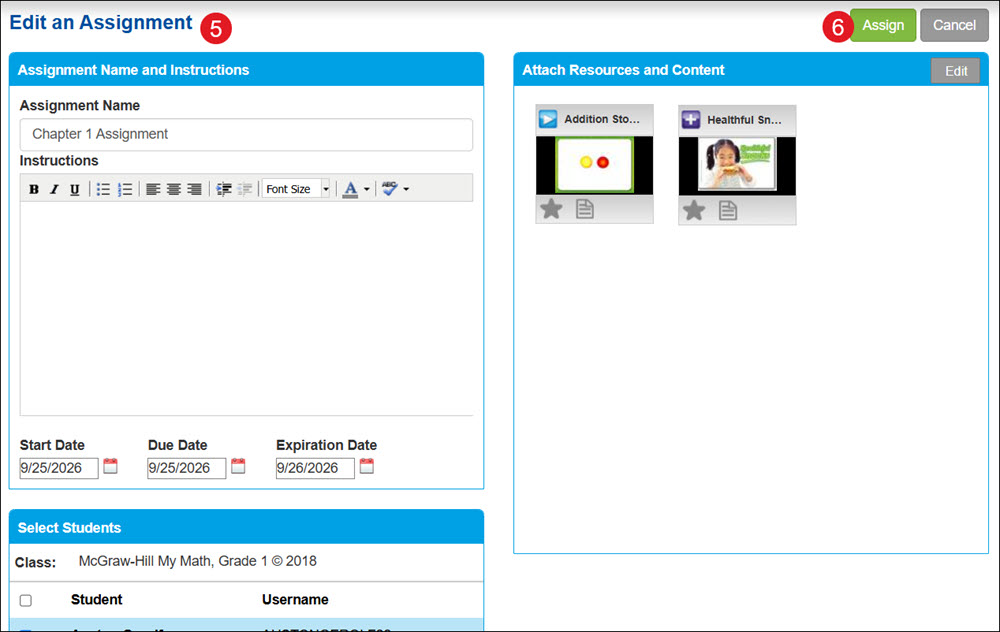
- Make changes to the Assignment Name, Instructions, Dates, Resources, and/or Students.
- Click the Assign button.
Copy an Assignment
- Click Menu at the top left.
- Click Assignment Tracker from the menu.
- Click the Details link to the right of the assignment name.
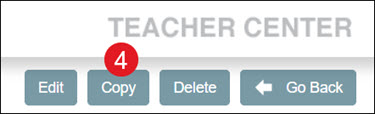
- Click the Copy button.
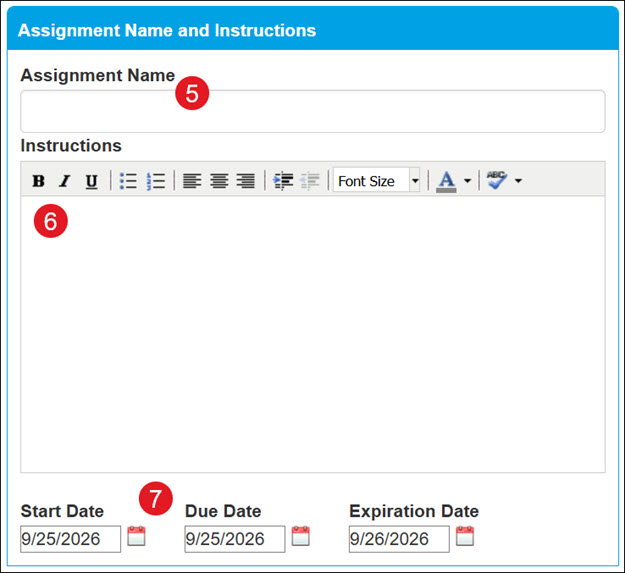
- Enter an Assignment Name.
- Enter Instructions for the students. This is optional.
- Select the Start, Due, and Expiration Date.
Note: The assignment will appear on students' Homework page on the Start Date and will no longer be visible after the Expiration Date.
- Click the Edit button to add or remove resources for the assignment.
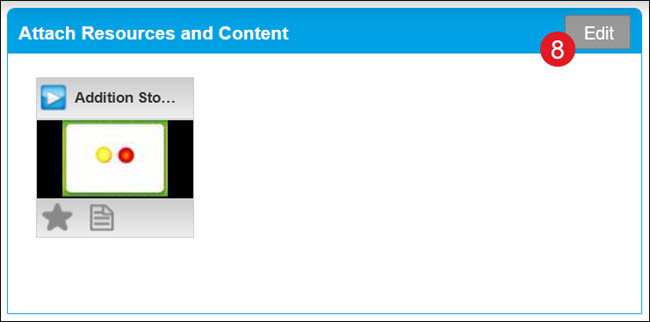
A. On the pop-up, click the Add button for the resources you want to attach.
B. Click the Remove button on a resource to unattach the resource.
C. Click the Done button.
- If you have multiple classes, select the Class from the drop-down.
Note: You can only create an assignment for one class at a time.
- Checkmark the student(s) you want to assign to the assignment.
- Click the Assign button.
- On the pop-up, click to Go Back to the previous page (the Assignment Tracker or Resources), Make a New Assignment, or View Assignment Details.
Delete an Assignment
Before deleting assignments, keep in mind that removing assignments will delete student submissions and scores as well. Once deleted, it cannot be reactivated.
- Click Menu at the top left.
- Click Assignment Tracker from the menu.
- Click the Details link to the right of the assignment name.
- Click the Delete button.
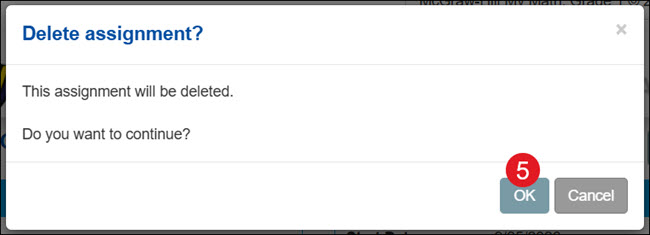
- On the Delete assignment pop-up, click the OK button to confirm.