Access ALEKS as an Administrator
Learn how administrators access ALEKS to manage courses, reports, users, and settings.
- Customer Support
- PreK-12
- School Administrator
- Elementary School
- Middle School
- High School
- Direct Login & Auto-Rostering
- Direct Login & Manual-Rostering
- SSO & Auto-Rostering
- SSO & Manual-Rostering
- Supplemental
- Math
- ALEKS
- ALEKS Adventure
- Log-In & Passwords
- Account Management


View the demo in a separate tab.
View the Spanish version of the demo.
On ALEKS, administrators can view reports and complete general administration tasks. Users need an administrator account or a teacher account with the administrator role enabled to access ALEKS as an administrator. Organization Administrators can add the Administrator role to any Teacher account on the Admin Tools Manage Users page. See the Create Administrator Accounts and Add Roles to an Existing User articles for more information.
1. SSO or log in at my.mheducation.com.
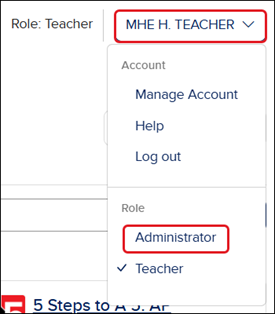
If you have a Teacher role and an Administrator role, you will need to click on your Profile button at the top-right and select Administrator from the menu.
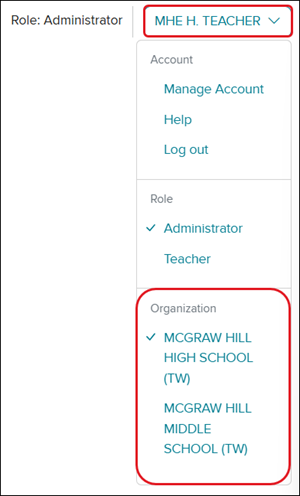
If you are an Administrator assigned at the school level instead of the district level, and are assigned to multiple schools, click on your Profile button and select the correct Organization before launching ALEKS.
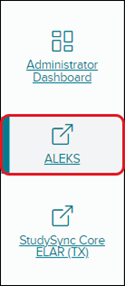
2. Click on ALEKS from the navigation menu.
You will only see this menu option if you are an Administrator and your organization has licenses for ALEKS.
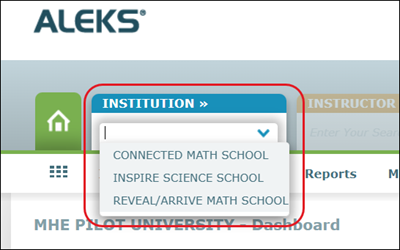
ALEKS will then open in a new tab. The Institution Administration, Reports, and Master Template links appear on the menu bar below the Main Navigation tabs.
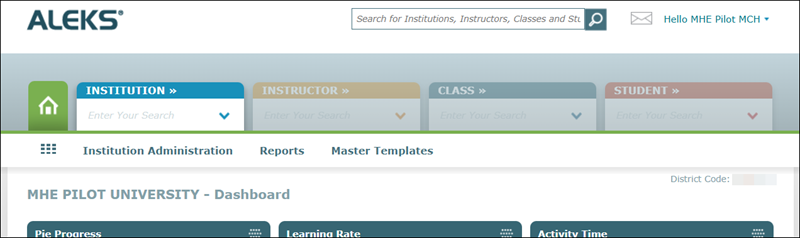
You can toggle between schools on the Institution tab if you have a district-level administrator account.