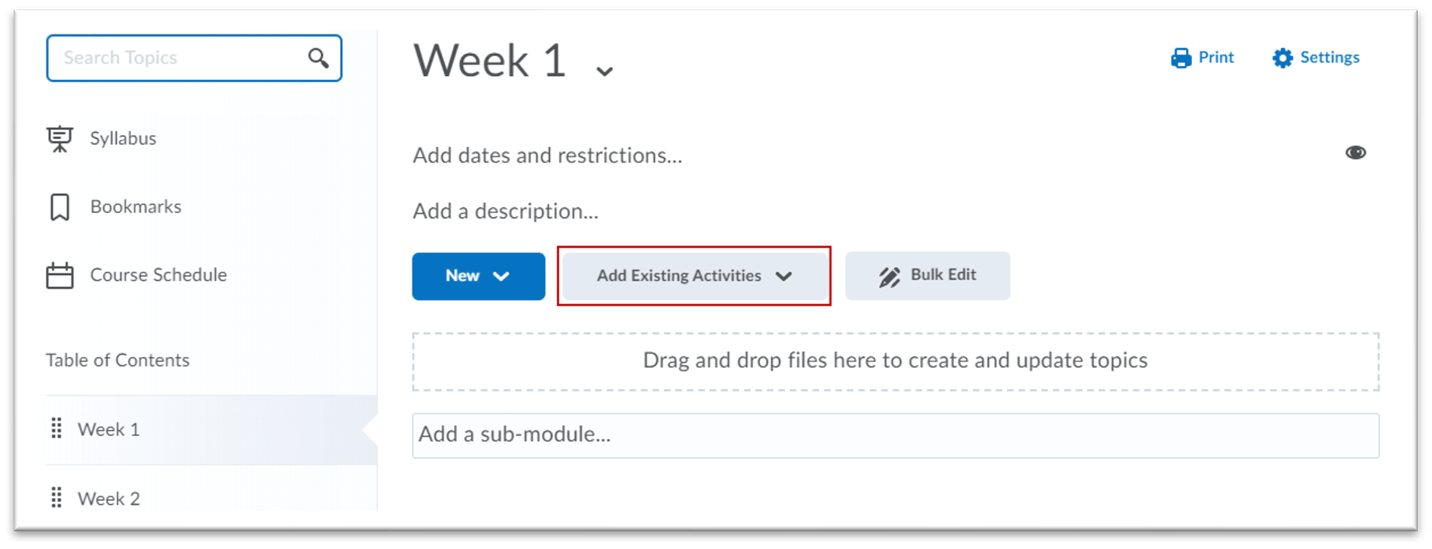
Go into your course content area and click Add Existing Activities
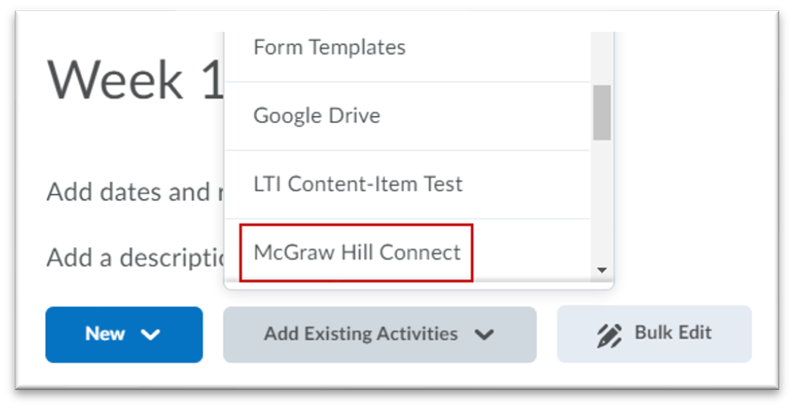
Select McGraw Hill Connect
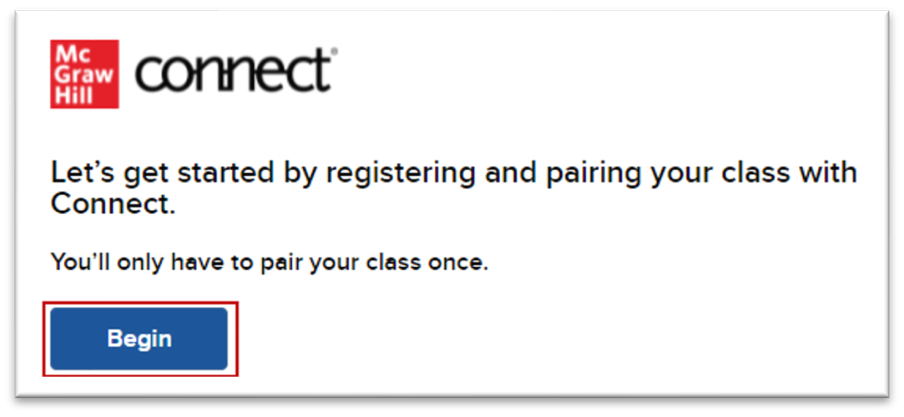
Click Begin
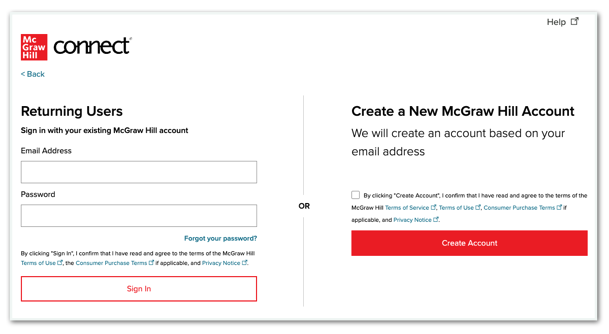
The next screen will depend on whether or not you already have a McGraw Hill Account associated with your institution's email address. If you already have an account, you'll be asked to enter your password and log in. If you're new to Connect, click on Create Account.
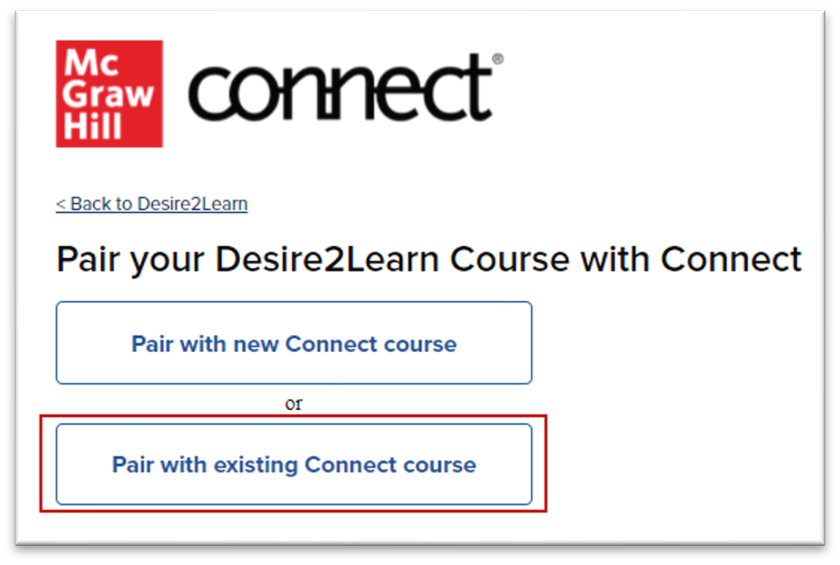
Click Pair with existing Connect course
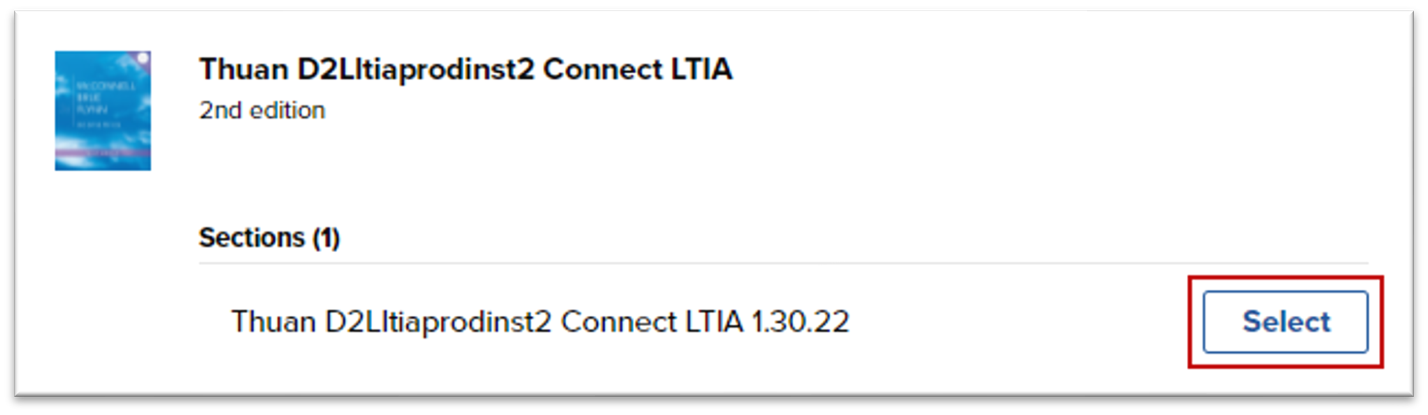
Locate the Connect section you want to pair with and click Select
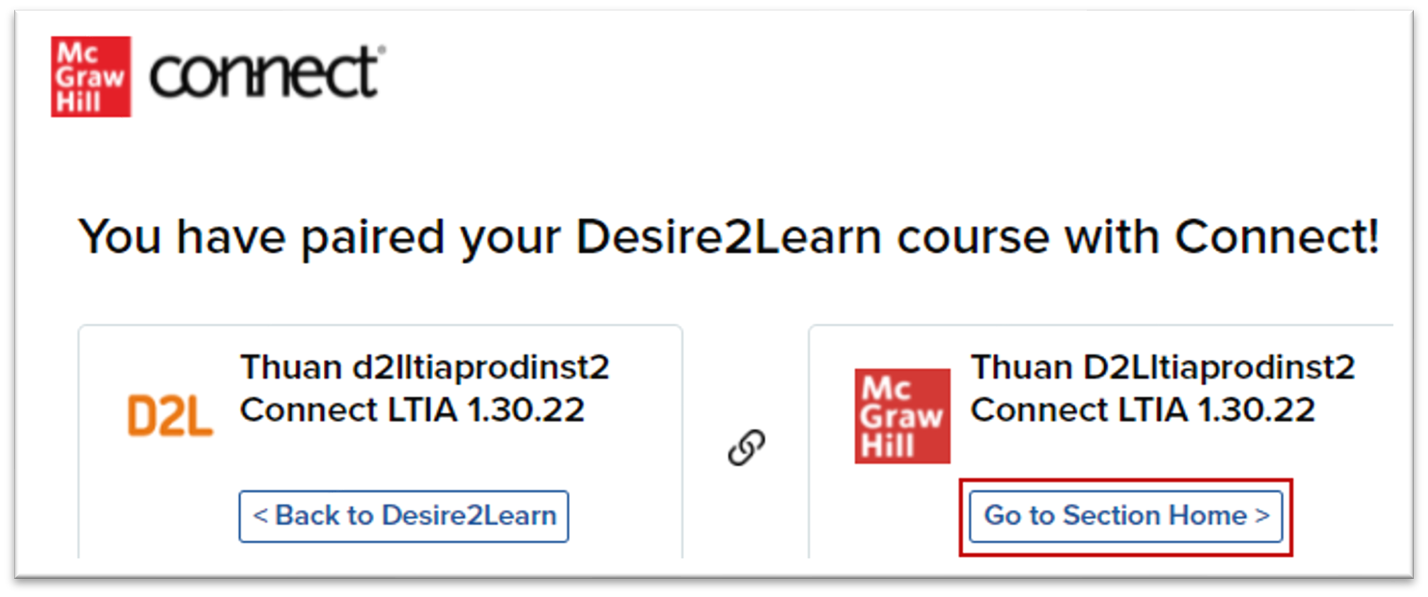
Click Go to Section Home
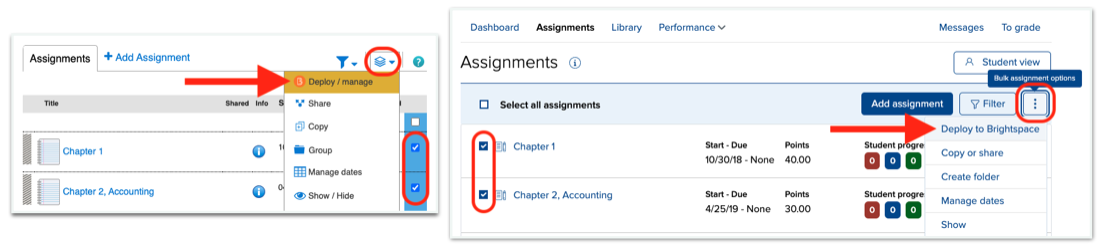
Check the assignments you would like to deploy and click on Deploy from the options menu.
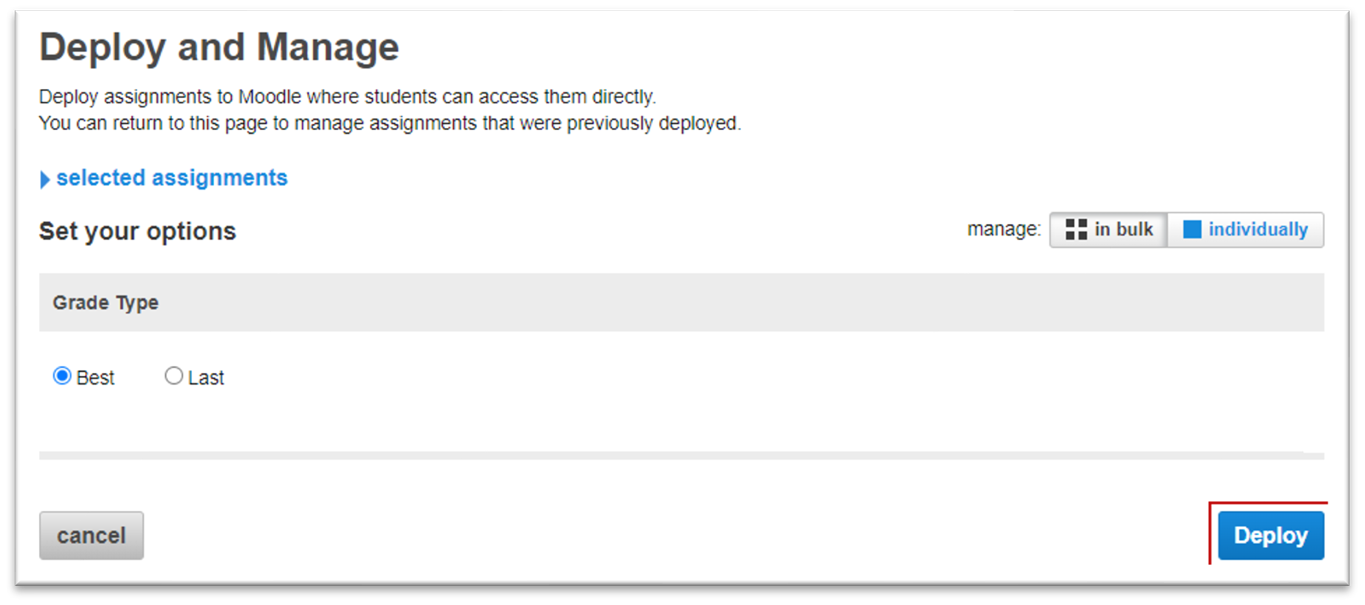
You can set the grade type in bulk or individually. Click the Deploy button when done.
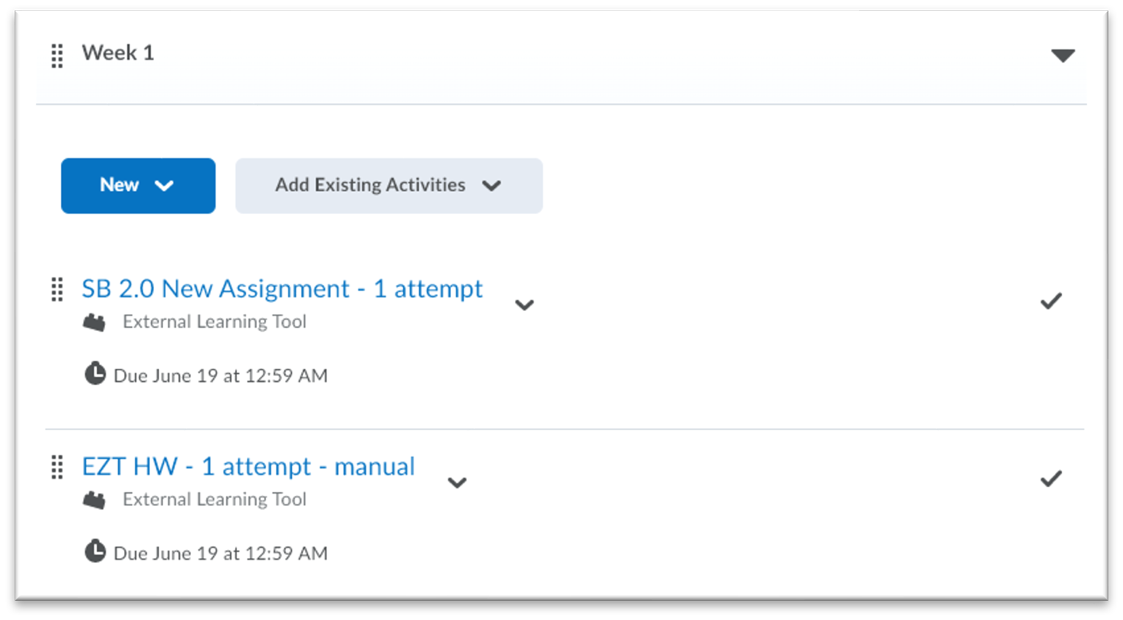
The assignments that were deploy should show up under the content folder. Click on the dots to the left of the assignment to rearrange the order as needed. A gradebook column is automatically created for each non-zero point assignment in the course.
Additional Resources
Add LTI Advantage Quick Link in your course
To allow quick access to Connect for you and your students, you can add a Connect LTI Advantage tool link to your course. However, assignments cannot be deployed when accessing Connect using this link. Please see this article for instructions.
Adding an eBook link for students in LTI Advantage
Click here to learn how to give your students quick access to the eBook.
Troubleshoot Assignment Deployment Issues
Click here if you encounter an issue deploying your assignments.
Troubleshoot Grade Sync Issues
Click here if you are experiencing issues with students' grades syncing.
Help us improve!
Let us know how we can improve our support information by providing feedback in this short survey.
Top
Regional Page Available
It looks like you're outside the United States. Do you want to see your regional version of this page?
connect
student
instructor
Personas
Personas/Higher Ed Educator
Personas/Higher Ed Educator/Instructor
Asset Format Type
Asset Format Type/Customer Support
Business Unit
Business Unit/Higher Education
Personas/Higher Ed Student
Programs & Solutions
Programs & Solutions/Connect
highered
2026-03-24T18:45:42.189-03:00
<h2><strong>Need assistance?</strong></h2> <p>For a personalized 1-to-1 support from our implementation team, <a href="https://www.mheducation.com/highered/acuity-scheduling.html">schedule an appointment here.</a></p> <p> </p> <h2><strong>D2L LTI Advantage Integration – Instructor Workflow</strong></h2> <ol> <li><span><span>Login to D2L Brightspace </span></span></li> <li><span><span>Go into your course content area and click <strong>Add Existing Activities</strong></span></span></li> </ol> <p><span><span><img alt="page2image1488616624" src="/content/dam/mhe/support/support-images/migrated/rtaImage-1602792669.png" data-assetref="rtaImage-1602792669-1787775343877"></span></span></p> <ol start="3"> <li><span><span>Select <strong>McGraw Hill Connect</strong></span></span></li> </ol> <p><span><span><span><span><span><span><span><img alt="page3image1486068832" src="/content/dam/mhe/support/support-images/migrated/rtaImage-1602792670.png" data-assetref="rtaImage-1602792670-1787775343877"></span></span></span></span></span></span></span></p> <ol start="4"> <li><span><span>Click <strong>Begin</strong></span></span></li> </ol> <p><span><span><span><span><span><span><span><img alt="page4image1488652400" src="/content/dam/mhe/support/support-images/migrated/rtaImage-1602792671.png" data-assetref="rtaImage-1602792671-1787775343877"></span></span></span></span></span></span></span></p> <ol start="5"> <li>The next screen will depend on whether or not you already have a McGraw Hill Account associated with your institution's email address. If you already have an account, you'll be asked to enter your password and log in. If you're new to Connect, click on <strong>Create Account</strong>. </li> </ol> <p><img src="/content/dam/mhe/support/support-images/migrated/rtaImage-976055088.jpeg" data-assetref="rtaImage-976055088-1787775343877"></p> <ol start="6"> <li><span><span>Click <strong>Pair with existing Connect course</strong></span></span></li> </ol> <p><span><span><span><span><span><span><span><img alt="page5image1487482896" src="/content/dam/mhe/support/support-images/migrated/rtaImage-1602792673.png" data-assetref="rtaImage-1602792673-1787775343877"></span></span></span></span></span></span></span></p> <ol start="7"> <li><span><span>Locate the Connect section you want to pair with and click <strong>Select</strong></span></span></li> </ol> <p><span><span><span><span><span><span><span><img alt="page5image1487717456" src="/content/dam/mhe/support/support-images/migrated/rtaImage-1602792674.png" data-assetref="rtaImage-1602792674-1787775343877"></span></span></span></span></span></span></span></p> <ol start="8"> <li><span><span>Click <strong>Go to Section Home</strong></span></span></li> </ol> <p><span><span><span><span><span><span><span><img alt="page5image1487721440" src="/content/dam/mhe/support/support-images/migrated/rtaImage-1602792681.png" data-assetref="rtaImage-1602792681-1787775343877"></span></span></span></span></span></span></span></p> <ol start="10"> <li><span><span>Check the assignments you would like to deploy and click on <strong>Deploy</strong> from the options menu.</span></span></li> </ol> <p><img src="/content/dam/mhe/support/support-images/migrated/rtaImage-976472714.jpeg" data-assetref="rtaImage-976472714-1787775343877"></p> <ol start="11"> <li><span><span>You can set the grade type in bulk or individually. Click the <strong>Deploy </strong>button when done.</span></span></li> </ol> <p><span><span><span><span><span><span><span><img alt="page6image1486353776" src="/content/dam/mhe/support/support-images/migrated/rtaImage-1602792684.png" data-assetref="rtaImage-1602792684-1787775343877"></span></span></span></span></span></span></span></p> <ol start="12"> <li><span><span>The assignments that were deploy should show up under the content folder. Click on the dots to the left of the assignment to rearrange the order as needed. A gradebook column is automatically created for each non-zero point assignment in the course.</span></span></li> </ol> <p><span><span><span><span><span><span><span><img alt="page7image2971715504" src="/content/dam/mhe/support/support-images/migrated/rtaImage-1602792685.png" data-assetref="rtaImage-1602792685-1787775343877"></span></span></span></span></span></span></span><br> <br> </p> <div> <h2>Additional Resources</h2> <p><br> <strong>Add LTI Advantage Quick Link in your course</strong><br> To allow quick access to Connect for you and your students, you can add a Connect LTI Advantage tool link to your course. However, assignments cannot be deployed when accessing Connect using this link. Please see this <a href="/content/mheducation/us/en/highered/support/knowledge/add-an-lti-advantage-connect-tool-link-to-your-d2l-course" target="_blank">article</a> for instructions. <br> <br> <strong>Adding an eBook link for students in LTI Advantage</strong><br> Click <a href="https://mh.my.site.com/CXG/s/article/Adding-an-eBook-link-for-students-in-LTI-Advantage?dc=" target="_blank">here</a> to learn how to give your students quick access to the eBook.<br> <br> <strong>Troubleshoot Assignment Deployment Issues</strong><br> Click <a href="/content/mheducation/us/en/highered/support/knowledge/deployed-assignment-displays-refresh-icon-in-lti-advantage" target="_blank">here</a> if you encounter an issue deploying your assignments.<br> <br> <strong>Troubleshoot Grade Sync Issues</strong><br> Click <a href="/content/mheducation/us/en/highered/support/knowledge/grade-sync-troubleshoot-grade-sync-in-lti-advantage" target="_blank">here</a> if you are experiencing issues with students' grades syncing. </p> </div> dts Learn how to integrate Connect with Brightspace D2L using LTI Advantage. 2025-11-19 D2L LTI Advantage Integration Learn how to integrate Connect with Brightspace D2L using LTI Advantage. Learn how to integrate Connect with Brightspace D2L using LTI Advantage.
Learn how to integrate Connect with Brightspace D2L using LTI Advantage.
Need assistance? For a personalized 1-to-1 support from our implementation team, schedule an appointment here. D2L LTI Advantage Integration – Instructor Workflow Login to D2L Brightspace Go into your course content area and click Add Existing Activities Select McGraw Hill Connect Click Begin The next screen will depend on whether or not you already have a McGraw Hill Account associated with your institution's email address. If you already have an account, you'll be asked to enter your password and log in. If you're new to Connect, click on Create Account. Click Pair with existing Connect course Locate the Connect section you want to pair with and click Select Click Go to Section Home Check the assignments you would like to deploy and click on Deploy from the options menu. You can set the grade type in bulk or individually. Click the Deploy button when done. The assignments that were deploy should show up under the content folder. Click on the dots to the left of the assignment to rearrange the order as needed. A gradebook column is automatically created for each non-zero point assignment in the course. Additional Resources Add LTI Advantage Quick Link in your course To allow quick access to Connect for you and your students, you can add a Connect LTI Advantage tool link to your course. However, assignments cannot be deployed when accessing Connect using this link. Please see this article for instructions. Adding an eBook link for students in LTI Advantage Click here to learn how to give your students quick access to the eBook. Troubleshoot Assignment Deployment Issues Click here if you encounter an issue deploying your assignments. Troubleshoot Grade Sync Issues Click here if you are experiencing issues with students' grades syncing.
dts
Higher Ed Student, Higher Education, Customer Support, Connect, Instructor