
Assignment Relink - Troubleshoot Assignment Deployment in LTI Advantage
Understand why a deployed assignment shows a refresh icon in LTI Advantage and how to resolve sync updates.
- Higher Education
- Customer Support
- Connect
- Instructor


If you encounter an issue deploying your Connect assignments to your LMS, please utilize the Relink Assignments option in the LTI Advantage widget.
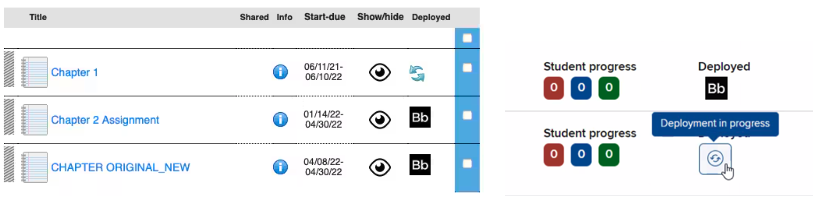
Sometimes, you may see a refresh or pending status icon upon deployment. It may take up to five minutes to deploy the assignment to the LMS. If the refresh icon remains after five minutes, please try the relink option.
If you see a caution icon next to your assignment, this means something went wrong during deployment and we were unable to successfully deploy the assignment. However, we may be able to resolve that using the relink option.
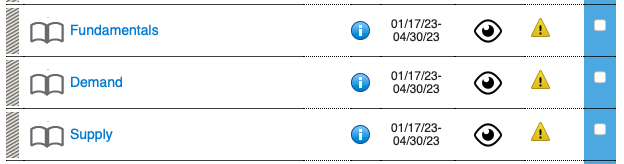
If you are using the New Experience view in Connect, the assignment deployment failure will display with an exclamation icon.

If your assignments deployed successfully but your students encounter issues launching those assignments, the relink option may correct the problem as well.
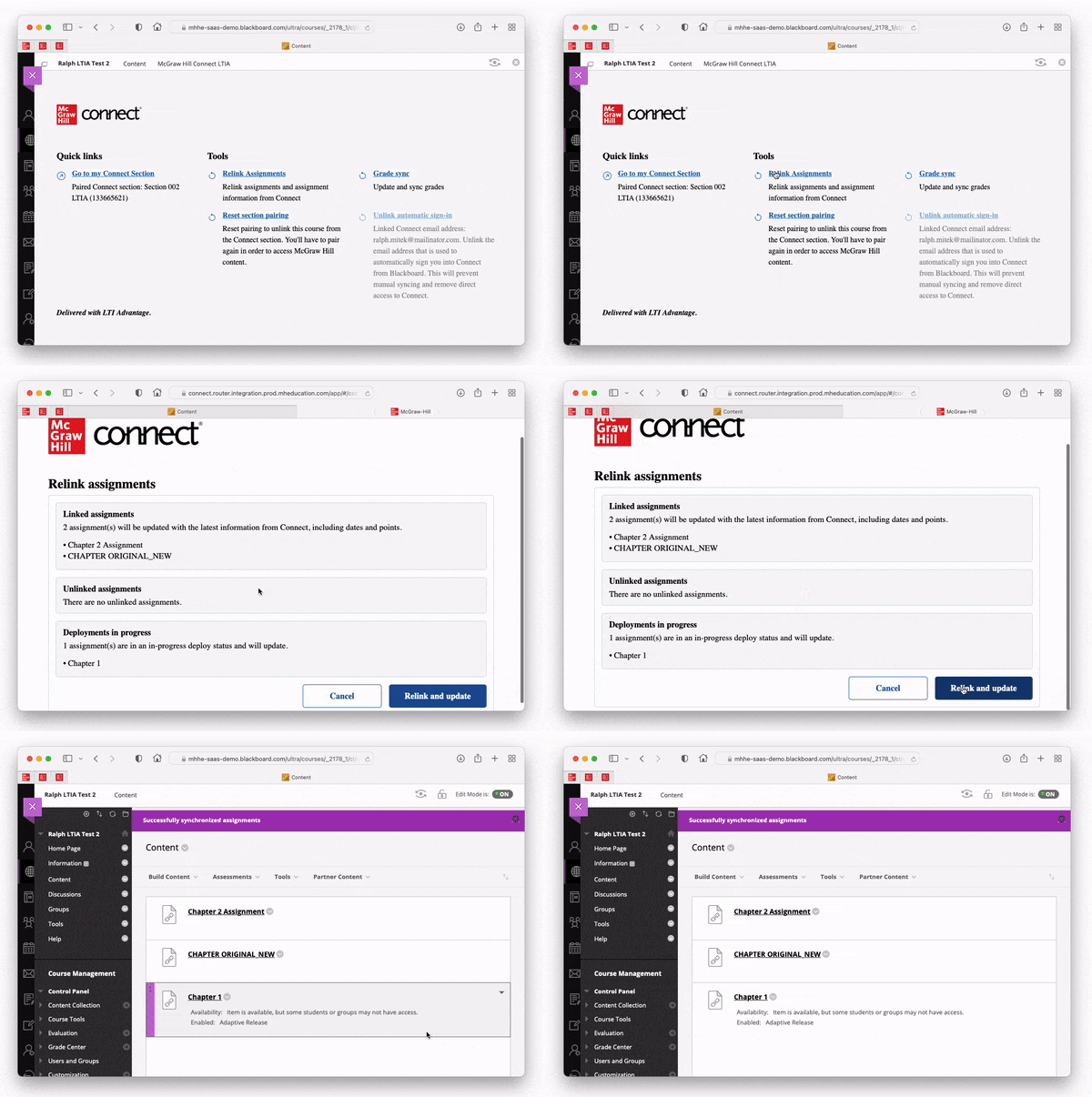
Let's try relinking your assignments...
- Navigate to the LTI Advantage widget in your LMS
- Click on Relink Assignments
- Click on Relink and update
- Click on Ok
Still not working?
If relinking assignments does not resolve the issue, you may try removing the assignment(s) from your LMS (including the grade column for D2L) and then try re-deploying them from Connect. If you are deploying multiple assignments at a time, you may also try deploying a single assignment to help isolate the issue.
If that does not work or you prefer not to try this step, please contact our Customer Experience Group by visiting https://mh.my.site.com/CXG/s/ContactUs.
