
Add LTI Advantage shortcut to D2L
Add a Connect tool link to a Brightspace D2L course using LTI Advantage.
Tags
- Higher Education
- Customer Support
- Connect
- Instructor


Note:
-
The Tool Placement configuration will only be available if your D2L administrator has configured it.
-
The tool link is intended to allow quick access to the Connect home page. When launching Connect using this tool link, assignment deployment options will not be available.
- Navigate to your D2L course.
- Click on Existing Activities within a module (this button title could differ in your D2L instance)
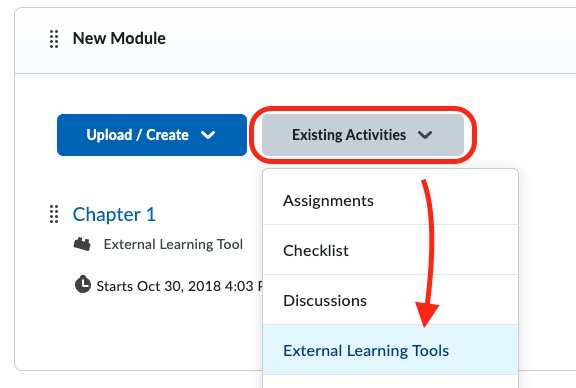
- Click on External Learning Tools.
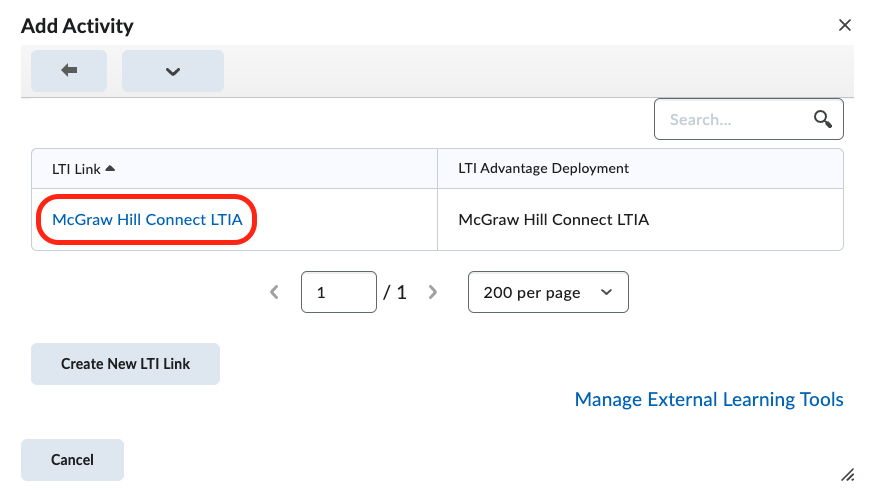
- Find McGraw Hill Connect LTIA (this title may differ in your D2L instance).

- The tool link will now appear in your course content.
You and your students can now use this tool link to quickly launch the Connect section home page.
