
Respondus Lockdown Browser (RLB) System Requirements and Installation for students (not labs)
Understand why your name appears on the Proctorio exam agreement page and how it is pulled from your account.
- Higher Education
- Customer Support
- ALEKS
- Higher Ed Student
- Instructor
- Higher Ed Administrator


Higher Education Institutions or instructors may require students to take certain ALEKS assignments in Respondus LockDown Browser, which is a secure testing browser that restricts students from accessing other applications. LockDown Browser can be required for ALEKS tests, quizzes, scheduled Knowledge Checks, and PPL Placement Assessments. Respondus Monitor, a companion application for LockDown Browser, can also be required for assignments that require LockDown Browser. Respondus Monitor uses students' webcams to record a video as they complete the assignment, and flags suspicious activity for the institution or instructor to review. More information about the Respondus Monitor can be found here: https://mh.my.site.com/aleks/s/article/Respondus-Monitor?dc=
The ALEKS version of the Respondus LockDown Browser is currently supported on Windows (8+) and Macintosh (Mac OS 10.13+) computers, and as an iPad (iOS 13.0+) app. Please review the system requirements below and make sure that the device you are using meets these requirements.
System Requirements:
https://www.aleks.com/support/lockdown_system_requirements
*The current version for Respondus LockDown Browser for Mac available for download on our website is the version 2.0.8.05.
Installation
When students begin an ALEKS assignment requiring LockDown Browser, the introduction page includes a link for students to launch LockDown Browser in order to begin, as well as a link to download LockDown Browser.
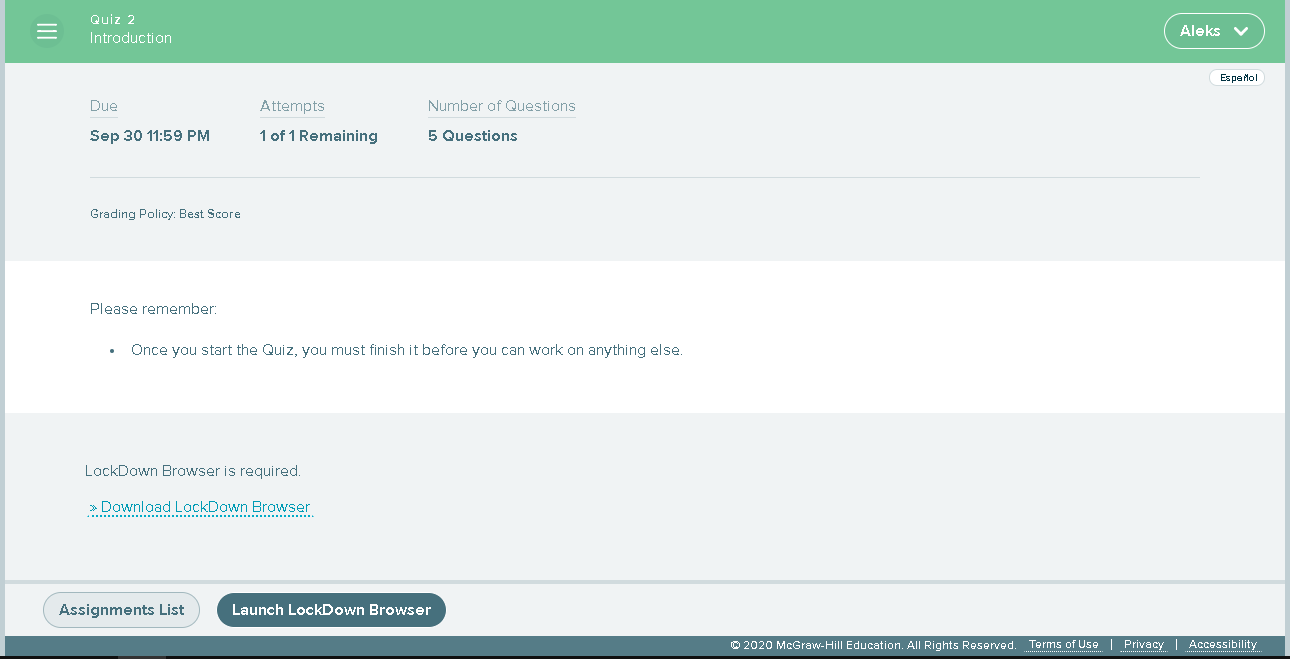
Click the link below that matches the device you are using to download Lockdown Browser.
Windows if you are using a device with Windows 10, 8 or 7
Mac (Macintosh) if you are using a device with Mac OS 10.12 or higher
iPad App if you are using an iPad with iOS 11.0 or higher
Chromebook: https://chrome.google.com/webstore/detail/lockdown-browser-for-alek/dgnifmckdjjdhbpkmboncnacknekaheh
For Respondus with the Chromebook extension see: https://www.mheducation.com/support/aleks-support-center/knowledge/respondus-lockdown-browser-now-available-for-aleks-on-chromebooks
Note: You will need to install the ALEKS version of Lockdown Browser even if you already have a different version of LockDown Browser that’s used by your school on your device. You can have multiple versions of Lockdown browser installed on your computer. There is no need to uninstall other versions.
After you click on the link, locate the file (LockDownBrowserOEMSetup.exe or InstallLDBOEM.zip) in your download folder.
- Double-click on the installer file and complete the installation.
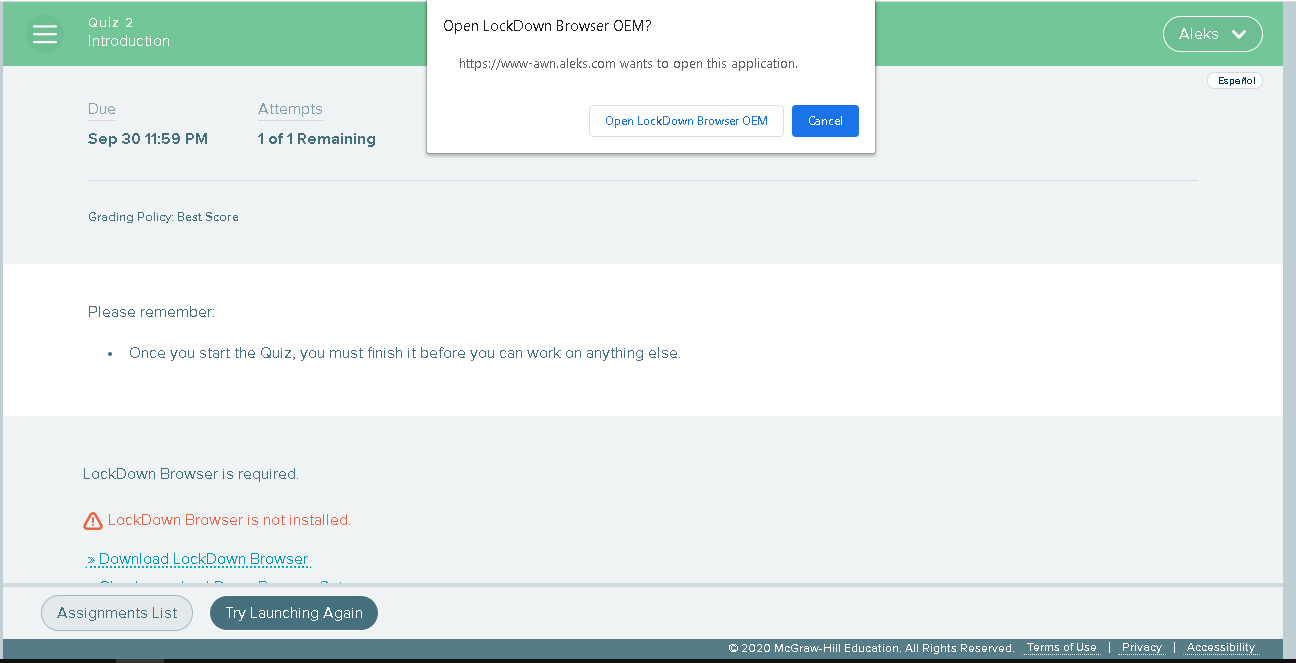
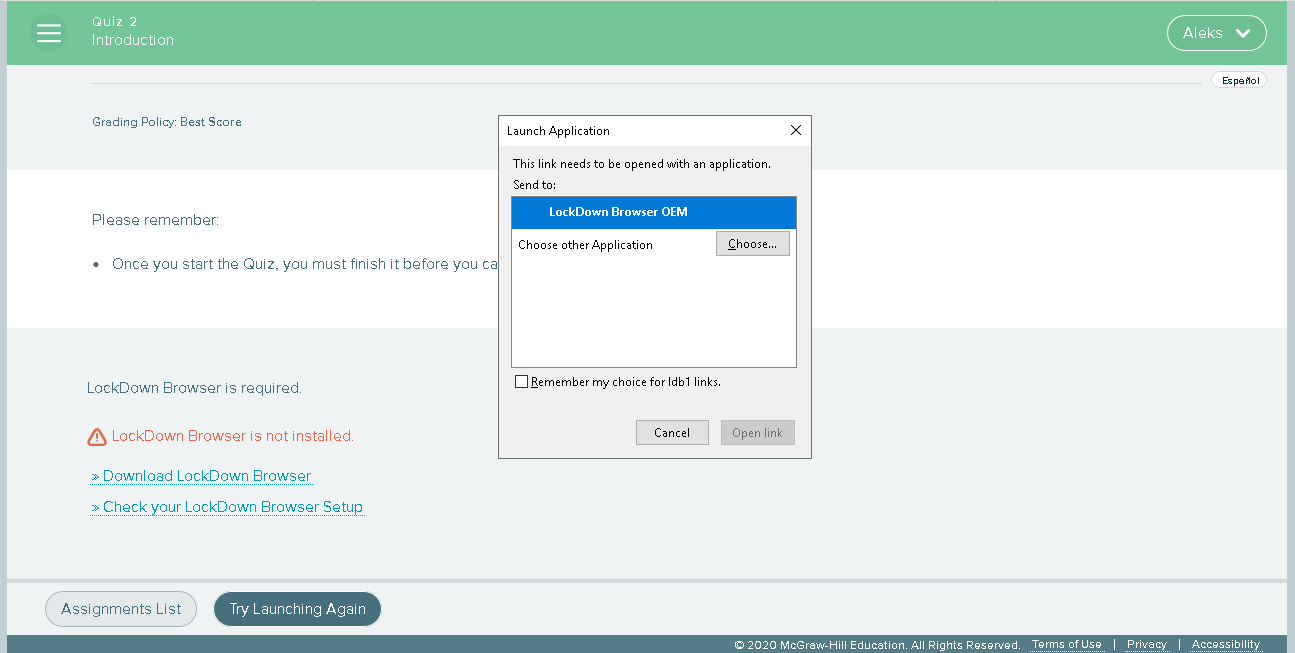
- Now return to the assignment page and click on LaunchDown Browser. The popup below will appear, click on Open LockDown Browser OEM if you’re using Chrome or select LockDown Browser OEM and click on Open link if you’re using Firefox. Note: if you take too long to click on the button to open LockDown Browser, the assignment page will say that LockDown Browser is not installed as seen in the pictures below, ignore the message and click on the button to open LockDown Browser.
Chrome
Firefox
Having problems installing or launching Respondus Lockdown Browser? Please see our
