
Customize the New ALEKS Class Settings
Manage class settings in the new ALEKS view to control course information, content options, learning settings, and student experience.
- Customer Support
- PreK-12
- Classroom Teacher
- Elementary School
- Middle School
- High School
- Direct Login & Auto-Rostering
- Direct Login & Manual-Rostering
- SSO & Auto-Rostering
- SSO & Manual-Rostering
- Supplemental
- Math
- ALEKS
- Class Management
- Getting Started & Orientation
- Back-to-School Setup


View the demo in a separate tab.
View the Spanish version of the demo.
The class settings allow teachers to set specific options to best fit class needs.
Article Contents
Access Class Settings
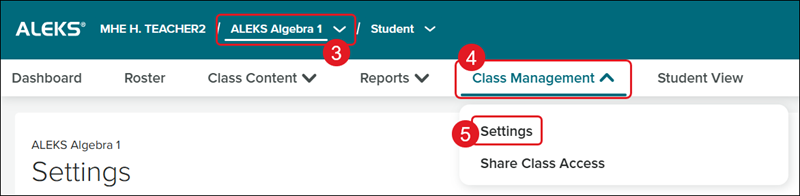
1. SSO or log in at my.mheducation.com.
2. Launch ALEKS.
3. Select the Class from the drop-down.
4. Click on Class Management.
5. Click on Settings from the menu.
Class Information
The Class Information section is where teachers can find their ALEKS class code (this is different from the class code you find on the My Programs page), the Teacher, Class Name, and Start and Ends dates for the class, among other information.
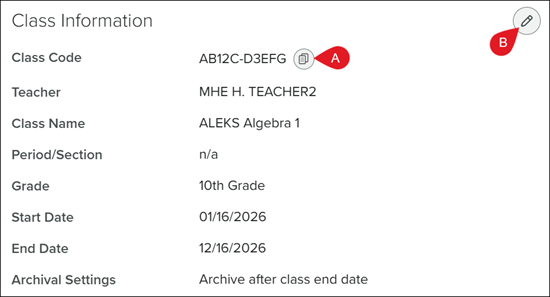
A. Click the Copy button to copy the ALEKS Class Code.
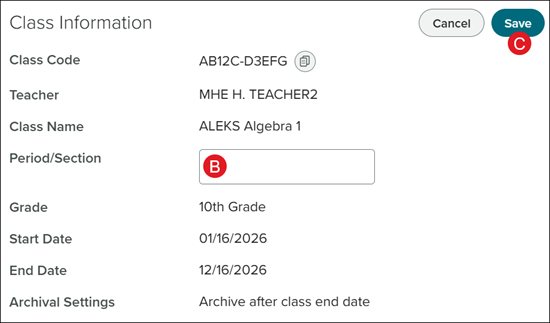
B. Click the edit button/pencil icon to make changes to the Period/Section for the class.
Note: If you need to make changes to the Class Name, Grade, and/or End Date, this will need to be done by editing the class from the My Program page.
C. Click the Save button to confirm changes.
Class Content
The Class Content section is where teachers can download an HTML or PDF of the syllabus, select the associated standards, and integration a textbook with the course.
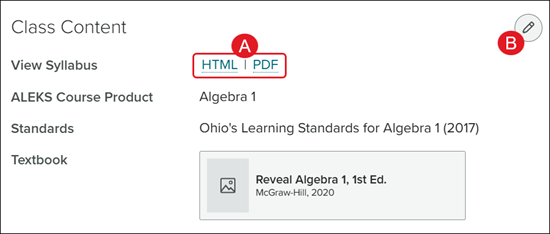
A. Click the HTML or PDF link to download the Syllabus for the course.
B. Click the edit button/pencil icon to select the Standards and/or integrate a Textbook.
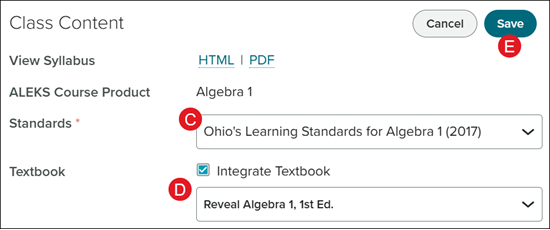
C. Click the drop-down to select to associate Standards or No Standards.
D. Check the Integrate Textbook box to allow students to access a course textbook while completing their ALEKS topics and select the textbook from the drop-down.
E. Click the Save button to confirm the changes.
Class Options
In the Class Options section teachers can adjust the settings for Incoming Students, Unenrolled Students, Accessibility, and turn on/off the Graphing Calculator access.
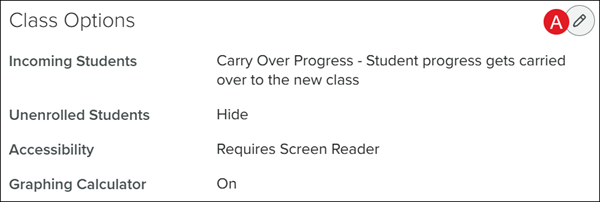
A. Click the edit button/pencil icon to make changes to the section.
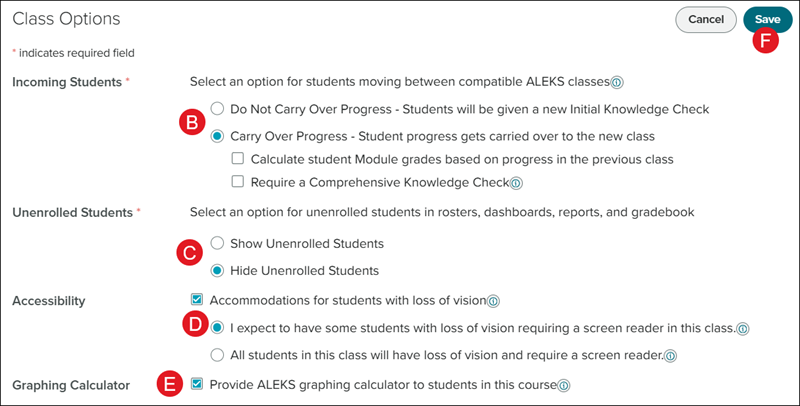
B. Select the radio button next to the Incoming Students option you want for the class.
If you select Carry Over Progress, click on the additional options you would like for how the student progress is calculated and if you want them to complete a Comprehensive Knowledge Check. This Knowledge Check consists of approximately 25 questions and will assess students on all of the material in the class.
If you select Do Not Carry Over Progress, the students will be prompted to complete a new Initial Knowledge Check.
C. For the Unenrolled Students section, select if you want to Show or Hide Unenrolled Students in the Class Roster.
D. Check the box if some/all students need Accommodations set. Select the radio button if some or all students have loss of vision and require a screen reader.
Changing the Accessibility options may impact the number of topics students see in their Pie.
E. Check/uncheck the Graphing Calculator to allow students to have access to the tool while completing certain ALEKS topics.
Checking this box makes additional topics that require the use of a graphing calculator available. If this setting is unchecked, topics that require graphic calculators will be removed from the class.
F. Click the Save button to confirm changes.
Pie Content
The Pie Content section allows teachers to custom select what ALEKS topics students complete. For in-depth steps on the different options for topic customization, refer to the following articles:
Access Options
The Access Options section allows teachers to view Student Enrollment Status, Class Access, and change the Archived Status.
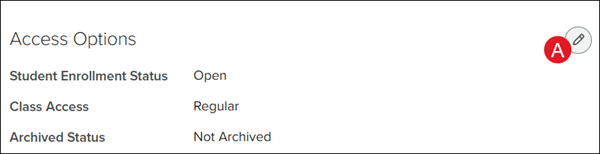
A. Click the edit button/pencil icon to make changes to the Archived Status option.
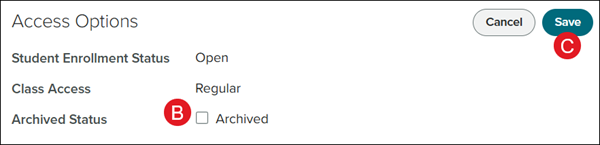
B. Checkmark the Archived Status box to make it so the class is no longer active within ALEKS.
C. Click the Save button to confirm changes.
Learning Options
The Learning Options section allows teachers to show/hide the learning page, learning resources, and message button for student access.
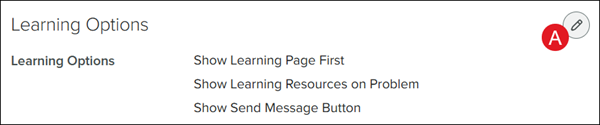
A. Click the edit button/pencil icon to check/uncheck the available options.
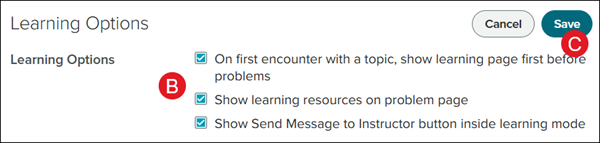
B. Check/uncheck to show/hide the learning page before problems, show/hide learning resources on problem page, and/or show/hide Send Message to Instructor button inside learning mode for student access.
C. Click Save to confirm changes.
Knowledge Check Options
The Knowledge Check Options allow teachers to adjust settings for the Knowledge Check locations, Delay Window, and Pie Completion Knowledge Checks.
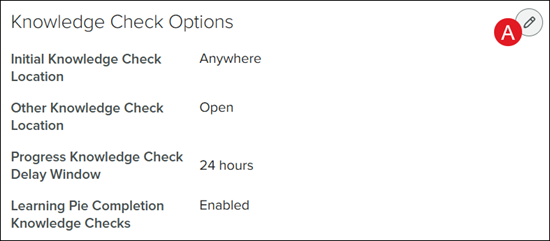
A. Click the edit button/pencil icon to check/uncheck the available options.
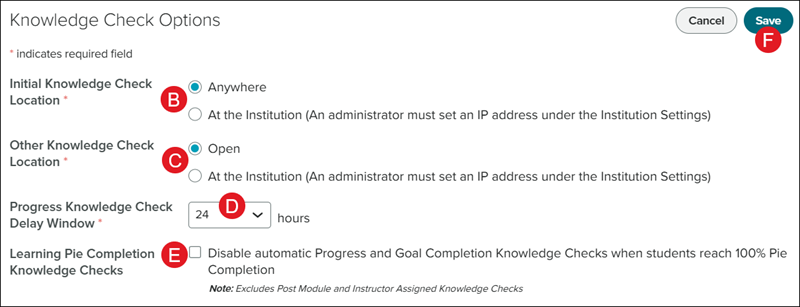
B. Select the preferred radio button for Initial Knowledge Check Location based on if students have access to complete the Knowledge Check Anywhere or only while At the Institution.
C. Select the preferred radio button for Other Knowledge Check Location based on if students have Open access or only while At the Institution.
Note: For the At the Institution option, an administrator must set an IP address under the Institution Settings within their administrator access for ALEKS.
D. Select the Progress Knowledge Check Delay Window from the drop-down. Default is set to 24 hours.
E. Check the Learning Pie Completion Knowledge Checks box if you would like to disable automatic Progress and Goal Completion Knowledge Checks when students have reached 100% Pie completion.
Note: This option does not include post module and instructor assigned Knowledge Checks.
F. Click the Save button to confirm changes.
Notifications
The Notifications section allows teachers to select the appropriate options for the class about when they are notified about certain actions within ALEKS. It also allows them to sent progress reports to parents.
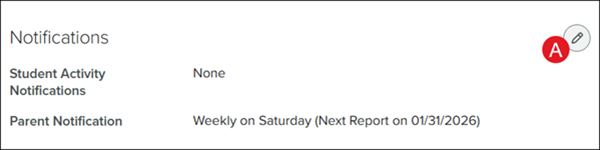
A. Click the edit button/pencil icon to check/uncheck the available options.
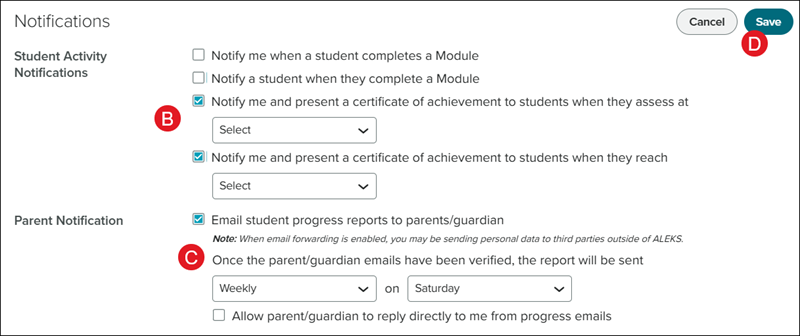
B. Check the box next to the preferred Notify options based on if the teacher wants to receive a notification about module completion or reach a certain point within the program.
If the selections for notifications and sending a certificate are selected, teachers will also need to select a syllabus and/or progress option from the drop-downs.
C. Check the box to Email student progress reports to parents/guardians and/or to Allow parent/guardians to reply directly back to the teacher from progress emails.
If the Email student progress reports to parents/guardians is selected, select how often to send the reports from the drop-downs.
Note: Please be advised that by enabling parent/guardian notifications, you may be sending personal data to third parties outside of ALEKS.
D. Click the Save button to confirm changes.
Copy Settings
The Copy Settings option allows teachers to make their class settings public to allow other teachers in their school to use the same settings for their classes.
Refer to the Manage New ALEKS View Class Duplication Settings article for more information about this class setting.
