Create Classic ALEKS Resources to Use in the Program
Add and manage instructional resources in classic ALEKS view so students can access files, links, and support materials while working through assigned topics.
- PreK-12
- Customer Support
- Classroom Teacher
- Elementary School
- Middle School
- High School
- Direct Login & Auto-Rostering
- Direct Login & Manual-Rostering
- SSO & Auto-Rostering
- SSO & Manual-Rostering
- Supplemental
- Math
- ALEKS
- Tools & Resources


View the demo in a separate tab.
View the Spanish version of the demo.
Article Contents
Access Resources Page
1. SSO or log in at my.mheducation.com.
2. Launch ALEKS.
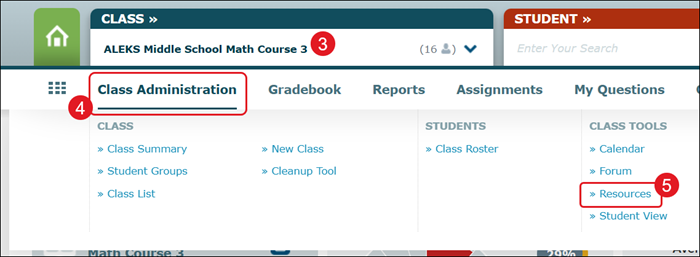
3. Select the Class from the drop-down.
4. Hover over Class Administration.
5. Click on Resources from the menu.
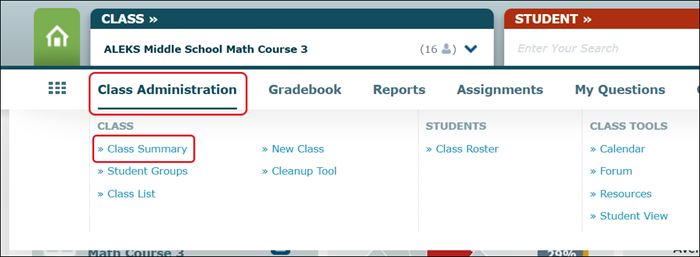
An alternative way to access the Resources page is by hovering over Class Administration and selecting Class Summary from the menu.
Scroll to the bottom of the page and click the Edit link on the Resources tile.

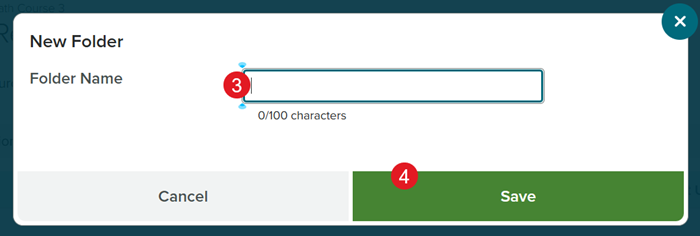
Add Folder
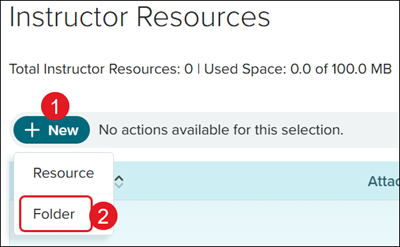
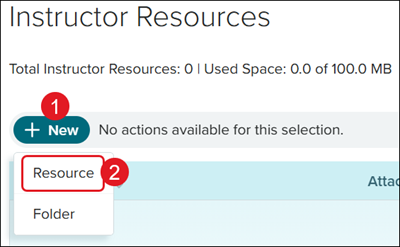
1. Click the +New button.
2. Click Folder from the menu.
3. Enter a Folder Name.
4. Click the Save button.
Add Resources
1. Click the +New button.
2. Click Resource from the menu.
Note: If you want to add resources to a folder, click on the folder name first.
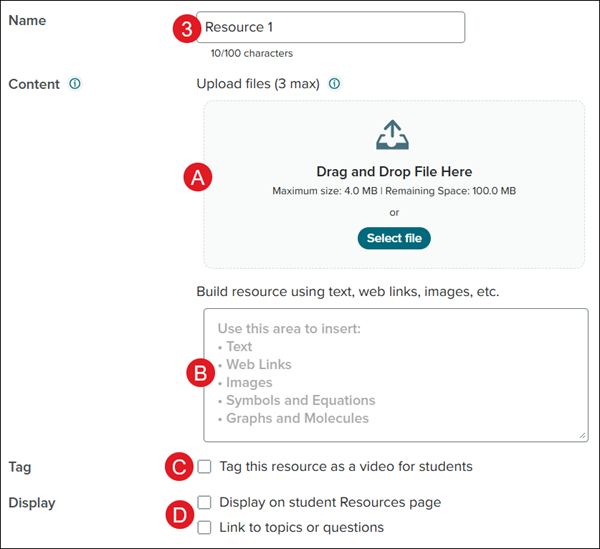
3. Enter a Name for the resource.
A. Drag and Drop the resource in the Upload Files section or click the Select file button and select the resource.
i. Click the trash can icon to delete the uploaded resource.
B. Click in the Use this area box to enter text, web links, images, symbols and equations, and/or graphs and molecules for the resource.
C. Check the Tag box to mark the resource as a video for students.
D. Check the box to Display on the student Resources page and/or Link to topics or questions.
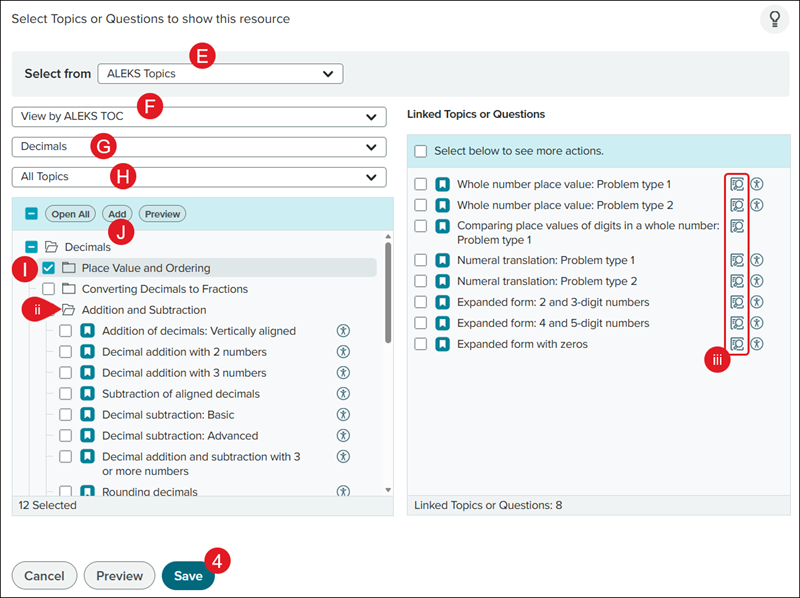
If Link to topics or questions is selected:
E. Select from where you want the options from ALEKS Topics, Assignments, or Questions by clicking the drop-down.
F. Based on the Select from option selected, select Textbook TOC, ALEKS TOC, or Standards, Assignment Type, or Imported Questions from the drop-down.
Note: Textbook TOC is only available if one has been integrated into the course. Refer to the Class Information and Content section of the Customize the Classic ALEKS View Class Summary Page article for steps on integrating a textbook.
G. If ALEKS Topics is selected, select the Topic/Standards from the drop-down.
H. If ALEKS Topics is selected, select to view All Topics, Class Topics, or Additional Topics.
I. Check the box(es) next to the topics/standards to link the resource to.
ii. Click the folder to expand the topic/standard section.
J. Click the Add button.
iii. Click the magnifying glass next to the topic to view an example question.
4. Click the Save button.
Edit Folder
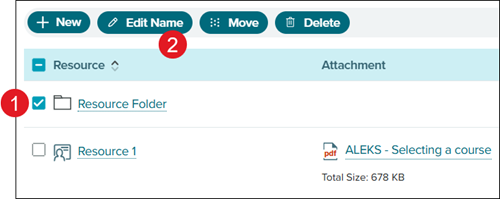
1. Check the box next to the folder.
2. Click the Edit Name button.
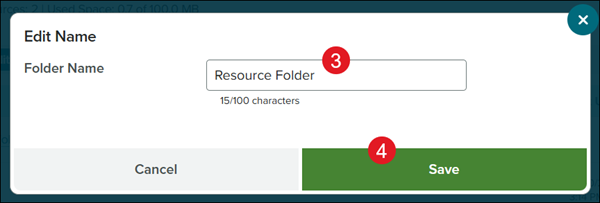
3. On the Edit Name pop-up, enter the Folder Name.
4. Click the Save button.
Edit Resource
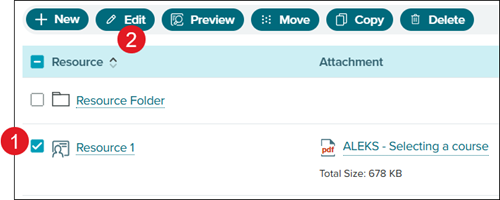
1. Check the box next to the resource.
2. Click the Edit button.
3. Make preferred changes.
4. Click the Save button to confirm changes.
Preview Resource
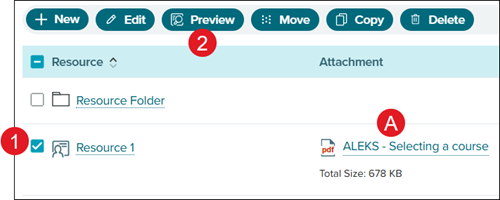
1. Check the box next to the resource.
2. Click the Preview button.
A. If a resource has been attached, you can also click on the link in the Attachment column.
Move Folder or Resource
1. Check the box next to the resource or folder.
2. Click the Move button.
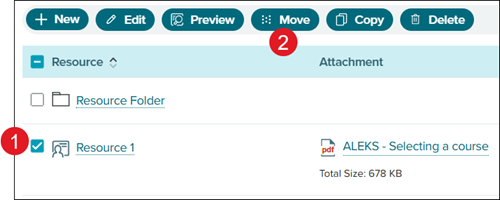
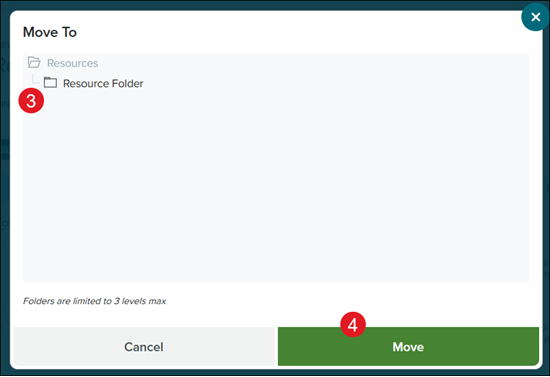
3. On the Move To pop-up, select the folder.
4. Click the Move button.
Copy Resource
1. Check the box next to the resource.
2. Click the Copy button.
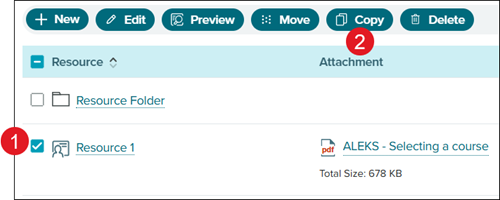
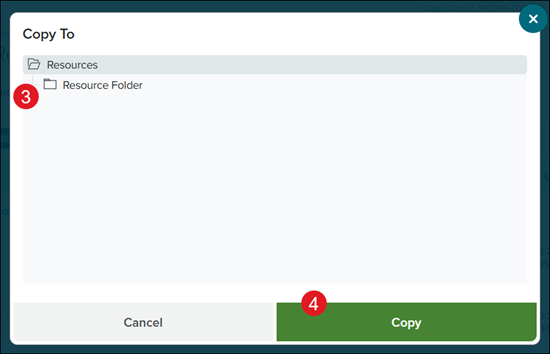
3. On the Copy To pop-up, select the location to copy the resource to.
4. Click the Copy button.
Delete Folders and Resources
Note: When deleting folders, this will also delete all resources within that folder. Also keep in mind that once something is deleted, there is not a way to get it back.
1. Check the box next to the folder(s) and/or resource(s).
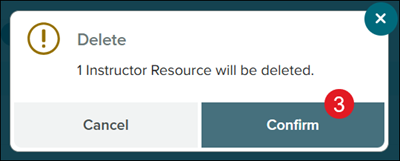
2. Click the Delete button.
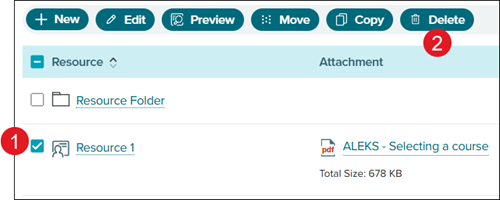
3. On the Delete pop-up, click the Confirm button.