
Set Up and Navigate the Classic ALEKS Gradebook
Learn how to enable the classic ALEKS view gradebook and view student assignment scores.
- Customer Support
- PreK-12
- Classroom Teacher
- Elementary School
- Middle School
- High School
- Direct Login & Auto-Rostering
- Direct Login & Manual-Rostering
- SSO & Auto-Rostering
- SSO & Manual-Rostering
- Supplemental
- Math
- ALEKS
- Grades & Assignments


View the demo in a separate tab.
View the Spanish version of the demo.
Article Contents
Access and Enable Gradebook
1. SSO or log in at my.mheducation.com.
2. Launch ALEKS.
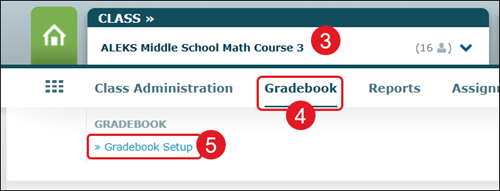
3. Select the Class from the drop-down.
4. Hover over Gradebook.
5. Select Gradebook Setup from the menu.
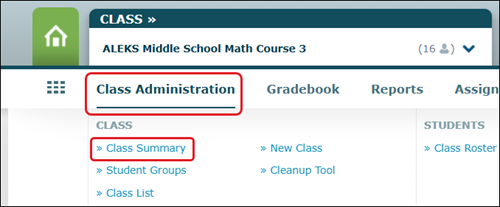
The gradebook can also be accessed by hovering over Class Administration and selecting Class Summary from the menu.
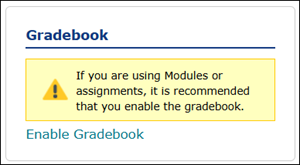
Scroll towards the bottom of the page to locate the Gradebook tile.
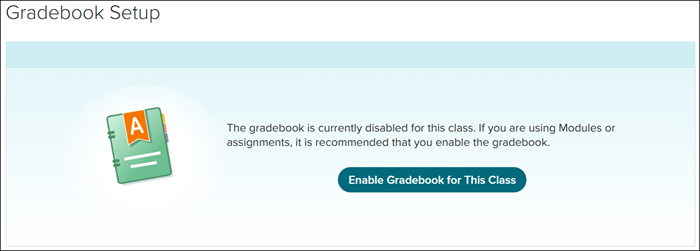
6. Click the Enable Gradebook for This Class button c
Gradebook Setup
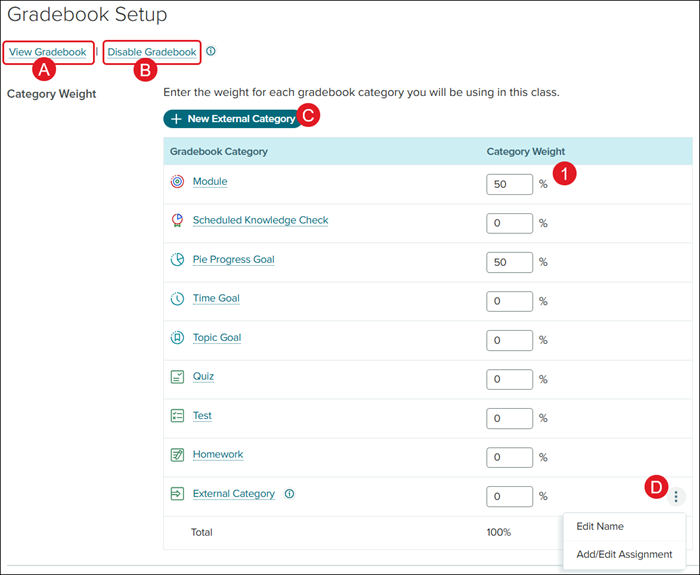
1. Click in the Category Weight fields to adjust the percentage for each Gradebook Category.
A. Click the View Gradebook link to navigate to the course gradebook.
B. Click the Disable Gradebook link to hide the gradebook for the course.
C. Click the +New External Category button to add another Gradebook Category.
D. Click the menu icon for the External Category Gradebook Category to Edit Name or Add/Edit Assignment.
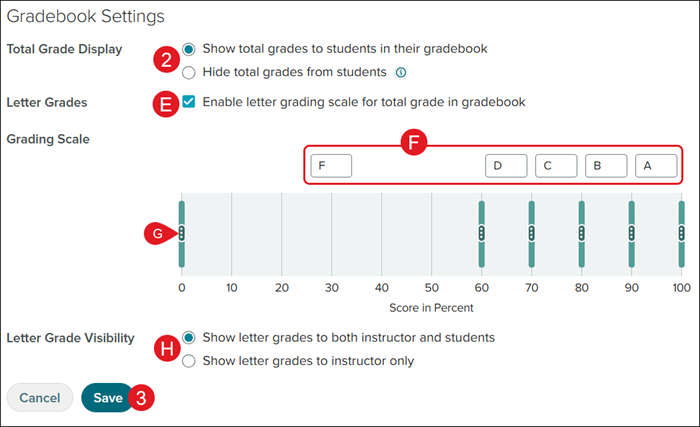
2. Under the Gradebook Settings, select the Total Grade Display radio button to Show or Hide total grades from students.
E. Check the Letter Grades box to Enable letter grading scale for total grade in gradebook.
If Letter Grades is checked:
F. Click in the Grading Scale fields to change the letter grades received.
G. Hover over the kebob icon on each Score in Percent bar to move the bar up or down.
H. Select the Letter Grade Visibility radio button to Show letter grades to both instructor and students or instructor only.
3. Click the Save button.
Class Gradebook
1. SSO or log in at my.mheducation.com.
2. Launch ALEKS.
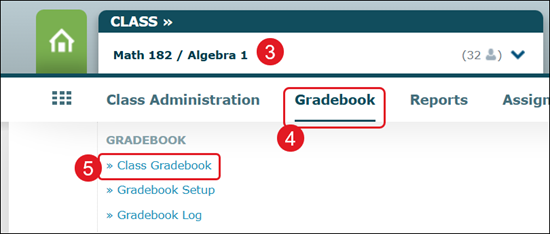
3. Select the Class from the drop-down.
4. Hover over Gradebook.
5. Select Class Gradebook from the menu.
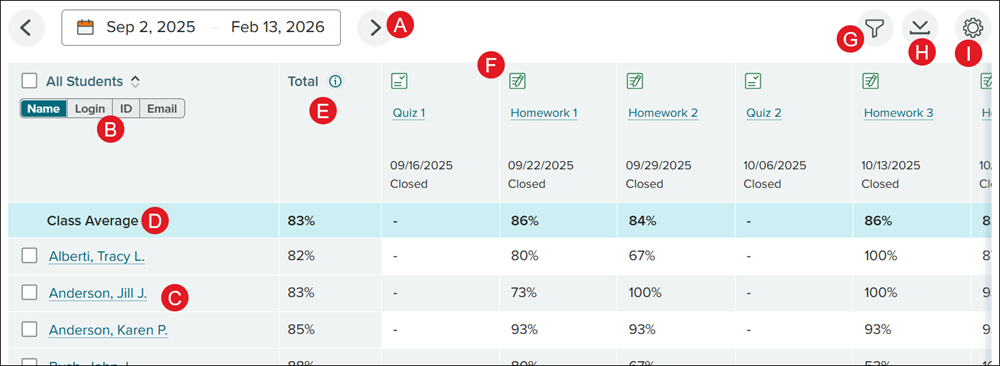
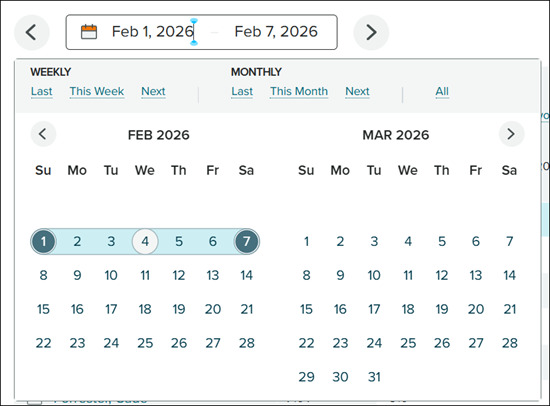
A. Click the back-and-forth arrows to navigate between different date ranges for assignments.
Click in the calendar field to select a specific date range.
B. Click to Name, Login, ID, or Email to view the student list by that option.
C. All students assigned to the roster will show listed. Click on a student name or check the box next to their name to access the Student Gradebook.
D. The Class Average for each assignment will show in the top row.
E. The percentage for all assignments combined will show for each student in the Total column.
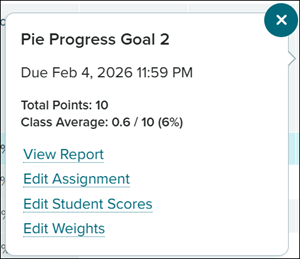
F. Each assignment will have its own column with the name of the assignment, the due date, the status (open, closed, scheduled, etc.), and the student's grade.
Click on the assignment name to View Report, Edit Student Scores, or Edit Weights. If the assignment is still open, the Edit Assignment will also be available.
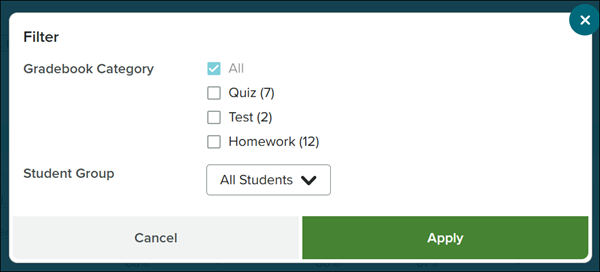
G. Click the Filters button to select to view a specific Gradebook Category and/or Student Group.
H. Click the Download button to download/save an .xls file of the gradebook.
I. Click the Settings button to make changes to the Display Options, Gradebook Setup, or view the Gradebook Log or Gradebook Sync Status.
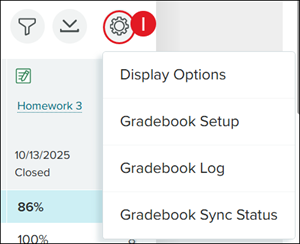
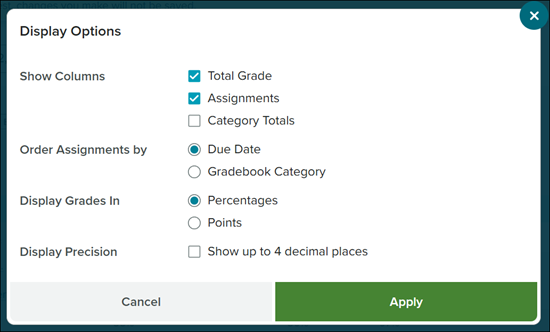
For the Display Options, you can select to Show Columns for Total Grade, Assignment, and/or Category Totals, Order Assignments by Due Date or Gradebook Category, Display Grades In Percentages or Points, and check to Display Precision up to 4 decimal places.
Student Gradebook
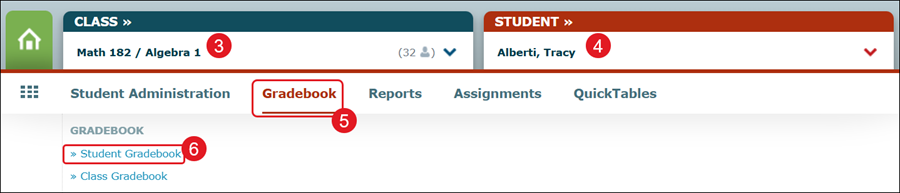
1. SSO or log in at my.mheducation.com.
2. Launch ALEKS.
3. Select the Class from the drop-down.
4. Select the Student from the drop-down.
5. Hover over Gradebook.
6. Click on Student Gradebook from the menu.
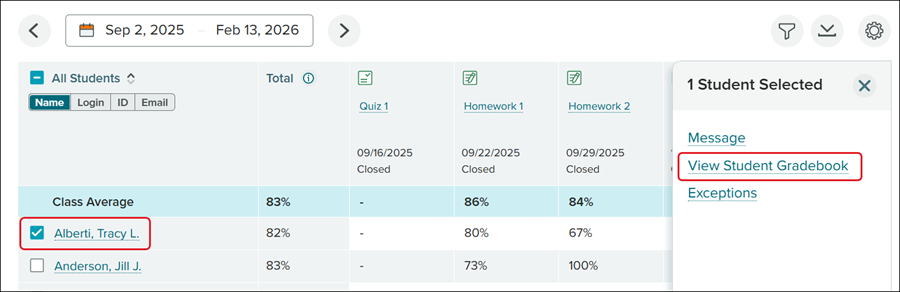
The Student Gradebook can also be accessed by going to the Class Gradebook, clicking on the student's name, and then clicking on View Student Gradebook from the pop-up panel.
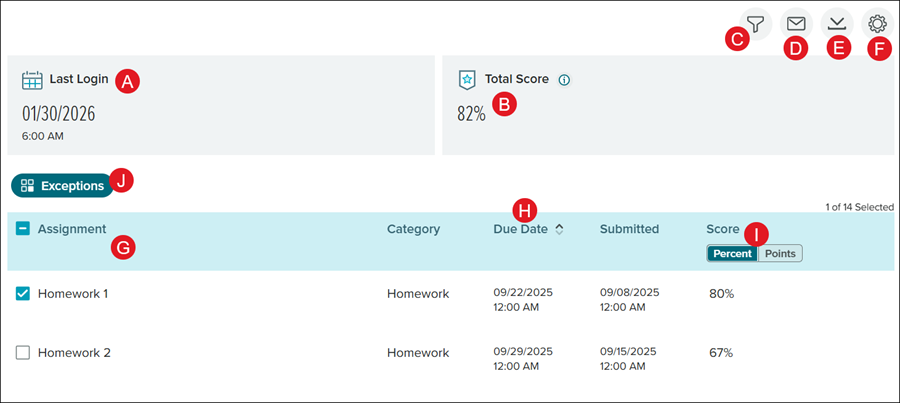
A. The most recent date and time the student had launched ALEKS will display in the Last Login portion.
B. The student's overall assignment percentage will display in the Total Score portion.
Note: Total score doesn’t include scores for open assignments.
C. Click the Filters button to view a specific Gradebook Category.
D. Click the Send message icon to send an email to the student through ALEKS.
E. Click the Download button to download/save a .xls file of the student gradebook.
F. Click the Settings button to change the Display Option to Show up to 4 decimal places.
G. All assignments will show in the Assignment column.
H. Click the Due Date column to reorganize the view by this column.
I. Click Percentage or Points to view the Score by that option.
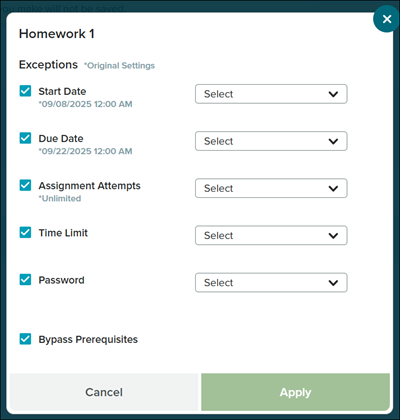
J. Check an Assignment to view the Exceptions.
To set an Exception, click the checkbox next to an option in the pop-up. Some selections will require an option to be selected from the drop-down. Click the Apply button to save the changes.
Edit Student Scores
1. SSO or log in at my.mheducation.com.
2. Launch ALEKS.
3. Select the Class from the drop-down.
4. Hover over Gradebook.
5. Select Class Gradebook from the menu.
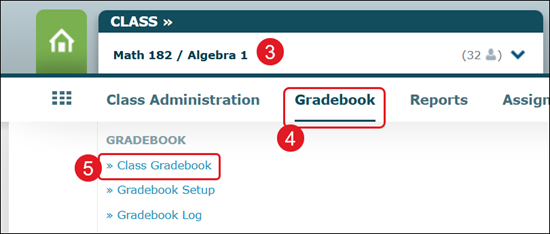
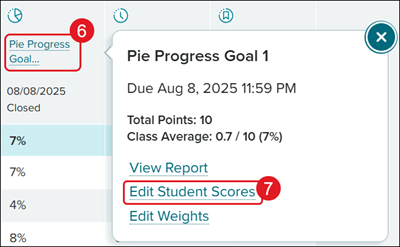
6. Click on the assignment name.
7. Click the Edit Student Scores link on the pop-up.
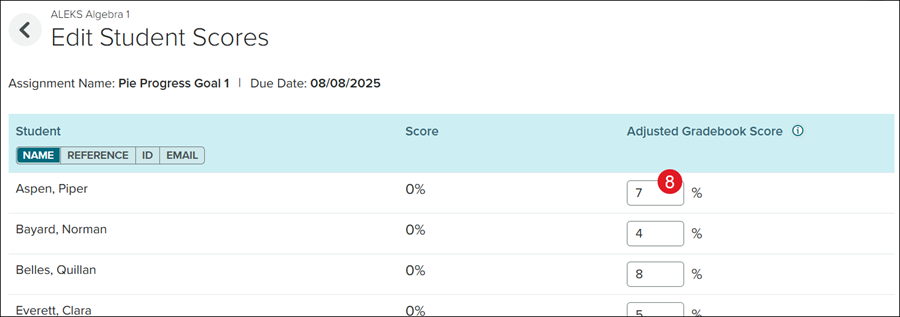
8. Enter the preferred percentage in the Adjusted Gradebook Score field.
Note: Adjusted scores will always overwrite actual student scores.
9. Click the Save button at the bottom.
Edit Assignment Weights
1. SSO or log in at my.mheducation.com.
2. Launch ALEKS.
3. Select the Class from the drop-down.
4. Hover over Gradebook.
5. Select Class Gradebook from the menu.
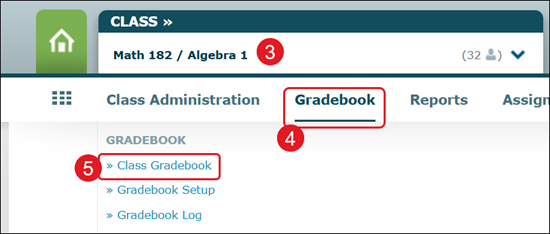
6. Click on the assignment name.
7. Click the Edit Weights link on the pop-up.
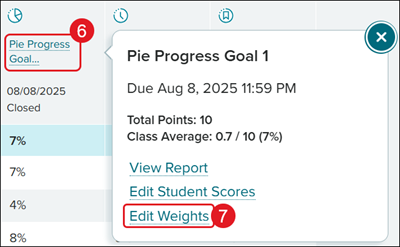
8. Enter the preferred Default Weight and Drop Score.
9. Enter the points for the assignment in the Weight column.
A. Check the box if the assignment should be marked as Extra Credit.
Note: Extra credit will only affect student scores when at least one regular assignment (non-extra credit and non-zero weight) in this category has been completed.
B. Check the box and click the Edit Student Scores button or link to make changes to the students' scores for that assignment.
10. Click the Save button to confirm changes.
Gradebook Log
The Gradebook Log lists adjustments made to the students' scores by instructors with access to this class.
1. SSO or log in at my.mheducation.com.
2. Launch ALEKS.
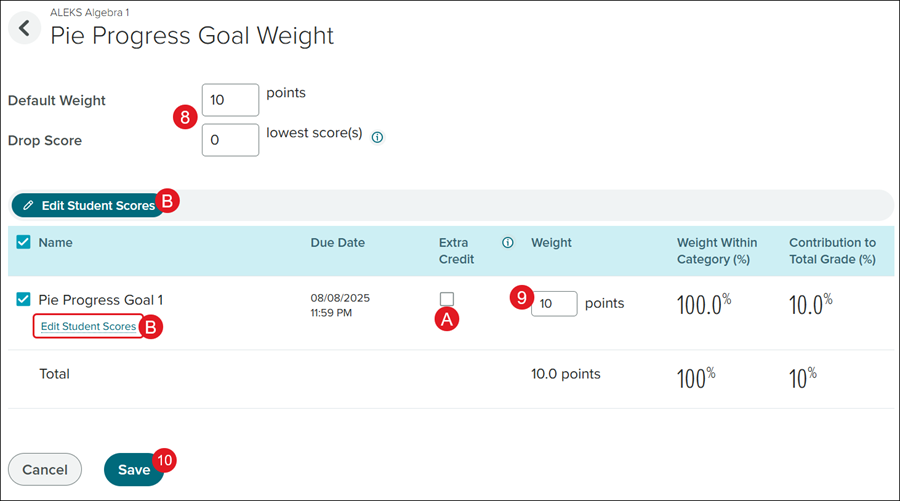
3. Select the Class from the drop-down.
4. Hover over Gradebook.
5. Select Gradebook Log from the menu.
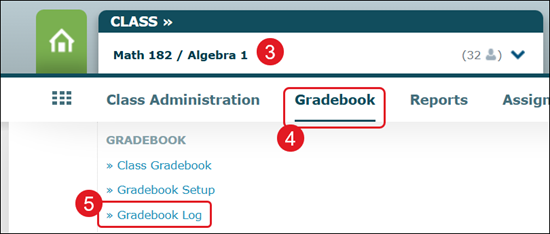
6. Click on the Month, Day, and Year drop-downs to select a Date Range Selection.
7. Click the Apply button.
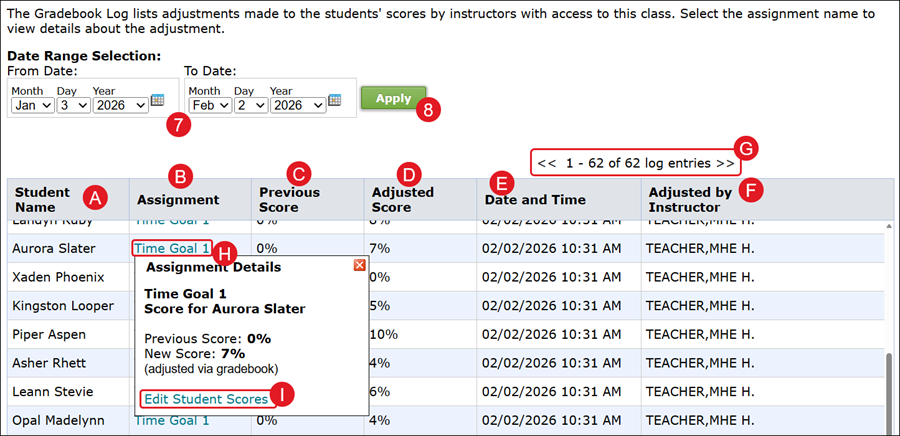
A. Each student who had a grade change for an assignment will show in the Student Name column.
B. The name of the Assignment.
C. The Previous Score percentage before changes were given to the student.
D. The Adjust Score percentage given to the student after edits were made.
E. The Date and Time the changes were entered.
F. The name of the teacher who made the grade adjustments will be listed in the Adjusted by Instructor column.
G. Click the back-and-forth arrows to navigate through the pages.
H. Click on an Assignment name to view the Assignment Details. The details include the name of the assignment, the student's name, the previous and new score percentages, and where the change was made within the program.
I. Click the Edit Student Scores link to make further changes.
