Create and Manage Student Groups in Classic ALEKS
Create and manage student groups in ALEKS for targeted instruction and reporting.
- Customer Support
- PreK-12
- Classroom Teacher
- Elementary School
- Middle School
- High School
- Direct Login & Auto-Rostering
- Direct Login & Manual-Rostering
- SSO & Auto-Rostering
- SSO & Manual-Rostering
- Supplemental
- Math
- ALEKS
- ALEKS Adventure
- Class Management


View the demo in a separate tab.
View the Spanish version of the demo.
Student Groups can be used to group students in this class. The groups can then be used to filter reports.
Article Contents
Create Student Groups
1. SSO or sign in at my.mheducation.com.
2. Launch ALEKS.
3. Select a Class.
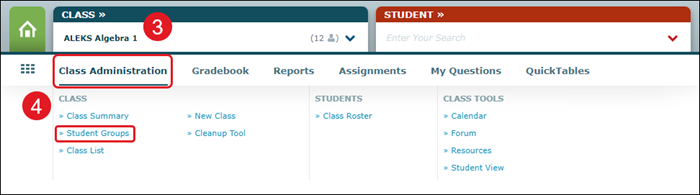
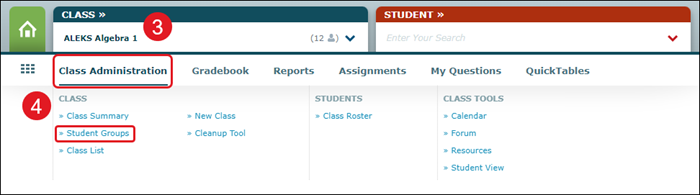
4. Hover over Class Administration and click on Student Groups from the menu.
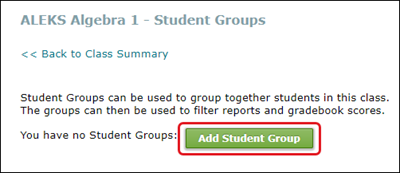
5. Click the Add Student Group button.
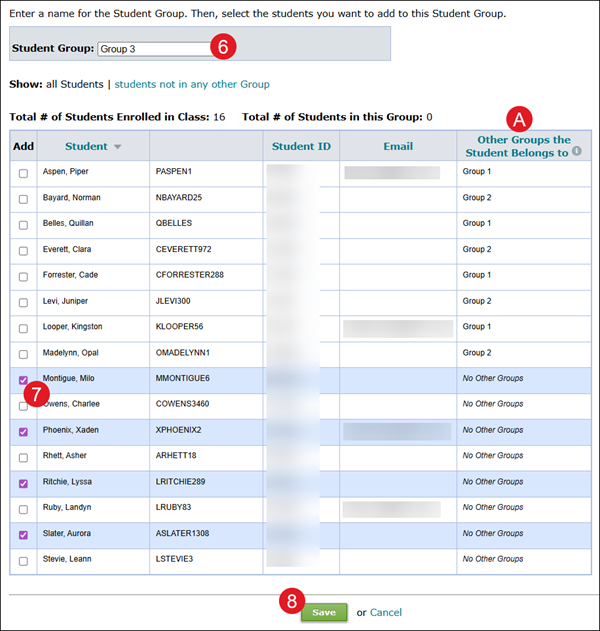
6. Enter a Student Group name.
7. Check the box next to the students you want to add to the group.
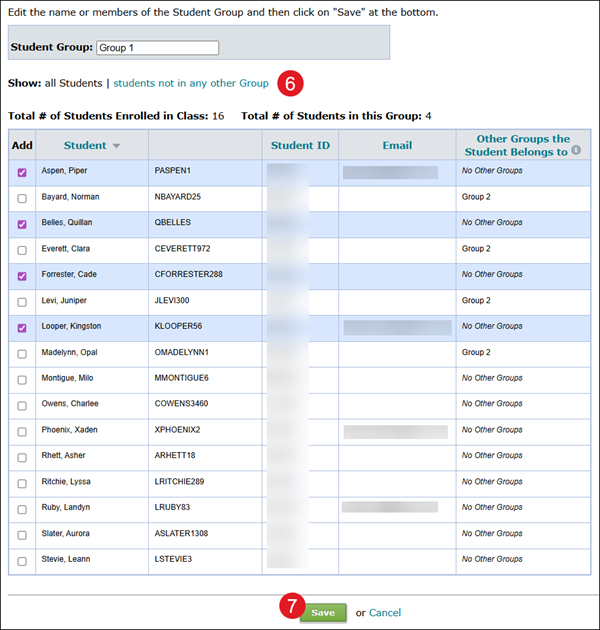
A. If a student is already assigned to a group, you will be able to see what group they are assigned to in the Other Groups the Student Belongs to column on the far right. Students can be assigned to more than one group.
8. Click the Save button at the bottom to save the group.
Edit Student Groups
1. SSO or sign in at my.mheducation.com.
2. Launch ALEKS.
3. Select a Class.
4. Hover over Class Administration and click on Student Groups from the menu.
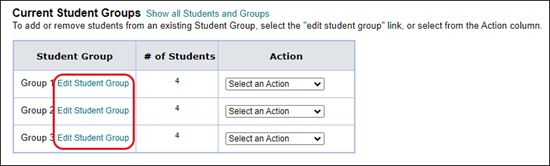
5. From the Student Groups page, click the Edit Student Group link.
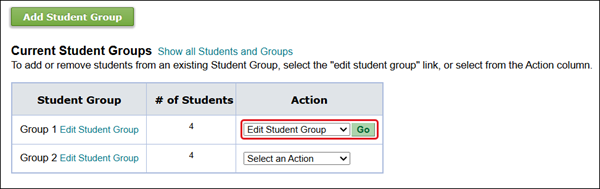
You can also select the Edit Student Group option from the Action drop-down for the group.
6. Make desired edits to the Student Group name, and add or remove students from the class, as desired.
7. Click the Save button to save any changes made.
View Student Group
1. SSO or sign in at my.mheducation.com.
2. Launch ALEKS.
3. Select a Class.
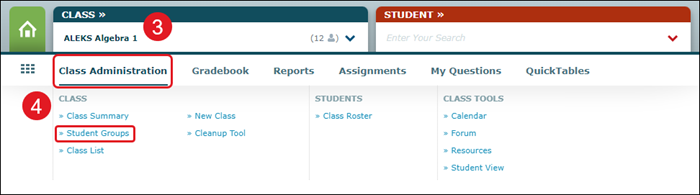
4. Hover over Class Administration and click on Student Groups from the menu.
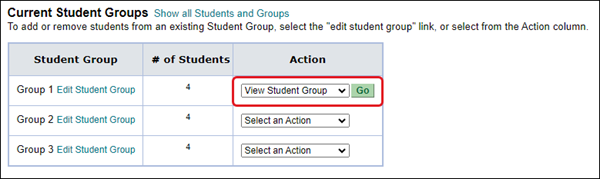
5. From the Actions menu, select View Student Group and click the Go button.
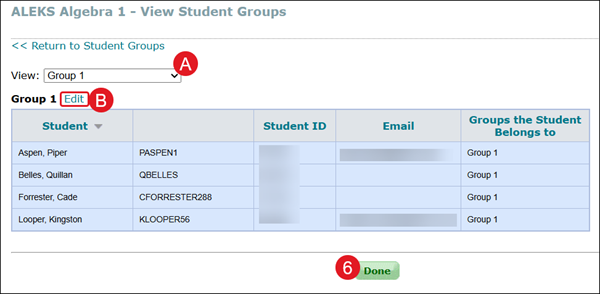
A. Click the View drop-down to navigate between the different associated groups.
B. You can click the Edit link from this page to make changes to the student group as well.
6. Click the Done button to navigate back to the main Student Group page.
Delete Student Group
Note: Deleting a student group does not remove the students from the program.
1. SSO or sign in at my.mheducation.com.
2. Launch ALEKS.
3. Select a Class.
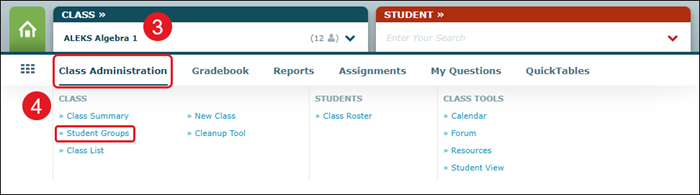
4. Hover over Class Administration and click on Student Groups from the menu.
5. In the Actions column, select Delete Student Group from the drop-down and click the Go button.
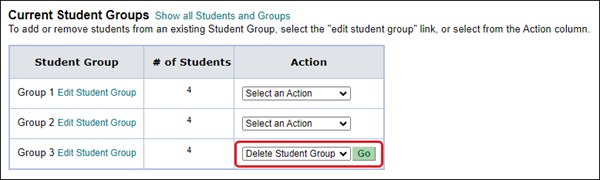
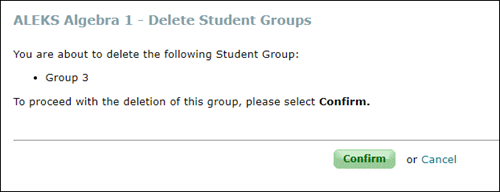
6. On the Delete Student Groups page, click the Confirm button to delete the class.