WonderWorks 2014 Frequently Asked Questions
Find answers to common questions about adding and accessing WonderWorks
- PreK-12
- Customer Support
- Classroom Teacher
- Direct Login & Auto-Rostering
- Direct Login & Manual-Rostering
- SSO & Auto-Rostering
- SSO & Manual-Rostering
- Core
- Intervention
- Literacy
- Wonders 2014
- WonderWorks 2022 & 2014
- Class Management
- Products & Licenses


I redeemed the WonderWorks material, but I am not seeing any content or digital resources in the course. What should I do?
If you only redeem the core material, your Wonders class will not contain any content additional content outside of the provided core resources. You will need to redeem the add-on content by following the steps on the Add Additional Course Content article.
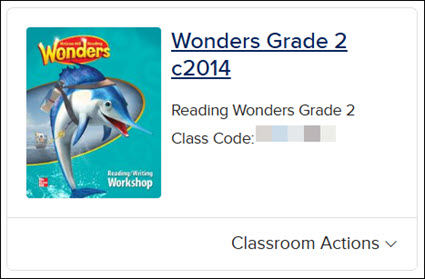
I redeemed the WonderWorks material, but I don’t see any content in the lesson plans. What do I need to do?
If your lesson plan does not show the WonderWorks resources available, then you are likely missing the add-on material. You will need to redeem the add-on content by following the steps on the Add Additional Course Content article.
My WonderWorks course is just a list of resources. I don’t have access to a lesson planner, online assessment center, or any of the other features of the Wonders platform. Why did this happen?
If the titles on your ConnectED Programs page are labeled “Grade X WonderWorks Resources”, then you have an out of date version of the program. You'll need to remove this content from your account by following the steps on the Archive or Unarchive Classes article. Then, you'll want to follow the steps on how to Create and Edit a Class and Add Additional Course Content.
I redeemed the WonderWorks core material and add-on content, but I'm still getting an error message.
This is likely because you redeemed the 6-year add-on content with the 1-year core content. If that happens, you will see a message stating that the supplemental component requires the core product . To remedy this error, remove the 6-year add-on content and redeem the 1-year version of this subscription.
What should I see if I have redeemed everything successfully?
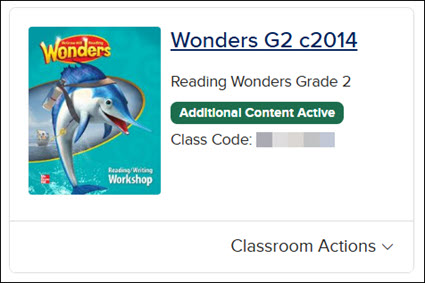
The title should say “WonderWorks Stand-Alone Grade X” and the message “Additional Content Active” should be displayed underneath it.