For some Open Learning courses, there are add-ons available to connect the two programs together. These add-ons are not available for all courses.
Before being able to add the additional content, you will need to create a class. Refer to the Create and Edit a Class article for more information on this process.
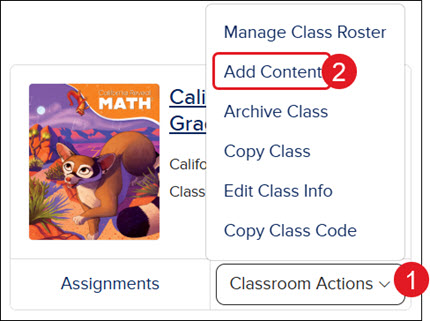
1. From the My Programs page, click on the Classroom Actions button.
2. Click on Add Content from the menu.
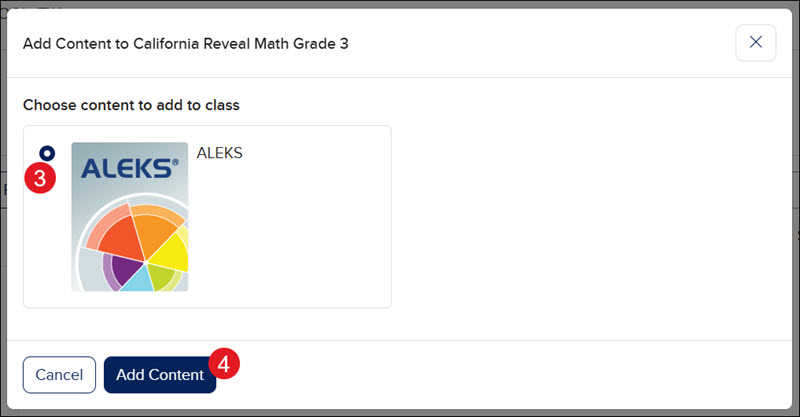
3. On the pop-up, select the radio button next to content that needs added.
4. Click the Add Content button.
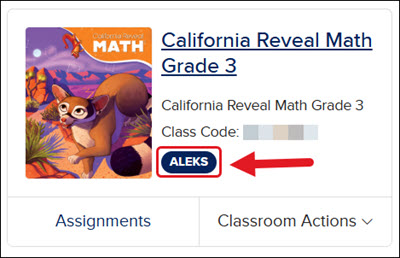
If any extra content has been added to the class, a tag with the name of the program will show on the class card.
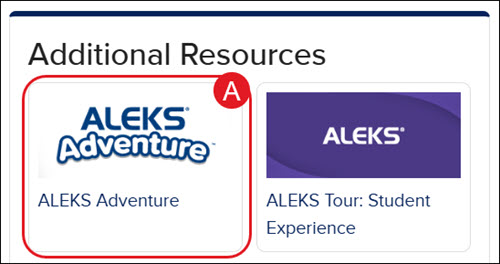
The added content can be accessed from the Dashboard in the Additional Resources section (A).
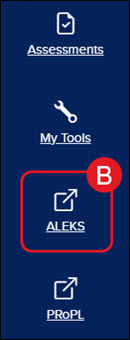
The program is also accessible from the navigation menu (B).
When clicked on from either location, the program will open in a secondary browser tab.
ConnectED Add-On Content
For some ConnectED courses, there are add-ons available to connect the two programs together. These add-ons are not available for all courses.
Before being able to add the additional content, you will need to create a class. Refer to the Create and Edit a Class article for more information on this process.
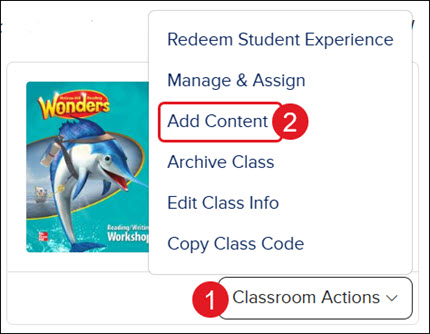
1. From the My Programs page, click on the Classroom Actions button.
2. Click on Add Content from the menu.
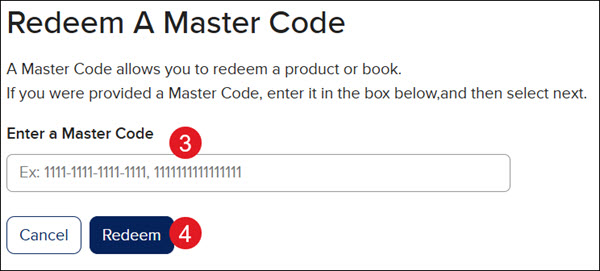
3. Enter the Master Code for the add-on material.
4. Click the Redeem button.
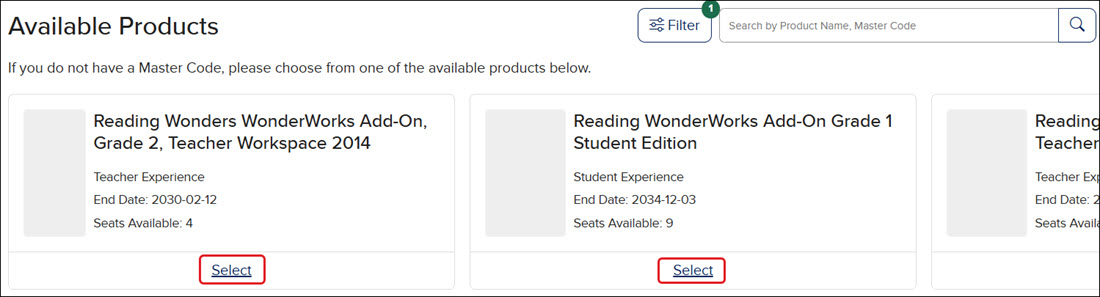
If the Available Products library is turned on for the district, you can click the Select link for the add-on material instead of entering the Master Code.
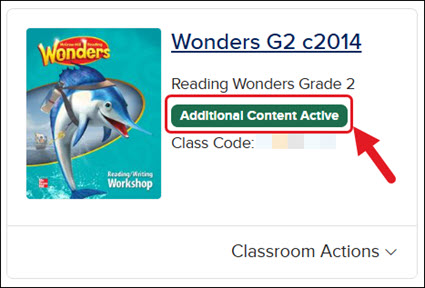
If any extra content has been added to the class, a tag with the name of the program will show on the class card.
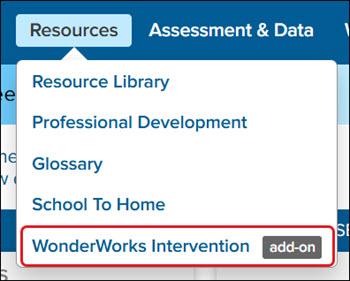
The additional content will be available within the main course content. For example, the WonderWorks add-on will be found under the Resources menu of the Wonders program.
mcgraw-hill-science
inspire-science
impact
reveal-math
wonders
wonderworks
asi-se-dice
mcgraw-hill-literacy
instructor
prek-12
Customer Support, PreK-12, Classroom Teacher, Elementary School, Middle School, High School, Direct Login & Auto-Rostering, Direct Login & Manual-Rostering, SSO & Auto-Rostering, SSO & Manual-Rostering, Core, Literacy, Math, Science, Social Studies, TX Science 2025 (K-12), Inspire Science 2020, CA Impact 2019, CA Inspire Science 2020, FL Science 2025 (K-12), CA Reveal Math (K-12), Impact Social Studies, Reveal Math (K-12), TN Science (K-12), Wonders 2014, Wonders 2023 2020 2017, WonderWorks 2022 & 2014, Asi se Dice 2016, McGraw Hill Literacy Summit!, McGraw Hill Literacy Soar!, Class Management
dts
2026-07-02T11:58:19.466-04:00
View the demo in a separate tab. View the Spanish version of the demo. Article Contents Open Learning Add-On Content ConnectED Add-On Content Open Learning Add-On Content For some Open Learning courses, there are add-ons available to connect the two programs together. These add-ons are not available for all courses. Before being able to add the additional content, you will need to create a class. Refer to the Create and Edit a Class article for more information on this process. 1. From the My Programs page, click on the Classroom Actions button. 2. Click on Add Content from the menu. 3. On the pop-up, select the radio button next to content that needs added. 4. Click the Add Content button. If any extra content has been added to the class, a tag with the name of the program will show on the class card. The added content can be accessed from the Dashboard in the Additional Resources section (A). The program is also accessible from the navigation menu (B). When clicked on from either location, the program will open in a secondary browser tab. ConnectED Add-On Content For some ConnectED courses, there are add-ons available to connect the two programs together. These add-ons are not available for all courses. Before being able to add the additional content, you will need to create a class. Refer to the Create and Edit a Class article for more information on this process. 1. From the My Programs page, click on the Classroom Actions button. 2. Click on Add Content from the menu. 3. Enter the Master Code for the add-on material. 4. Click the Redeem button. If the Available Products library is turned on for the district, you can click the Select link for the add-on material instead of entering the Master Code. If any extra content has been added to the class, a tag with the name of the program will show on the class card. The additional content will be available within the main course content. For example, the WonderWorks add-on will be found under the Resources menu of the Wonders program.
Help us improve!
Let us know how we can improve our support information by providing feedback in this short survey.
Top
Regional Page Available
It looks like you're outside the United States. Do you want to see your regional version of this page?