Update the Class Planner in Wonders/Maravillas
Update the class planner in Wonders and Maravillas to adjust pacing and lessons.
- Getting Started & Orientation
- Intervention
- Literacy
- Customer Support
- World of Wonders 2017
- Direct Login & Auto-Rostering
- Wonders 2014
- WonderWorks 2022 & 2014
- Core
- Class Management
- Classroom Teacher
- Wonders 2023 2020 2017
- SSO & Auto-Rostering
- PreK-12
- Elementary School
- Wonders EL 2016
- Direct Login & Manual-Rostering
- SSO & Manual-Rostering
- Kindergarten
- 1st Grade
- 2nd Grade
- 3rd Grade
- 4th Grade
- 5th Grade
- 6th Grade
- Middle School


The Update Class Planner button allows teachers to navigate back to the Set-Up Wizard to select a new start date for their class. This button is currently only available for select districts that are having the issue of new classes getting attached to the previous year's planner.
Teachers that have access to this option will not be able to change their class name, and their roster will stay attached to the class as well. Assignments created and submitted will also still be available.
If you are associated with a manual rostering district, you will not currently have access to this feature. You will need to create a new class if you are still seeing the previous year's planner. If you are unsure of your Access Service type, refer to the Access Service Descriptions article.
If you are associated with a district that manages your classes for you, and if you do not see this button but are seeing last year's planner, reach out to your district to verify they have created new classes for you.
Reset Your Wonders Planner:
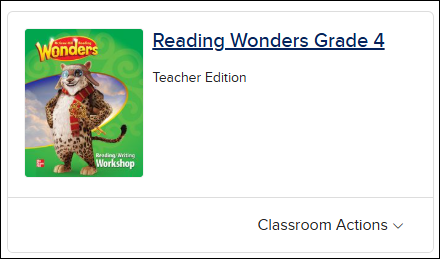
1. Launch your Wonders class.
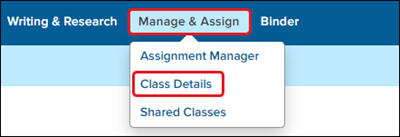
2. Hover over Manage & Assign and select Class Details from the menu.
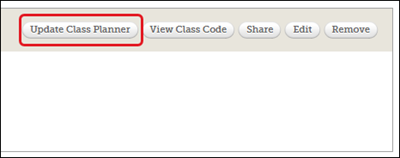
3. Click the Update Class Planner button.
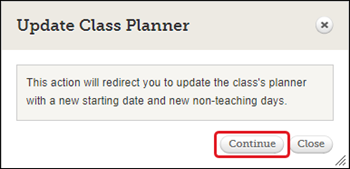
4. On the Update Class Planner pop-up, click the Continue button.
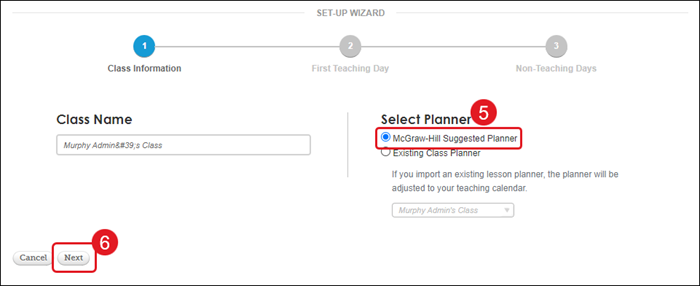
5. On the Set-Up Wizard, select the radio button next to the Planner you want to use for the class.
6. Click the Next button.
7. On the provided calendar, select the First Teaching Day for the class.
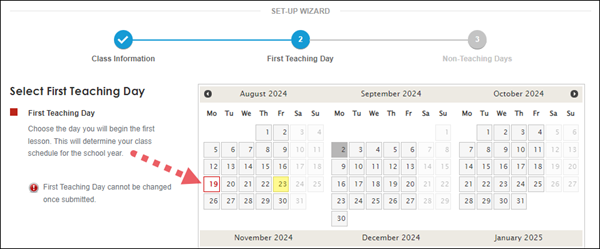
8. Click the Next button at the bottom.
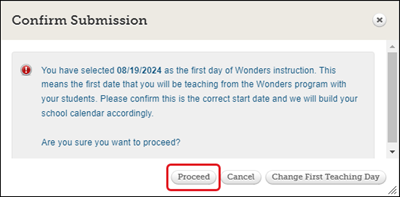
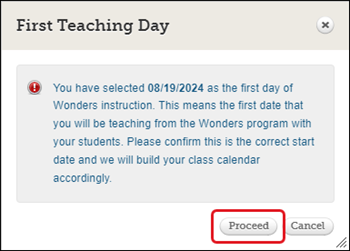
9. On the First Teaching Day pop-up, click the Proceed button. Click Cancel to select a different day.
10. On the provided calendar year, select any Non-Teaching Days you want. You can also add these to your calendar at a later time.
Holidays will be preselected for you. To remove the holiday selections (grayed out days), click on the date to make it a teaching day.
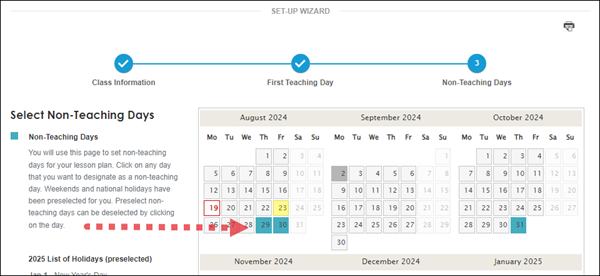
11. Click the Save button at the bottom.
12. On the Confirm Submission pop-up, click the Proceed button.
To select a different first day of class, click the Change First Teaching Day button.