
Navigating the Wonders/MaravillasAdaptive Learning Dashboard
Explore the Wonders and Maravillas adaptive learning dashboard to monitor placement, progression, and student performance.
- Literacy
- SSO & Manual-Rostering
- Customer Support
- Direct Login & Auto-Rostering
- Wonders 2014
- Core
- Direct Login & Manual-Rostering
- Classroom Teacher
- Wonders 2023 2020 2017
- SSO & Auto-Rostering
- PreK-12
- Elementary School
- Dashboard & Navigation Overview
- Kindergarten
- 1st Grade
- 2nd Grade
- 3rd Grade
- 4th Grade
- 5th Grade
- 6th Grade
- Middle School


WonderWorks is an intervention resource that allows you to provide differentiated instructions for students who may need additional help building their reading and writing skills. Note: WonderWorks is an add-on program that your district has to purchased separately. For more information about what is used in your district, contact your system administrator.
Access the Adaptive Learning Dashboard
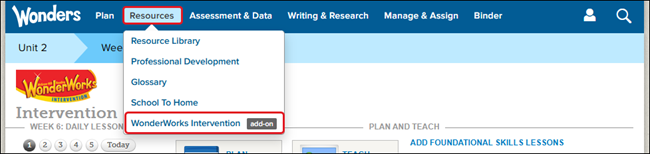
1. Hover over Resources in the Navigation Banner and select WonderWorks Intervention from the drop menu.
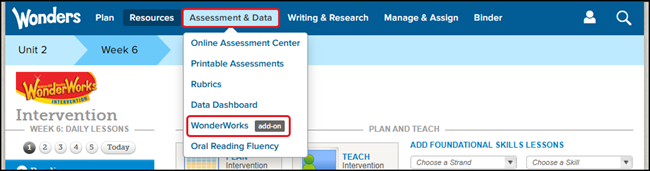
Another option is to hover over Assessment & Data and select WonderWorks from the drop menu.
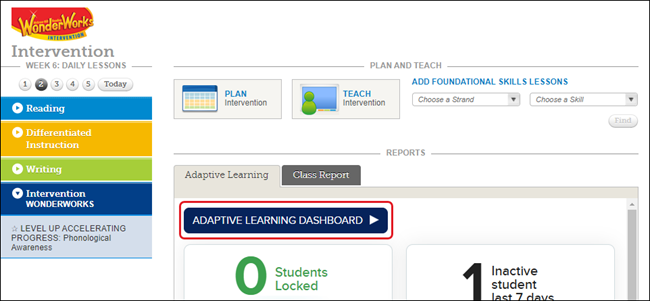
2. Click on the Adaptive Learning Dashboard button. The Dashboard will then open in a secondary browser tab.
The Adaptive Learning system for the teacher includes four active pages: Dashboard, Placement Test, Student Progress, and Teacher Resources. The system always opens to the Dashboard.
Dashboard
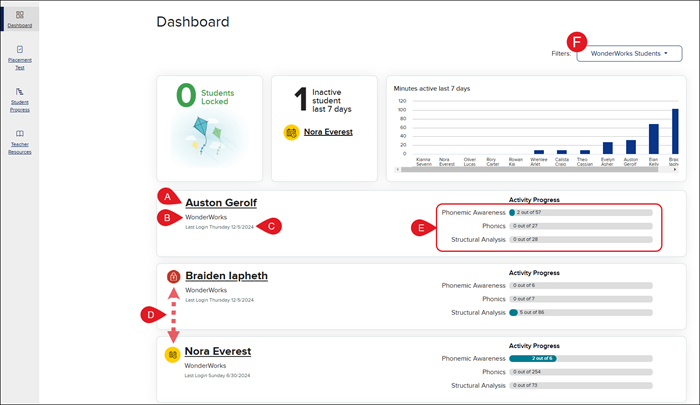
At the top of the Dashboard are insight panels for quick student information. The dashboard will not show student progress until a student has completed the Placement Test.
A. Click on the Student Name to navigate to their Student Progress report page. This is also where you can unlock a student (if applicable).
B. The WonderWorks or English Language indicators if the student is either rostered to the WonderWorks or English Language Learner courses in addition to Wonders. If no indicator, they are a Wonders student.
C. Indicator if they are Locked or Inactive. A red lock icon for students that are Locked, and a yellow calendar icon for those that have been inactive for over 7 days.
D. The student's Last Login date.
E. The Progress Bar(s) indicate the achievement the student has made in the topic based on their placement and end-goal.
F. The Incomplete Placement Test Alert displays in place of the Progress Bar(s) if students haven not started or completed the placement test.

Placement Test
Click on the Placement Test option in the left navigation banner to access the Placement Test Results, Test Status, and set the End Goal for each student. Students start the program with the Placement Test, which is available when a student launches Wonders Adaptive for the first time.
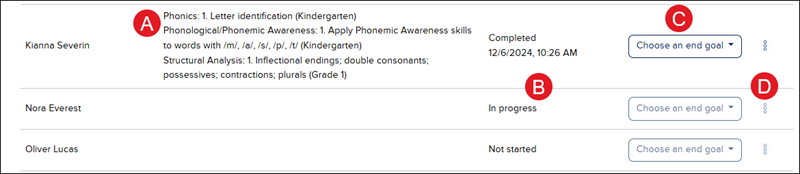
A. The Placement Test Results will provide details where each student has been placed across each topic in the program, as well as the grade level that the skill groups are associated with.
B. The Test Status indicates if the student is In progress, Not started, or has Completed the Placement Test. If the student has completed the Placement Test, the date and time of completion will also be included.
C. Click the Choose an end goal drop-down to select the grade level for the activities you want the student to work on.
By selecting a grade level, the dashboard and student progress report will reflect displaying only the activities the student would be expected to complete in each topic instead of the entire program. When the student reaches their end-goal in a single topic, they will see a Topic Complete screen congratulating them on the achievement. When the student reaches the end-goal in in all topics, they will see a Program Complete screen. You cannot move a student to an end-goal that is earlier than their current location (ex. student is working in 2nd grade content, you cannot set that student’s end-goal to the end of grade K or 1).
D. Click the kebob menu to Reassign the Placement Test.
Student Progress Report
You can click on a student's name from the Dashboard, or click on Student Progress from the navigation menu on the left to open the Student Progress Report page. The report displays all topics, skill groups, and activities in the program, showing the progress for an individual student through each activity within their placement range. The information is grouped by topic and grade level with each row representing a skill group, while each box represents an activity within that skill group.
Not Started: Student has not reached this activity to start
In Progress: Student is currently completing the primary activity (on any attempt)
Fast Track Proficient: ~50% of questions correct on the first try
Proficient: ~80% or more of the questions were answered correctly on any try (students have up to 3 tries per page to answer correctly)
Proficient with Multiple Attempts: Proficient after remediation or teacher unlocking
In Remediation: Student is working on a remediation activity for the primary activity. Indicates the student is struggling but is being given support
Locked: ~20% of questions were answered incorrectly on the final try (students have up to 3 tries per page to answer correctly)
Out of Range: Student was not placed in this portion of the program (based on placement test and end-goal setting)
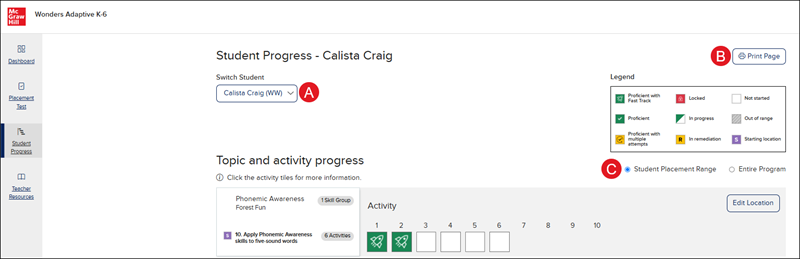
A. Click on the Switch Student drop-down to navigate between student progress reports.
B. Click the Print Page button to print/save the current student's progress page.
C. Click the radio button to toggle between the Student Placement Range view and the Entire Program.
D. Click on an Activity box to expand the details for the selected activity. This is also where you will be able to unlock the activity for a student.
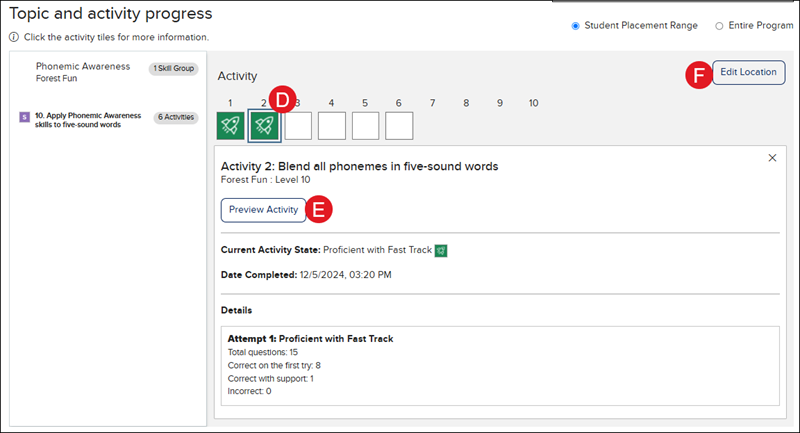
E. Click the Preview Activity button to view the activity the student completed/attempted. The activity will open in a secondary browser tab.
F. Click the Edit Location feature gives you the control to move a student's location within a given topic to support student engagement and learning.
Edit Location
The rationale for moving a student may include:
• Students are consistently triggering remediation or being locked out of activities. The teacher can move the student to a lower-level Skill Group to give them the support they need to reach proficiency.
• Students are advancing as fast track proficient on multiple activities in a row. The teacher may choose to move the student ahead to a higher Skill Group more aligned to their proficiency level.
The Learning Progression document includes information on the gates and prerequisites for each Skill Group that should be considered when editing a student’s location. For example, moving a student forward beyond Phonics Level 5 will also move the student through Phonemic Awareness Gate 3.
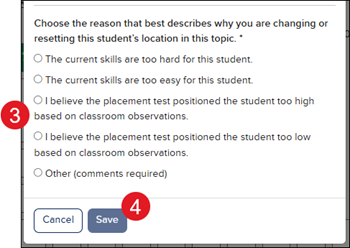
1. Click on the Edit Location button next to the left of the Activity.
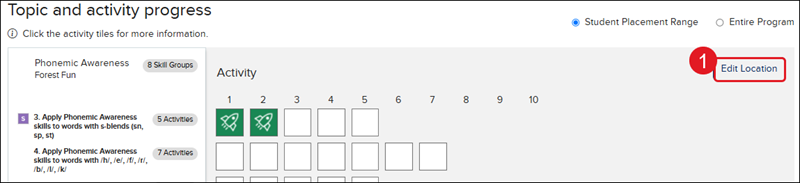
2. Click on the Choose a skill group drop-down.
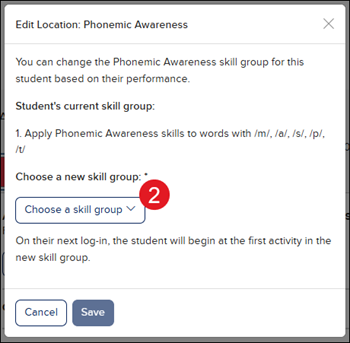
3. Select the radio button next to the reasoning for changing the student's location.
4. Click the Save button.
You will then see a message at the top of the page advising on the change of the student's activity location.

Unlock Student Activity
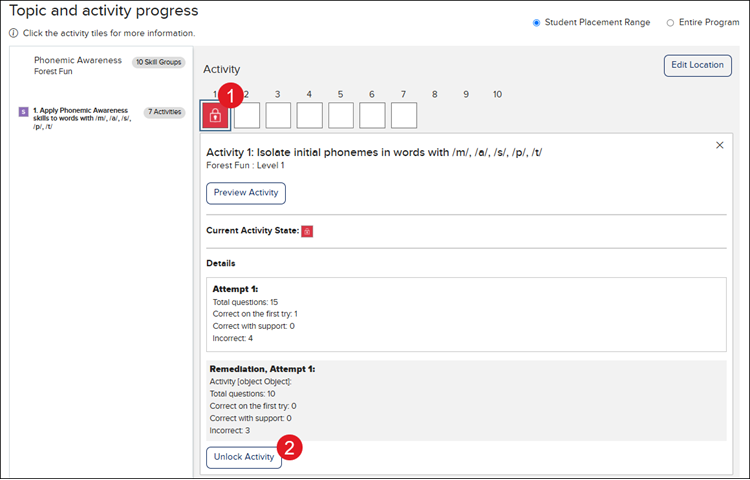
The red lock symbol in the status indicates that a student has been locked out of an activity. At this point, the student has received corrective feedback and a remediation activity but is still struggling to understand the skill. This real-time data about where the student is struggling allows the teacher to intervene with face-to-face support. After the teacher has provided support to the student, the activity can be unlocked and the student can try it again for a second attempt.
1. Click on the Locked icon to expand the activity details.
2. Click the Unlock Activity button.
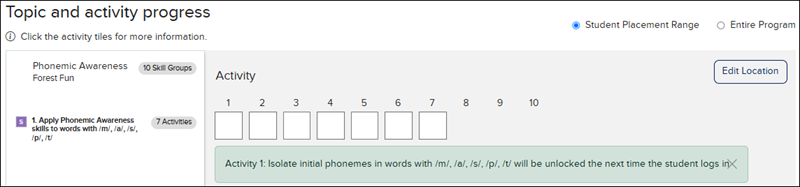
You will then receive a message under the Activity advising that it will be unlocked the next time the student logs in.
Teacher Resources
Teachers have access to several support resources and documentation within the program in the Teachers’ Resources section. The documents include the system Learning Progression and the Adaptive Learning User Guide.
