Wonders/Maravillas District Planner Manager
Explore Wonders district planners to support curriculum planning and alignment.
- Customer Support
- PreK-12
- School Administrator
- Elementary School
- Middle School
- Direct Login & Auto-Rostering
- Direct Login & Manual-Rostering
- SSO & Auto-Rostering
- SSO & Manual-Rostering
- Core
- Literacy
- Wonders
- Wonders 2023 2020 2017
- Wonders 2014
- Wonders Balanced Literacy 2016
- World of Wonders 2017
- Class Management
- Tools & Resources


View the demo in a separate tab.
View the Spanish version of the demo.
Curriculum Administrators can create and share a district-wide planner for Wonders and Maravillas with teachers in their districts. Once you’ve created a class and customized the planner to the desired schedule and instructional plan, you can use the District Planner Manager tool to set that planner as an option for all teachers in the district. You’ll need to create a district-wide planner for each grade level to allow all teachers to create classes utilizing a district planner.
Auto-Rostering Districts: If you choose to create and activate a District Planner, all classes created through the auto-rostering process will use that planner moving forward. Classes created prior to the district planner’s activation will not be affected. If teachers create their own classes, they will have the option to select to use the district planner. Teachers can adjust these district planners as needed, and they can still opt to create a new class using their own planner.
Article Contents
District Planner Manager Roles
Access the District Planner Manager
District Planner Manager Roles
To access the District Planner Manager in Wonders, you will need an account with both the Teacher and Curriculum Administrator roles enabled. If you do not have an account, or if you have an existing account but are missing the Teacher or Curriculum Administrator role, reach out to your Organization Administrator to have an account created and/or the proper roles assigned. If you are an Organization Administrator, you can create accounts by following the Create McGraw Hill Administrator Accounts article or the Manage Roles for an Existing User article depending on if an account needs to be created or an existing account needs to be edited.
Note: If you have the Curriculum Administrator role assigned, but do not see the District Planner Manager option available within Wonders, try removing the assigned role and readding it to get the option to show. This will need to be done using an Organization Administrator account. Another option is to add the Student Edition to your teacher account to get the option to show.
Access the District Planner Manager
1. SSO or log in at my.mheducation.com.
2. Redeem the Teacher Edition of Wonders and/or Maravillas.
Note: Adding the Teacher Edition of the program to your account will result in you using one of the purchased licenses.
3. Click on the class tile.
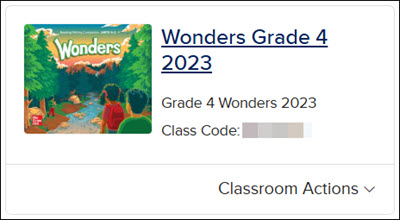
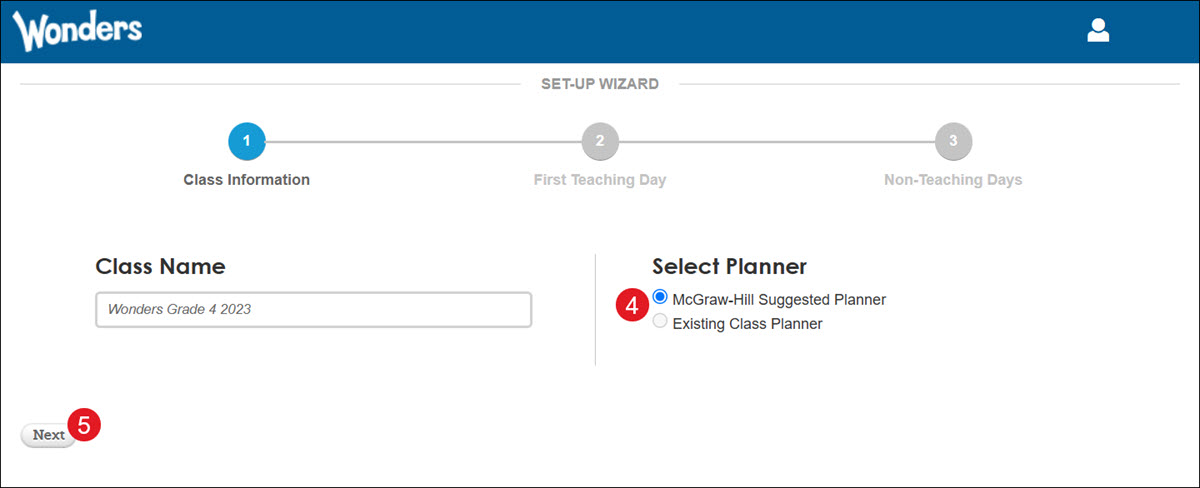
On the Set-Up Wizard page, the Class Name will auto-populate.
4. Select the McGraw-Hill Suggested Planner radio button.
5. Click the Next button.
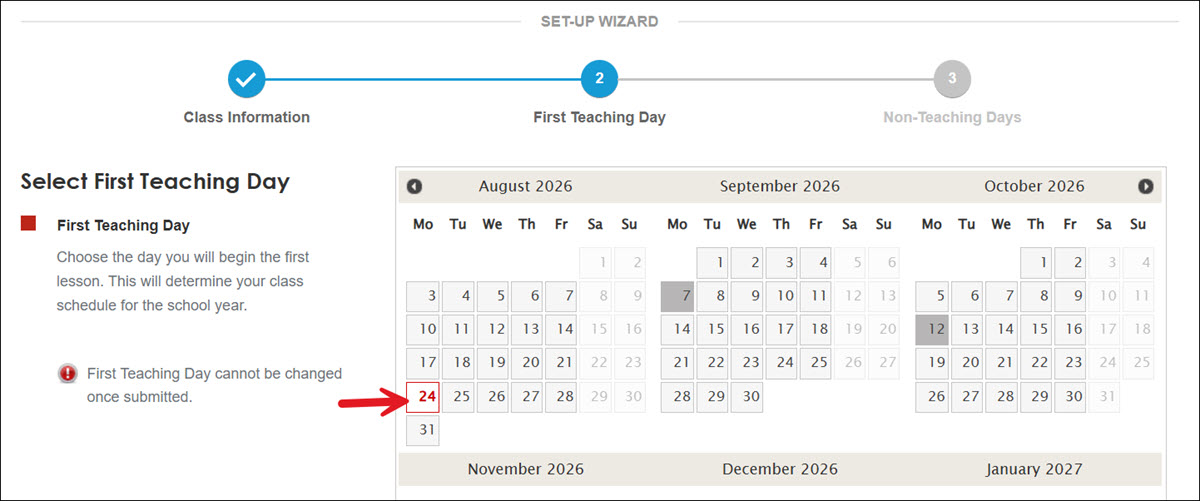
6. Choose the First Teaching Day to schedule the first lesson for your teachers across the district. The selected day will be marked red.
7. Click the Next button at the bottom of the page.
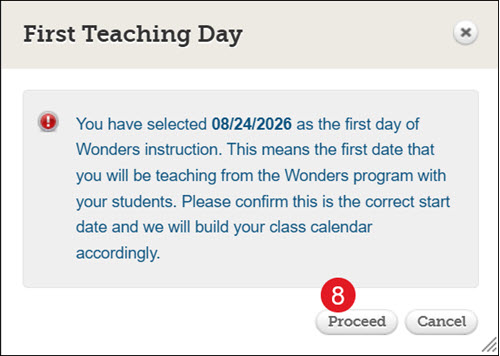
8. On the First Teaching Day pop-up, click the Proceed button.
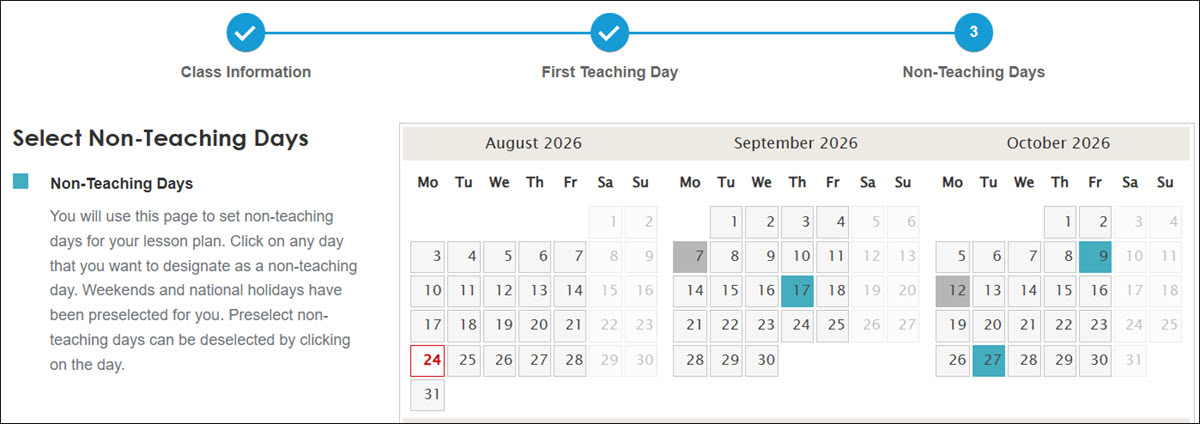
9. Select any Non-Teaching Days on the provided calendar.
The selected non-teaching dates will be marked in teal. National holidays are automatically marked for you and will show grayed out. Click on the day to remove the non-teaching date.
10. Click the Save button at the bottom of the page.
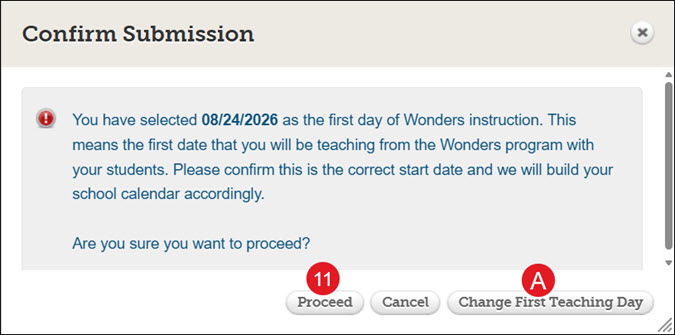
11. On the Confirm Submission pop-up, click the Proceed button.
A. Click the Change First Teaching Day button to change the first day of the planner.
Create District Planner
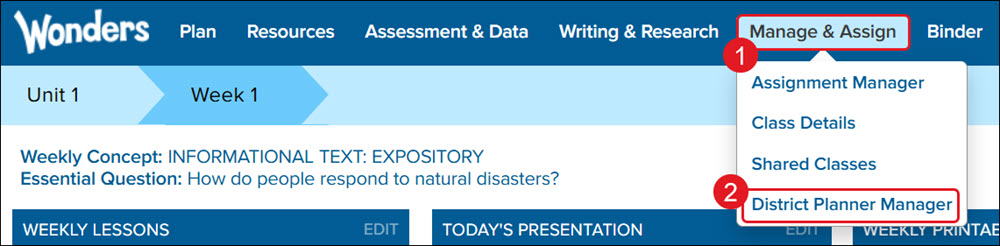
1. Hover over Manage & Assign in the Navigation Menu.
2. Click on District Planner Manager from the menu.
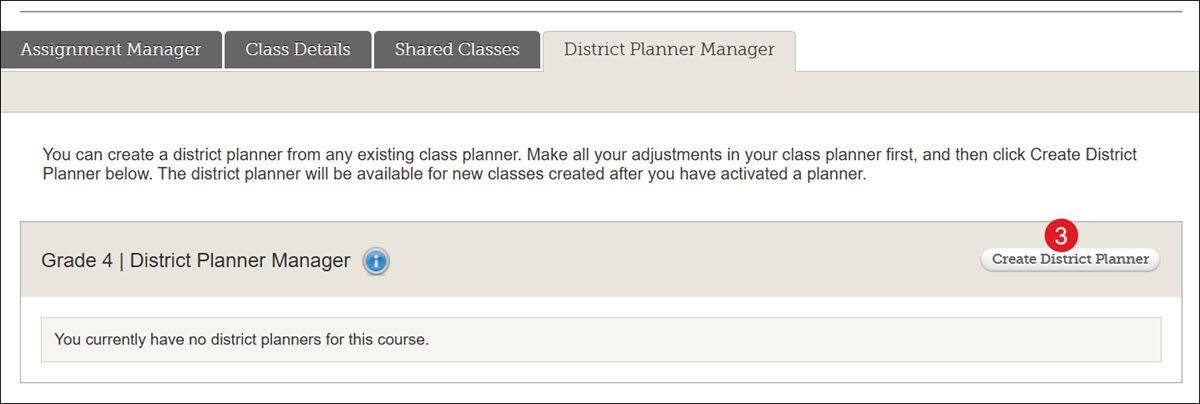
3. On the District Planner Manager tab, click the Create District Planner button.
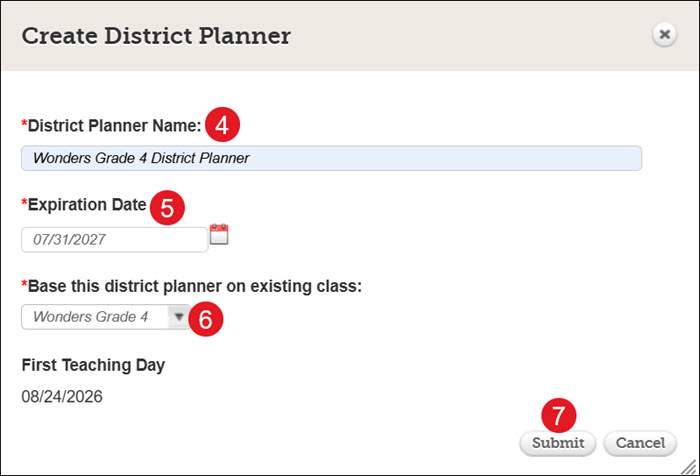
4. Enter a District Planner Name.
5. Select an Expiration Date. This will be the date that the planner deactivates and is no longer usable unless reactivated.
Note: The selected date should be no later than July 31st of the following year.
6. Select the existing class you want to use for the district planner from the drop-down.
You can only attach one district planner to a class. If you want to create multiple planners for a grade level, you will need to create a new class for each planner.

7. Click the Submit button.
Activate a District Planner
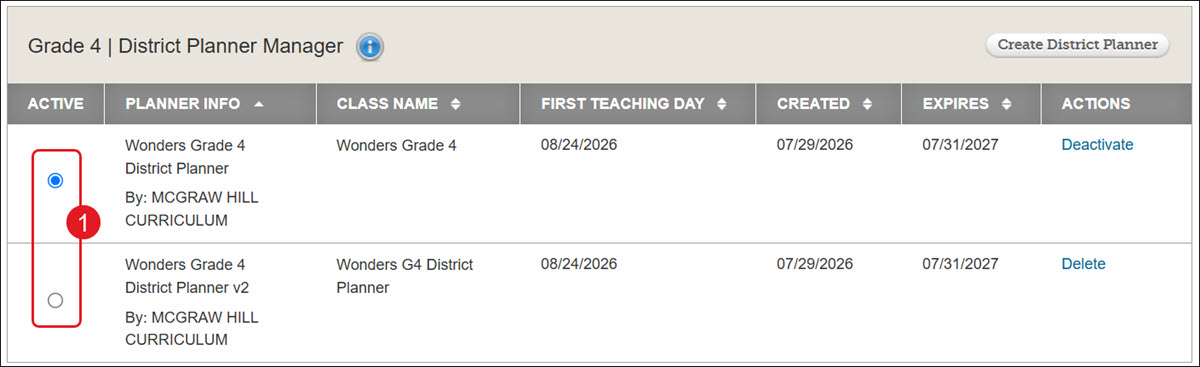
1. On the District Planner Manager tab, select the radio button in the Active column next to the planner you want to activate.

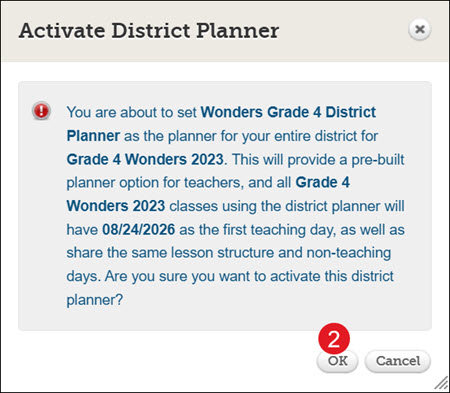
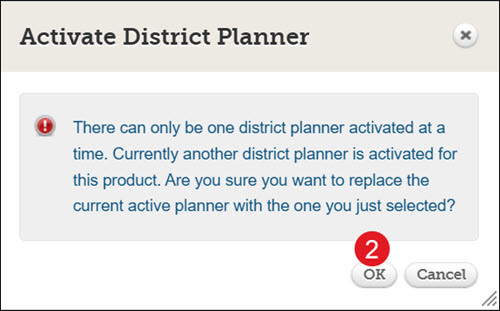
2. On the Activate District Planner pop-up, click the OK button to confirm.
Switch District Planners
You can add a new district planner at any time; however, only one district planner can be active at a time for each grade level for each Wonders program.
1. On the District Planner Manager tab, click the radio button next to the district planner you want to activate.
2. On the Activate District Planner pop-up, click the OK button to confirm.
Deactivate a District Planner
If you no longer want to use a district planner for the product, you can deactivate it. If there is no active planner, teachers in the district will build their own planners during class creation.
It is necessary that you at least deactivate, if not delete, the old district planner by July 31st to prevent any complications when teachers create their Wonders classes for the new school year.
Note: Deactivating a planner will not affect existing classes that use the planner.
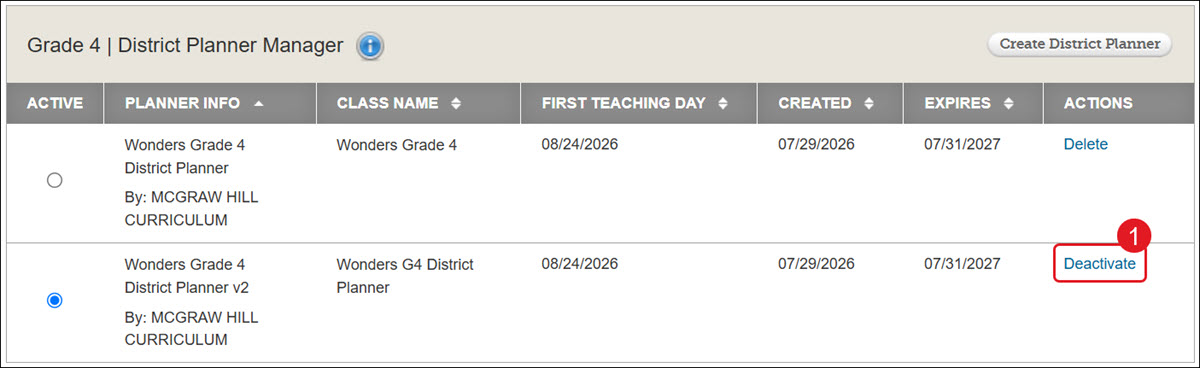
1. On the District Planner Manager tab, click the Deactivate link to the right of the planner in the Actions column.
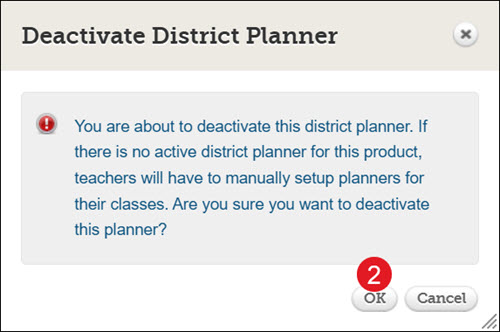
2. On the Deactivate District Planner pop-up, click the OK button to confirm.
Delete a District Planner
To remove an active district planner from the District Planner Manager tab, you would first need to deactivate the planner or make a different planner active.
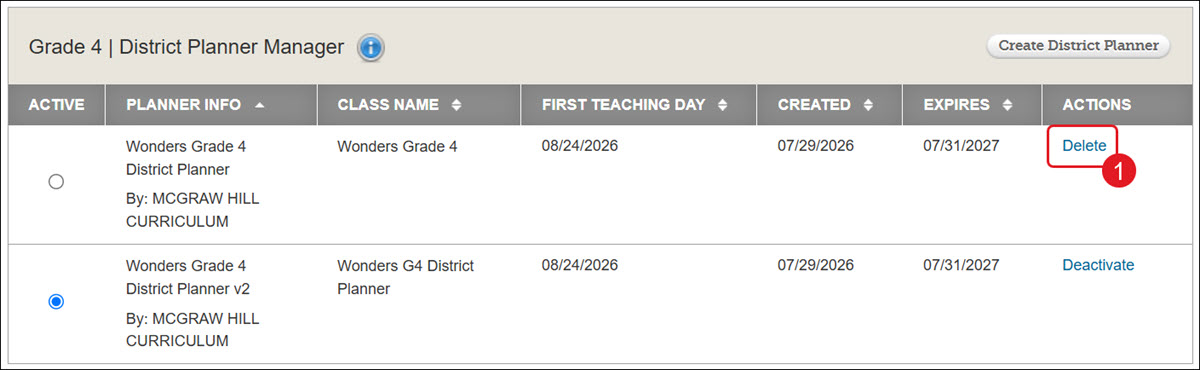
1. On the District Planner Manager tab, click the Delete link under the Actions column.
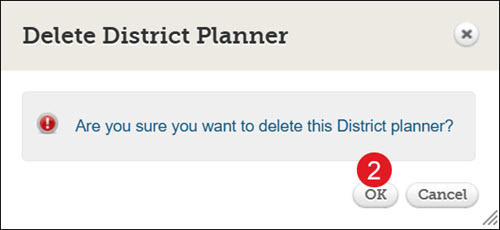
2. On the Delete District Planner pop-up, click the OK button to confirm.