
StudySync - Scaffolds
Understand how StudySync scaffolds support differentiated instruction and help students access complex texts.
Tags
- Getting Started & Orientation
- StudySync 2021
- Literacy
- SSO & Manual-Rostering
- Customer Support
- Direct Login & Auto-Rostering
- StudySync 2015 & 2017
- Middle School
- Core
- Plan & Present
- Direct Login & Manual-Rostering
- High School
- Classroom Teacher
- SSO & Auto-Rostering
- PreK-12


With StudySync's digital scaffolds, you can provide the precise level of support each of your students needs in a discrete, simple-to-use manner. From your teacher account, you simply set a one-time proficiency level for each student. These proficiency levels automatically deliver each student targeted support for all Core assignments going forward.
Each Core lesson that you assign to students includes multiple levels of scaffolded support for the various tasks and activities. These scaffolds slide in on the left side of a student's digital assignment and include supports tailored to each activity in the assignment tab at the right, such as visual glossaries, annotation guides, and sentence frames for both written responses and class discussions. Depending on the Proficiency level that you set for a student, they will receive a different level of support aligned appropriately to their level.
Note: While the scaffolds change based on the proficiency level selected for an individual student, both the grade-level literature they are reading and the formative assessment questions remain the same for all students, ensuring equity within the lessons.
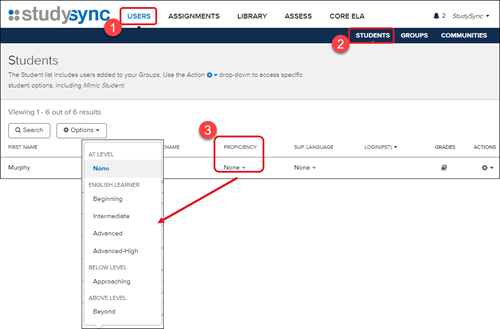
2. Click Students from the submenu.
3. Select the appropriate level in the Proficiency column for each student.
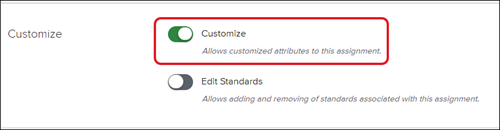
2. In the process of creating an assignment, toggle the Customize option to On.
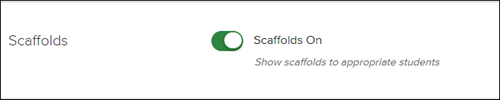
3. Scroll to the Scaffolds section of the assignment template.
4. Complete assignment set-up. Students will be assigned the appropriate level of scaffolds automatically.
Each Core lesson that you assign to students includes multiple levels of scaffolded support for the various tasks and activities. These scaffolds slide in on the left side of a student's digital assignment and include supports tailored to each activity in the assignment tab at the right, such as visual glossaries, annotation guides, and sentence frames for both written responses and class discussions. Depending on the Proficiency level that you set for a student, they will receive a different level of support aligned appropriately to their level.
Note: While the scaffolds change based on the proficiency level selected for an individual student, both the grade-level literature they are reading and the formative assessment questions remain the same for all students, ensuring equity within the lessons.
How to set a student's Proficiency Level:
1. After launching StudySync, click on Users in the top menu.2. Click Students from the submenu.
3. Select the appropriate level in the Proficiency column for each student.
How to assign Scaffolds:
1. Follow the steps in the article StudySync - Assignments.2. In the process of creating an assignment, toggle the Customize option to On.
3. Scroll to the Scaffolds section of the assignment template.
4. Complete assignment set-up. Students will be assigned the appropriate level of scaffolds automatically.
