
StudySync Assignment Sync and Grade Passback with Google Classroom™
Sync StudySync assignments and grades with Google Classroom.
- High School
- Google Classroom™
- Classroom Teacher
- StudySync 2021
- SSO & Auto-Rostering
- Literacy
- PreK-12
- Customer Support
- Preschool
- Middle School
- Core
- Elementary School
- Assignment Sync & Grade Passback
- Grades & Assignments


Single Sign-On (SSO) and Auto-Rostering
This article applies to districts that use the SSO and Auto-Rostering Access Service. SSO applies to districts that use an SSO portal, district website, or Learning Management System (LMS) to access McGraw Hill digital programs. Auto-Rostering means that account creation, class setup, and roster management are automated through a process handled by your district.
Not sure which Access Service your district uses? Click here to learn more about the four Access Services that we support.
This article walks teachers through how to use Assignment Sync and Grade Passback with StudySync and Google Classroom™.
For a full page view of the demo, click here.
For a Spanish version of the demo, click here.
To view the video of the process, click here.
To view a PDF copy of the process, click here.
The McGraw Hill K-12 for Google Classroom™ app syncs assignments and grades between the programs hosted on the McGraw Hill platform and your Google Classroom account.
IMPORTANT!
The integration reviewed in this article is not the same as the “Share with Google Classroom” options available within the McGraw Hill platform, nor do these integrations work together. You cannot use both. Attempting to use both will prevent both from working properly.
Article Contents
Class Pairing
Prior to syncing assignments and grades between your McGraw Hill classes and Google Classroom, you need to pair your class(es). Your McGraw Hill class is automatically generated by your district’s nightly roster file sent to McGraw Hill.
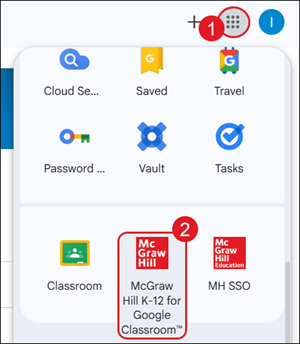
1. Click on the Google apps icon at the top-right of the page.
2. Click on the McGraw Hill K-12 for Google Classroom™ app.
Note: Installation of this app is completed by your District Administrator. If you do not see the app, please reach out to your District Administrator or Curriculum Coordinator.
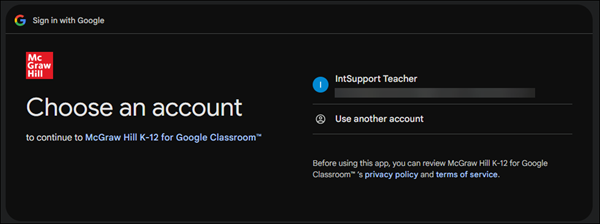
3. If prompted, select the Google account you would like to use.
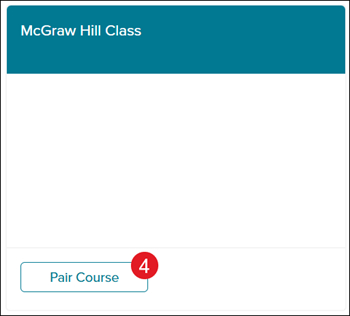
4. Click the Pair Course button on the class tile.
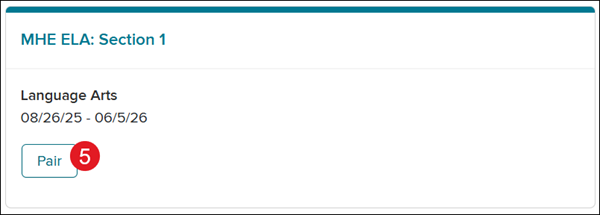
5. Click the Pair button.
Important! Make sure to only click Pair on the course tile that matches the class you selected.
Stop and Double Check - Take time to double check and ensure your class pairings are correct before moving on. Incorrect class pairings, and any resulting issues, is a common issue.
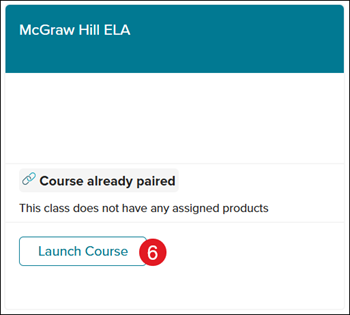
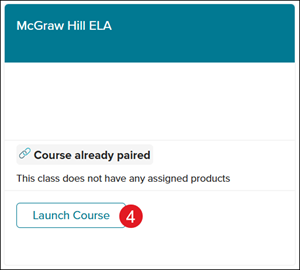
6. Click the Launch Course button to create assignments.
Unpairing Classes
If a class has been paired by mistake and/or incorrectly, you can unpair it. Only classes paired in error should be unpaired.
Note: McGraw Hill content and assignments will not launch from Google Classroom if you unpair the class.
Important!
If a Google Classroom class is deleted prior to unpairing it from the McGraw Hill class, you will not be able to fully unpair it. You MUST first unpair the classes before deleting or unlinking the Google Classroom class.
If you deleted a Google Classroom class before unpairing it, you will need to contact our DTS Customer Support team.
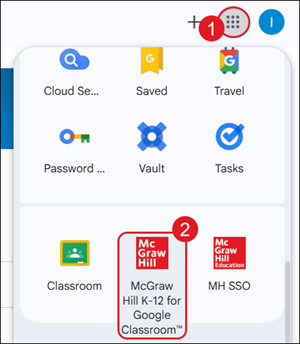
1. Click on the Google apps icon at the top-right of the page.
2. Click on the McGraw Hill K-12 for Google Classroom™ app.
Note: Installation of this app is completed by your District Administrator. If you do not see the app, please reach out to your District Administrator or Curriculum Coordinator.
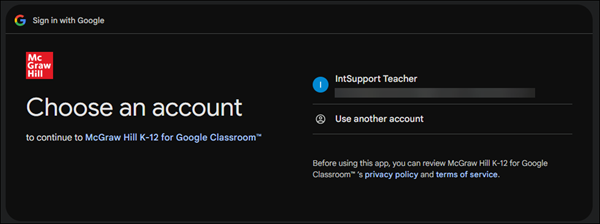
3. If prompted, select the Google account you would like to use.
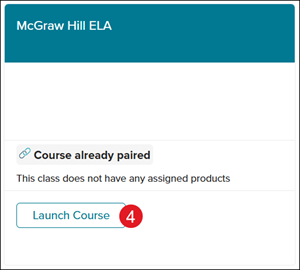
4. Click the Launch Course button on the class tile.
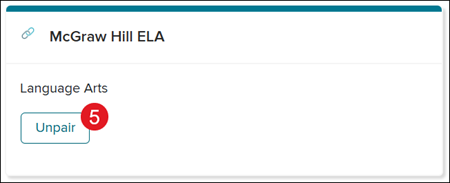
5. Click the Unpair button.
Create Assignments
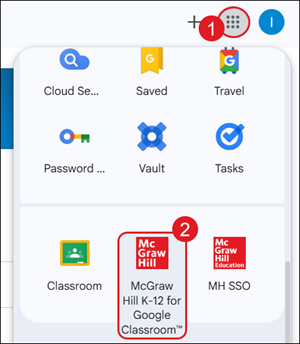
1. Click on the Google apps icon at the top-right of the page.
2. Click on the McGraw Hill K-12 for Google Classroom™ app.
Note: Installation of this app is completed by your District Administrator. If you do not see the app, please reach out to your District Administrator or Curriculum Coordinator.
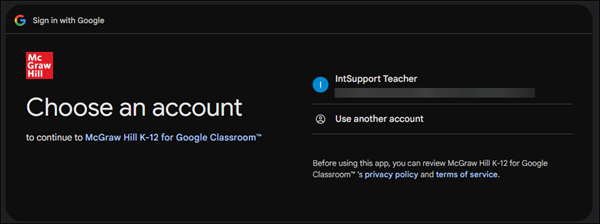
3. If prompted, select the Google account you would like to use.
4. Click the Launch Course button on the class tile.
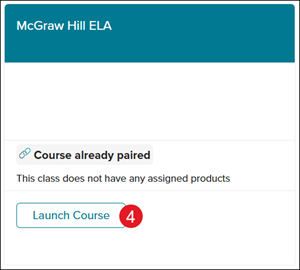
5. On the Add Assignments tile, click the Add StudySync Assignments button.

6. Create a StudySync assignment as normal.
Refer to the StudySync – Assignments article for more information. You can create more than one assignment at a time, if preferred.
7. Close the StudySync tab to navigate back to McGraw Hill K-12 for Google Classroom™ page.
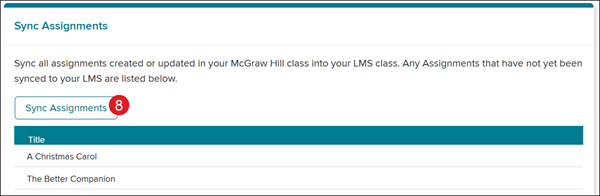
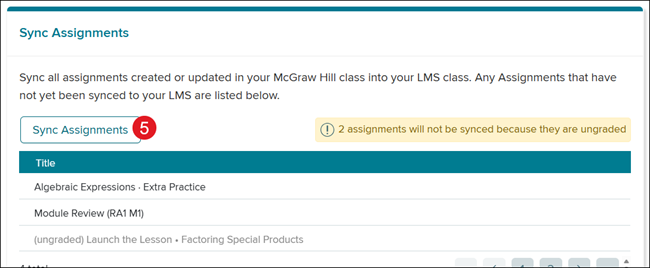
8. On the Sync Assignments tile, click the Sync Assignments button.
View Assignments
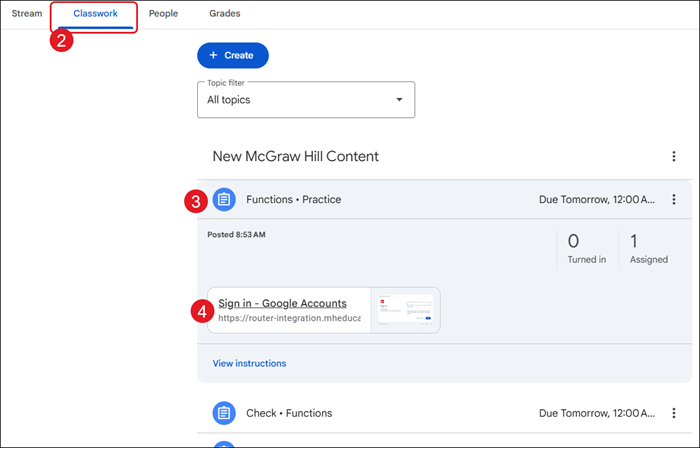
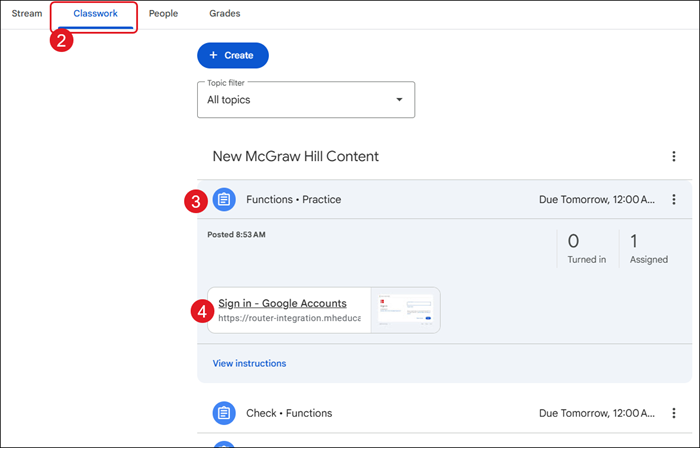
1. From your Classroom page, click on the class name.
2. Click on Classwork.
3. Click on the assignment blade to expand.
4. Click the Sign in – Google Accounts button.
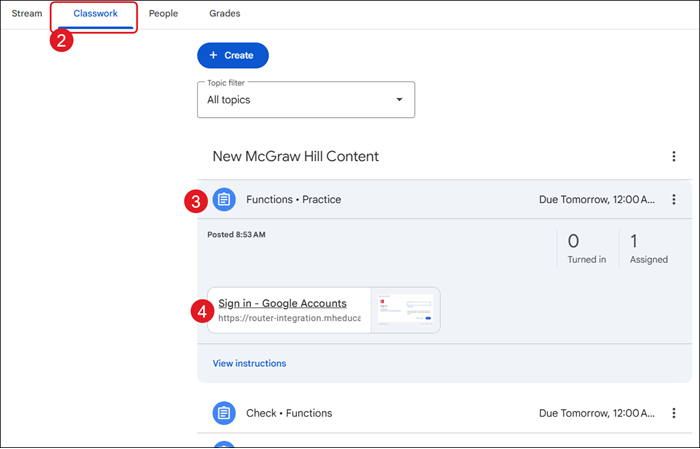
The assignment will open in a new tab.
Note: It may take 2-3 minutes for assignments to appear for students and before the assignment can be successfully launched within Google Classroom. If you attempt to launch the assignment too quickly after creation, both students and teachers will receive a "CI2" error message.
Adjust Assignment Settings
Important!
If you need to later make adjustments to the settings of an assignment, you must complete these changes within the McGraw Hill platform directly, or by launching the assignment as a teacher in Google Classroom.
If you attempt to make assignment edits within Google Classroom directly, they will not be reflected within McGraw Hill and may result in stopping the assignment from functioning in Google Classroom.
1. From your Classroom page, click on the class name.
2. Click on Classwork.
3. Click on the assignment blade to expand.
4. Click the Sign in – Google Accounts button.
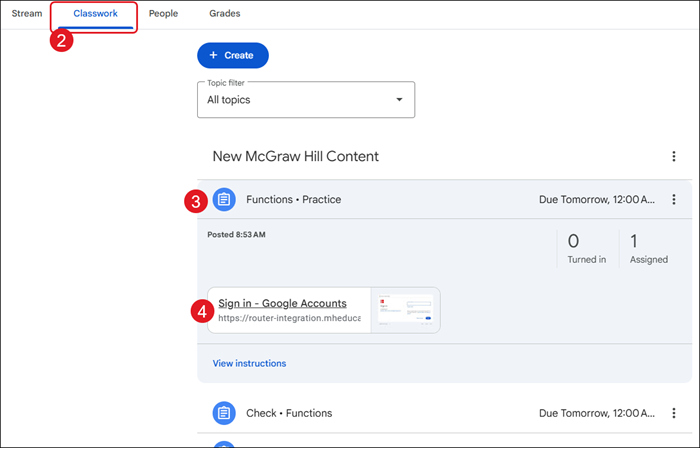
The assignment will open in a new tab.
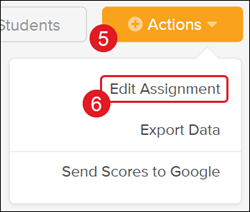
5. Click the Actions button on the assignment.
6. Select Edit Assignment from the menu.
7. Make preferred changes to the settings.
8. Click the Save Assignment button.
Alternative Option: Edit from McGraw Hill Platform
1. Click on the Google apps icon at the top-right of the page.
2. Click on the McGraw Hill SSO app.
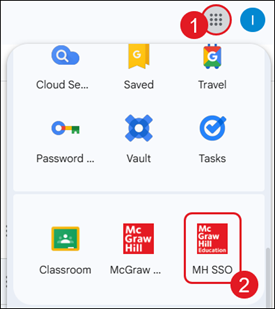
3. On the My Programs page, click on the StudySync tile.
4. Navigate to the Assignments page.
5. Click the Actions button to the right of the assignment.
You can also click on the Name of the assignment and click the Actions button.
6. Select Edit Assignment from the menu.
5. Make preferred changes to the settings.
6. Click the Save Assignment button.
These changes will not be reflected in Google Classroom until you have resynced the assignments.
Resync Assignments
Resyncing assignments is an option available within the McGraw Hill K-12 for Google Classroom™ app. This option syncs all assignments and their settings from McGraw Hill into Google Classroom.
This allows you to sync settings back into Google Classroom if you made any changes to your assignments. This also gives teachers a direct way to manually trigger the assignment syncing process in the event any assignments have not automatically appeared in Google Classroom.
Note: Any assignments worth zero points will not be able to be synced to Google Classroom.
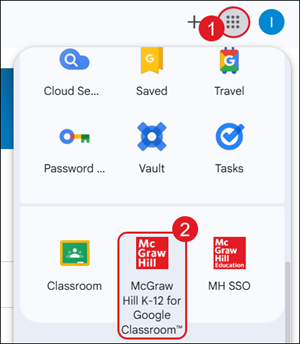
1. Click on the Google apps icon at the top-right of the page.
2. Click on the McGraw Hill K-12 for Google Classroom™ app.
Note: Installation of this app is completed by your District Administrator. If you do not see the app, please reach out to your District Administrator or Curriculum Coordinator.
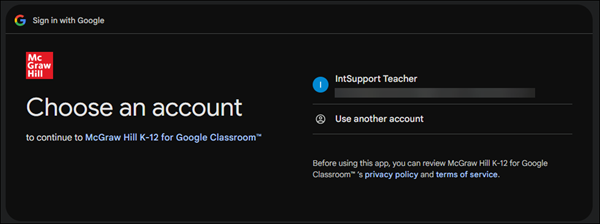
3. If prompted, select the Google account you would like to use.
4. Click the Launch Course button on the class tile.
5. Click the Sync Assignments button.
McGraw Hill will automatically check to see if there are any assignments that have not yet been completed synced to Google Classroom. These will be listed in the area below the Sync Assignments button.
Grade Completed Assignments
Assignments can be graded from within Google Classroom by launching the assignment. As a teacher, launching the assignment automatically brings you to the assignment submissions page in a new tab.
Important!
Student should access their first assignment through Google Classroom. This allows the McGraw Hill platform to begin syncing grades for that student to Google Classroom.
The student does not need to complete the assignment within Google Classroom if they would rather complete it within the McGraw Hill platform, they just need to launch it from the Google Classroom platform.
After the initial launch, students can then access and complete assignments through Google Classroom or the McGraw Hill platform.
1. From your Classroom page, click on the class name.
2. Click on Classwork.
3. Click on the assignment blade to expand.
4. Click the Sign in – Google Accounts button.
The assignment will open in a new tab.
Note: It may take 2-3 minutes for assignments to appear for students and before the assignment can be successfully launched within Google Classroom. If you attempt to launch the assignment too quickly after creation, both students and teachers will receive a "CI2" error message.
5. Click on the date/time stamp in the Posted column for the student.
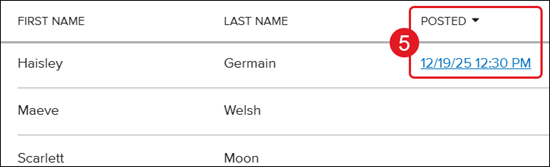
6. Click on the individual tabs to score any questions that need manual grading and click the save button on each tab.
Important! The grades will not show in the Google Classroom gradebook until you release the scores.
Release Assignment Scores
StudySync allows teachers to decide when to make scores available for assignments in order to mitigate student confusion around partial scores appearing when there are questions that require teachers to manually score them.
Due to this, the teacher must release the scores from StudySync for those assignments for those grades to appear in Google Classroom.
1. From your Classroom page, click on the class name.
2. Click on Classwork.
3. Click on the assignment blade to expand.
4. Click the Sign in – Google Accounts button.
The assignment will open in a new tab.
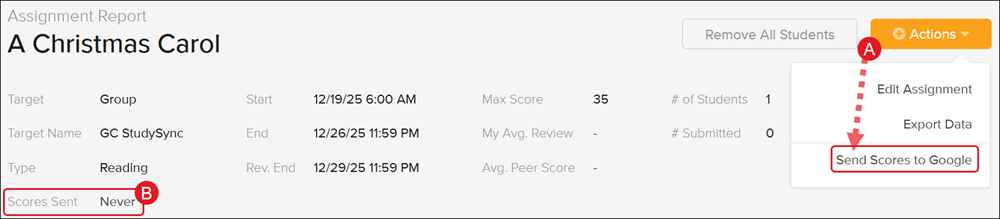
5. Choose one of these two options to release the assignment scores:
A. Click on the Actions button and select Send Scores to Google from the menu.
B. For Scores Sent, click Never.
6. On the Send Scores Now pop-up, click the Yes button.
Resync Grades
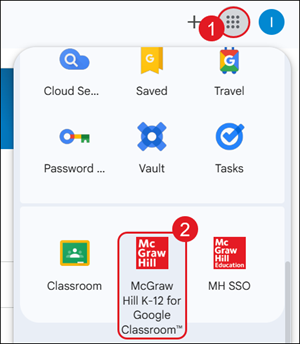
1. Click on the Google apps icon at the top-right of the page.
2. Click on the McGraw Hill K-12 for Google Classroom™ app.
Note: Installation of this app is completed by your District Administrator. If you do not see the app, please reach out to your District Administrator or Curriculum Coordinator.
3. If prompted, select the Google account you would like to use.
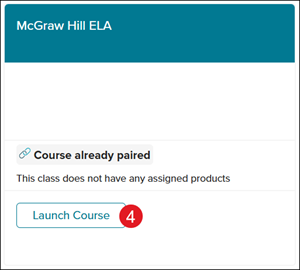
4. Click the Launch Course button on the class tile.
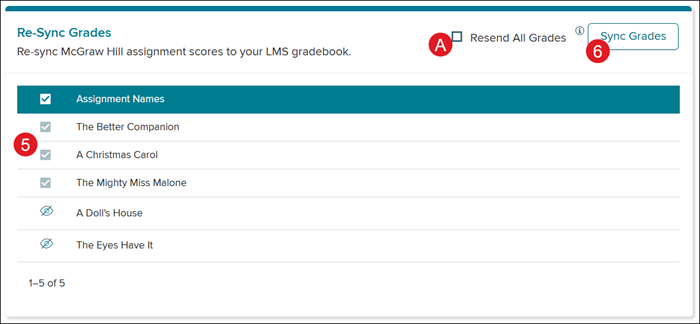
5. On the Re-Sync Grades tile, checkmark the assignment(s) that needs to be resynced.
6. Click the Sync Grades button.
Note: If you notice the Sync Grades function is not working, this may be because Google Classroom is not recognizing the grade change and therefore ignores the sync. Use the Resend All Grades (A) check box after selecting the relevant assignments to force Google Classroom to recognize the grade change and sync appropriately.
Troubleshooting Tips
Error Messages on Student Launch
Common Errors: ID5, ER4, SE4 Most likely caused by a rostering mismatch between Google Classroom and McGraw Hill.
1. Ensure your class(es) are paired correctly. If your class(es) are not paired correctly, then the rosters will not match.
2. Ensure the student is properly enrolled in the class within McGraw Hill. New students may take several days after enrollment to sync into McGraw Hill.
3. Ensure you are not using “Student View” in Google Classroom. This view will not work and is not indicative of the experience students will have.
Most of the time this is caused when launching an assignment too quickly after creation.
1. Ensure you and students are waiting 2-3 minutes after assignment creation to launch it.
2. Ensure the assignment “start date” has passed. Assignments with future start dates cannot be launched by students.
"L500" Error Message
Often indicative of a greater issue with the district's installation of the app. The issue may exist on either the district side or the McGraw Hill side.
Reach out to your District Administrator contact support for this error.
Assignments and Grades Not Syncing Properly
Most of the time this is caused by incorrect class pairings.
Ensure your class(es) are paired correctly by reviewing the class pairings section. If your class(es) are not paired correctly, assignments and grades will not function as needed and may result in additional errors.
Grades Not Syncing for Some Students
If only some students within a class do not have grades populating in the Google Classroom gradebook, but other students do, this indicates some students have not launched an assignment directly from within Google Classroom this school year.
Ensure the student launches any active assignment from directly within Google Classroom. You can then manually sync grades through the McGraw Hill tool to populate all grades for this student within the Google Classroom gradebook.
