Add Co-Teachers to StudySync Classes
Learn how teachers add co‑teachers to StudySync classes to share access, assignments, and student data.
- Getting Started & Orientation
- StudySync 2021
- Literacy
- SSO & Manual-Rostering
- Customer Support
- Direct Login & Auto-Rostering
- StudySync 2015 & 2017
- Middle School
- Core
- Class Management
- Direct Login & Manual-Rostering
- High School
- Classroom Teacher
- SSO & Auto-Rostering
- PreK-12


If you are unsure which version of StudySync you have, review the images below and see which dashboard matches your own. You can also refer to the Identifying My Learning Environment article.
Contents:
StudySync on ConnectED (©2015 and ©2017)
StudySync on Open Learning (©2021)
StudySync on ConnectED (©2015 and ©2017)
For StudySync accessed from ConnectED, the process for adding co-teachers is the same whether your district manually rosters teachers/students or they use our auto-rostering services.
If you access StudySync from ConnectED, your main dashboard should match the one shown below.
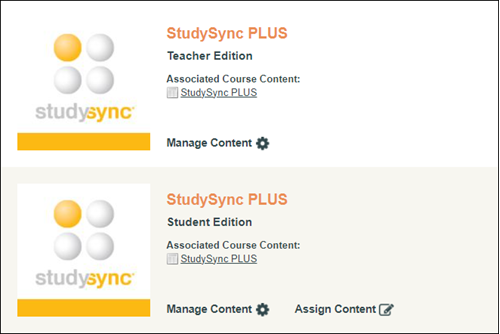
The primary teacher and the co-teacher will both need to create a class and roster the same students for each class they want to "share". For steps on how to create and roster a StudySync class, refer to the StudySync 2015/2017 - Class Creation and Rostering article.
Teachers who share students can view assignments assigned by other teachers, and if a teacher also has school admin access, they can view assignments for all students in their assigned school.
1. Launch StudySync from My ConnectED Programs.
2. Select Assignments from the top navigation bar.
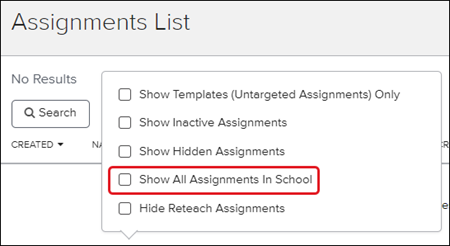
3. From the Options menu, ensure that Show All Assignments in School is selected.
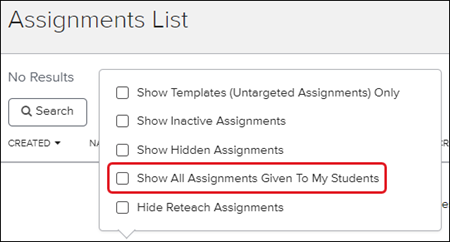
If a teacher has admin access, Show All Assignments in School is also an option.
4. Select an assignment from the list to view student scores on that assignment.
StudySync on the Open Learning Platform (©2021)
If you access StudySync from the Open Learning Platform, your dashboard will match the one shown below.
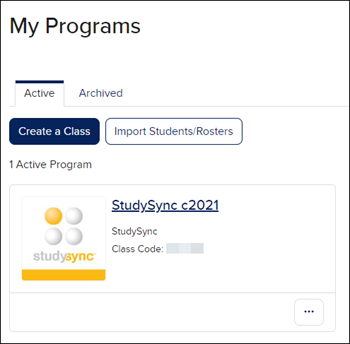
Note: If your school/district uses McGraw Hill's auto-rostering services, adding co-teachers to classes is done through the auto-rostering process. Please reach out to an IT administrator who manages your roster files and request the addition of the co-teacher to your class. If you are unsure of your Access Service, refer to the Access Service Descriptions article.
If you are a manually rostered district, you can follow these steps to add a co-teacher to your class:
1. From your My Programs page, click on the class name or icon.
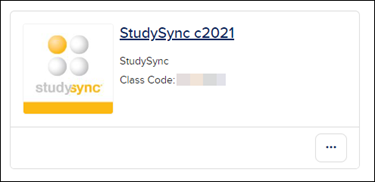
Or you can click on the Options icon and click on Manage Class Roster from the menu.
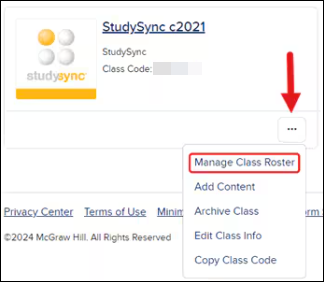
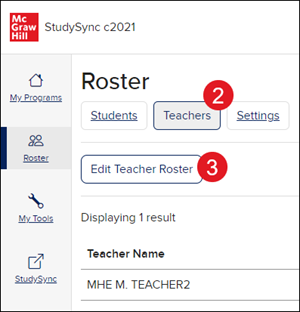
2. On the Rosters page, click on the Teachers button.
3. Click the Edit Teacher Roster button.
4. In the School Teacher Roster box, click on the teacher(s) you want to share the class with.
5. Click the Add Teacher button below.
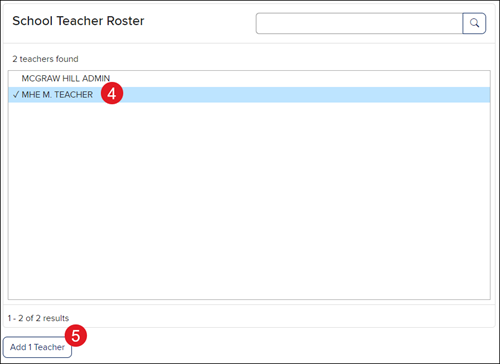
This will add the teacher(s) to the Class Teacher Roster box on the left.
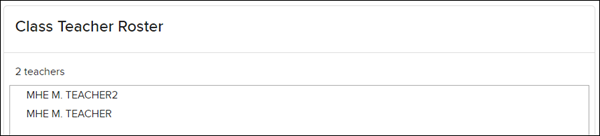
6. Click the Save button at the bottom-left of the page.
Teachers in the same class can view assignments assigned by other teachers.
1. To view the assignments, launch StudySync.
2. Click on Assignments from the top navigation bar.
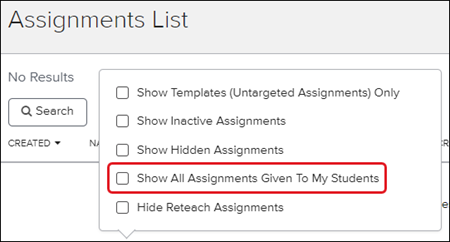
3. From the Options menu, ensure that Show All Assignments Given To My Students is selected.