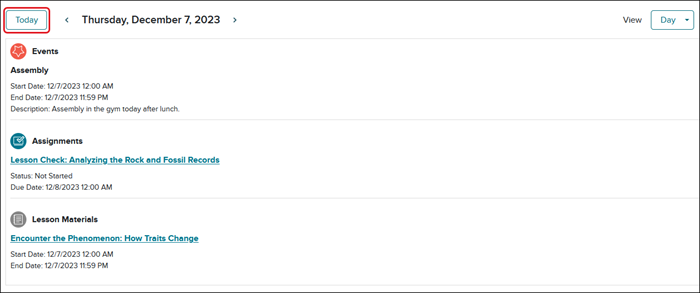
2. The default view is set to the current day. Select the Today button to return to today’s calendar at
any time.
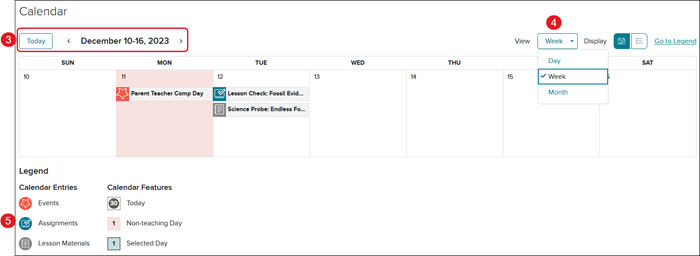
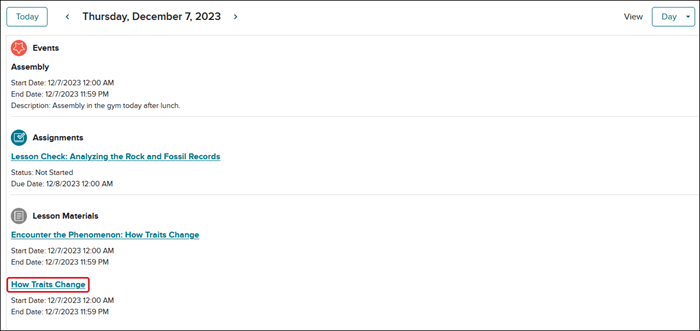
3. Use the navigation arrows to see another week’s schedule. Your current view remains when you navigate. In other words, if you are viewing the current week, navigating forward will show next week. If you are in the Month view, it will display the next month.
4. Select the drop-down menu to change the view to Day, Week, or Month
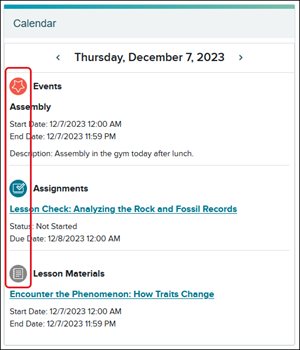
5. The Calendar shows Assignments, Instructional Content, and Events by color. These categories match those found on the Dashboard Calendar.
Assignments
Assignments appear on your Calendar in blue. The dates are based on the scheduled
Start and Due Date.
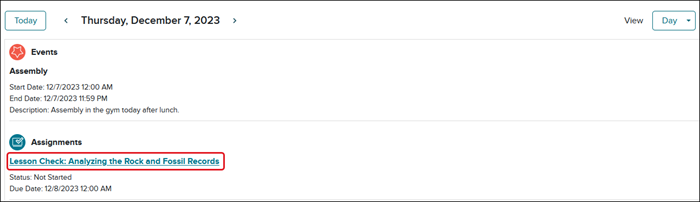
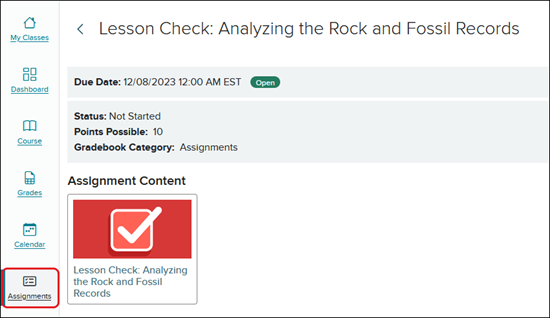
1. Select the Assignment on the calendar.
2. Click on the name of the assignment to navigate to the assignment overview page.
Instructional Content
Instructional Content appears on your Calendar in gray.
1. Select the Instructional Content on the calendar.
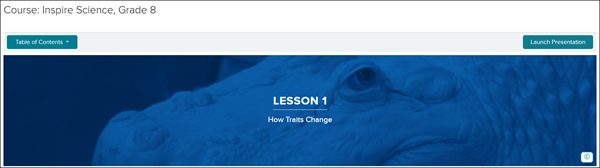
2. Click on the name of the Instructional Content to navigate to the content. If the Instructional Content is a lesson, you will be taken to the lesson directly.
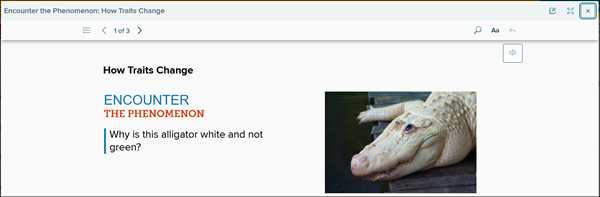
If the Instructional Content is a resource, it will open in the presentation player.
Events
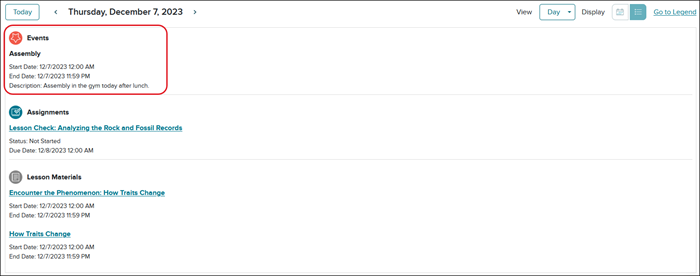
Events appear on your Calendar in orange.
Events will show the Start and End Dates as well as a Description if the teacher includes any additional information about the event.
mh-social-studies
mcgraw-hill-science
asi-se-dice
inspire-science
glencoe-health
impact
reveal-math
teen-health
mcgraw-hill-literacy
school-parent
student
prek-12
PreK-12, Customer Support, McGraw Hill Social Studies, TX Science 2025 (K-12), Asi se Dice 2024, SSO & Manual-Rostering, Inspire Science 2020, Middle School, Direct Login & Manual-Rostering, High School, Glencoe Health 2022, CA Impact 2019, School Parent, CA Inspire Science 2020, SSO & Auto-Rostering, FL Science 2025 (K-12), World Languages, Visual & Performing Arts, Math, Health, Literacy, Social Studies, Direct Login & Auto-Rostering, School Student, Core, CA Reveal Math (K-12), AP, Honors & Electives, Teen Health 2021, FL Social Studies 2024 (K-12), Science, McGraw Hill Literacy, Student Resources, 6th Grade, 7th Grade, 8th Grade, 9th Grade, 10th Grade, 11th Grade, 12th Grade
dts
2026-05-01T18:47:49.278-04:00
You can view a video that will walk you through the steps mentioned in the document below. Calendar Overview 1. Select Calendar on the Navigation Menu. 2. The default view is set to the current day. Select the Today button to return to today’s calendar at any time. 3. Use the navigation arrows to see another week’s schedule. Your current view remains when you navigate. In other words, if you are viewing the current week, navigating forward will show next week. If you are in the Month view, it will display the next month. 4. Select the drop-down menu to change the view to Day, Week, or Month 5. The Calendar shows Assignments, Instructional Content, and Events by color. These categories match those found on the Dashboard Calendar. Assignments Assignments appear on your Calendar in blue. The dates are based on the scheduled Start and Due Date. 1. Select the Assignment on the calendar. 2. Click on the name of the assignment to navigate to the assignment overview page. Instructional Content Instructional Content appears on your Calendar in gray. 1. Select the Instructional Content on the calendar. 2. Click on the name of the Instructional Content to navigate to the content. If the Instructional Content is a lesson, you will be taken to the lesson directly. If the Instructional Content is a resource, it will open in the presentation player. Events Events appear on your Calendar in orange. Events will show the Start and End Dates as well as a Description if the teacher includes any additional information about the event.
Top
Regional Page Available
It looks like you're outside the United States. Do you want to see your regional version of this page?