mh-social-studies
illustrative-math
5-steps-to-a-5-test-prep
impact
arrive-math
reveal-math
ap-edition
glencoe-health
teen-health
reading-laboratory
reading-mastery
mcgraw-hill-literacy
mcgraw-hill-math
inspire-science
mcgraw-hill-science
asi-se-dice
mcgraw-hill-cte
level-up
student
school-parent
Programs & Solutions
Programs & Solutions/McGraw Hill Social Studies
Business Unit
Business Unit/PreK-12
Programs & Solutions/AP Edition
Programs & Solutions/AP Edition/AP Precalculus
Context
Context/Education Level
Context/Education Level/High School
Context/Subject
Context/Subject/Science
Programs & Solutions/AP Edition/AP Music Theory
Programs & Solutions/AP Edition/AP Biology
Context/Integration Type
Context/Integration Type/Direct Login & Auto-Rostering
Context/Integration Type/SSO & Auto-Rostering
Programs & Solutions/Glencoe Health
Programs & Solutions/Glencoe Health/Glencoe Health 2022
Programs & Solutions/Impact Social Studies
Programs & Solutions/Impact Social Studies/CA Impact 2019
Programs & Solutions/McGraw Hill Social Studies/FL Social Studies 2024 (K-12)
Context/Subject/World Languages
Programs & Solutions/Illustrative Math
Programs & Solutions/McGraw Hill CTE
Programs & Solutions/McGraw Hill CTE/CTE - Culinary Arts
Asset Format Type
Asset Format Type/Customer Support
Context/Curriculum Type
Context/Curriculum Type/Supplemental
Programs & Solutions/AP Edition/AP Statistics
Programs & Solutions/McGraw Hill Science
Programs & Solutions/McGraw Hill Science/TX Science 2025 (K-12)
Programs & Solutions/AP Edition/AP Public Speaking
Context/Subject/Health
Programs & Solutions/Asi Se Dice
Programs & Solutions/Asi Se Dice/Asi se Dice 2024
Programs & Solutions/5 Steps to a 5 - AP Test Prep
Programs & Solutions/Level Up
Programs & Solutions/Level Up/Level Up 9–12
Support Topics
Support Topics/Getting Started & Orientation
Personas
Personas/School Student
Context/Curriculum Type/Career & Technical Education
Programs & Solutions/McGraw Hill Literacy
Programs & Solutions/McGraw Hill Literacy/McGraw Hill Literacy Soar!
Programs & Solutions/McGraw Hill CTE/CTE - Agriculture
Context/Subject/Math
Programs & Solutions/McGraw Hill Math
Programs & Solutions/McGraw Hill Math/Texas Math
Programs & Solutions/AP Edition/AP Chemistry
Context/Curriculum Type/AP, Honors & Electives
Context/Curriculum Type/Intervention
Programs & Solutions/McGraw Hill CTE/CTE - Computing and Technology
Programs & Solutions/Arrive Math
Context/Curriculum Type/Core
Context/Integration Type/Direct Login & Manual-Rostering
Programs & Solutions/AP Edition/AP Language and Composition
Context/Subject/Literacy
Programs & Solutions/McGraw Hill CTE/CTE - Health Science
Programs & Solutions/AP Edition/AP History & Geography
Programs & Solutions/Inspire Science
Programs & Solutions/Inspire Science/Inspire Science 2020
Context/Subject/Visual & Performing Arts
Programs & Solutions/AP Edition/AP Computer Science
Context/Subject/Social Studies
Programs & Solutions/Reveal Math (K-12)
Programs & Solutions/Reveal Math (K-12)/CA Reveal Math (K-12)
Context/Education Level/Middle School
Programs & Solutions/McGraw Hill CTE/CTE - Early Childhood Education
Personas/School Parent
Programs & Solutions/AP Edition/AP African American Studies
Programs & Solutions/McGraw Hill Science/FL Science 2025 (K-12)
Programs & Solutions/McGraw Hill CTE/CTE - Business, Marketing, and Finance
Programs & Solutions/McGraw Hill Literacy/McGraw Hill Literacy Summit!
Support Topics/Classroom & Course Management
Support Topics/Classroom & Course Management/Dashboard & Navigation Overview
Programs & Solutions/Reading Laboratory
Programs & Solutions/Reading Laboratory/SRA Reading Laboratory 2025
Programs & Solutions/AP Edition/AP Economics
Programs & Solutions/AP Edition/AP Psychology
Programs & Solutions/McGraw Hill Science/TN Science (K-12)
Programs & Solutions/McGraw Hill CTE/CTE - Criminal Justice
Programs & Solutions/Teen Health
Programs & Solutions/Teen Health/Teen Health 2021
Programs & Solutions/Inspire Science/CA Inspire Science 2020
Programs & Solutions/Reading Mastery
Programs & Solutions/Reading Mastery/SRA Reading Mastery Transformations
Programs & Solutions/Level Up/Level Up 6–8
Context/Integration Type/SSO & Manual-Rostering
prek-12
2026-05-01T18:47:49.278-04:00
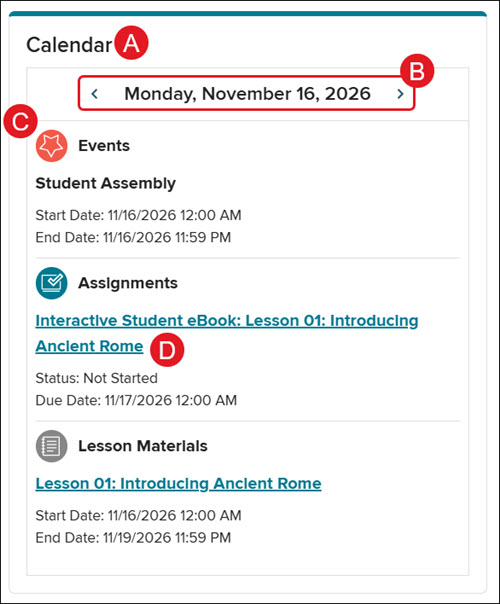
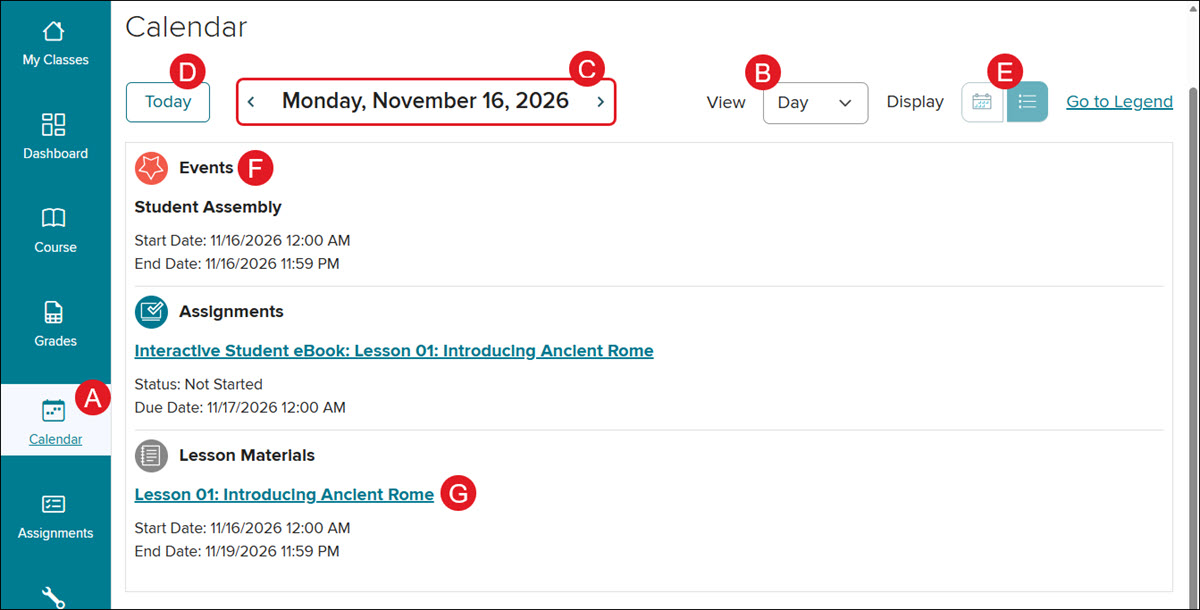
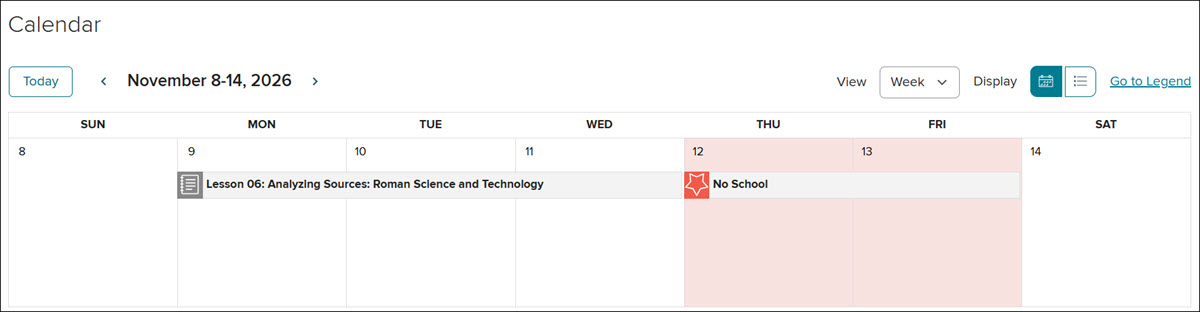
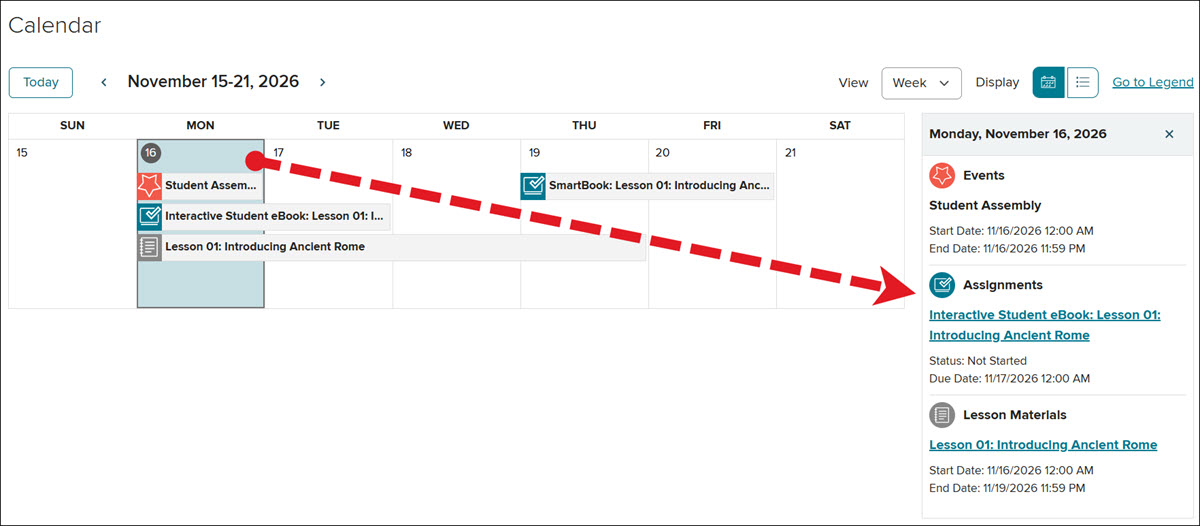
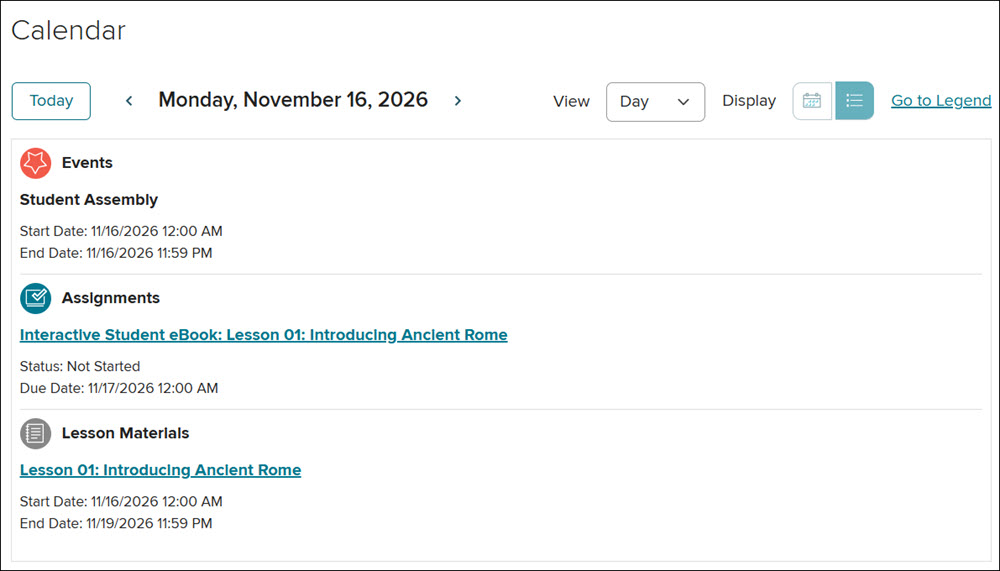
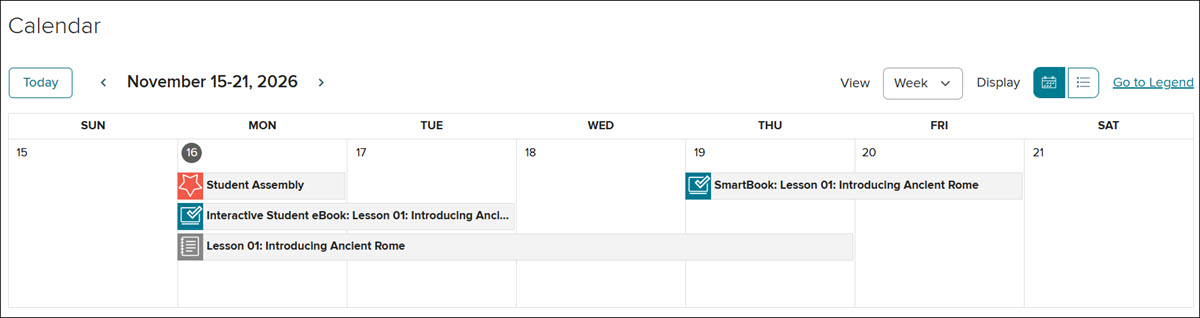
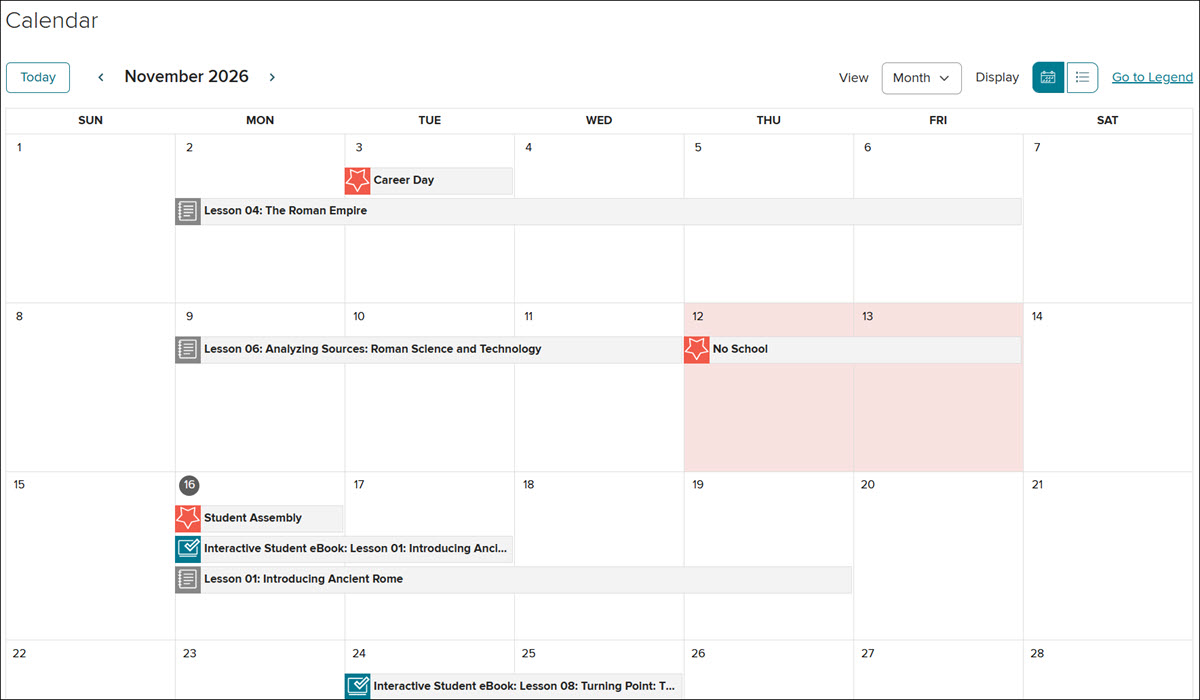
<h2 class="fs-5">Article Contents</h2> <p><a href="#calendar_overview">Calendar Dashboard Widget</a></p> <p><a href="#calendar_page">Calendar Page</a></p> <p><a href="https://www.youtube.com/embed/qARJm1KyCTI" target="_blank">Video Walkthrough</a></p> <p> </p> <h3 class="fs-5"><a id="calendar_overview"></a>Calendar Dashboard Widget<br> </h3> <ol class="list-type-alphabet-uppercase"> <li>The <strong>Calendar </strong>widget is available on the <strong>Dashboard </strong>and defaults to the current day.<br> <br> </li> <li>Use the arrows to navigate between days.<br> <br> </li> <li><strong>Assignments</strong>, <strong>Events</strong>, and <strong>Lesson Materials</strong> each show in their own category with their associated icon.<br> <br> </li> <li>Click on an assignment and/or lesson material link to navigate to that assignment or lesson within the course.<br> <br> <img src="/content/dam/mhe/support/support-images/dts-k12-images/grades-6-12-student-ol-calendar/g612-student-ol-calendar-1.jpg" data-assetref="g612-student-ol-calendar-1-1794860294511"></li> </ol> <p> </p> <h3 class="fs-5"><a id="calendar_page"></a>Calendar Page</h3> <p style="margin-left: 40px;"><img src="/content/dam/mhe/support/support-images/dts-k12-images/grades-6-12-student-ol-calendar/g612-student-ol-calendar-3.jpg" data-assetref="g612-student-ol-calendar-3-1794861705319"></p> <ol class="list-type-alphabet-uppercase"> <li>Click on <strong>Calendar </strong>on the navigation menu to view the course calendar. The calendar will default to the current day.<br> <br> </li> <li>Click the <strong>View </strong>drop-down to toggle between viewing by a single <strong>Day</strong>, the <strong>Week</strong>, or the <strong>Month</strong>.<br> <br> </li> <li>Use the previous and next arrows to navigate through the days, weeks, or months depending on the view selected.<br> <br> </li> <li>Click the <strong>Today</strong> button to navigate back to the current day.<br> <br> </li> <li>Click the <strong>Display </strong>button to toggle between viewing the calendar in <strong>Grid </strong>and <strong>List </strong>view.<br> <br> <strong>Note:</strong> The only Display option available if Day is selected is List view.<br> <br> </li> <li><strong>Assignments</strong>, <strong>Events</strong>, and <strong>Lesson Materials</strong> each show in their own category with their associated icon. <br> <br> If your teacher has marked days in the calendar as <strong>Non-teaching days</strong>, they will show highlighted in red in the <strong>Week</strong> and <strong>Month </strong>views.<br> <br> <img src="/content/dam/mhe/support/support-images/dts-k12-images/grades-6-12-student-ol-calendar/g612-student-ol-calendar-7.jpg" data-assetref="g612-student-ol-calendar-7-1794862644177"><br> <br> </li> <li>Click on an <strong>Assignment </strong>and/or <strong>Lesson Material</strong> link to navigate to that assignment or lesson within the course. <strong>Events </strong>will not have a clickable link available.<br> <br> In <strong>Week </strong>or <strong>Month </strong>view, click the day on the calendar to open the side panel. From there, select the assignment or lesson material link.<br> <br> <img src="/content/dam/mhe/support/support-images/dts-k12-images/grades-6-12-student-ol-calendar/g612-student-ol-calendar-2.jpg" data-assetref="g612-student-ol-calendar-2-1794861658350"></li> </ol> <p> </p> <h3 class="fs-5">Calendar Views</h3> <h3 class="fs-large">Day</h3> <p><img src="/content/dam/mhe/support/support-images/dts-k12-images/grades-6-12-student-ol-calendar/g612-student-ol-calendar-4.jpg" data-assetref="g612-student-ol-calendar-4-1794862051281"></p> <p> </p> <h3 class="fs-large">Week</h3> <p><img src="/content/dam/mhe/support/support-images/dts-k12-images/grades-6-12-student-ol-calendar/g612-student-ol-calendar-5.jpg" data-assetref="g612-student-ol-calendar-5-1794862067341"></p> <p> </p> <h3 class="fs-large">Month</h3> <p><img src="/content/dam/mhe/support/support-images/dts-k12-images/grades-6-12-student-ol-calendar/g612-student-ol-calendar-6.jpg" data-assetref="g612-student-ol-calendar-6-1794862087071"></p> dts Understand how students use the calendar to track assignments, due dates, and learning activities. 2026-11-16 Navigate the Grades 6-12 Student Calendar Understand how students use the calendar to track assignments, due dates, and learning activities. Understand how students use the calendar to track assignments, due dates, and learning activities.
Understand how students use the calendar to track assignments, due dates, and learning activities.
Article Contents Calendar Dashboard Widget Calendar Page Video Walkthrough Calendar Dashboard Widget The Calendar widget is available on the Dashboard and defaults to the current day. Use the arrows to navigate between days. Assignments, Events, and Lesson Materials each show in their own category with their associated icon. Click on an assignment and/or lesson material link to navigate to that assignment or lesson within the course. Calendar Page Click on Calendar on the navigation menu to view the course calendar. The calendar will default to the current day. Click the View drop-down to toggle between viewing by a single Day, the Week, or the Month. Use the previous and next arrows to navigate through the days, weeks, or months depending on the view selected. Click the Today button to navigate back to the current day. Click the Display button to toggle between viewing the calendar in Grid and List view. Note: The only Display option available if Day is selected is List view. Assignments, Events, and Lesson Materials each show in their own category with their associated icon. If your teacher has marked days in the calendar as Non-teaching days, they will show highlighted in red in the Week and Month views. Click on an Assignment and/or Lesson Material link to navigate to that assignment or lesson within the course. Events will not have a clickable link available. In Week or Month view, click the day on the calendar to open the side panel. From there, select the assignment or lesson material link. Calendar Views Day Week Month
dts
PreK-12, Customer Support, School Student, School Parent, Middle School, High School, Direct Login & Auto-Rostering, Direct Login & Manual-Rostering, SSO & Auto-Rostering, SSO & Manual-Rostering, Core, Intervention, Supplemental, AP, Honors & Electives, Career & Technical Education, Literacy, Math, Science, Social Studies, Health, Visual & Performing Arts, World Languages, AP Biology, AP Chemistry, AP History & Geography, AP Psychology, AP Economics, AP African American Studies, AP Precalculus, AP Statistics, AP Computer Science, AP Language and Composition, AP Public Speaking, AP Music Theory, 5 Steps to a 5 - AP Test Prep, Glencoe Health 2022, Teen Health 2021, Arrive Math, SRA Reading Laboratory 2025, SRA Reading Mastery Transformations, McGraw Hill Literacy Summit!, McGraw Hill Literacy Soar!, CA Reveal Math (K-12), Illustrative Math, Reveal Math (K-12), Texas Math, CA Inspire Science 2020, FL Science 2025 (K-12), Inspire Science 2020, TN Science (K-12), TX Science 2025 (K-12), CA Impact 2019, FL Social Studies 2024 (K-12), Impact Social Studies, McGraw Hill Social Studies, Asi se Dice 2024, CTE - Business, Marketing, and Finance, CTE - Health Science, CTE - Computing and Technology, CTE - Agriculture, CTE - Culinary Arts, CTE - Early Childhood Education, CTE - Criminal Justice, Level Up 6–8, Level Up 9–12, Dashboard & Navigation Overview, Getting Started & Orientation