Open Learning - SmartBook® Getting Started
Use the SmartBook 2.0 teacher guide to assign, monitor, and support student learning.


This article walks teachers through what SmartBook is used for and navigating the program.
For a full page view of the demo, click here.
For a Spanish version of the demo, click here.
Article Contents
SmartBook Overview
SmartBook® helps students focus study time, emphasize central topics, and test their understanding. It highlights important concepts in the digital textbook, and presents questions to practice what they’ve learned. It's is an adaptive learning tool, meaning it adjusts based on the student’s responses, determining which concepts they have learned, and identifying any gaps in their understanding.
Getting Started
You can assign SmartBook to students as a way of introducing the content, helping gauge comprehension, or as a review.
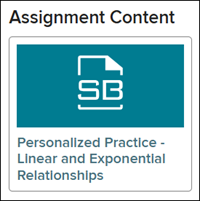
When SmartBook is assigned, it appears in the students’ assignments list, as well as in the Dashboard calendar. The assignment is attached as a resource and they will need to click on the SB icon to open the resource.
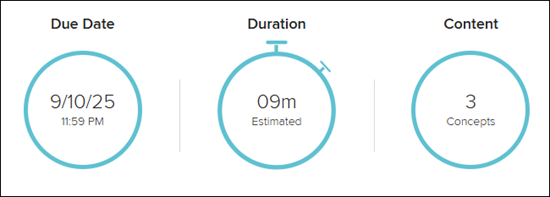
When the student launches the SmartBook resource, they will first see the Overview page. This screen will provide information on the Due Date, estimated Duration, and the number of Concepts.
The student will have the option to View Resources or Start Reading, depending on the program being used, and Start Questions.
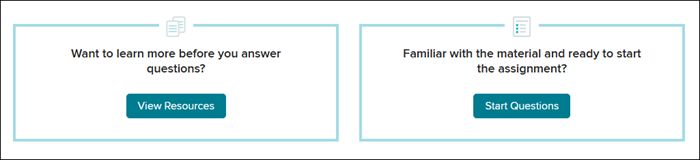
View Resources
When the student clicks on View Resources, it will navigate them to an Assignment Resources page. This page is only available for certain programs.
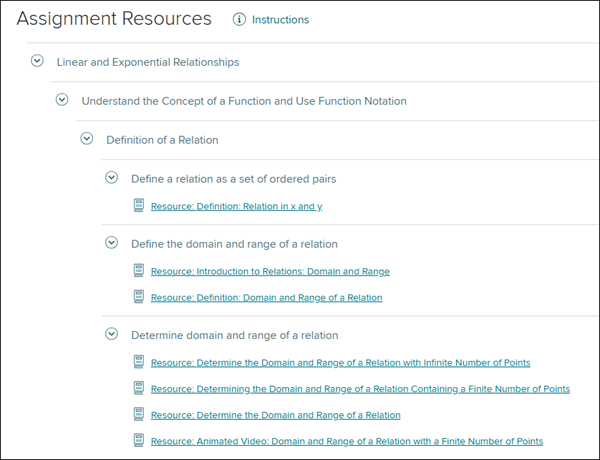
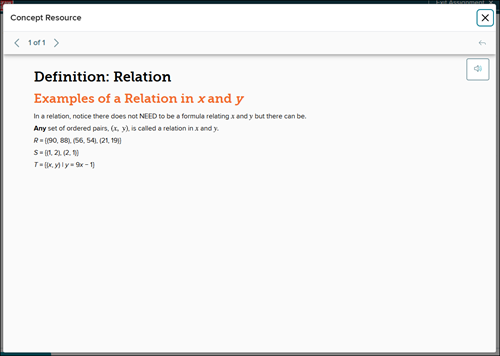
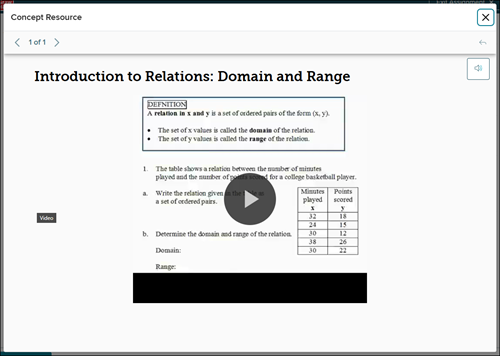
Clicking on a linked resource will launch a pop-up that includes reading material, examples, or videos to watch.
Start Reading
The reading found within SmartBook matches the same text as to what is found in the student edition eBook.
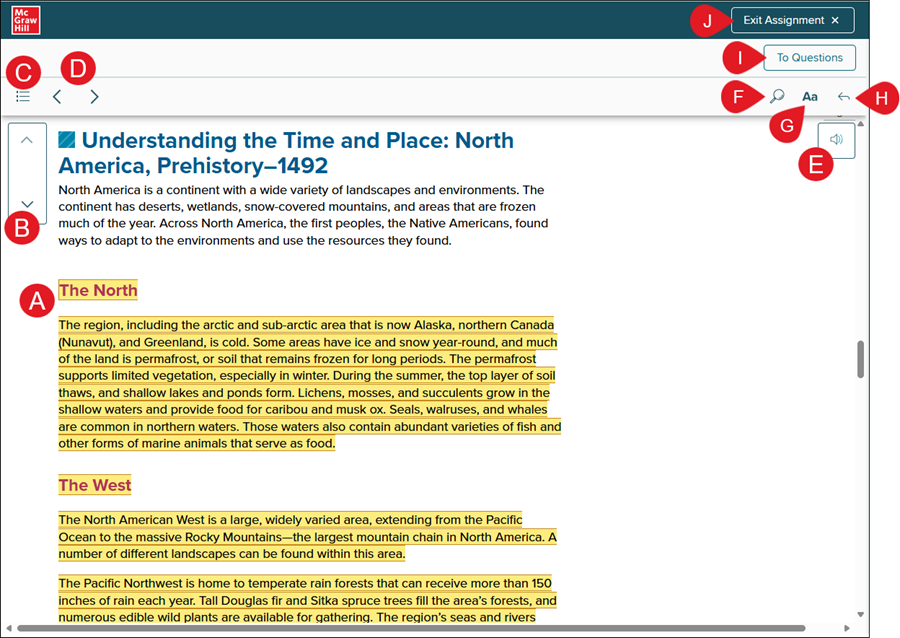
A. When the student clicks on Start Reading, it will automatically navigate them to the section of the book they should review.
B. The Concept navigation buttons can be used to navigate to the next and previous concepts throughout the book.
C. The Contents button can be used to navigate to different chapters and sections within the book.
A bookmark is placed to indicate the current location within the book.
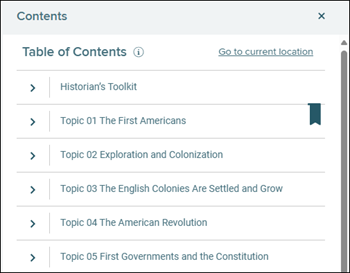
D. The Next and Previous arrows can be used to navigate back and forth from one section to another.
E. The Read Aloud icon allows the student to listen to the text while reading through the book.
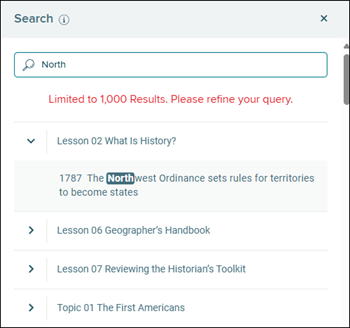
F. The Search button can be used to search for different terms throughout the book.
Students can click to expand the section then click on the link to navigate to the location selected.
G. The Change Font Size button can be used to make the wording on the page larger or smaller.
H. The Go to Previous Location button can be used to navigate to the last location in the book the student was at.
I. The To Questions button navigates them to the questions portion of the assignment.
J. The Exit Assignment button navigates the student back to their Assignments page.
Start Questions
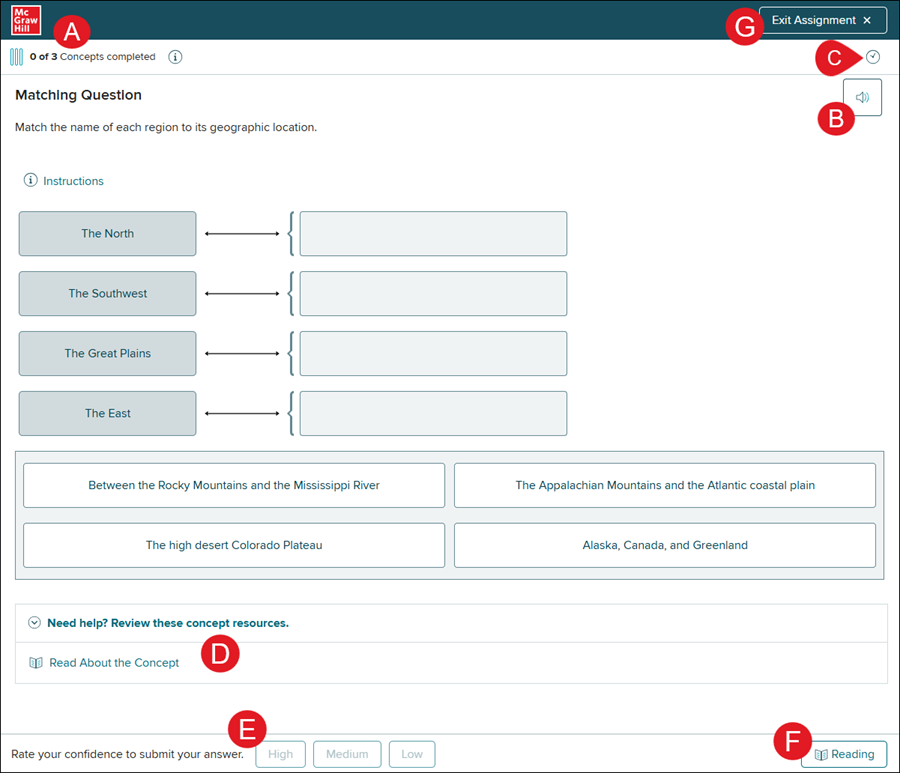
A. The Progress indicator tracks how far they have gone to completing the concepts.
B. The Read Aloud icon allows students to hear all of the text on the page for the question.
C. The Time Check allows students to view the due date and estimated completion time.
D. The Need help section provides links to resources or reading to help the student answer the question.
E. Once the student has answered the question, they will select their confidence level to move forward to the next question.
The Next Question button appears once they have selected their confidence level, no matter if the question was answered correctly or incorrectly.
If multiple questions were answered incorrectly in a row, the student will be prompted to review the reading or resource material for that concept.
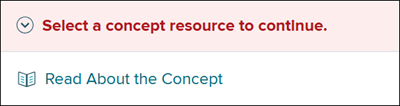
If the student struggles with a concept, SmartBook will repeat previous questions to test their knowledge. In some cases, such as the student is having trouble with a particular concept, SmartBook will make them view an example before they can continue to the next question.
F. The Reading button navigates the student back to the reading portion for the concept they are completing. If the program uses resources instead of reading, this button will not be available.
G. The Exit Assignment button navigates the student back to their Assignments page.
Performance
On the final screen, once all concepts have been answered correctly, the student will see their Accuracy, Confidence, and Challenging Concepts.
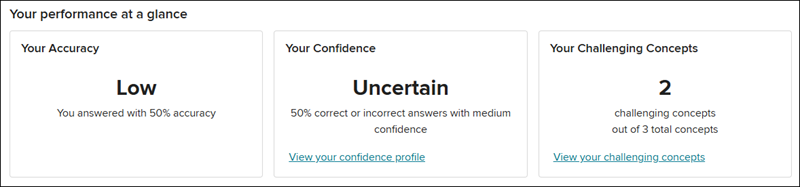
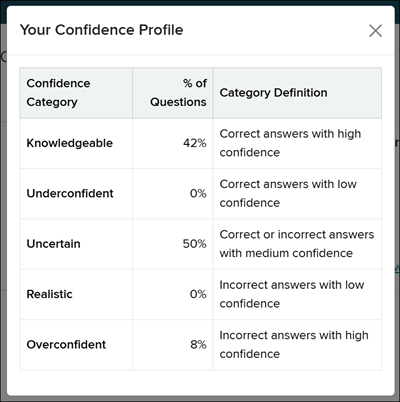
Clicking on the View your confidence profile link provides a pop-up with a breakdown of the student's different confidence levels.
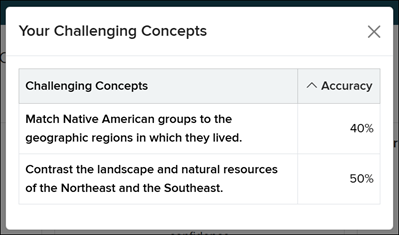
Clicking on the View your challenging concepts link provides a pop-up with a list of concepts that proved difficult for the student and their accuracy percentage.
Recharge
SmartBook allows students to practice the concepts they don’t feel comfortable with, or to review the assignment. This is called Recharge.
Students will only be able to do this once the assignment has been completed. The progress will not be tracked while working in Recharge and it will not affect their grade.
The SmartBook algorithm adds questions in the practice that focus on the concepts the student needs more help with. Students can review a completed SmartBook assignment as many times as they wish.
They can access the Recharge by clicking on the Start Recharge button on their Your performance at a glance page,
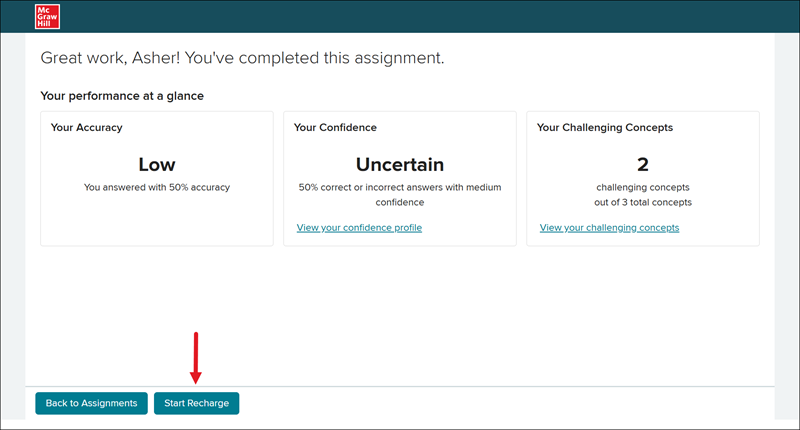
or by accessing the assignment from their Assignments page.