Open Learning SmartBook® Assignment Reports
Analyze student performance using SmartBook® Assignment Reports.
- McGraw Hill Social Studies
- SSO & Manual-Rostering
- Inspire Science 2020
- Customer Support
- Social Studies
- Direct Login & Auto-Rostering
- Middle School
- Core
- Direct Login & Manual-Rostering
- High School
- AP, Honors & Electives
- FL Social Studies 2024 (K-12)
- CA Impact 2019
- Classroom Teacher
- CA Inspire Science 2020
- SSO & Auto-Rostering
- PreK-12
- Science
- Reports & Analytics
- Grades & Assignments
- Smartbook® Integration
- TN Science (K-12)


For a full page view of the demo, click here.
For a Spanish version of the demo, click here.
Article Contents
Learners' Metacognition Report
Access Reports
Note: At least one student assigned to the SmartBook assignment must begin the assignment before any of the reports will be available.
1. SSO or log in at my.mheducation.com.
2. Launch the course.
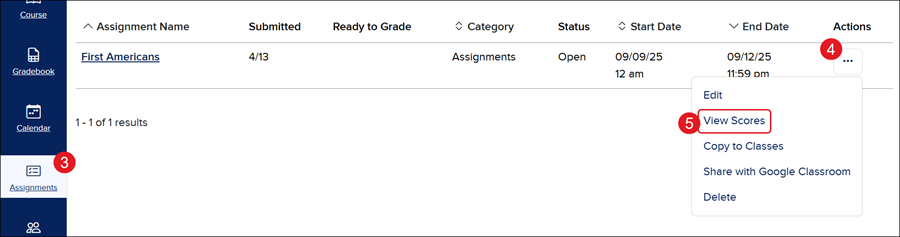
3. Click Assignments on the navigation menu.
4. Click on the Options in the Actions column.
5. Click on View Scores from the menu.
You can also click on the Assignment Name.
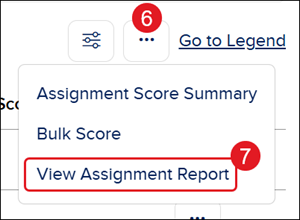
6. Click Options at the far right.
7. Click View Assignment Report from the menu.
Reports Overview
There are four different report options for SmartBook assignments: Assignment Progress, Completion Time, Learners' Metacognition, and Challenging Concepts.

A. Click the View more link on each tile to view additional report details.
B. Enter a student name in the Search field to locate a specific student's report.
C. Click Download Progress Summary to download the report view in a CSV.
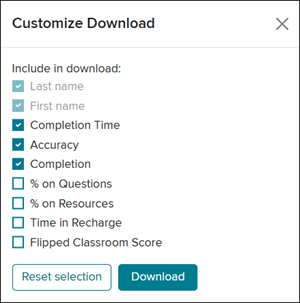
D. Click Customize Download to select the fields to include in the downloaded report.
Assignment Progress Report
This is an overall class report that provides information on which students have been assigned to the SmartBook assignment. Teachers will be able to see who has started, finished, and has yet to begin the assignment.
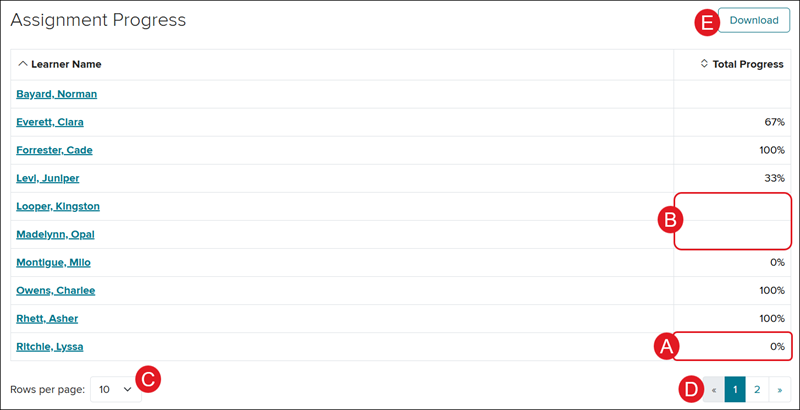
A. Students that have started the assignment, but have not completed any concepts, will show at 0%.
B. Students that do not show a percentage in the Total Progress column have not yet begun the assignment.
C. Select how many Rows per page you want to view by clicking the drop-down.
D. Navigate between pages by clicking on the previous and next arrows or selecting a number.
E. Click the Download button to print/save a CSV file of the report.
Completion Time Report
This is an overall class report that includes information on time spent in the SmartBook assignment.
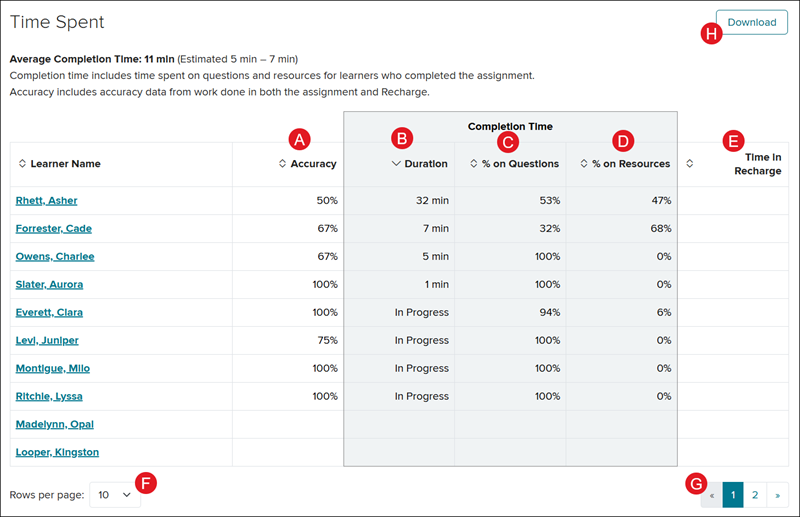
A. Accuracy - includes data from the work done in both the assignment and the Recharge.
B. Duration - includes the time spent on the questions and resources/reading for the students who have completed the assignment.
C. % (percentage) on Questions - provides a percentage of the Completion Time that was spend on the questions portion of the assignment.
D. % (percentage) on Resources - provides a percentage of the Completion Time that was spent on the resources/reading portion of the assignment.
E. Time in Recharge - includes the time spent in the Recharge after the student has completed the assignment.
F. Select how many Rows per page you want to view by clicking the drop-down.
G. Navigate between pages by clicking on the previous and next arrows or selecting a number.
H. Click the Download button to print/save a CSV file of the report.
Learners' Metacognition Report
This is an overall class report that provides percentage data for each student. The data is based on how confident the student was when submitting their answers on the question portion of the SmartBook assignment.
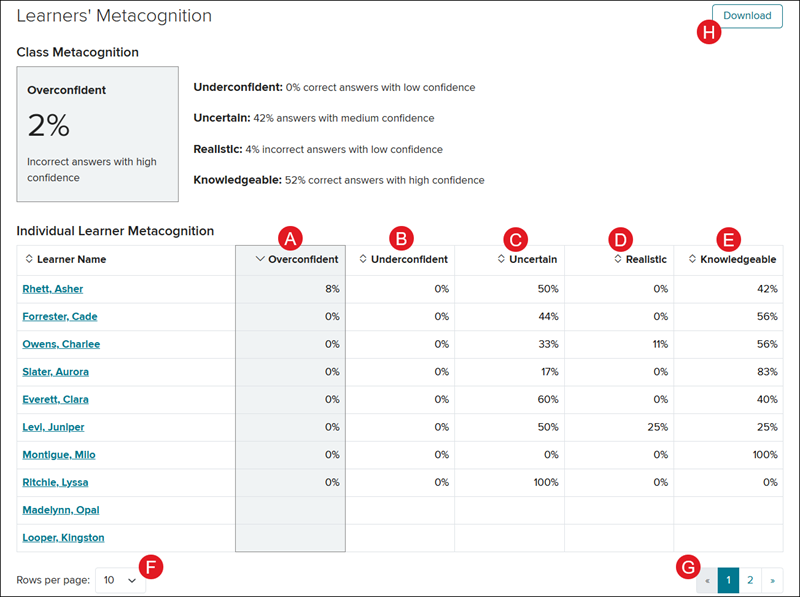
A. Overconfident - provides the percentage of incorrect answers the student submitted while choosing the High Confidence option.
B. Underconfident - provides the percentage of correct answers the student submitted while choosing the Low Confidence option.
C. Uncertain - provides the percentage of answers the student submitted while choosing the Medium Confidence option.
D. Realistic - provides the percentage of incorrect answers the student submitted while choosing the Low Confidence option.
E. Knowledgeable - provides the percentage of correct answers the student submitted while choosing the High Confidence option.
F. Select how many Rows per page you want to view by clicking the drop-down.
G. Navigate between pages by clicking on the previous and next arrows or selecting a number.
H. Click the Download button to print/save a CSV file of the report.
Challenging Concepts Report
This report provides information on each of the concepts covered in the SmartBook assignment.
The Challenging Concept page provides a list of concepts the students struggled with while completing the question portion of the assignment.
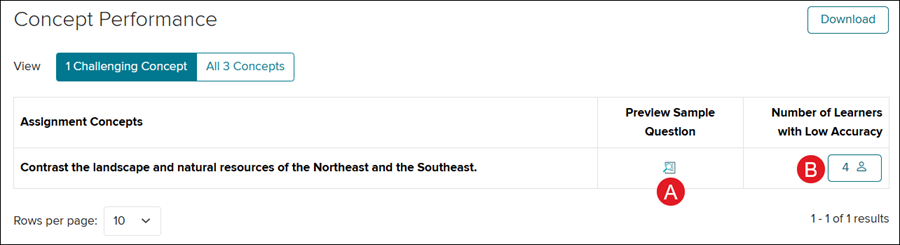
A. Click the Preview Sample Question icon to view an example of a question provided to the students for that concept.
B. Click the Number of Learners with Low Accuracy icon to view the list of students who struggled with this concept.
The All Concepts page provides a list of all concepts that were covered in the question portion of the assignment.
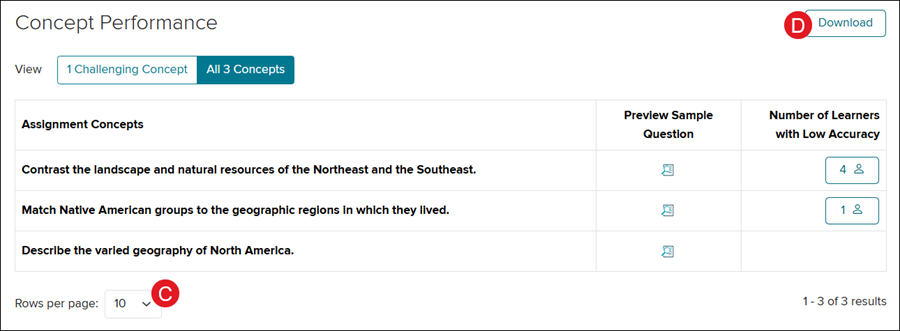
C. Select how many Rows per page you want to view by clicking the drop-down.
D. Click the Download button to print/save a CSV file of the report.
Individual Student Reports
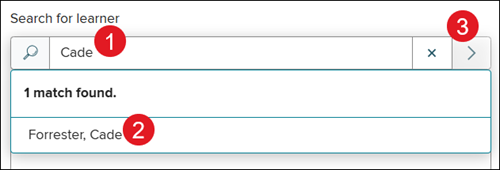
1. To view individual student reports, from the main SB Assignment Report page, search for a student in the Search for learner field.
2. Select the student from the menu.
3. Click the Go to Learner Details button.
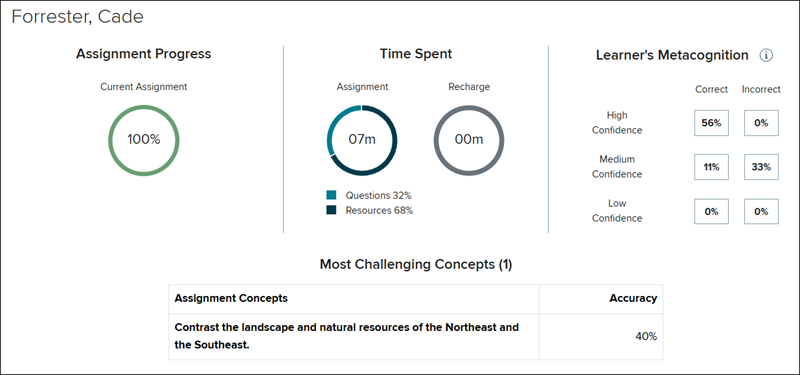
The report provides information on the student's Assignment Progress, Time Spent, Learner's Metacognition, and Most Challenging Concepts.
Note: The learner's confidence level reflects their awareness of their performance. Focus on areas where the learner's confidence level doesn't match their performance.