Set K-12 Connect® Assignments Extensions
Instructions on how to set individual student extensions for Connect® assignments.
- PreK-12
- Customer Support
- Classroom Teacher
- High School
- Direct Login & Auto-Rostering
- Direct Login & Manual-Rostering
- SSO & Auto-Rostering
- SSO & Manual-Rostering
- AP, Honors & Electives
- AP Connect
- Grades & Assignments


The following will guide you through setting individual student extensions for a specific assignment. This is different from setting personal time extensions for students from the roster. For steps on setting personal time extensions, see the Manage K-12 Connect® Class Roster article.
1. Click on the section name.
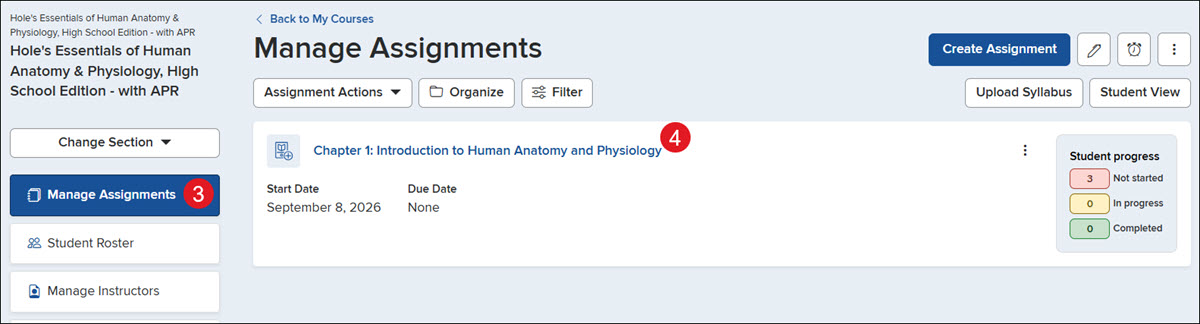
3. From Manage Assignments, click the assignment name.
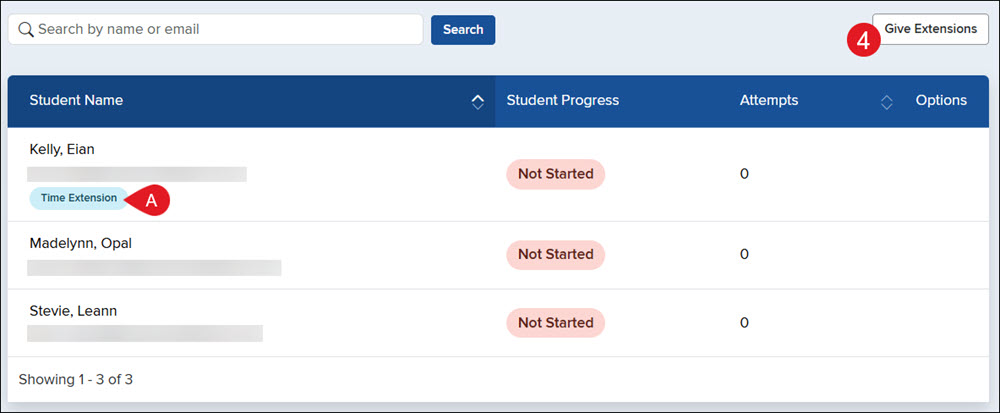
4. Click the Give Extensions button.
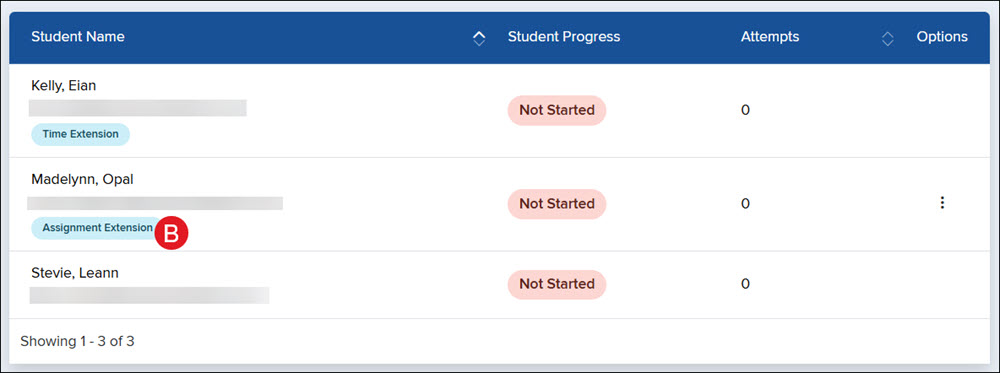
A. If a student has a personal time extension set, there will be a Time Extension tag under their name.
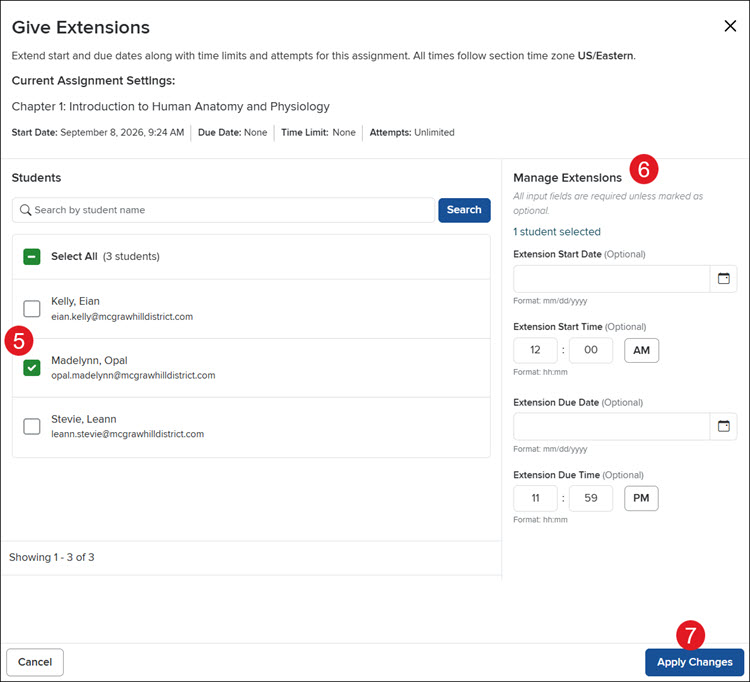
5. Checkmark the student(s) you want to set extensions for.
6. Enter an Extension Start Date, Start Time, Due Date, and/or Due Time.
7. Click the Apply Changes button.
B. An Assignment Extension tag will show under the student's name.
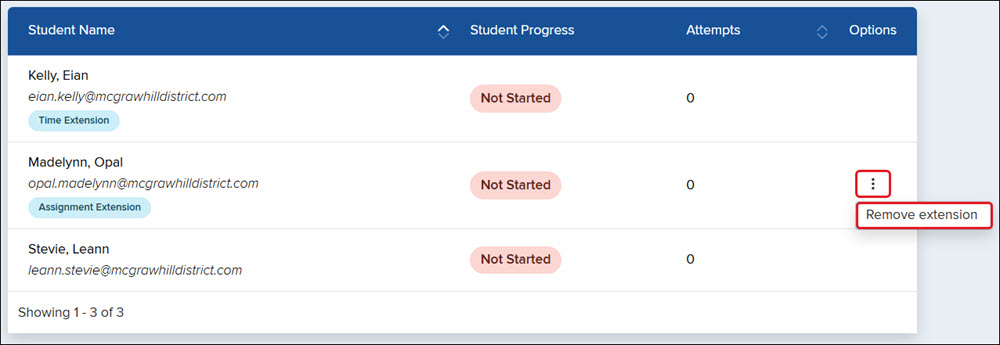
To remove the assignment extension, click the Options icon to the right of the student, then click Remove extension from the menu.
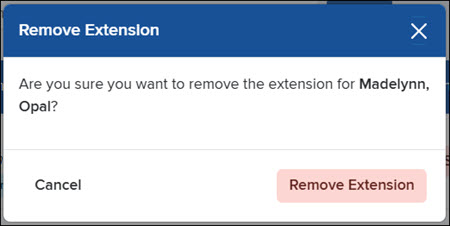
Click the Remove Extension button on the pop-up to confirm.