
PRoPL Testing Day Proctor Directions and Script
Instructions on how to access the PRoPL assessment and what should be provided to the students.
- Customer Support
- PreK-12
- Classroom Teacher
- Elementary School
- Middle School
- High School
- Direct Login & Auto-Rostering
- Direct Login & Manual-Rostering
- SSO & Auto-Rostering
- SSO & Manual-Rostering
- Core
- Supplemental
- Literacy
- Math
- CA Reveal Math (K-12)
- Reveal Math (K-12)
- McGraw Hill Literacy Emerge!
- McGraw Hill Literacy Summit!
- McGraw Hill Literacy Soar!
- ALEKS
- Online Assessments
- Tools & Resources


View the demo in a separate tab.
View the Spanish version of the demo.
Article Contents
Proctors can access the Proctor Dashboard to monitor students as they complete the assessment.
Proctors can enable the assessment, pause the assessment as needed, restart the assessment, and power the assessment off for the entire class or individual students. These features are designed to support smooth test administration in case of technical issues, emergencies, or other interruptions.
For grades 3-8, the assessment is computer-adaptive and therefore cannot be fully restarted from the beginning. If a student experiences a technical issue or needs to temporarily step away, the test can be paused and then resumed from the exact point where the student left off. This ensures that student progress is preserved and that testing can continue with minimal disruption.
Proctors should remind all students to make sure they officially submit their test by clicking “Submit Final Answers”.
Proctor Whole Group
1. SSO or log in at my.mheducation.com.
2. Launch the course.
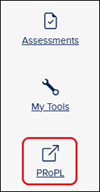
3. Click on PRoPL from the navigation menu.
The assessment program will open in a separate browser tab.
4. Click the Disabled toggle to Enable the assessment.
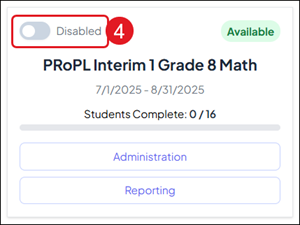
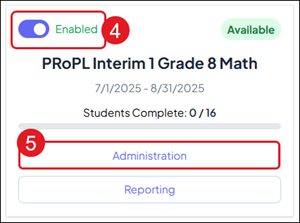
Note: Students will not be able to access the assessment unless the toggle is turned on.
5. Click the Administration button on the assessment.
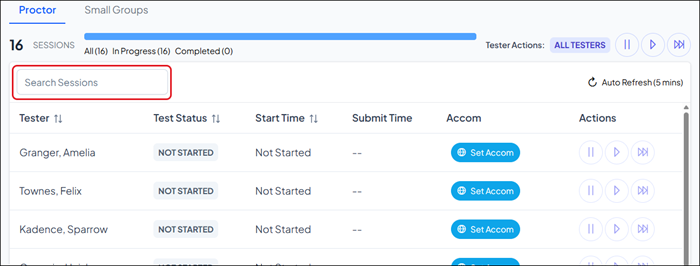
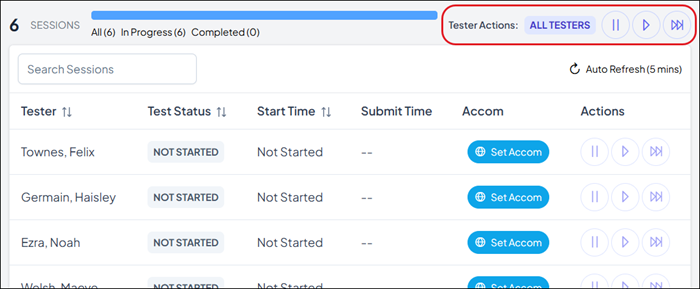
Each student rostered to the assessment will be listed in the Tester column, along with their Test Status, Start Time, Submit Time, and any Accommodations they have set.
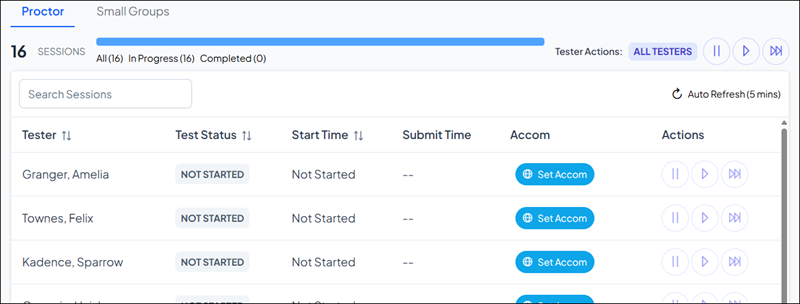
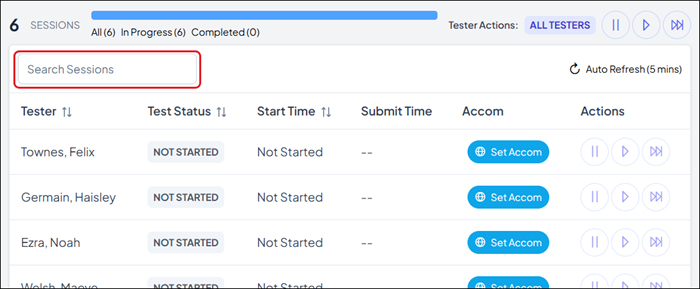
Use the Search Sessions field to locate a specific student.
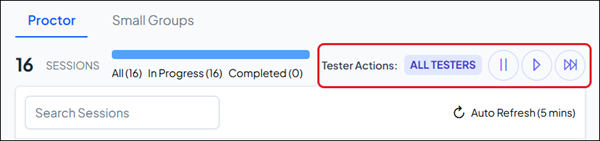
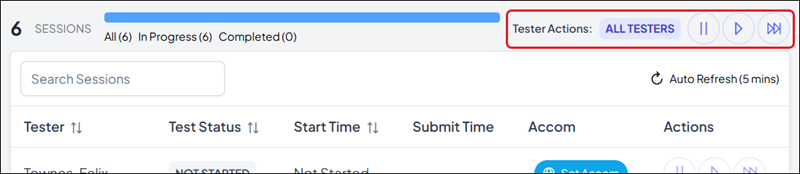
The whole class proctor can Pause, Resume, and Force Submit for all students rostered to that assessment.
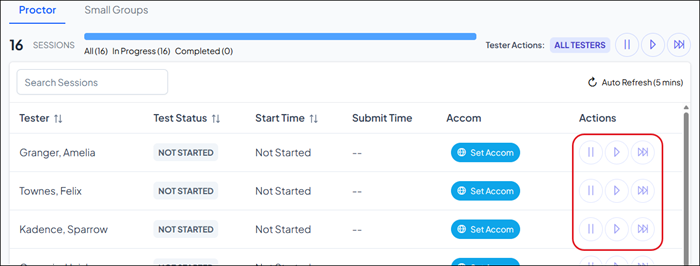
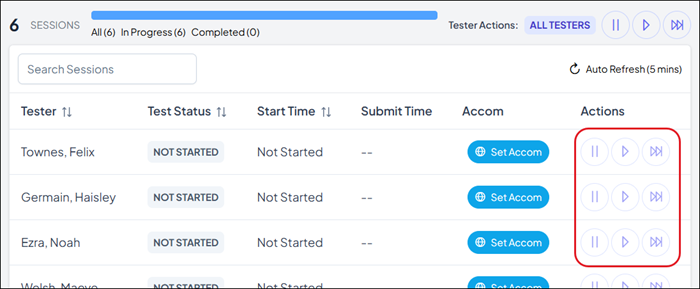
They also have these options for each individual student.
Proctor Small Group
To proctor a small group, the proctor will need to be provided with the Proctor URL and Access Code.
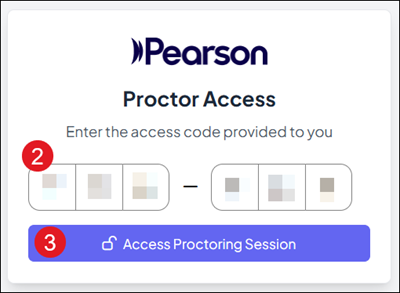
1. Navigate to the Proctor URL.
2. Enter the Access Code provided.
3. Click the Access Proctoring Session button.
Each student rostered to the assessment will be listed in the Tester column, along with their Test Status, Start Time, Submit Time, and any Accommodations they have set.
Use the Search Sessions field to locate a specific student.
The Small Group class proctor can Pause, Resume, and Force Submit for all students rostered to that assessment.
They also have these options for each individual student.
Student Instruction
The following should be read aloud to students before they start testing.
All Students
“Today you will be taking the PRoPL math assessment. This should take you about 35-40 minutes to complete, but you may take longer if needed. The results from this test will help identify what you know and can do at this point in the year. Therefore, it is important that you try your best. Login to your Reveal Math Course and click on the PRoPL icon.”
After Student Login
Grades K and 1 students:
“You have the option to listen to the questions by clicking the audio arrow. You will need to click it for each question you want read to you. As you answer questions, you may go back at any time and review questions you’ve already answered. Remember to answer all the questions.”
“Once you have completed all the questions, you must click “Submit Final Answers.”’
“Click Start Assessment, and you may begin.”
Grade 2 students:
“Read the directions for each question and then select the best response. You may select test questions that you want to go back to and review your answers. You may go back at any time to review previously answered questions. Remember to answer all the questions.”
“Once you have completed all the questions, you must click “Submit Final Answers.”’
“Click Start Assessment, and you may begin.”
Grades 3-8 students:
“Read the directions for each question and then select the best response. Once you have clicked to go to the next question, you will not be able to go back and review the previous question.”
“Once you have completed all the questions, you must click “Submit Final Answers.”’
“Click Start Assessment, and you may begin.”
