PRoPL Small Group Management
Learn how to create small groups for PRoPL testing.
- Customer Support
- PreK-12
- Classroom Teacher
- Elementary School
- Middle School
- High School
- Direct Login & Auto-Rostering
- Direct Login & Manual-Rostering
- SSO & Auto-Rostering
- SSO & Manual-Rostering
- Core
- Supplemental
- Literacy
- Math
- CA Reveal Math (K-12)
- Reveal Math (K-12)
- McGraw Hill Literacy Emerge!
- McGraw Hill Literacy Summit!
- McGraw Hill Literacy Soar!
- ALEKS
- Online Assessments
- Class Management


View the demo in a separate tab.
View the Spanish version of the demo.
Small groups for a Pearson Review of Progress & Learning (PRoPL) assessment completion can be created for students that need to be tested in a smaller group environment for various reasons.
Article Contents
Create a Small Group
1. SSO or log in at my.mheducation.com.
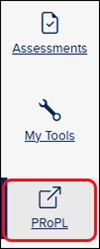
2. Launch PRoPL from the navigation menu.
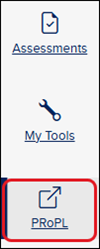
The assessment program will open in a separate browser tab.
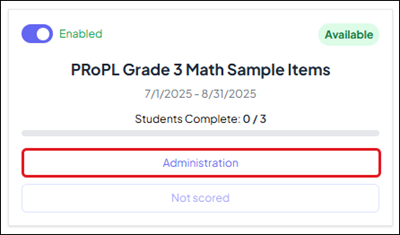
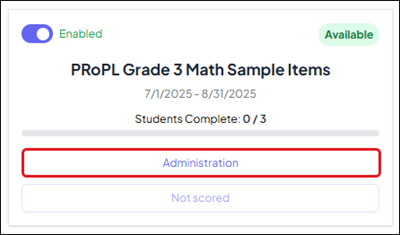
3. Click the Administration button on the PRoPL assessment you want to create a Small Group for.
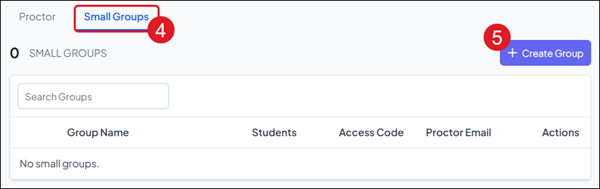
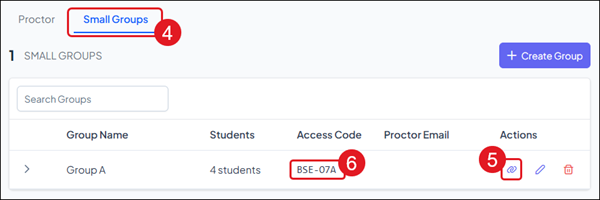
4. Click the Small Groups tab.
5. Click the +Create Group button.
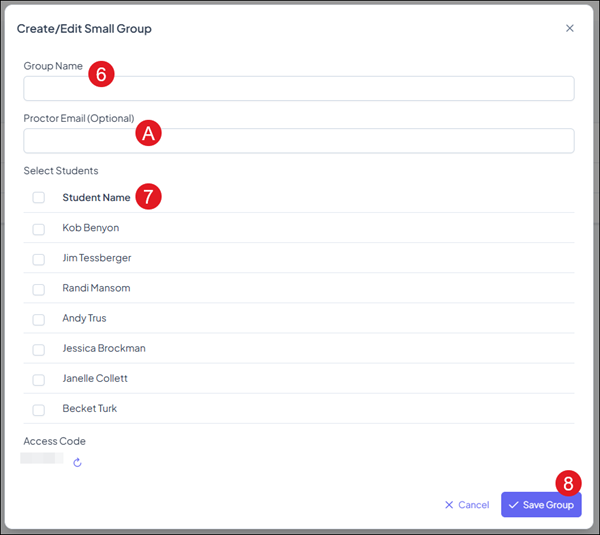
6. On the Create/Edit Small Group pop-up, enter a Group Name.
A. Enter a Proctor Email if someone other than yourself will be proctoring the assessment.
7. Select the Students you want in the small group.
8. Click the Save Group button.
Proctor Link and Access Code
If a small group is created, a separate Proctor Link and Access Code is created and will need to be provided to the proctor for them to be able to administer the assessment.
1. SSO or log in at my.mheducation.com.
2. Launch PRoPL from the navigation menu.
3. Click the Administration button on the PRoPL assessment you want to create a Small Group for.
4. Click the Small Groups tab.
5. Click the Copy Proctor Link icon in the Actions column to obtain the link the proctor will need.
6. Copy/provide the Access Code that is provided for the Group.
Note: Each small group will have their own Proctor Link and Access Code.
Edit Small Group
1. SSO or log in at my.mheducation.com.
2. Launch PRoPL from the navigation menu.
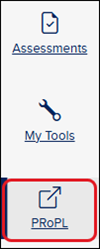
3. Click the Administration button on the PRoPL assessment you want to create a Small Group for.
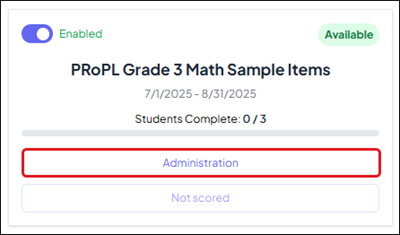
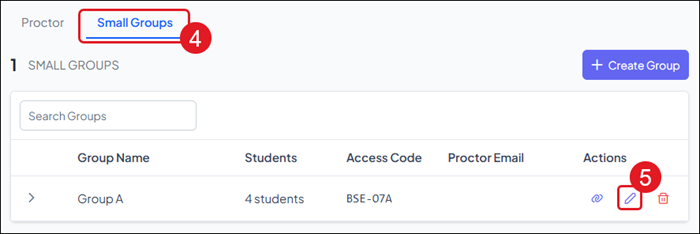
4. Click the Small Groups tab.
5. Click the Edit Group icon in the Actions column.
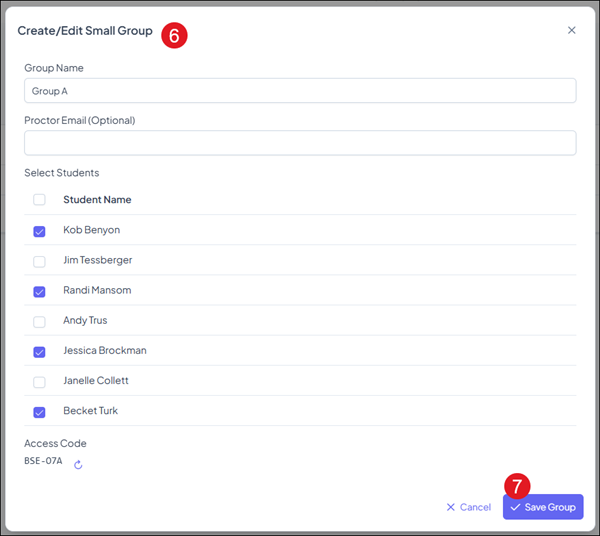
6. On the Create/Edit Small Group pop-up, make preferred changes.
7. Click the Save Group button.
Delete Small Group
1. SSO or log in at my.mheducation.com.
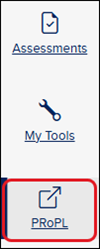
2. Launch PRoPL from the navigation menu.
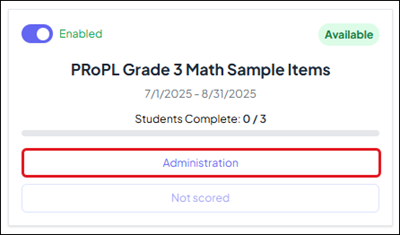
3. Click the Administration button on the PRoPL assessment you want to create a Small Group for.
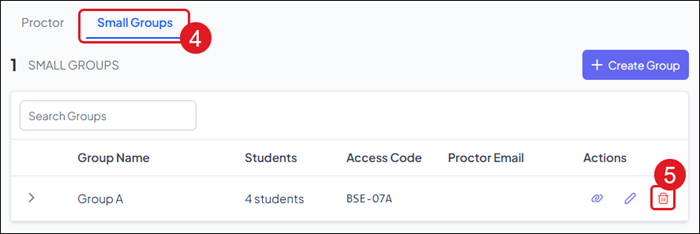
4. Click the Small Groups tab.
5. Click the Delete Group icon in the Actions column.
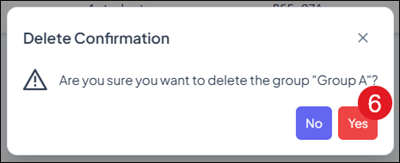
6. On the Delete Confirmation pop-up, click the Yes button.