PRoPL Administrator Reports
Discover how to access, view, and navigate the PRoPL Administrator Reports.
- Customer Support
- PreK-12
- School Administrator
- Elementary School
- Middle School
- High School
- Direct Login & Auto-Rostering
- Direct Login & Manual-Rostering
- SSO & Auto-Rostering
- SSO & Manual-Rostering
- Core
- Supplemental
- Literacy
- Math
- CA Reveal Math (K-12)
- Reveal Math (K-12)
- ALEKS
- McGraw Hill Literacy Emerge!
- McGraw Hill Literacy Summit!
- McGraw Hill Literacy Soar!
- Reports & Analytics


The Pearson Review of Progress & Learning (PRoPL) is a computer-based interim assessment intended to be administered three times throughout the school year to measure student growth. PRoPL covers a broad set of academic standards to provide information about what students know and can do.
PRoPL is designed to provide scores and performance levels for a specific content area (i.e., math or reading). In addition, PRoPL provides information by reporting category (e.g., Reading for Information or Numbers and Operations in Math) and Lexile (reading) scores. Growth in student performance from one assessment to the next within a given instructional year is shown in the reports.
Article Contents
Access PRoPL Reports
1. SSO or sign in at my.mheducation.com.
If you have both the teacher role and an administrator role, you will need to toggle to your Administrator account.
2. Click on Administrator Dashboard from the navigation menu.
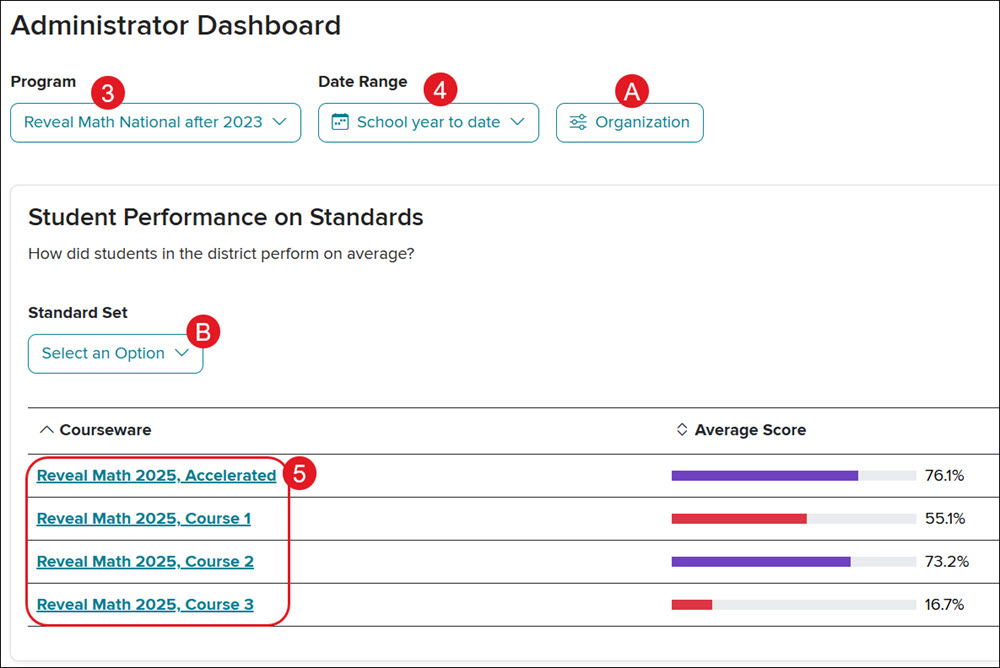
3. Select a Program from the drop-down.
4. Select the Date Range.
A. Click the Organization button to filter to a specific district and/or school.
B. View a specific standard set by selecting an option from the Standard Set drop-down.
5. Click on the Courseware link.
6. Click the PRoPL Report link to the right of the assessment.

After students complete testing, their perforamnce and results will populate in administrator reports wtihin 24 hours.
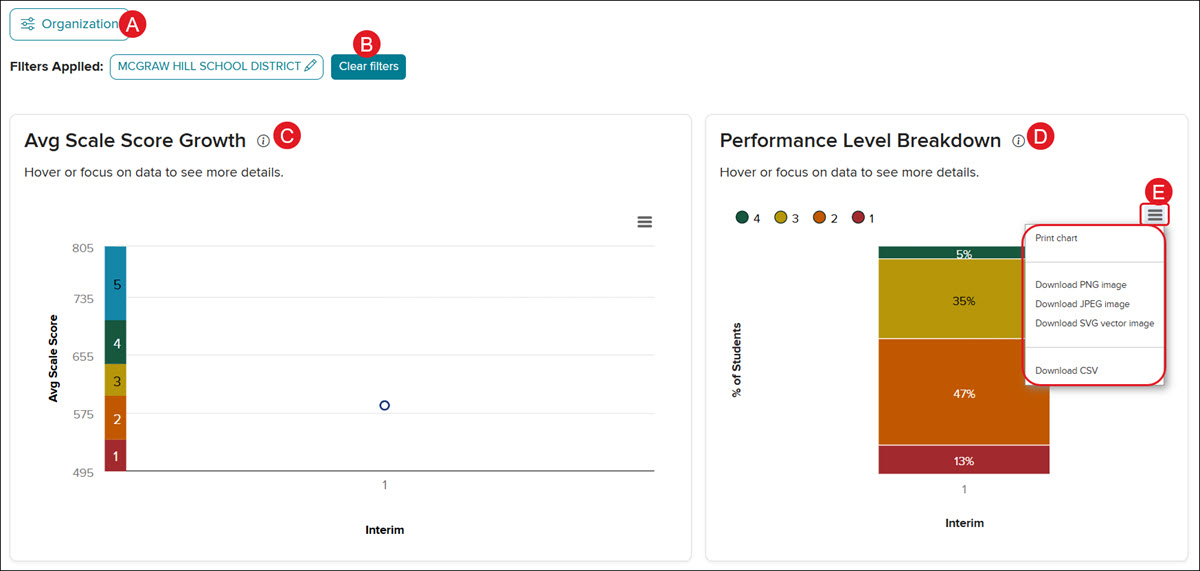
A. The default school report view shows all schools associated with the district. Click the Organization button to view specifc schools within the district.
B. Click the Clear filters button to navigate back to the default filter options.
C. Avg Scale Growth* - Use this chart to review how your class's average scale score has changed across the interims they have completed. Growth deltas show the change between consecutive interims.
D. Performance Level Breakdown* - This displays the distribution of students across performance levels for each interim assessment period, showing the percentage of students at each level.
*These widgets will update based on the School, Class, or Student selected view and the filters selected.
E. Click the Chart context menu to Print chart, Download a PNG, JPEG, or SVG image, or download the chart as a CSV.
Levels and Scales
For grades K-2 there are three Performance Levels, and for grades 3-8 there are five.
Scale scores are used to report test scores and aid in score interpretation. Standardized scale scores allow for the comparison of a given score with scores of other students taking the test within the same grade and subject.
PRoPL results provide visualizations indicating where average scores or a student’s score falls within the scale score range.
The scale score range for PRoPL kindergarten is 100-190, and grade 1-2 is 200-300.
Grade 1-2 Scale:

The scale score range for PRoPL grades 3-8 is on a vertical scale from 435-865. Grade level ranges are defined within each grade and intervals within that range.

School Results
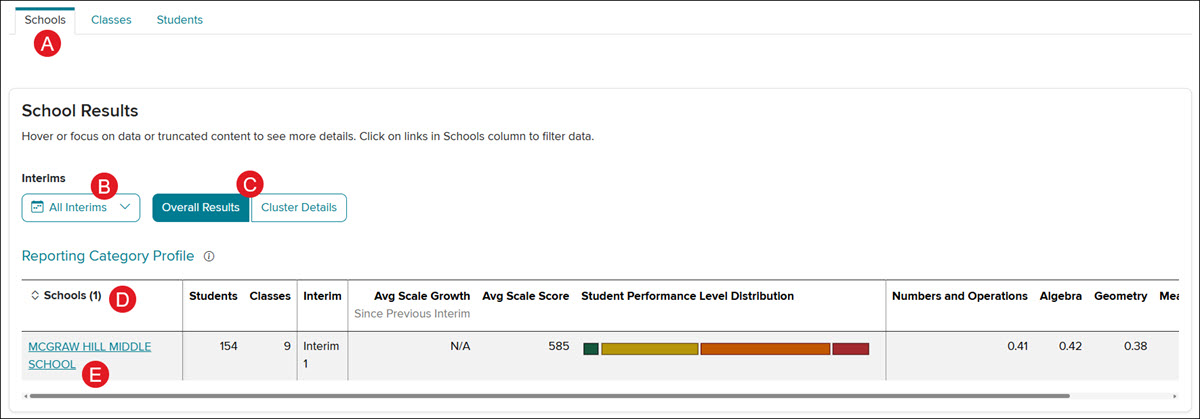
A. The School Results section opens by default to the Schools tab, which displays all schools associated with the district or only the schools selected through the Organization filter.
B. Click the Interims drop-down to view All Interims, or only Interims 1, 2, and/or 3 at a time.
C. Toggle between viewing the Overall Results (default view) or Cluster Details.
Reporting Category Profile (RCP) - This is viewable on the Overall Results view and is a probability that indicates the proportion of items out of 100 that a student would likely answer correctly, based on the correct responses at the reporting category level conditioned by the total test score. These probability values are an average of the selected students for each reporting category and can fall between 0 and 1. An RCP value in a category of 0.78 indicates that, on average, students would likely answer 78 out of 100 items similar to those on this test correctly. This data is best compared between interims (rows) and not between categories (columns).
Standards Clusters - This is viewable on the Cluster Details view and provides a table that shows how many questions students answered correctly within each cluster. Based on the number of correct answers, it will show as low, medium, or high indication. Clusters marked as high are areas of strength. Clusters marked low or medium are areas that teachers may want to focus attention. Due to the adaptive nature of this assessment, not all students receive questions in every cluster on each Interim. The full breadth of standards is assessed over the course of the year.
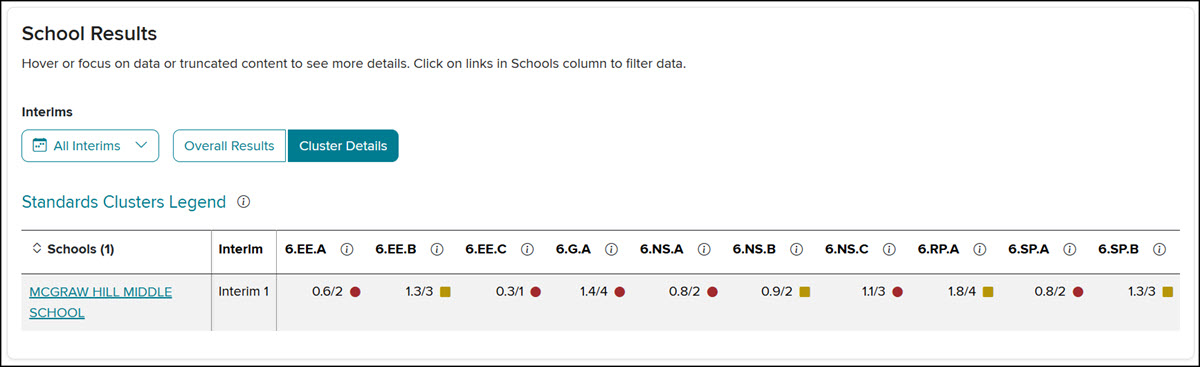
D. Click on the Schools header to organize the list by this column.
E. Click on a School name to navigate to the Class Results page for that school.
Class Results
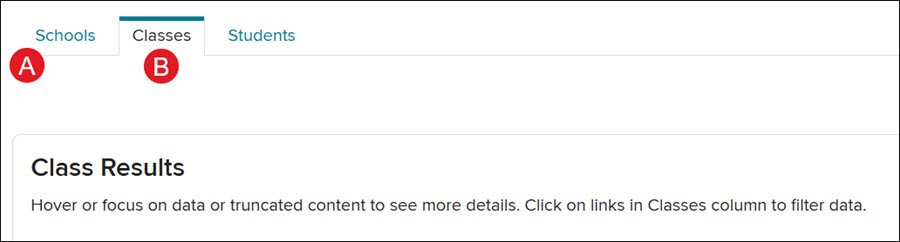
Individual class results can be accessed by clicking on a School name from the Schools tab (A), or by clicking on the Classes tab (B).
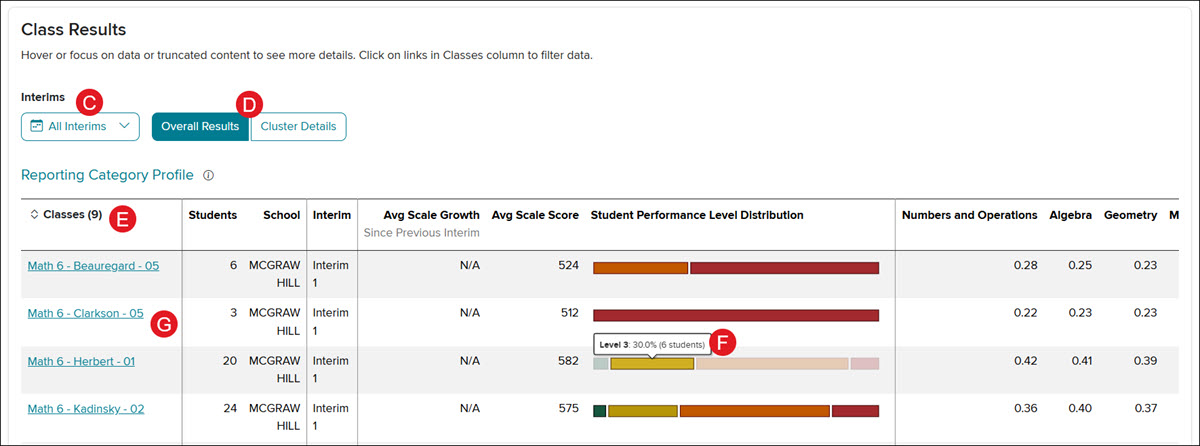
C. Click the Interims drop-down to view All Interims, or only Interims 1, 2, and/or 3 at a time.
D. Toggle between viewing the Overall Results (default view) or Cluster Details.
Reporting Category Profile (RCP) - This is viewable on the Overall Results view and is a probability that indicates the proportion of items out of 100 that a student would likely answer correctly, based on the correct responses at the reporting category level conditioned by the total test score. These probability values are an average of the selected students for each reporting category and can fall between 0 and 1. An RCP value in a category of 0.78 indicates that, on average, students would likely answer 78 out of 100 items similar to those on this test correctly. This data is best compared between interims (rows) and not between categories (columns).
Standards Clusters - This is viewable on the Cluster Details view and provides a table that shows how many questions students answered correctly within each cluster. Based on the number of correct answers, it will show as low, medium, or high indication. Clusters marked as high are areas of strength. Clusters marked low or medium are areas that teachers may want to focus attention. Due to the adaptive nature of this assessment, not all students receive questions in every cluster on each Interim. The full breadth of standards is assessed over the course of the year.
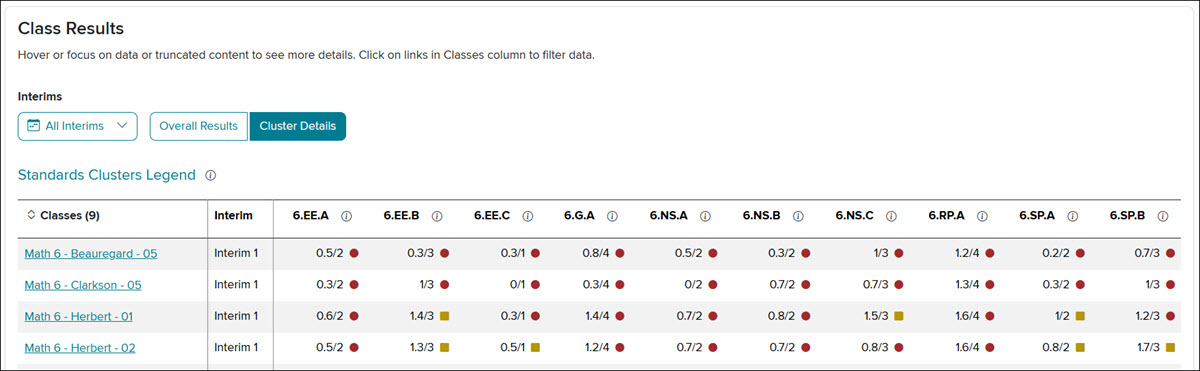
E. Click on the Classes header to organize the list by this column.
F. Hover over the Student Performance Level Distribution bar graph on the Overall Results view to see the percentage and number of students for that Level.
G. Click on a Classes name to navigate to the Student Results page for that class.
Student Results
The Student Results page can be viewed by clicking on a Class name from the Classes tab (A), or by clicking on the Students tab (B).
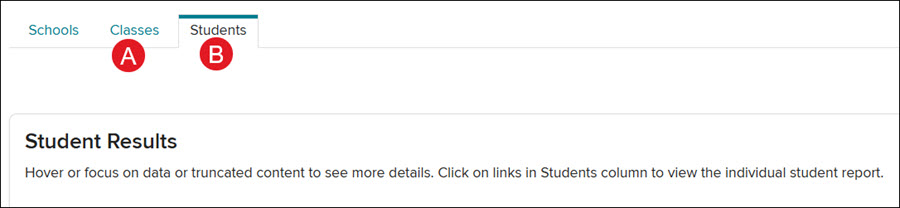
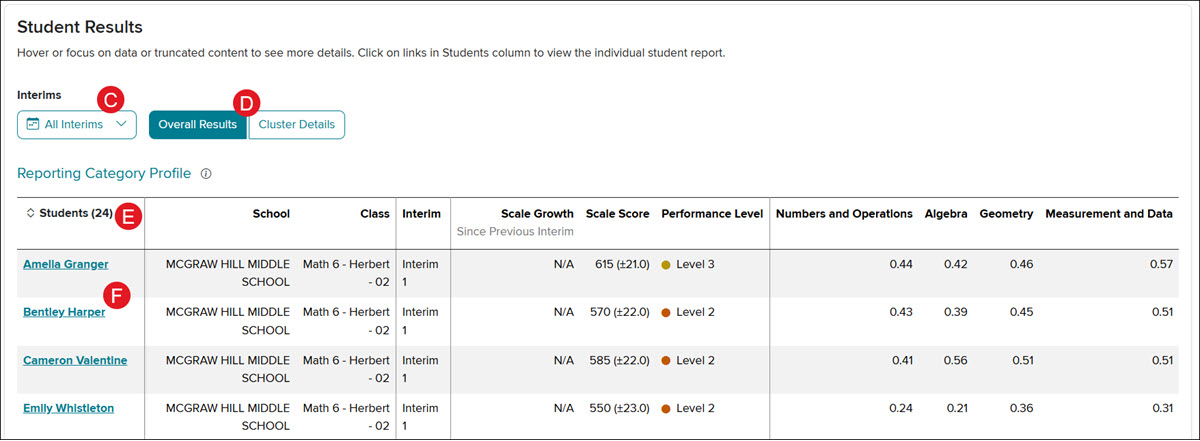
C. Click the Interims drop-down to view All Interims, or only Interims 1, 2, and/or 3 at a time.
D. Toggle between viewing the Overall Results (default view) or Cluster Details.
Reporting Category Profile (RCP) - This is viewable on the Overall Results view and is a probability that indicates the proportion of items out of 100 that a student would likely answer correctly, based on the correct responses at the reporting category level conditioned by the total test score. These probability values are an average of the selected students for each reporting category and can fall between 0 and 1. An RCP value in a category of 0.78 indicates that, on average, students would likely answer 78 out of 100 items similar to those on this test correctly. This data is best compared between interims (rows) and not between categories (columns).
Standards Clusters - This is viewable on the Cluster Details view and provides a table that shows how many questions students answered correctly within each cluster. Based on the number of correct answers, it will show as low, medium, or high indication. Clusters marked as high are areas of strength. Clusters marked low or medium are areas that teachers may want to focus attention. Due to the adaptive nature of this assessment, not all students receive questions in every cluster on each Interim. The full breadth of standards is assessed over the course of the year.
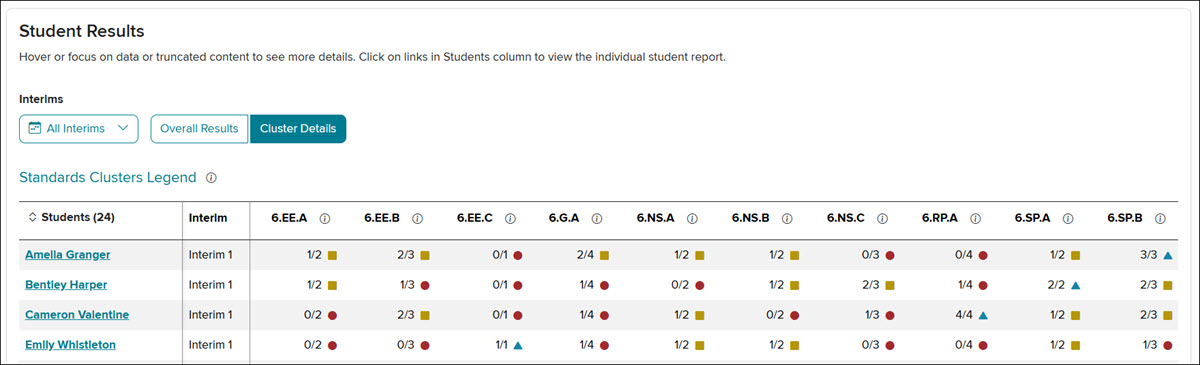
E. Click on the Students header to organize the list by this column.
F. Click on a Student name to navigate to the Individual Student Report page for that class.
Individual Student Report
The Inidividual Student Report is accessible by clicking on the student's name from the Students tab.
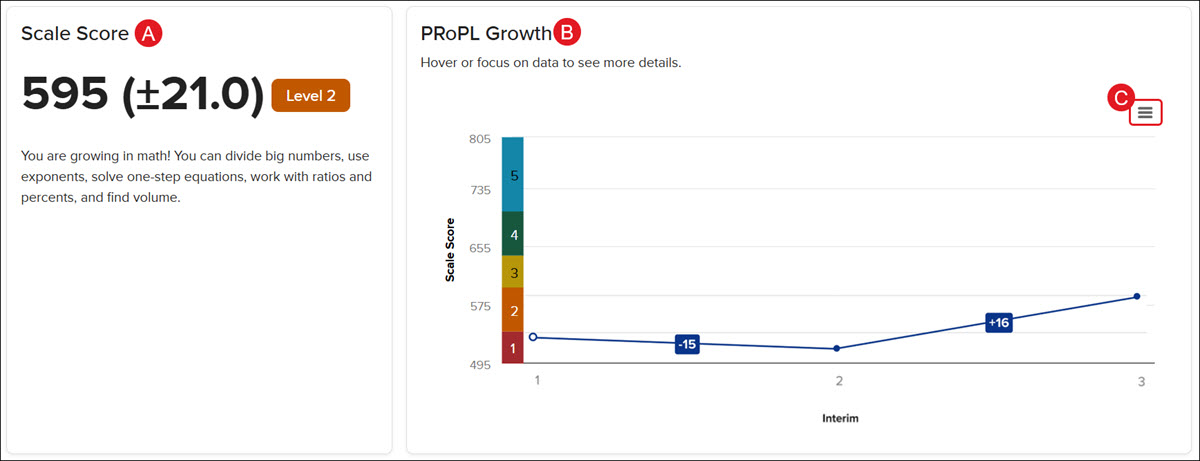
The PRoPL Individual Student Report (ISR) is divided into multiple sections that work together to paint a picture of student growth and performance over time:
A. The Scale Score widget shows the student's average score and current Performance Level based on the PRoPL assessments that have been completed.
B. The PRoPL Growth line graph shows the student's progression over the course of assessments completed.
C. Click the Chart content menu icon on the PRoPL Growth widget to print the chart and/or download a PNG, JPEG, or SVG vector image of the graph.
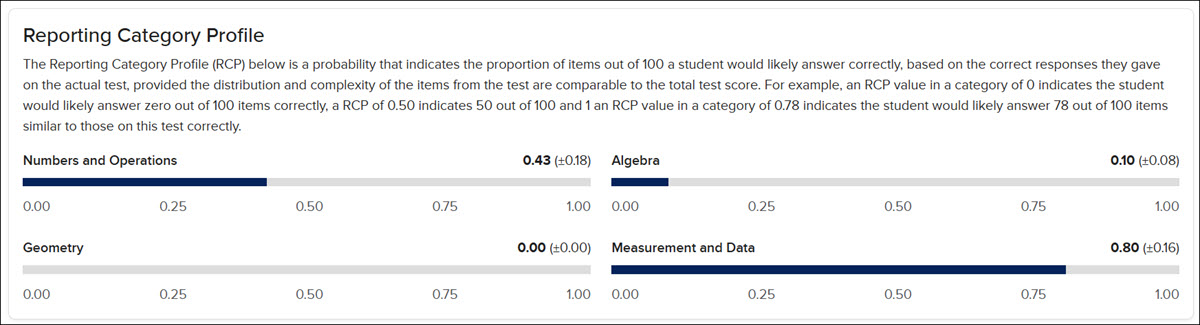
D. The Reporting Category Profile widget is a probability that indicates the proportion of items out of 100 that a student would likely answer correctly, based on the correct responses they gave on the actual test, provided the distribution and complexity of the items from the test are comparable to the total test score. For example, an RCP value in a category of 0 indicates the student would likely answer zero out of 100 items correctly; an RCP of 0.50 indicates 50 out of 100; and 1 an RCP value in a category of 0.78 indicates the student would likely answer 78 out of 100 items similar to those on this test correctly.
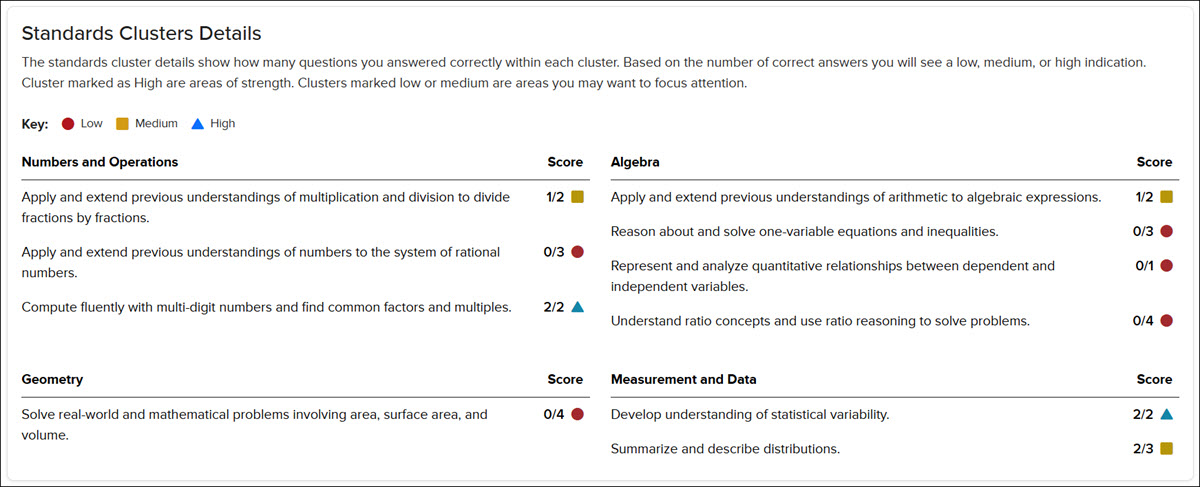
E. The Standards Clusters Details widget shows how many questions the student answered correctly within each cluster. Based on the number of correct answers, you will see a low, medium, or high indication. Clusters marked as higher are areas of strength. Clusters marked low or medium are areas the teacher may want to focus attention on.
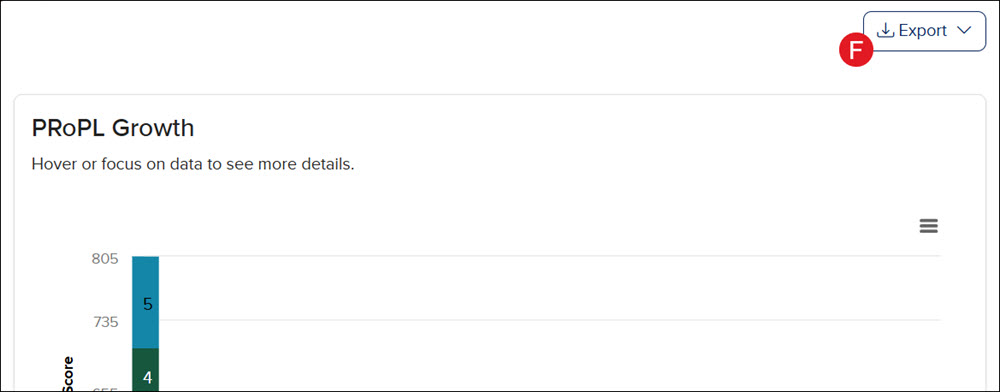
F. Click the Export button at the top right of the Individual Student Report page to download/save the report in PDF format.