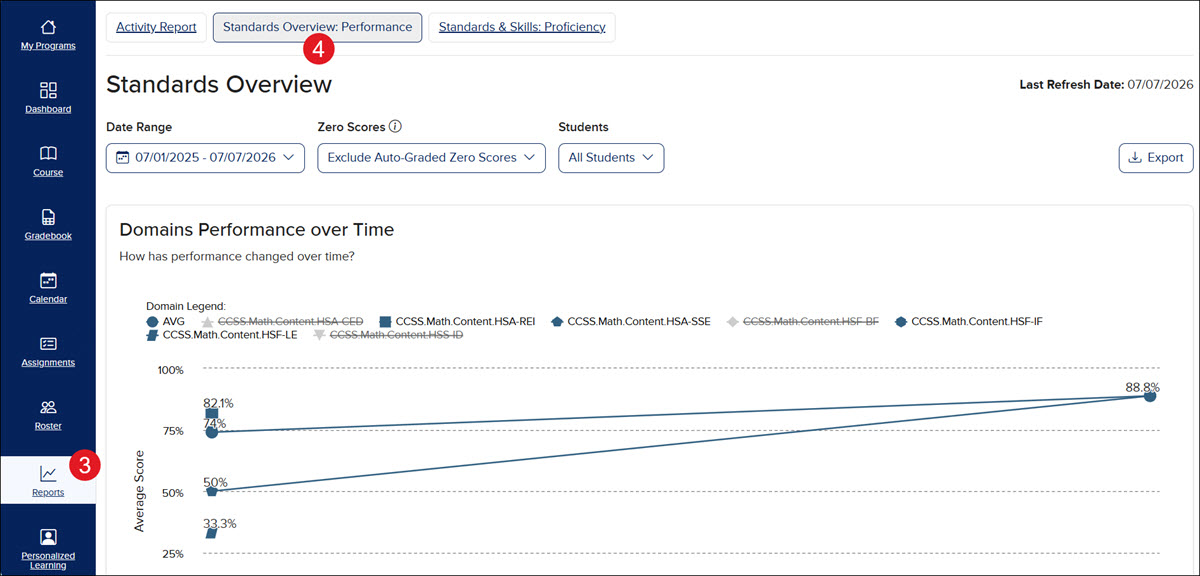
4. Click the Standards Overivew: Performance button.
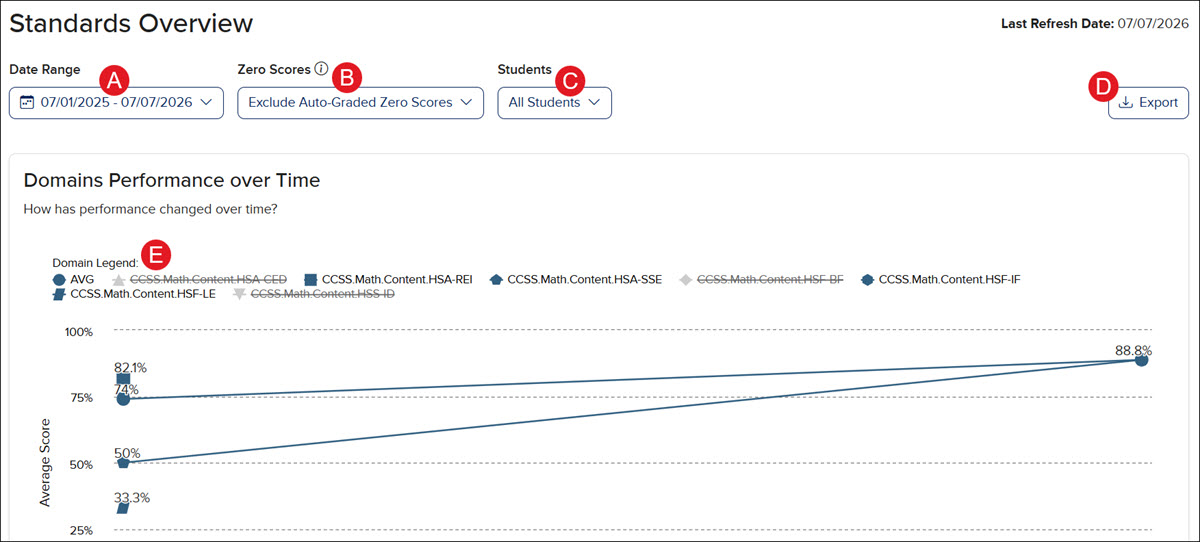
Domains Performance Over Time
A. Click on the Date Range drop-down to view the School year to date(July 1st is considered the first day of school), Last Day, Last 7 Days, Last 30 Days, or Custom range of dates for the data provided.
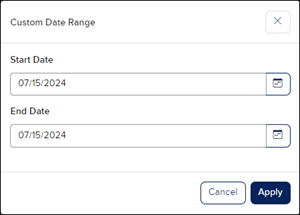
If you select Custom, select the range of dates you want to filter the data for on the Custom Date Range pop-up and click the Apply button.
B. Click the Zero Scores drop-down to select to Exclude Auto-Graded Zero Scores or Include Auto-Graded Zero Scores in the report view. The default is set to exclude the zero scores. Students who submitted assignments but scored zero will still appear in the reports.
C. Click the Students drop-down to select a specific student to view data for.
D. Click the Export button to download a XLSX file of the report.
E. Click on a Domain from the legend to activate or deactivate it from the line graph.
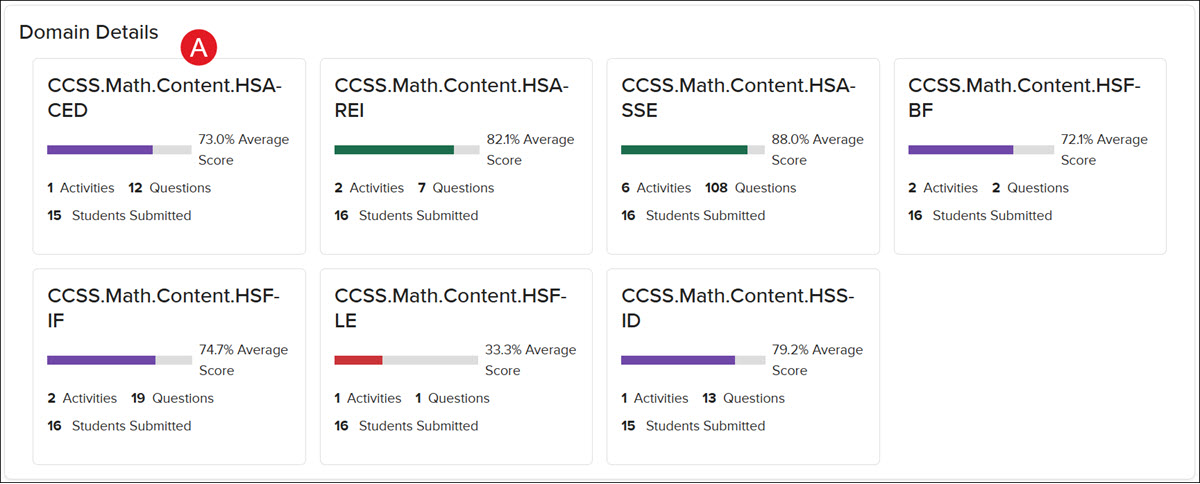
Domain Details
A. Domain Details - Click on a Domain to navigate to the Performance Details page.
The Performance Details page can also be accessed by clicking on a standard for an activity on the Activities Overview report and then clicking on the Overall Performance Details link on the pop-up.
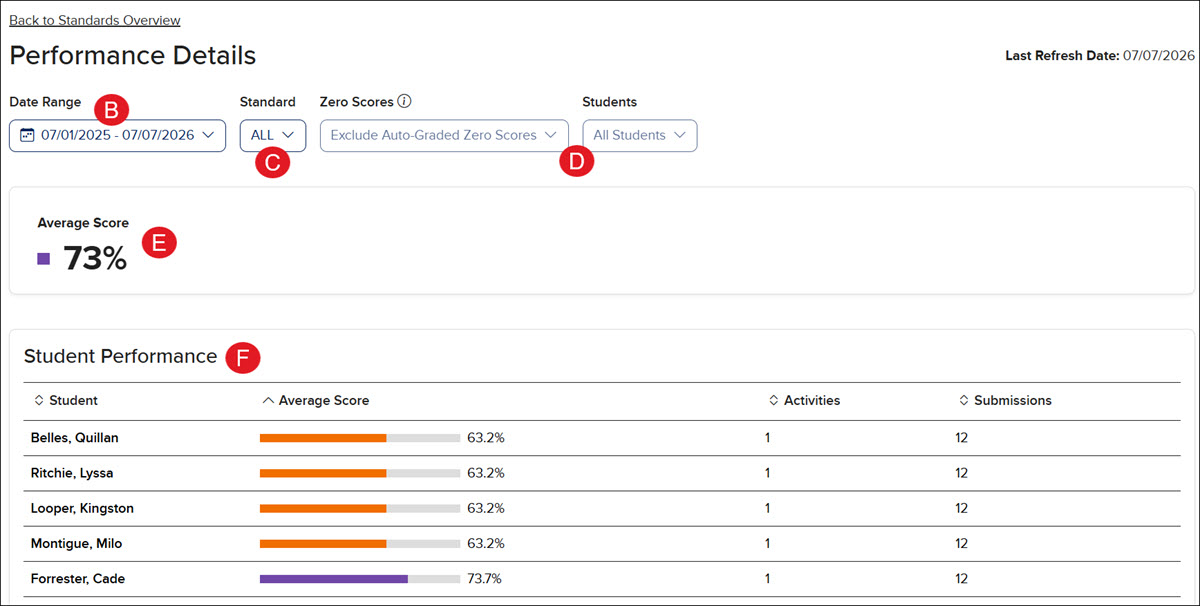
B. Date Range - Click on the Date Range drop-down to view the School year to date(July 1st is considered the first day of school), Last Day, Last 7 Days, Last 30 Days, or Custom range of dates for the data provided.
C. Standard - Select an option from the drop menu to view a specific standard in the Student Performance bar graph.
E. Average Score - The percentage of the class average score for the selected filter options.
F. Student Performance - A bar graph that includes every student who has submitted work based on the filters selected. This graph includes each student's Average Score, number of completed Activities, and number of Submissions.
Standards To Focus On
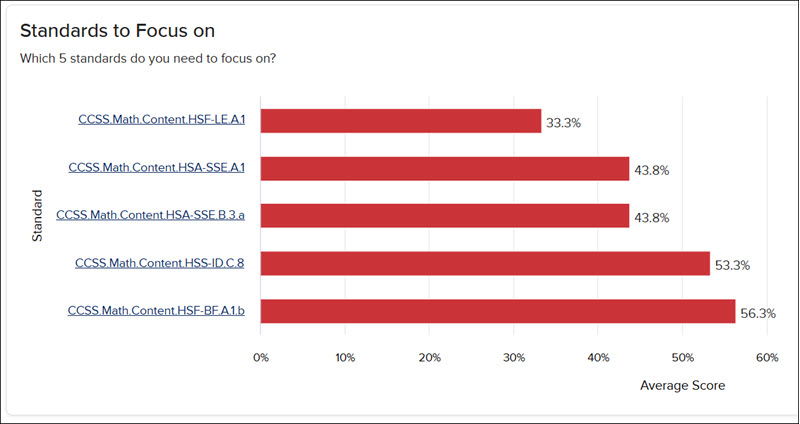
The Standards to Focus on bar graph shows the top 5 standards that have the lowest Average Score percentage for the class. Click on one of the five standards listed to navigate to the Performance Details page.
Standard Details
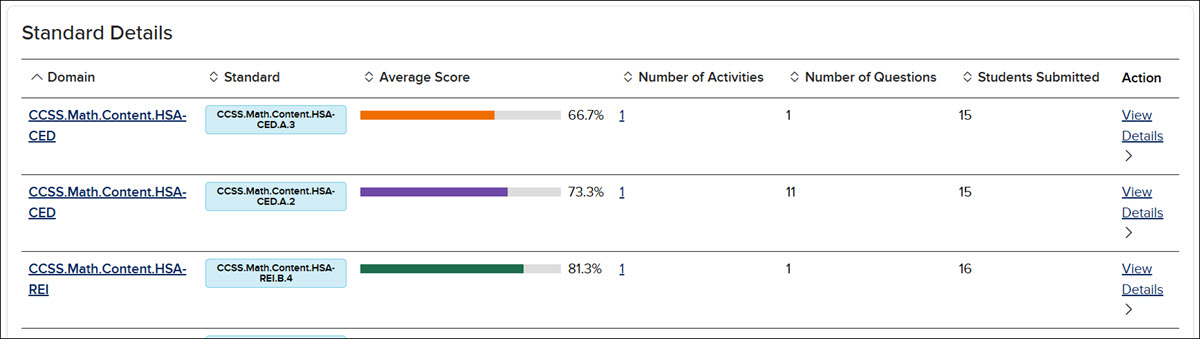
The Standard Details lists all the Domains and the Standards associated with those domains that have been assigned, the Average Score for the class for each Standard, the Number of Activities, and Questions associated with each standard, and how many Students Submitted assignments for each standard. Click on the Domain or View Details link to navigate to thePerformance Details page.
ap-edition
5-steps-to-a-5-test-prep
glencoe-health
teen-health
arrive-math
building-blocks
number-worlds
reading-laboratory
reading-mastery
mcgraw-hill-literacy
open-court-reading
reveal-math
illustrative-math
inspire-science
mcgraw-hill-science
impact
mh-social-studies
asi-se-dice
mcgraw-hill-cte
mcgraw-hill-math
instructor
prek-12
Customer Support, PreK-12, Classroom Teacher, Preschool, Elementary School, Middle School, High School, Direct Login & Auto-Rostering, Direct Login & Manual-Rostering, SSO & Auto-Rostering, SSO & Manual-Rostering, Core, Intervention, Supplemental, AP, Honors & Electives, Career & Technical Education, Literacy, Math, Science, Social Studies, Health, Visual & Performing Arts, World Languages, AP Biology, AP Chemistry, AP History & Geography, AP Psychology, AP Economics, AP African American Studies, AP Precalculus, AP Statistics, AP Computer Science, AP Language and Composition, AP Public Speaking, AP Music Theory, 5 Steps to a 5 - AP Test Prep, Glencoe Health 2022, Teen Health 2021, Arrive Math, Building Blocks 2024, Building Blocks PreK 2025, Number Worlds 2024, SRA Reading Laboratory 2025, SRA Reading Mastery Transformations, McGraw Hill Literacy Emerge!, McGraw Hill Literacy Summit!, McGraw Hill Literacy Soar!, Open Court Reading 2025, CA Reveal Math (K-12), Illustrative Math, Reveal Math (K-12), CA Inspire Science 2020, FL Science 2025 (K-12), Inspire Science 2020, TN Science (K-12), TX Science 2025 (K-12), CA Impact 2019, FL Social Studies 2024 (K-12), Impact Social Studies, McGraw Hill Social Studies, Asi se Dice 2024, CTE - Business, Marketing, and Finance, CTE - Health Science, CTE - Computing and Technology, CTE - Agriculture, CTE - Culinary Arts, CTE - Early Childhood Education, CTE - Criminal Justice, Texas Math, Reports & Analytics
dts
2026-03-24T18:55:59.224-03:00
View the demo in a separate tab. View the Spanish version of the demo. Article Contents Access Standards Performance Reports Domains Performance Over Time Domain Details Standards To Focus On Standard Details Access Standards Performance Reports 1. SSO or sign in at my.mheducation.com. 2. Launch your Open Learning course. 3. Click on Reports from the navigation menu. 4. Click the Standards Overivew: Performance button. Domains Performance Over Time A. Click on the Date Range drop-down to view the School year to date (July 1st is considered the first day of school), Last Day, Last 7 Days, Last 30 Days, or Custom range of dates for the data provided. If you select Custom, select the range of dates you want to filter the data for on the Custom Date Range pop-up and click the Apply button. B. Click the Zero Scores drop-down to select to Exclude Auto-Graded Zero Scores or Include Auto-Graded Zero Scores in the report view. The default is set to exclude the zero scores. Students who submitted assignments but scored zero will still appear in the reports. C. Click the Students drop-down to select a specific student to view data for. D. Click the Export button to download a XLSX file of the report. E. Click on a Domain from the legend to activate or deactivate it from the line graph. Domain Details A. Domain Details - Click on a Domain to navigate to the Performance Details page. The Performance Details page can also be accessed by clicking on a standard for an activity on the Activities Overview report and then clicking on the Overall Performance Details link on the pop-up. B. Date Range - Click on the Date Range drop-down to view the School year to date (July 1st is considered the first day of school), Last Day, Last 7 Days, Last 30 Days, or Custom range of dates for the data provided. C. Standard - Select an option from the drop menu to view a specific standard in the Student Performance bar graph. D. Zero Scores and Students - These reflect what was selected on the Domains Performance Over Time page. E. Average Score - The percentage of the class average score for the selected filter options. F. Student Performance - A bar graph that includes every student who has submitted work based on the filters selected. This graph includes each student's Average Score, number of completed Activities, and number of Submissions. Standards To Focus On The Standards to Focus on bar graph shows the top 5 standards that have the lowest Average Score percentage for the class. Click on one of the five standards listed to navigate to the Performance Details page. Standard Details The Standard Details lists all the Domains and the Standards associated with those domains that have been assigned, the Average Score for the class for each Standard, the Number of Activities, and Questions associated with each standard, and how many Students Submitted assignments for each standard. Click on the Domain or View Details link to navigate to the Performance Details page.
Help us improve!
Let us know how we can improve our support information by providing feedback in this short survey.
Top
Regional Page Available
It looks like you're outside the United States. Do you want to see your regional version of this page?