Set Student Lexile Level for an Open Learning Class
Review how to set student Lexile levels for specific Open Learning courses.
Tags
- Customer Support
- PreK-12
- Classroom Teacher
- Elementary School
- Middle School
- High School
- Direct Login & Auto-Rostering
- Direct Login & Manual-Rostering
- SSO & Auto-Rostering
- SSO & Manual-Rostering
- Core
- Literacy
- Science
- Social Studies
- McGraw Hill Social Studies
- TX Science 2025 (K-12)
- FL Science 2025 (K-12)
- FL Social Studies 2024 (K-12)
- McGraw Hill Literacy Emerge!
- Inspire Science 2020
- CA Inspire Science 2020
- User Management
- Account Management
- Class Management


View the demo in a separate tab.
View the Spanish version of the demo.
For information on setting student IEP's, see the Set Student IEP Settings for an Open Learning Class article.
For information on setting Instruction Levels for students, see the Set Student Instruction Level for an Open Learning Class article.
- SSO or log in at my.mheducation.com.
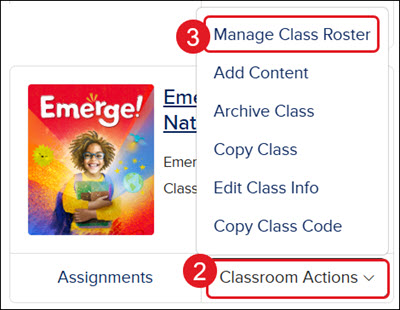
- Click Classroom Actions on the class card.
- Click Manage Class Roster on the menu.
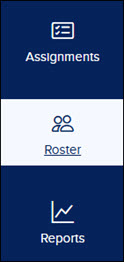
You can also launch the course and click Roster on the navigation menu.
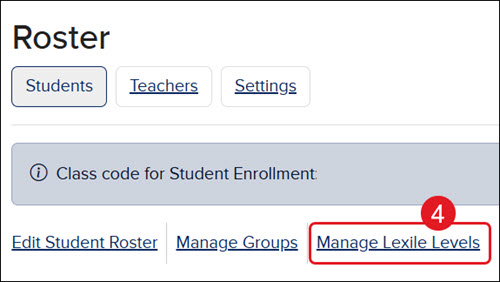
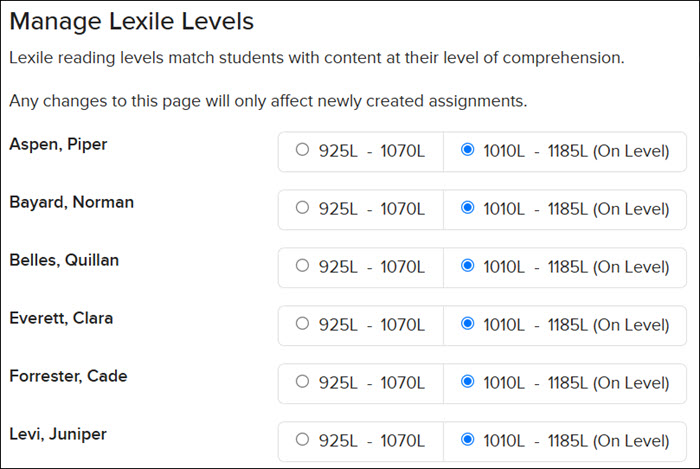
- Click the Manage Lexile Levels link.
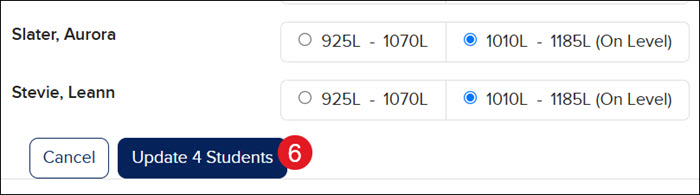
- Select the radio button for the appropriate Lexile level for each student.
- Click the Update Students button at the bottom.